7 Assistant Professor - Construction Management / Advanced Building Technology Resume Templates with Example
This guide shows you how to build an Assistant Professor - Construction Management / Advanced Building Technology resume that is clear, focused, and easy to review. You will learn how to organize academic evidence so research, teaching, service, and technical depth are easy to find.
Strong resumes for this role connect university teaching and student mentoring with research in digital construction, BIM/VDC, digital twins, reality capture, project controls, sustainable delivery, and data-informed construction decisions. They also show proposal work, interdisciplinary collaboration, construction software knowledge, and relevant credentials without turning the resume into a long research narrative.
The complete resume example below is presented in 7 layouts. Compare how each format handles section order, skills, education, projects, certifications, and experience, then choose the structure that best supports fast recruiter review and ATS-friendly text.
What Makes a Great Assistant Professor - Construction Management / Advanced Building Technology Resume in 2026
A strong resume balances research, teaching, service, and practical construction technology. It should make academic impact, student guidance, and applied project work easy to scan.
Use clear keywords such as BIM, VDC, digital twins, project controls, active learning, student mentoring, and external funding only where your experience supports them.
The examples shown below are intentionally detailed to demonstrate a range of experiences, skills, accomplishments and relevant keywords. We prefer detailed resumes as they provide more context to the hiring managers and also help the ATS systems identify relevant qualifications and score your resume better for a match. But the length of a resume is an individual choice. If you want a one page resume, just keep the most relevant experience and information for the job. Note: Resume examples are for educational purposes only. Use only information that accurately reflects your experience and qualifications. References to real organizations do not imply affiliation or endorsement.
#1 Plain Two Column Format Resume Example
A plain two-column structure separates supporting details from core experience, helping recruiters scan academic evidence without losing a clear reading path.
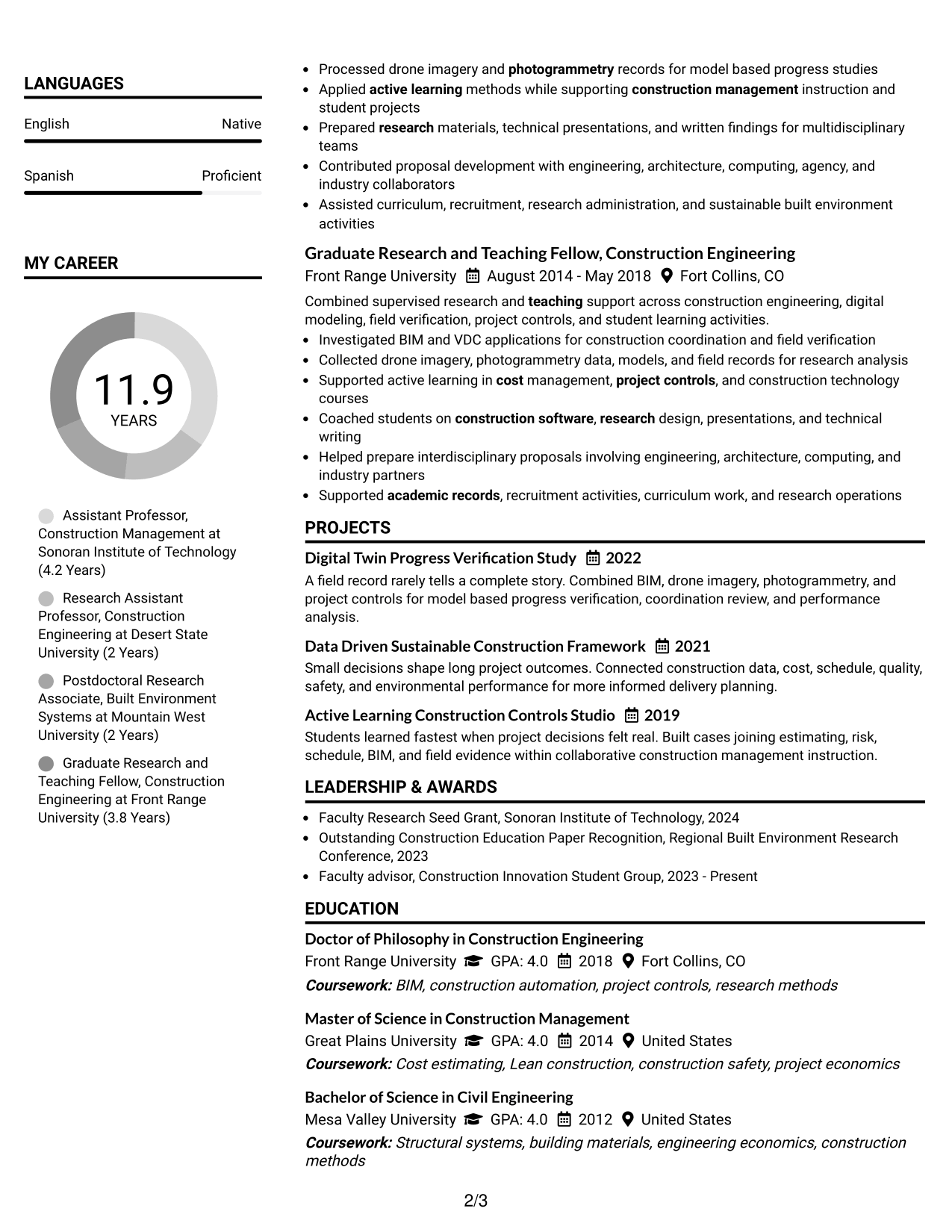
Resume Snapshot
- Eight years of combined postdoctoral and university faculty experience
- Ph.D. in Construction Engineering
- Research across digital construction, project controls, reality capture, and sustainable delivery
- Teaching, mentoring, proposal development, recruitment, and academic service experience
Why This Format Works
- Parallel sections keep career progression visible while supporting skills remain easy to locate.
- Separate content areas help recruiters distinguish academic experience from education and credentials.
- Balanced spacing gives research, teaching, and achievements room without crowding the main narrative.
Best For
- Academic resumes with several evidence types
- Readers comparing experience and credentials quickly
- Detailed faculty histories with compact supporting sections
- Applications needing clear section separation
- Professionals balancing research and teaching content
Resume Keywords
- Assistant Professor
- Construction Management
- Advanced Building Technology
- BIM
- VDC
- Digital Twins
- Project Controls
- Photogrammetry
- Active Learning
- Student Mentoring
- External Funding
- Sustainable Delivery
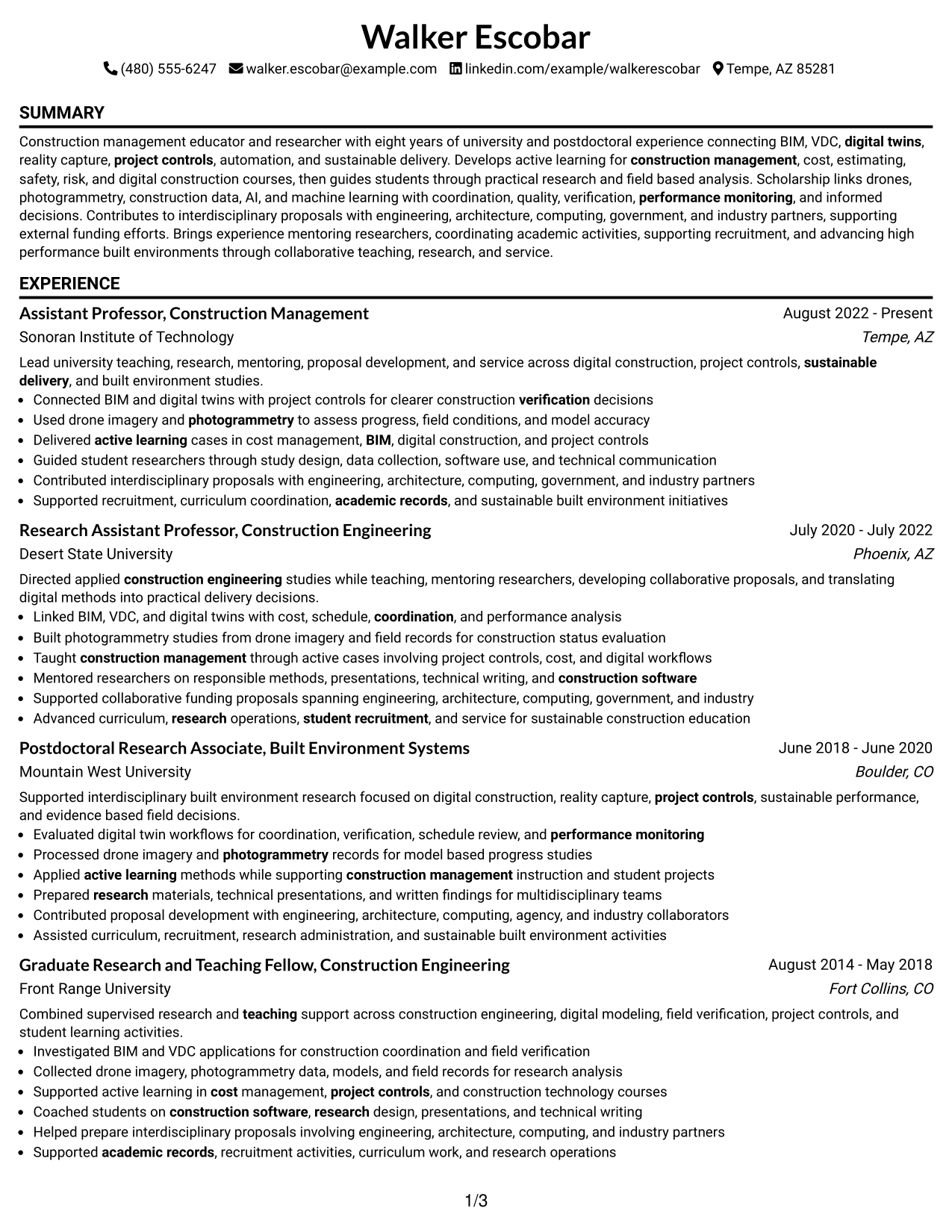
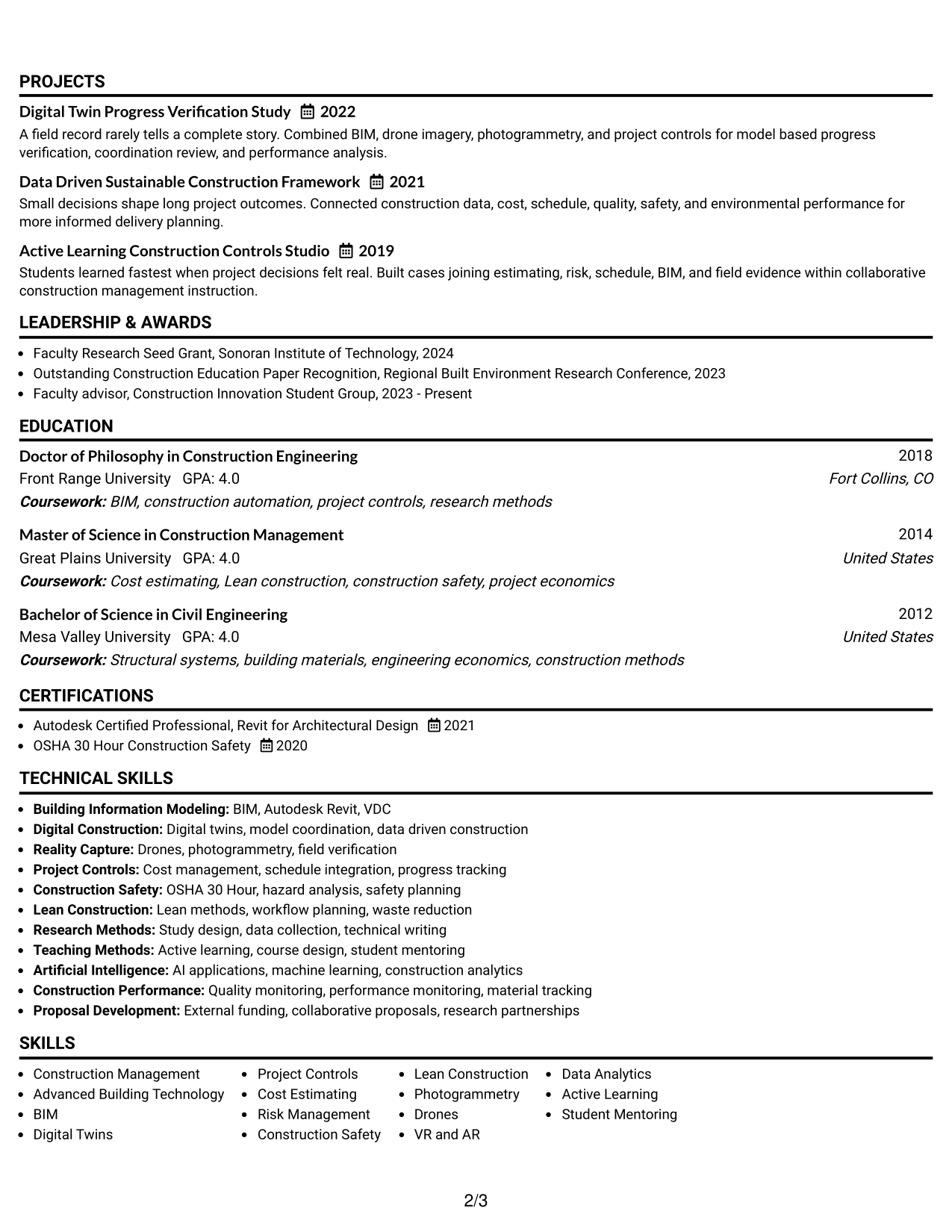
#2 Simple One Column Format Resume Example
A simple one-column flow gives recruiters one direct reading order from summary through experience, education, skills, projects, and credentials.
Why This Format Works
- Linear reading keeps career progression easy to follow from newest experience backward.
- Full-width sections give detailed experience and achievements consistent room across the page.
- Straight section order helps education and credentials remain clear after the experience record.
Best For
- Applications needing a direct reading order
- Longer experience descriptions
- Traditional academic resume presentation
- Readers who prefer full-width sections
- Content that benefits from simple hierarchy
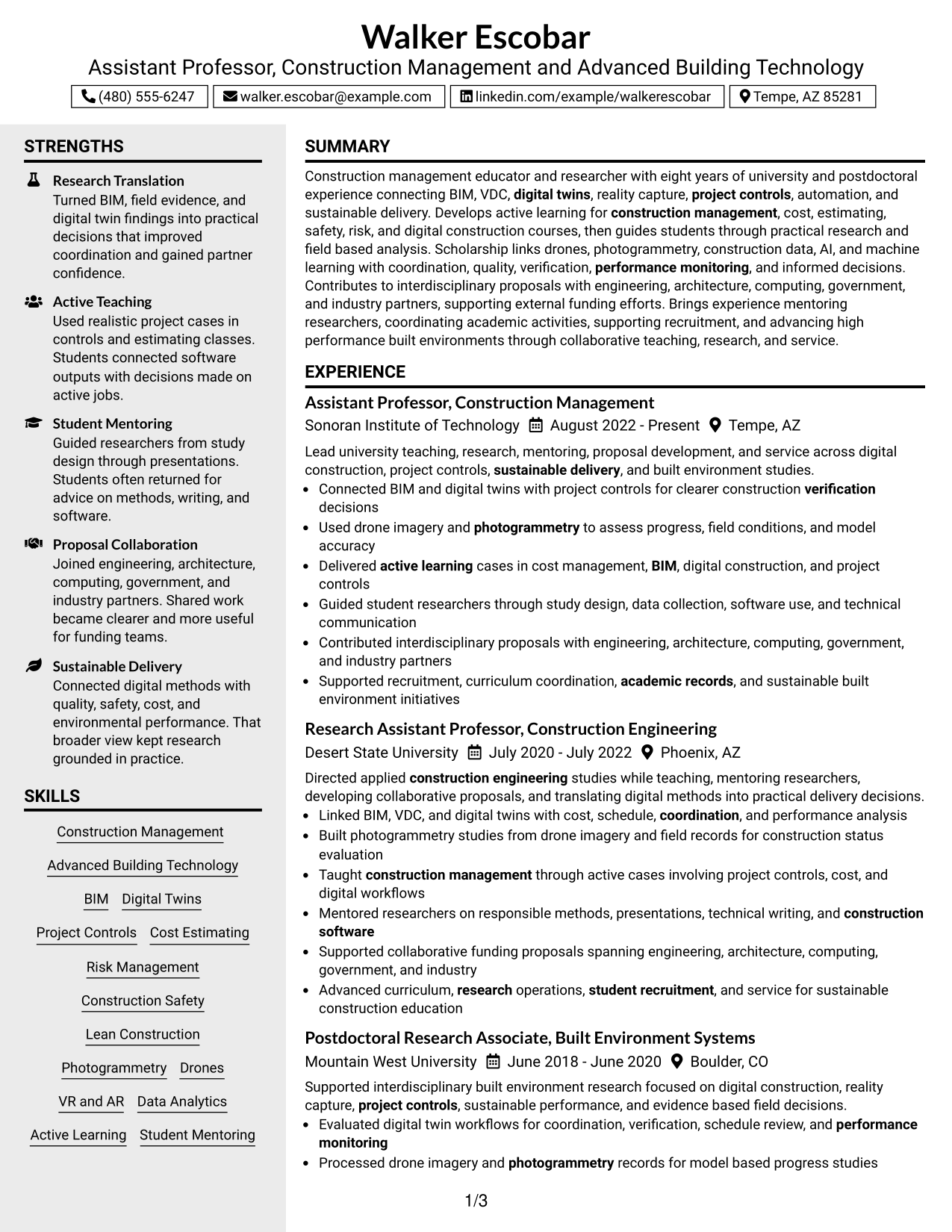
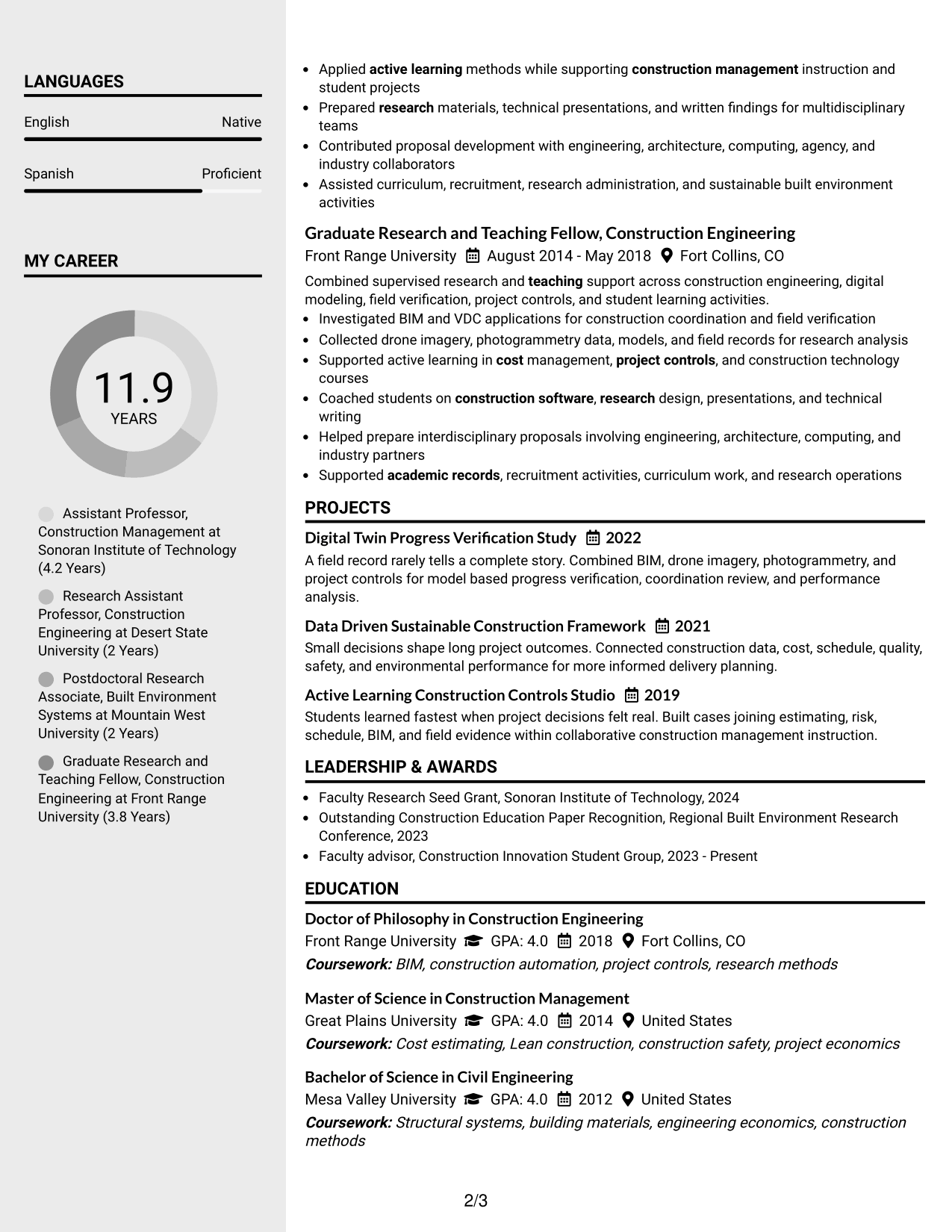
#3 Clean Two Column Sidebar Format Resume Example
A clean two-column sidebar format gives recruiters a stable side area for supporting sections while the main column carries the longer experience record.
Why This Format Works
- The sidebar separates skills and credentials from the longer career history.
- Main-column space keeps experience and achievements connected in a readable sequence.
- Visible section boundaries help reviewers move between qualifications without rereading dense content.
Best For
- Resumes with many supporting qualifications
- Quick comparison of skills and experience
- Compact education and credential sections
- Readers who value visible navigation
- Faculty applications with varied content categories
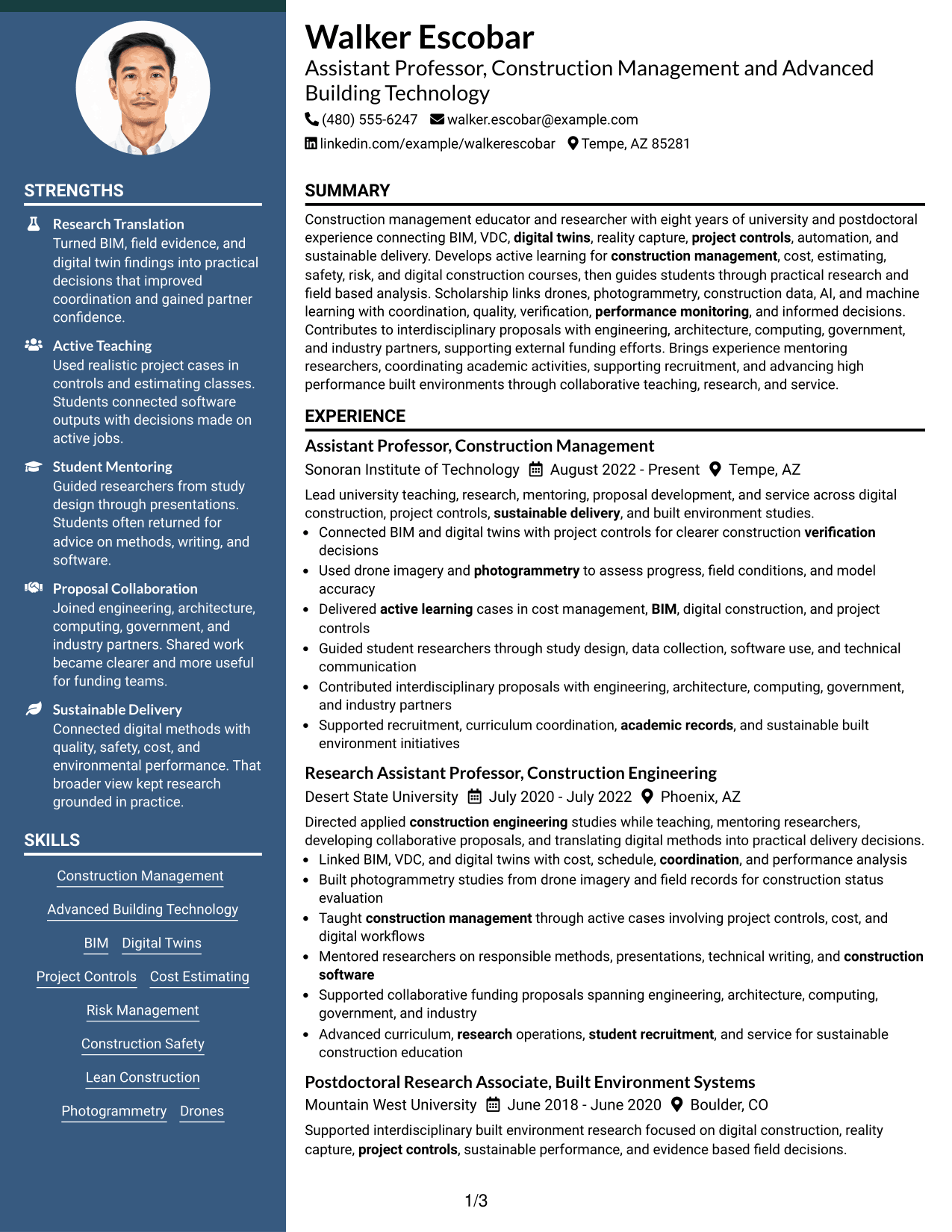
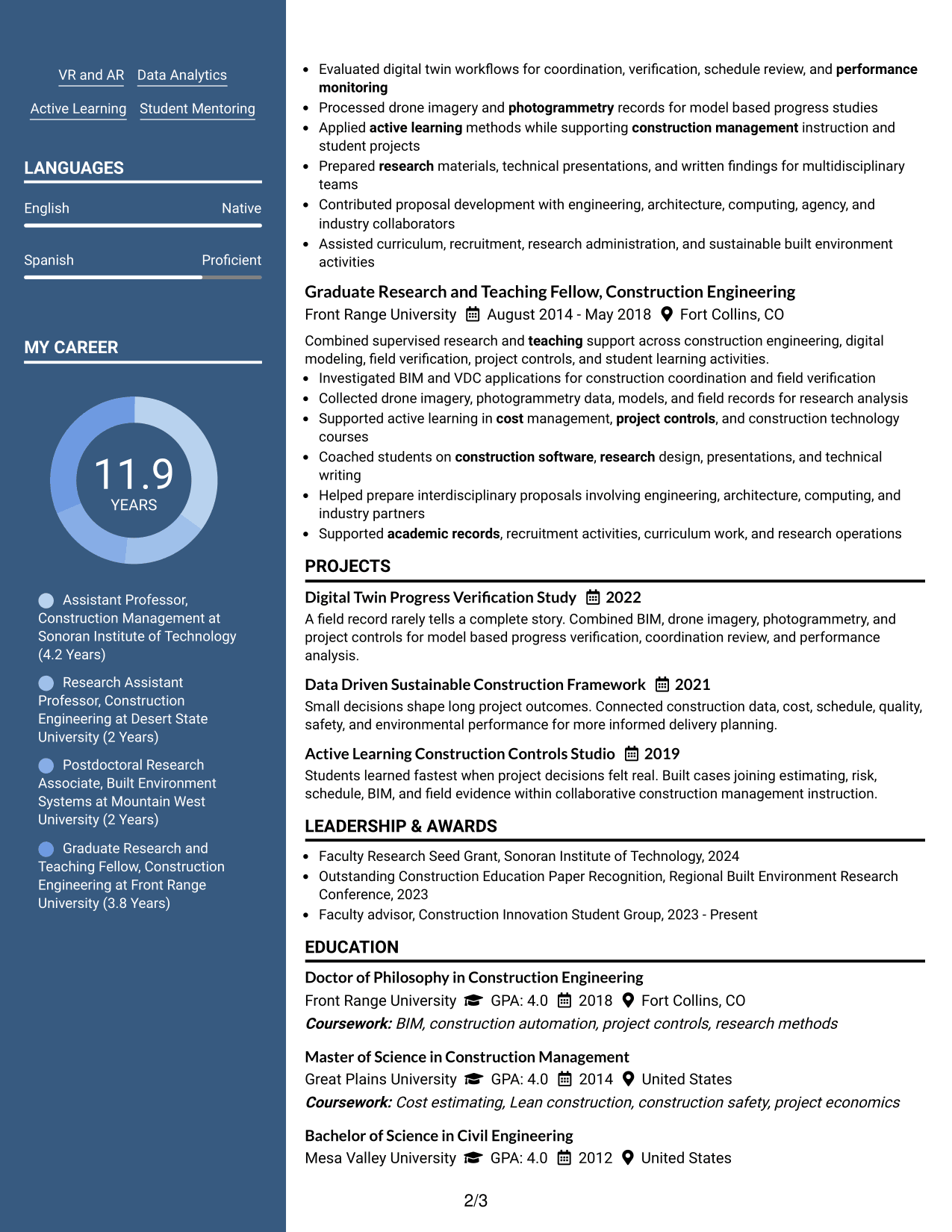
#4 Two Column Format Resume Example
A balanced two-column format lets recruiters compare major resume sections side by side while keeping the academic record organized and easy to trace.
Why This Format Works
- Side-by-side organization reduces long vertical runs across varied resume sections.
- Distinct columns help skills, education, and experience stay visually separate during review.
- Balanced section blocks support quick movement between achievements and supporting qualifications.
Best For
- Resumes with balanced content across sections
- Readers scanning several qualification types
- Academic records with strong supporting sections
- Applications where compact structure matters
- Professionals presenting varied evidence evenly
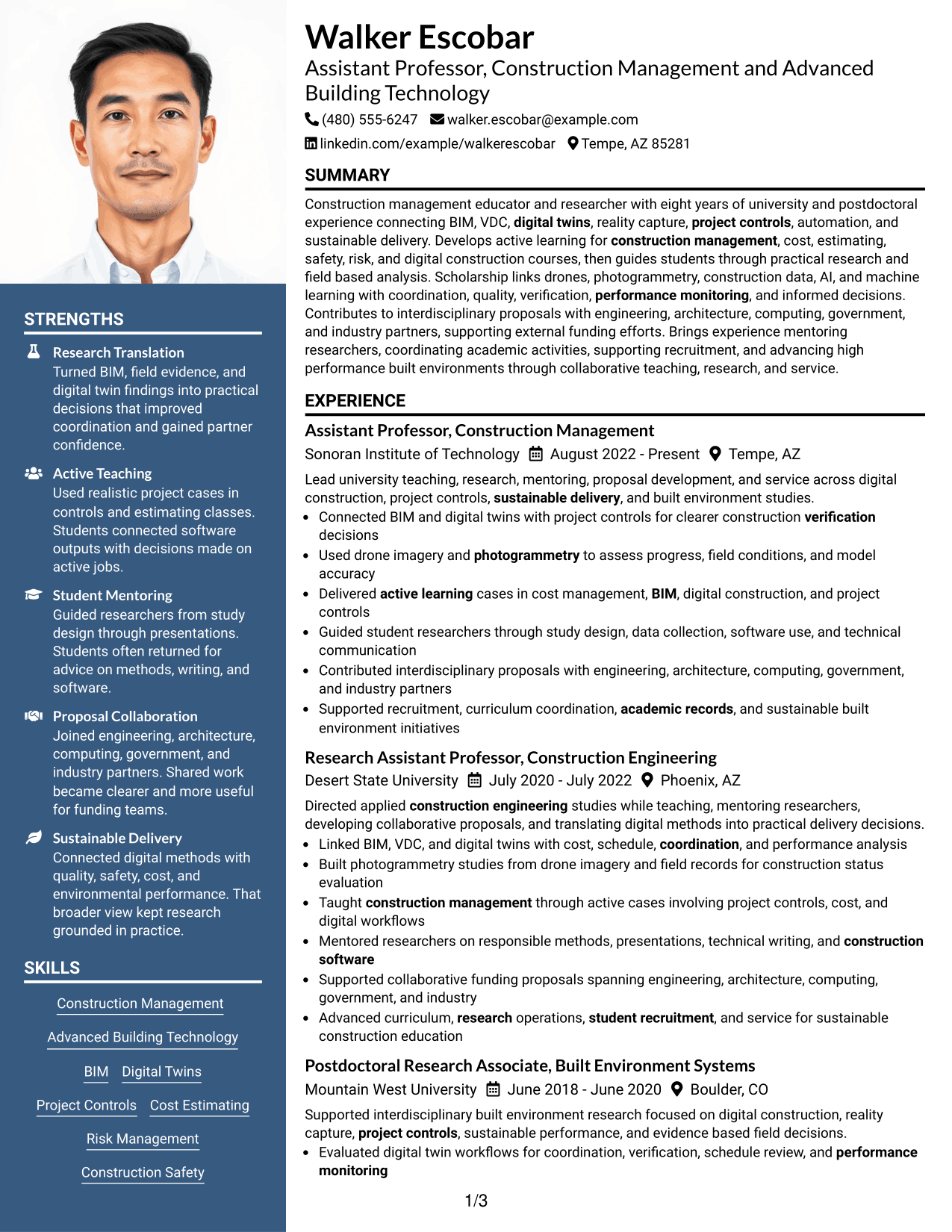
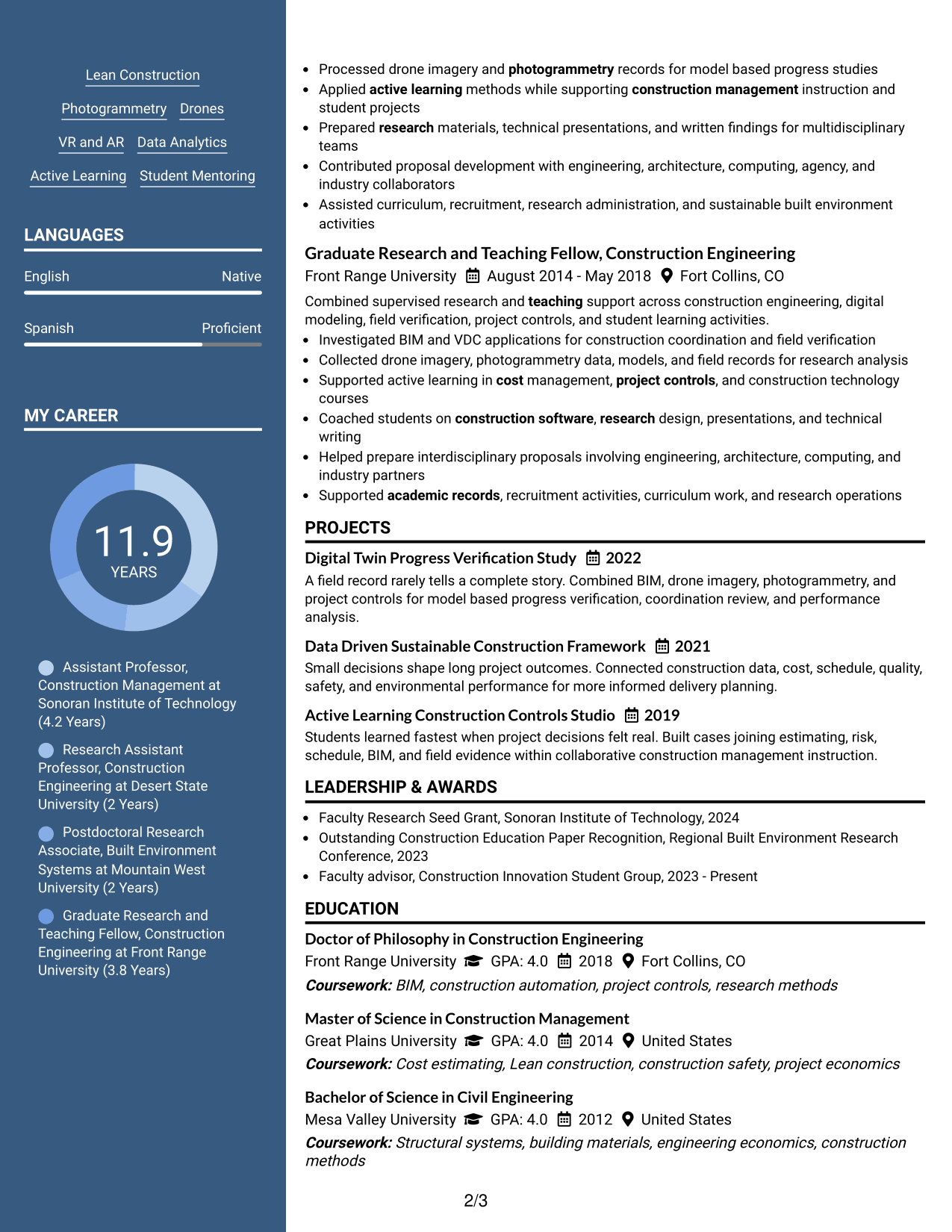
#5 Photo Header Two Column Format Resume Example
A photo header above a two-column body gives recruiters a clear identity area, then divides the resume into organized content zones for faster scanning.
Why This Format Works
- The header identifies the applicant before the two-column body begins.
- Body columns separate experience from supporting sections such as skills and education.
- Clear content zones help achievements and credentials remain distinct during a quick review.
Best For
- Regions where resume photos are expected
- Applications requiring a prominent identity header
- Readers who prefer separated content zones
- Resumes combining detailed experience with compact qualifications
- International contexts that commonly accept photos
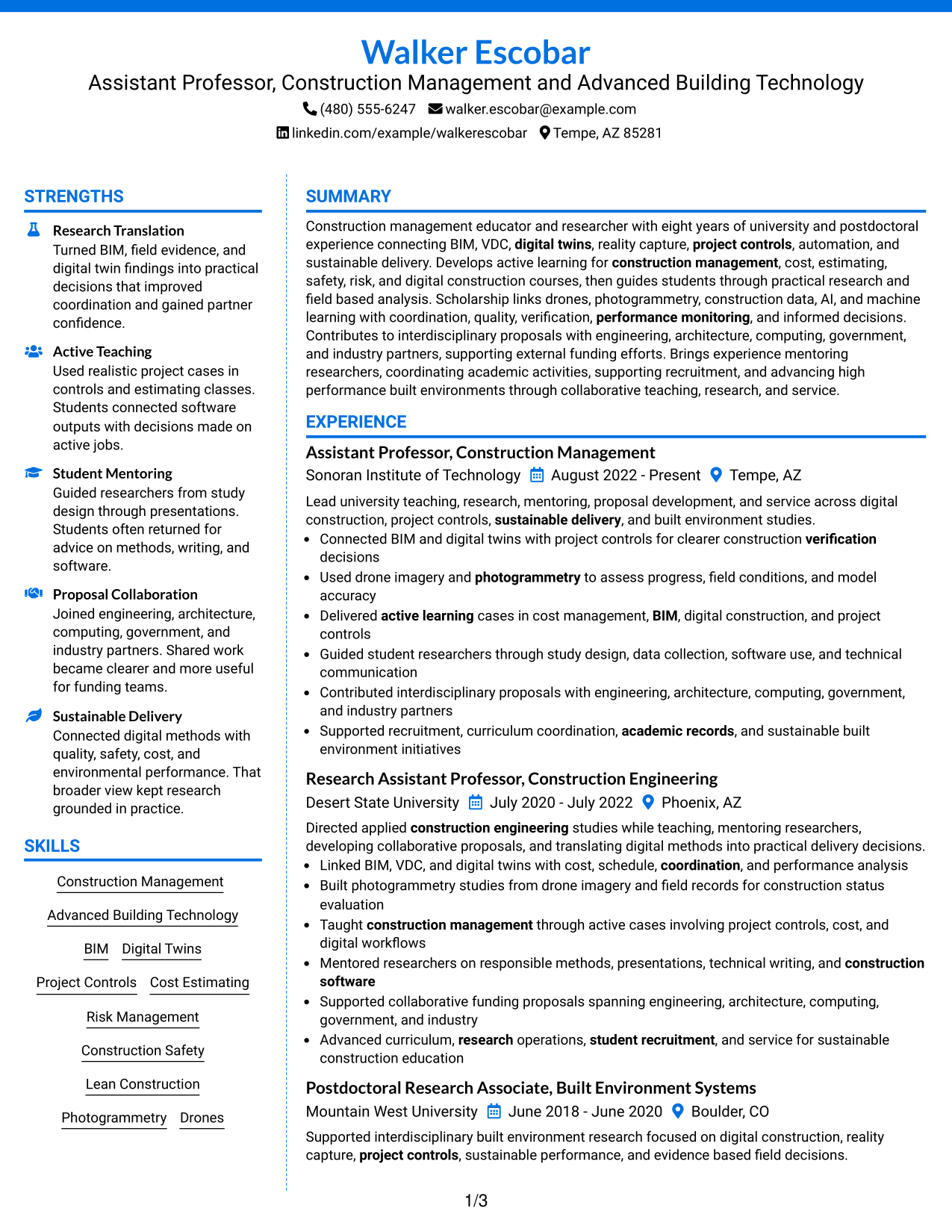
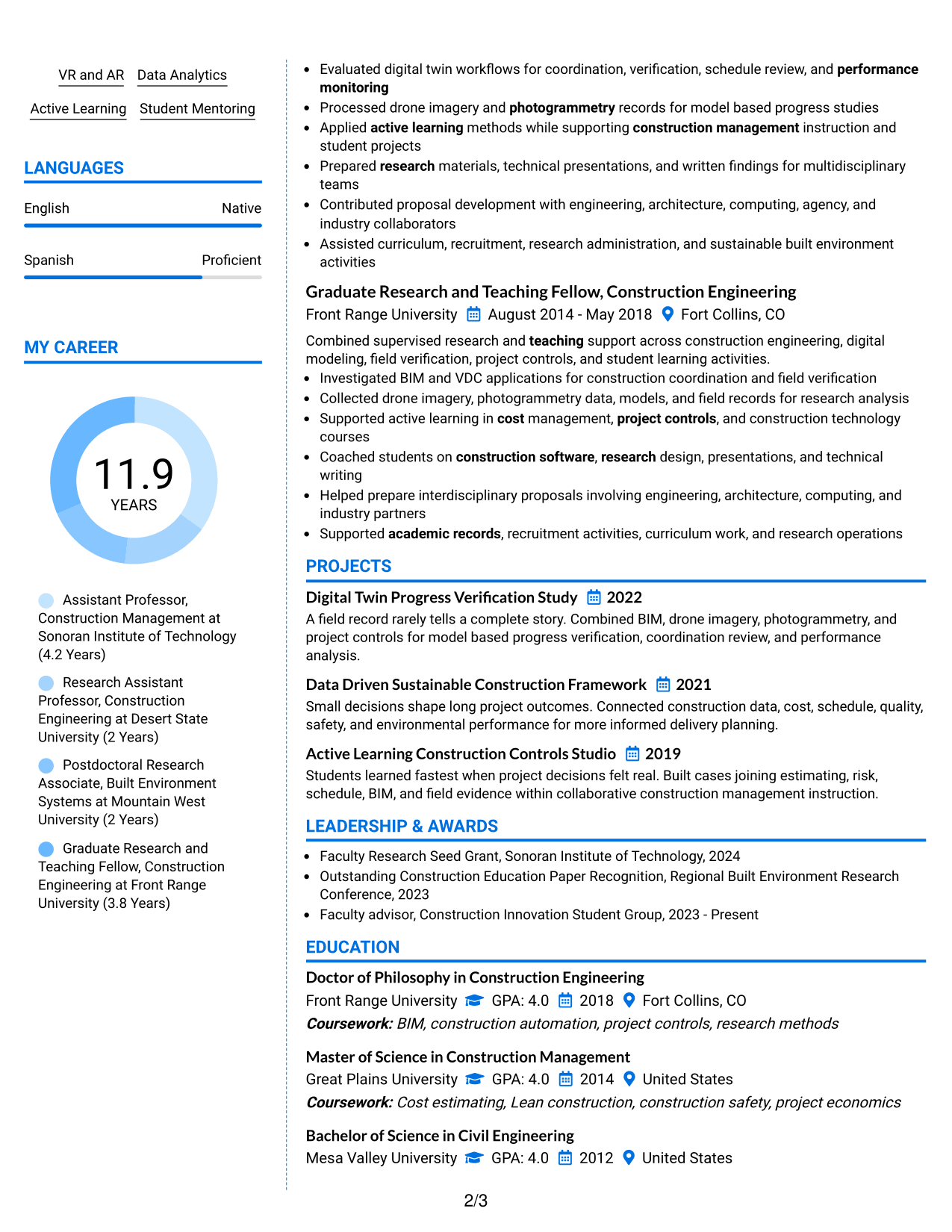
#6 Colored Two Column Format Resume Example
A colored two-column structure uses visual contrast to mark section boundaries, helping recruiters move between experience, skills, education, and other qualifications.
Why This Format Works
- Color contrast makes major section breaks easier to notice during fast scanning.
- Two-column organization keeps supporting qualifications from interrupting the experience narrative.
- Defined areas give education, skills, and achievements clear visual separation.
Best For
- Readers who benefit from stronger section cues
- Resumes with dense but structured content
- Applications allowing restrained visual color
- Qualifications that need clear grouping
- Professional documents with several compact sections
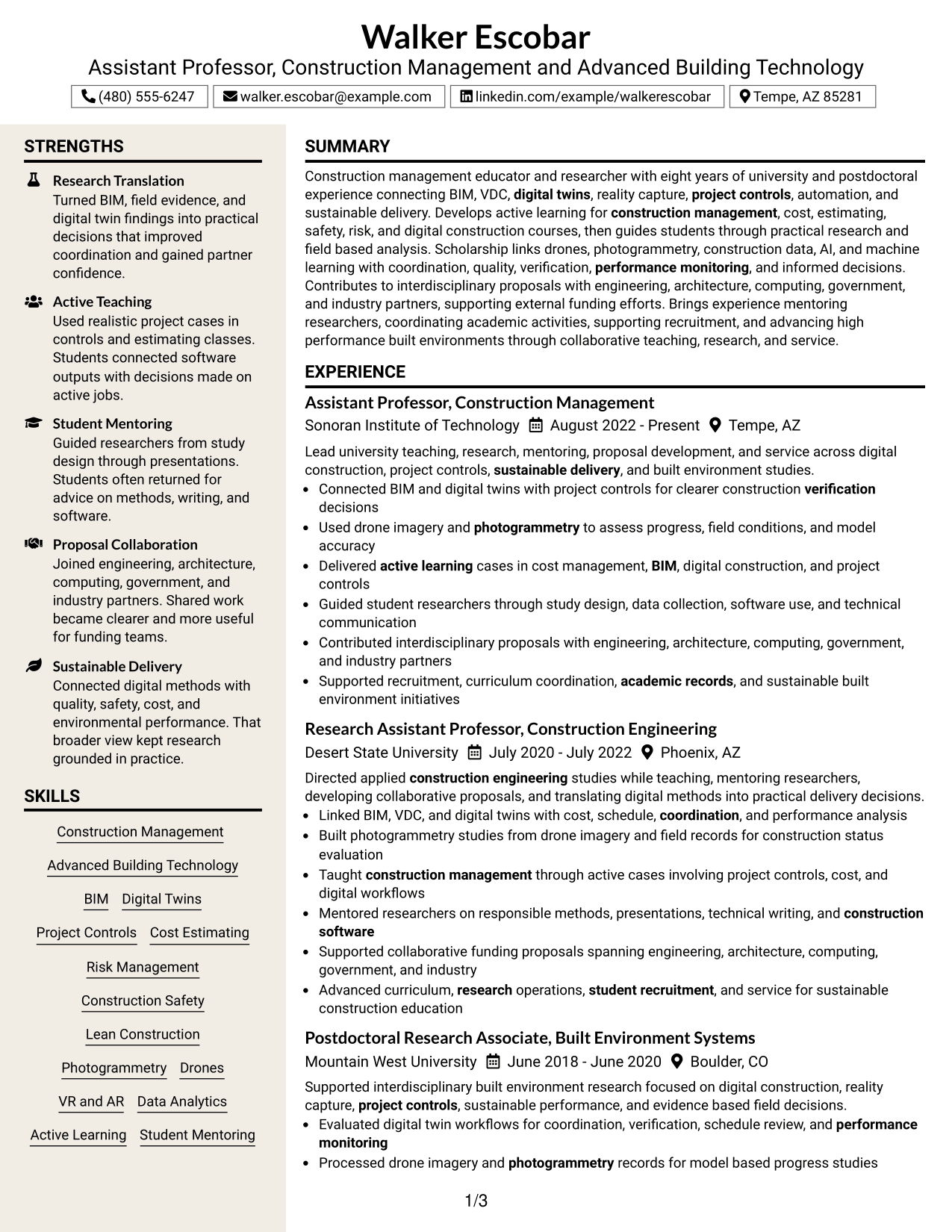
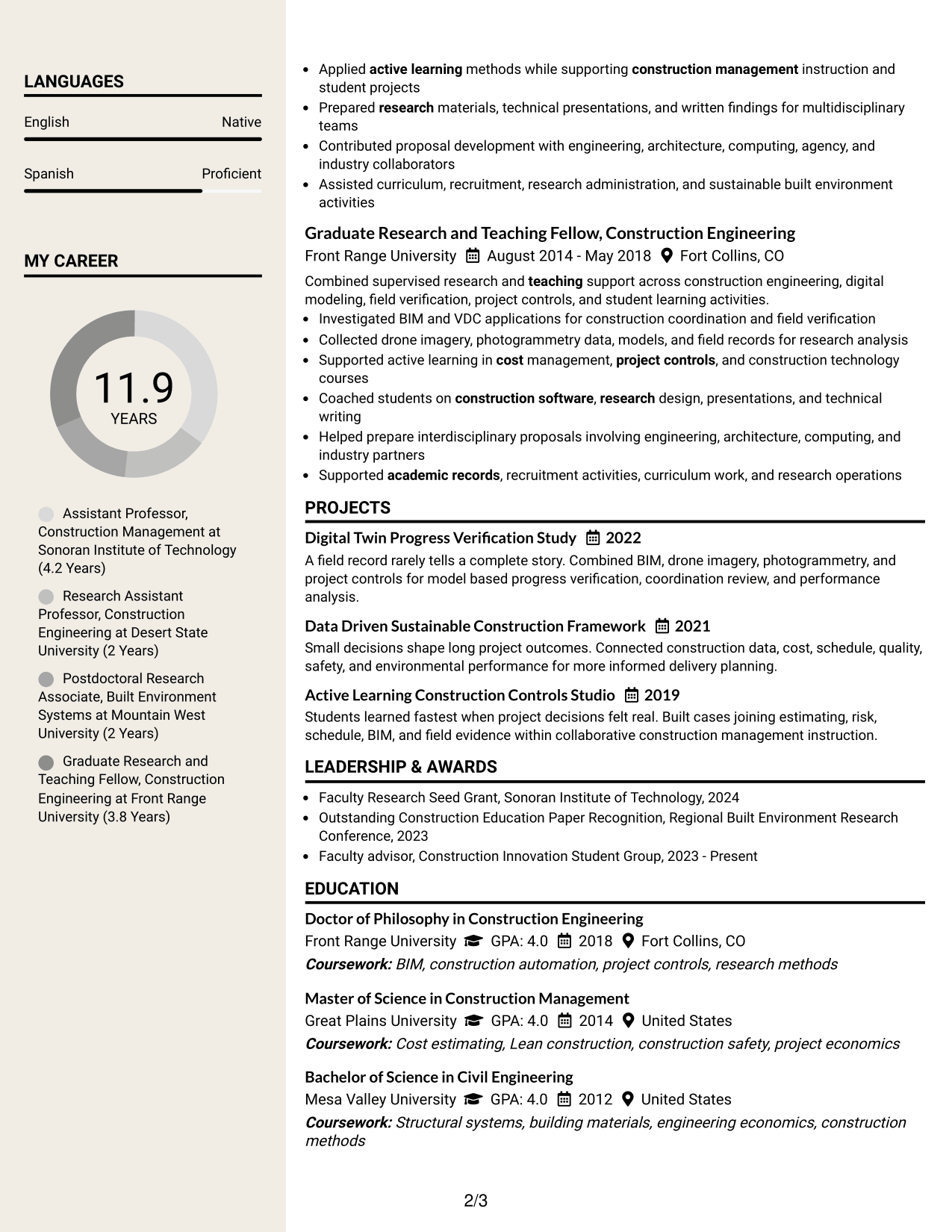
#7 Stylish Two Column Designer Format Resume Example
A stylish two-column designer format gives recruiters clear section separation with a more expressive visual presentation while keeping the resume content structured.
Why This Format Works
- Strong section framing helps reviewers distinguish experience, achievements, and supporting credentials.
- Two-column structure keeps varied academic content organized without creating one long stream.
- Visual separation helps skills and education remain findable beside deeper career information.
Best For
- Applications permitting a more expressive layout
- Readers comparing diverse academic qualifications
- Resumes needing stronger visual section separation
- Professionals with several supporting content blocks
- Contexts where design can remain professional
Why Build Your Assistant Professor - Construction Management / Advanced Building Technology Resume with ResumeInMinutes
ResumeInMinutes helps you turn academic research, teaching, projects, technical skills, credentials, and service into a resume that is easier to scan and tailor for construction-management faculty roles.
- Multiple professional resume formats
- ATS-friendly section structure
- Role-focused keyword guidance
- Clear research and teaching sections
- Free PDF resume previews
- Flexible resume customization
You can keep research, teaching, student mentoring, technical expertise, education, certifications, and service visible while adjusting the layout for the requirements of a specific faculty opening.
See Also
- 7 Assistant Professor of Engineering Technologies and Applied Design Resume Templates with Example
- 7 Assistant Clinical Professor - Food and Nutrition Resume Templates with Example
- 7 Assistant Professor, Computer Engineering Resume Templates with Example
- 7 Assistant Professor - Creative Writing (Fiction) Resume Templates with Example
- 7 Assistant Professor - Electrical & Computer Engineering - Remote Sensing Systems Resume Templates with Example
- 7 Assistant Professor of Instruction in Music Education (Music Education and Student Teaching Coordinator) Resume Templates with Example
- 33 Assistant Professor of Nursing - Medical Surgical Resume Templates with Example 2026 (ATS-Optimized)
- 33 Assistant Professor or Associate Professor, Medical Physics Resume Templates with Example 2026 (ATS-Optimized)
- 30+ Assistant Professor of Nursing - Medical Surgical Cover Letter Templates with Example 2026
- 30+ Assistant Professor or Associate Professor, Medical Physics Cover Letter Templates with Example 2026
Frequently Asked Questions
Are these Assistant Professor - Construction Management / Advanced Building Technology resume templates ATS-friendly?
Yes. The layouts use clear sections and readable text. For stronger ATS matching, include supported terms such as construction management, BIM, digital twins, project controls, active learning, and external funding.
Are these seven different resumes?
No. The guide shows one complete resume in several visual formats so you can compare organization, reading order, and section emphasis.
What should this Assistant Professor resume include?
Include a focused summary, academic experience, research, teaching, student mentoring, education, technical skills, projects, certifications, awards, service, and proposal or funding work that your record supports.
Can I download the resume templates as PDFs?
Yes. Each design includes a free PDF preview so you can compare the layout before choosing a format.
Which resume style works well for this faculty role?
A clear one-column layout gives a simple reading order. A two-column layout can separate skills, credentials, and supporting details from longer experience content. Choose the format that keeps your strongest evidence easy to find.
How should I show research and teaching without making the resume too dense?
Use short bullets with clear outcomes. Group research, teaching, mentoring, proposal work, and service under distinct headings, then keep detailed publication material for a CV when the application requests one.
Should I include a photo on my resume?
For U.S. faculty applications, a no-photo resume is usually the safer choice unless the institution or application context clearly expects a photo.
Can I customize these resume templates?
Yes. You can edit the wording, section order, design, and PDF layout to match the construction-management faculty position while keeping every claim accurate.