7 Children's Long-Term Support - Human Services Paraprofessional Resume Templates with Example
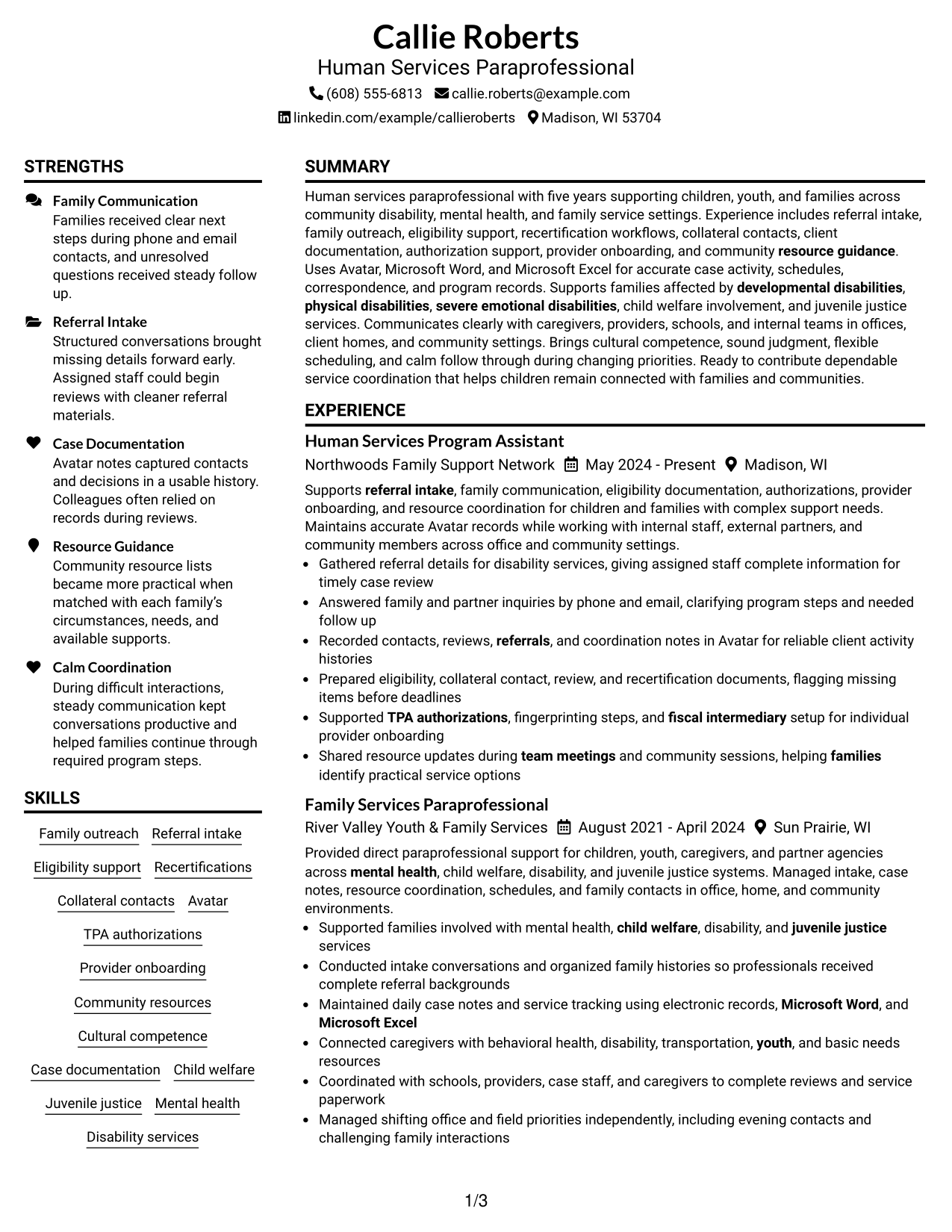
This guide shows you how to build a Children's Long-Term Support - Human Services Paraprofessional resume that is clear, focused, and easy to review. You will learn how to organize your evidence so recruiters can quickly understand your fit for the role.
Strong resumes for this work connect family service experience with referral intake, eligibility support, case documentation, community resources, and dependable follow-up. They also use clear section headings and role-specific terms such as Avatar, recertifications, collateral contacts, TPA authorizations, and provider onboarding where the experience supports them.
The same complete resume appears in 7 layouts so you can compare reading order, section balance, and visual structure. Use the examples to decide how to present experience, education, skills, certifications, tools, and practical service coordination evidence.
What Makes a Great Children's Long-Term Support - Human Services Paraprofessional Resume in 2026
A strong resume is easy to scan and keeps the most relevant human services evidence close to the top. Clear experience bullets, skills, education, and credentials help recruiters understand the match quickly.
Use supported keywords such as referral intake, eligibility support, Avatar, recertifications, case documentation, and community resources. Match each term to real experience instead of adding keywords without evidence.
The examples shown below are intentionally detailed to demonstrate a range of experiences, skills, accomplishments and relevant keywords. We prefer detailed resumes as they provide more context to the hiring managers and also help the ATS systems identify relevant qualifications and score your resume better for a match. But the length of a resume is an individual choice. If you want a one page resume, just keep the most relevant experience and information for the job. Note: Resume examples are for educational purposes only. Use only information that accurately reflects your experience and qualifications. References to real organizations do not imply affiliation or endorsement.
#1 Plain Two Column Format Resume Example
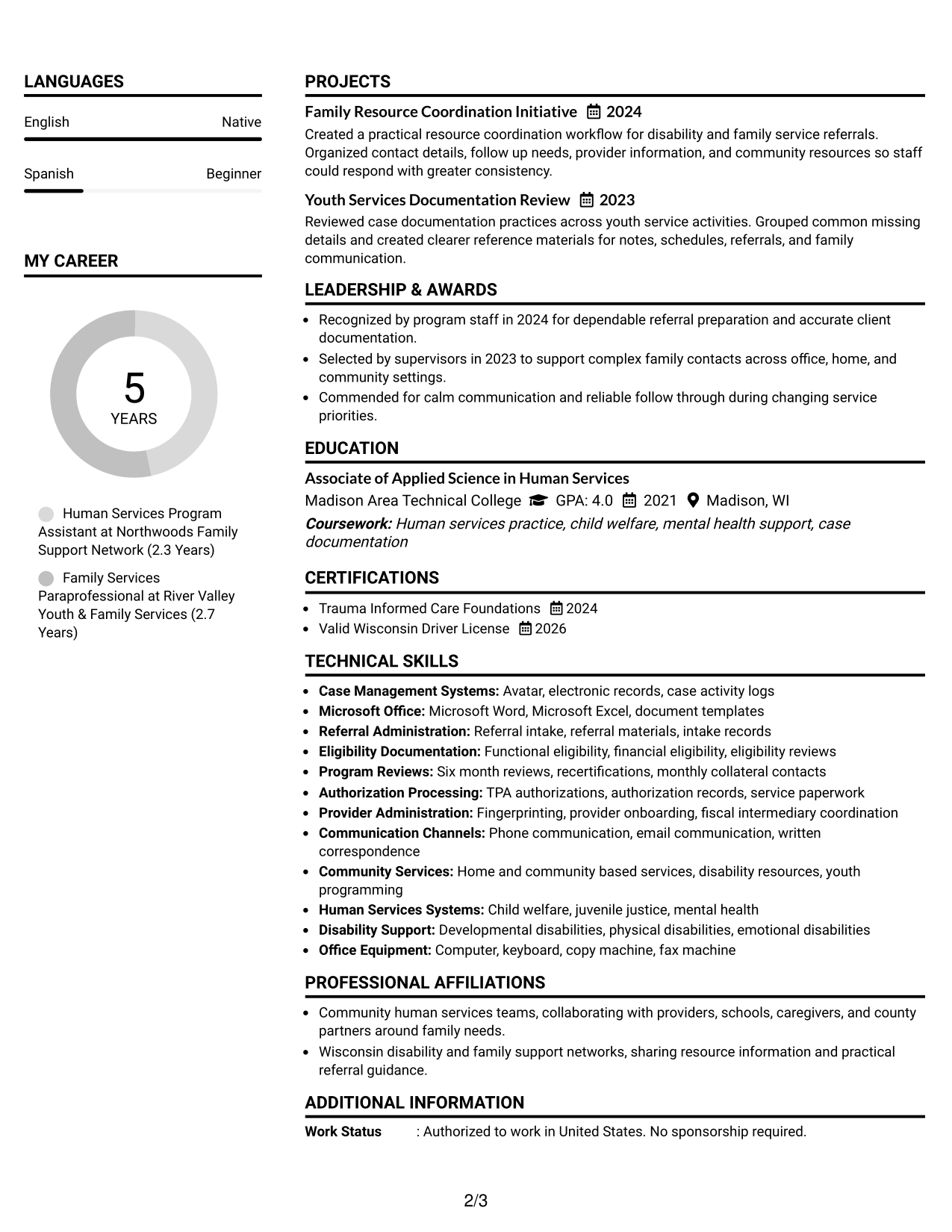
The Plain Two Column Format separates core resume sections into two clear areas, helping recruiters scan a detailed record without losing the reading order.
Resume Snapshot
- 5 years supporting children, youth, and families in community-based human services settings
- Associate of Applied Science in Human Services from Madison Area Technical College
- Hands-on experience with referral intake, eligibility workflows, case documentation, and family outreach
- Tools and credentials include Avatar, Microsoft Word, Microsoft Excel, and a valid Wisconsin driver license
Why This Format Works
- Two columns give experience and supporting credentials clear, separate visual space.
- Section boundaries help recruiters compare career history, skills, and education quickly.
- Balanced areas make detailed experience easier to scan without hiding key credentials.
Best For
- Detailed experience with several supporting sections
- Readers who prefer fast section comparison
- Resumes balancing career history and credentials
- Applications with substantial skills and tools
- Human services resumes with varied evidence
Resume Keywords
- referral intake
- family outreach
- functional eligibility
- financial eligibility
- recertifications
- collateral contacts
- Avatar
- TPA authorizations
- provider onboarding
- fiscal intermediary
- community resources
- case documentation
#2 Simple One Column Format Resume Example
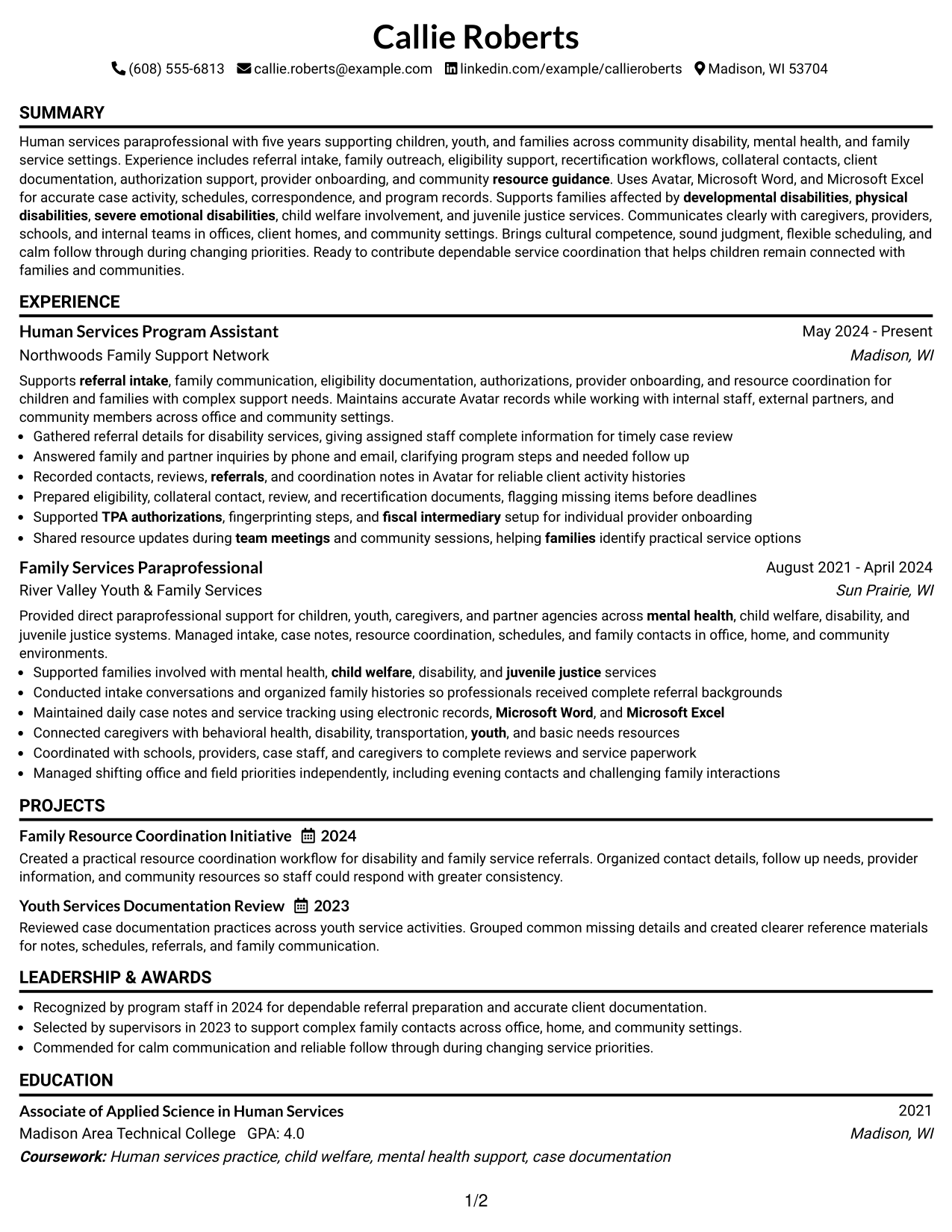
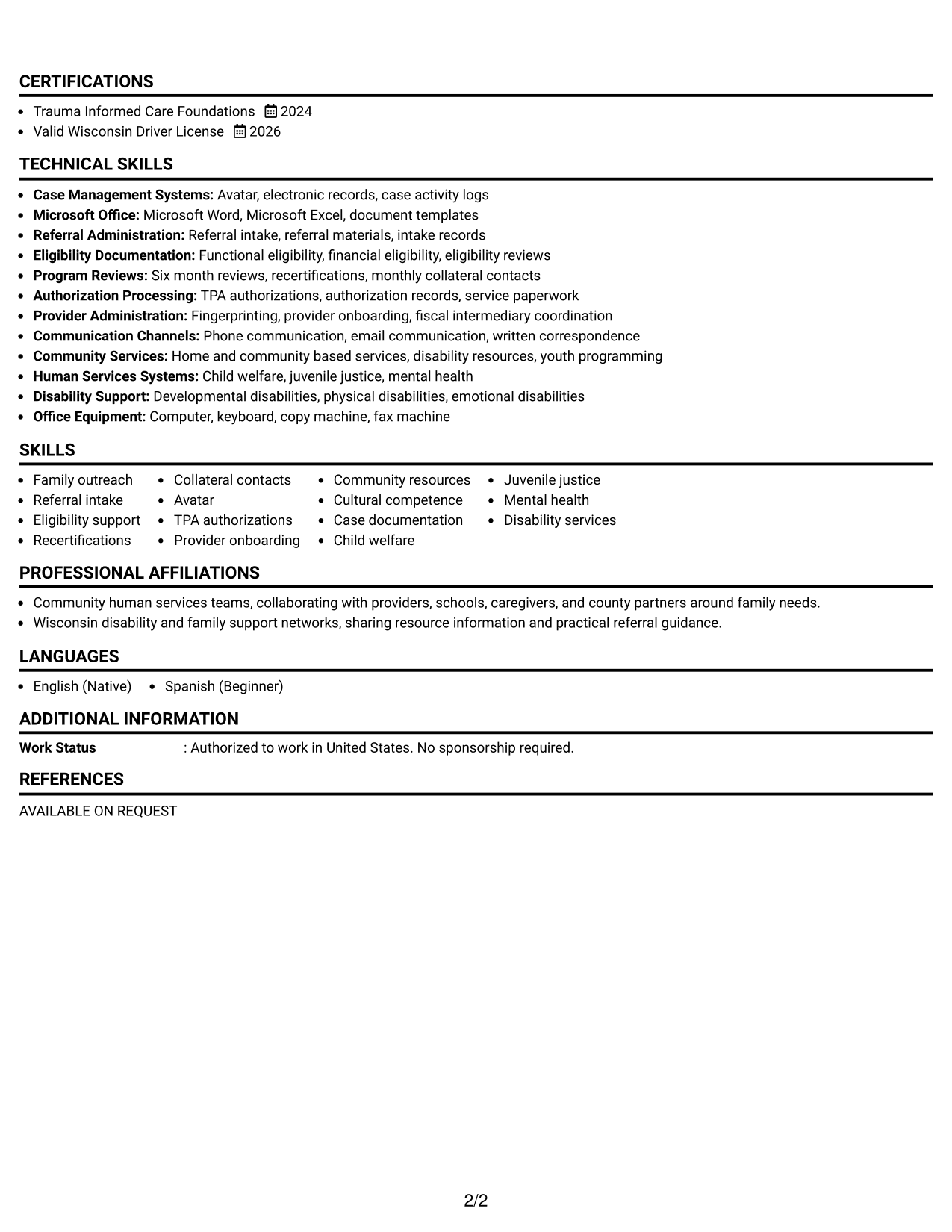
The Simple One Column Format keeps every section in one direct reading path, making the resume easy for recruiters to follow from top to bottom.
Why This Format Works
- One reading path keeps career progression easy to follow from start to finish.
- Full-width sections give experience bullets room for clear, readable detail.
- Simple section order helps education, skills, and credentials remain easy to locate.
Best For
- Straightforward chronological reading
- Text-heavy experience bullets
- ATS-focused applications
- Readers who value simple navigation
- Resumes with clear section priority
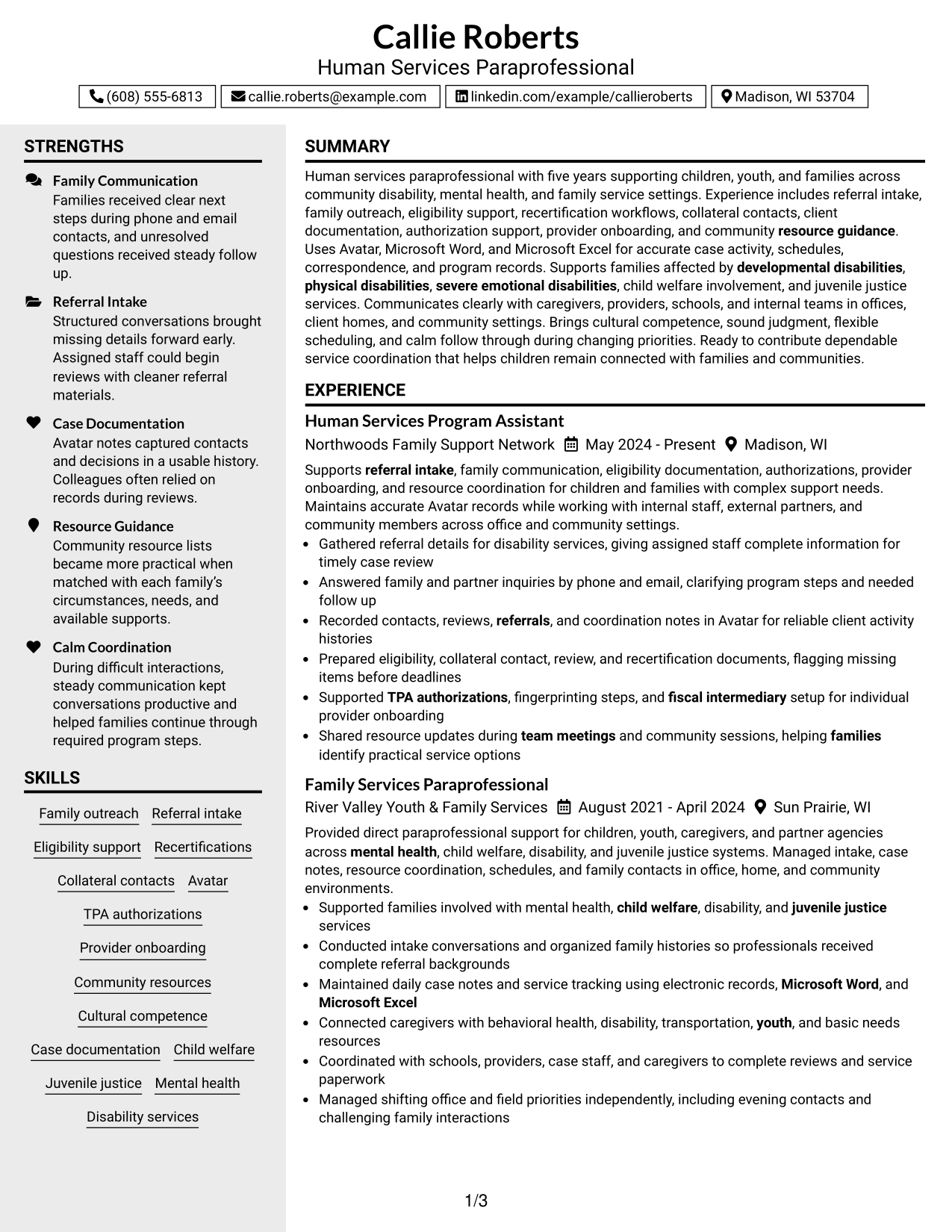
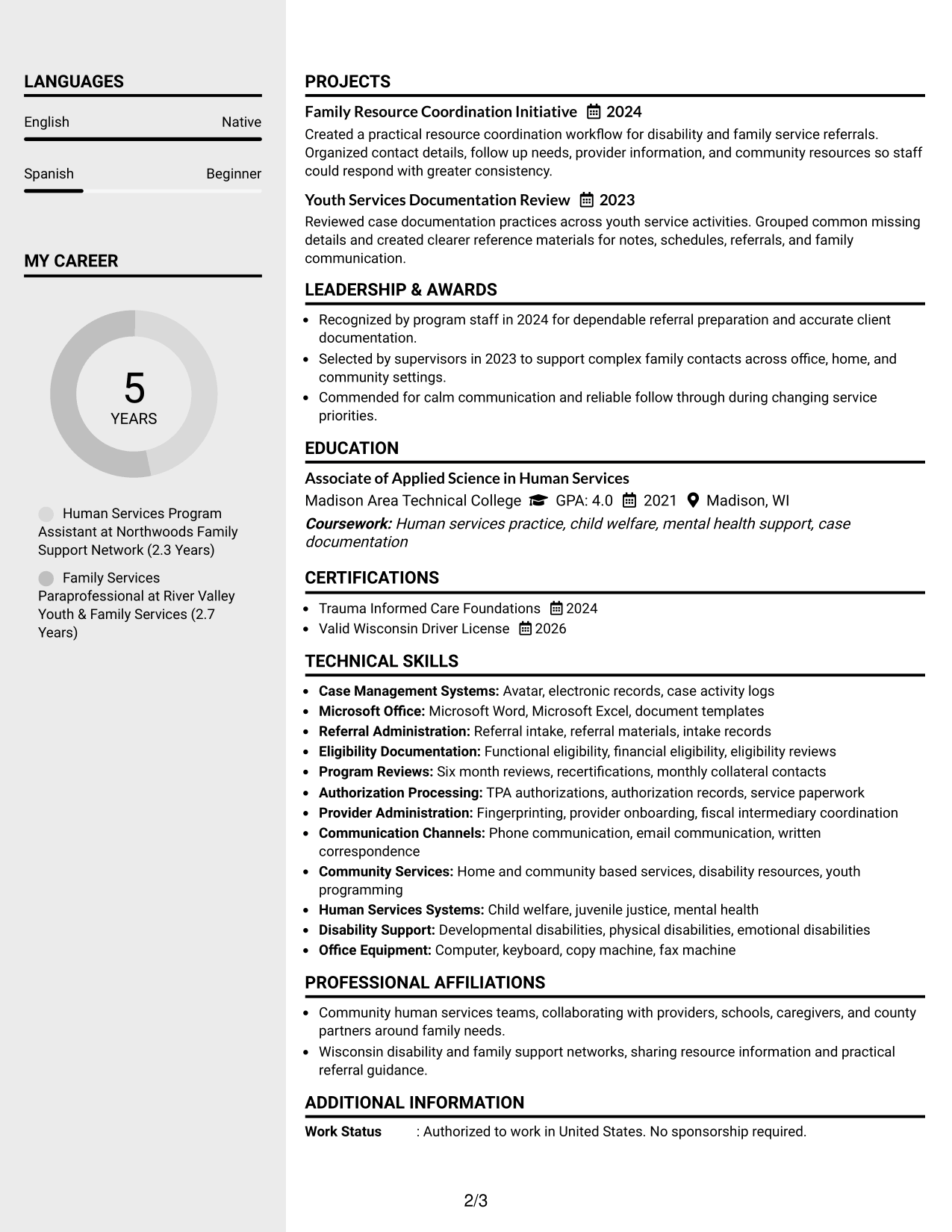
#3 Clean Two Column Sidebar Format Resume Example
The Clean Two Column Sidebar Format pairs a main content area with a compact sidebar, helping recruiters separate detailed experience from supporting information.
Why This Format Works
- Main content space keeps experience and achievements central during recruiter review.
- Sidebar separation gives skills and credentials a distinct place for quick reference.
- Two-column structure reduces visual crowding across education and supporting sections.
Best For
- Experience-led resumes with supporting details
- Quick access to skills and credentials
- Content needing stronger section separation
- Readers comparing core and supporting evidence
- Resumes with several concise side sections
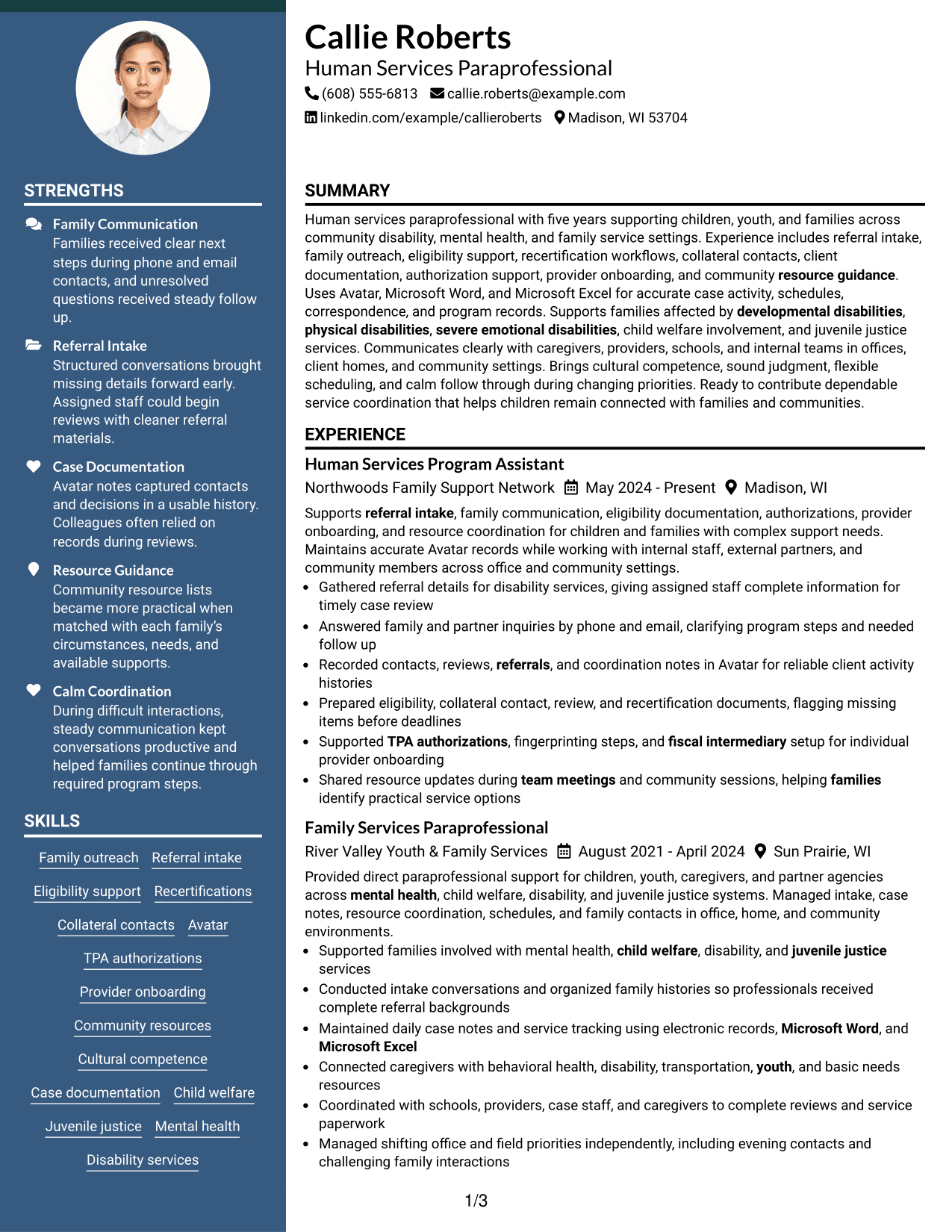
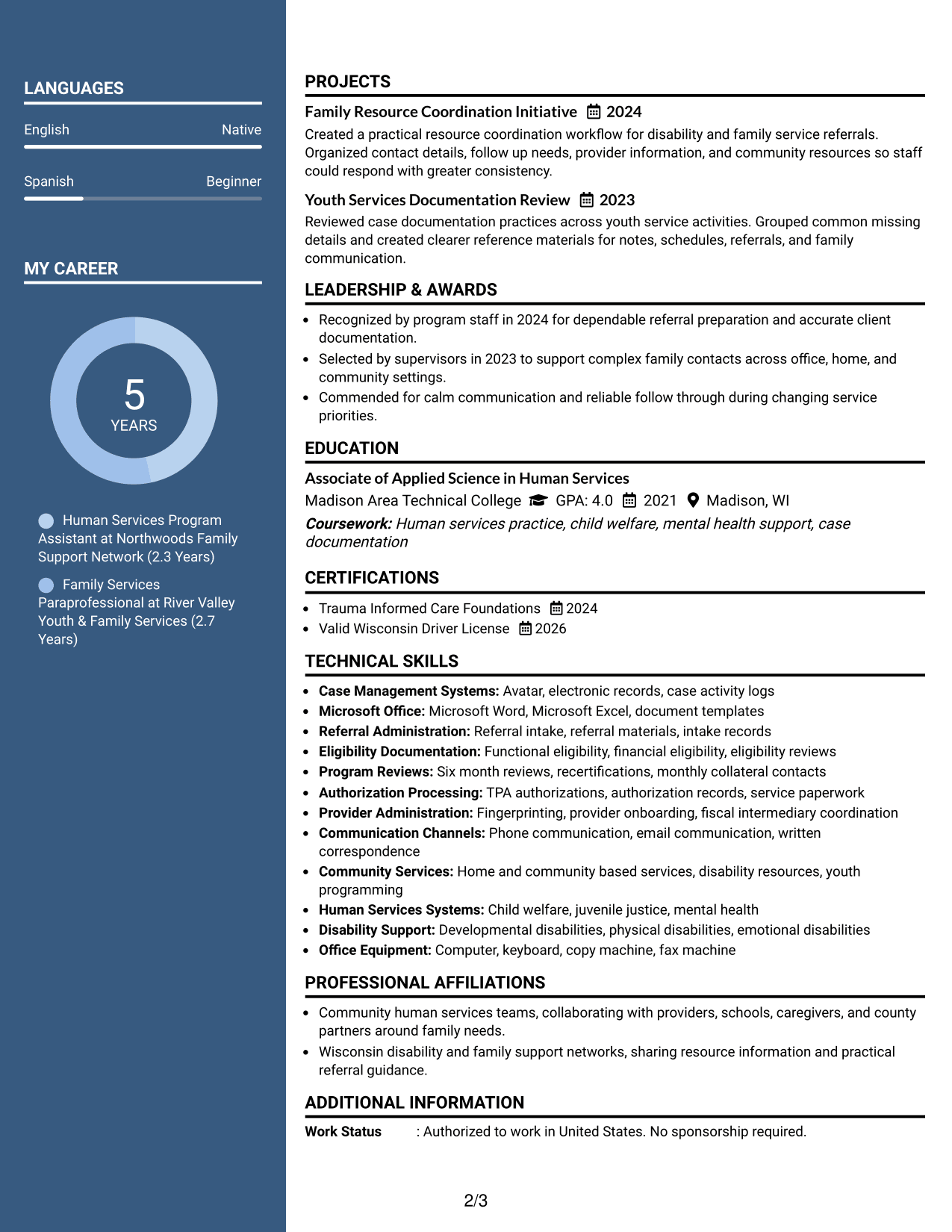
#4 Two Column Format Resume Example
The Two Column Format divides the resume into parallel content areas, giving recruiters a compact way to review experience and supporting sections.
Why This Format Works
- Parallel sections let recruiters move between experience and supporting qualifications efficiently.
- Compact organization helps skills, education, and credentials stay visible without long scrolling.
- Separate content areas make varied resume evidence easier to compare at a glance.
Best For
- Balanced career and qualification content
- Applications with many supporting sections
- Readers who compare information side by side
- Compact presentation of varied evidence
- Resumes needing efficient use of space
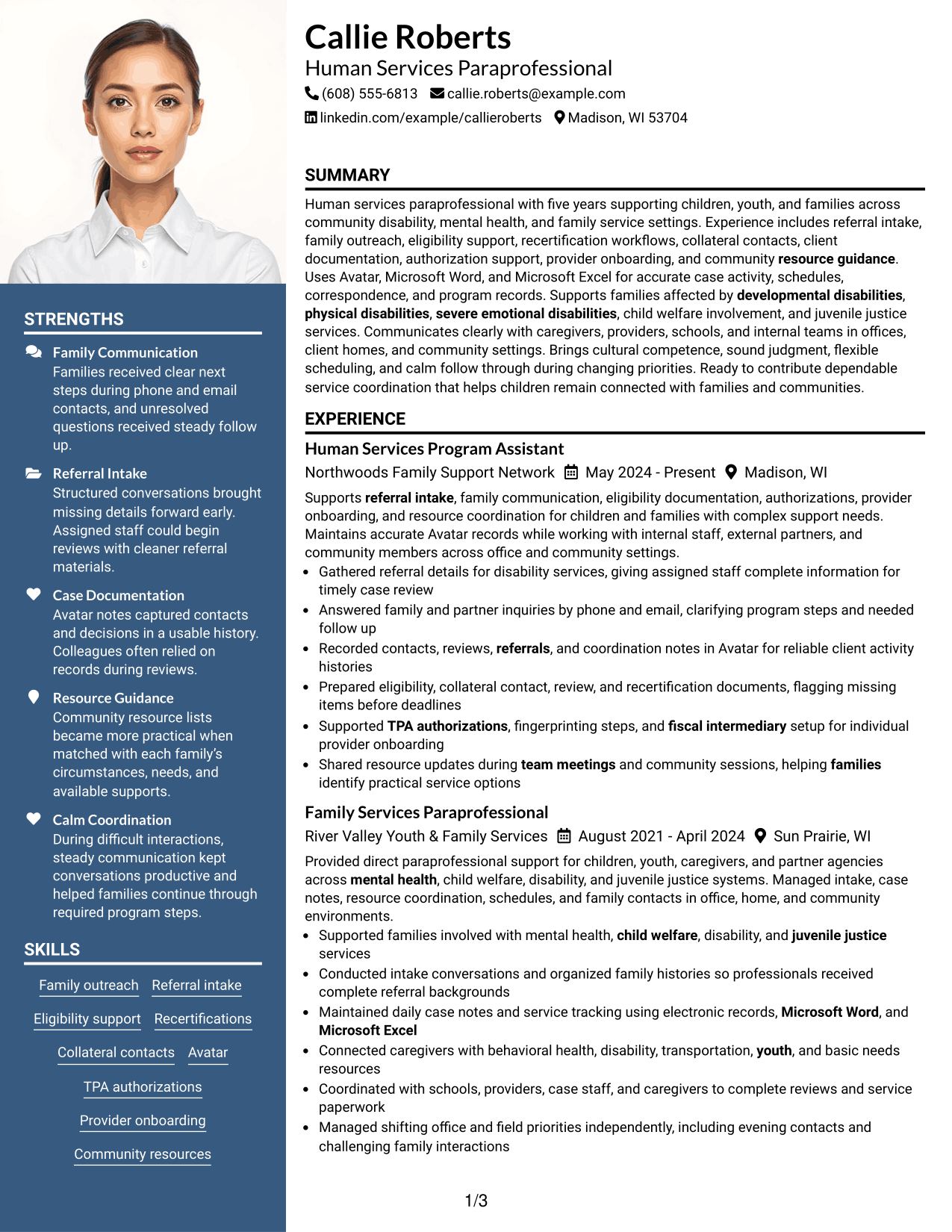
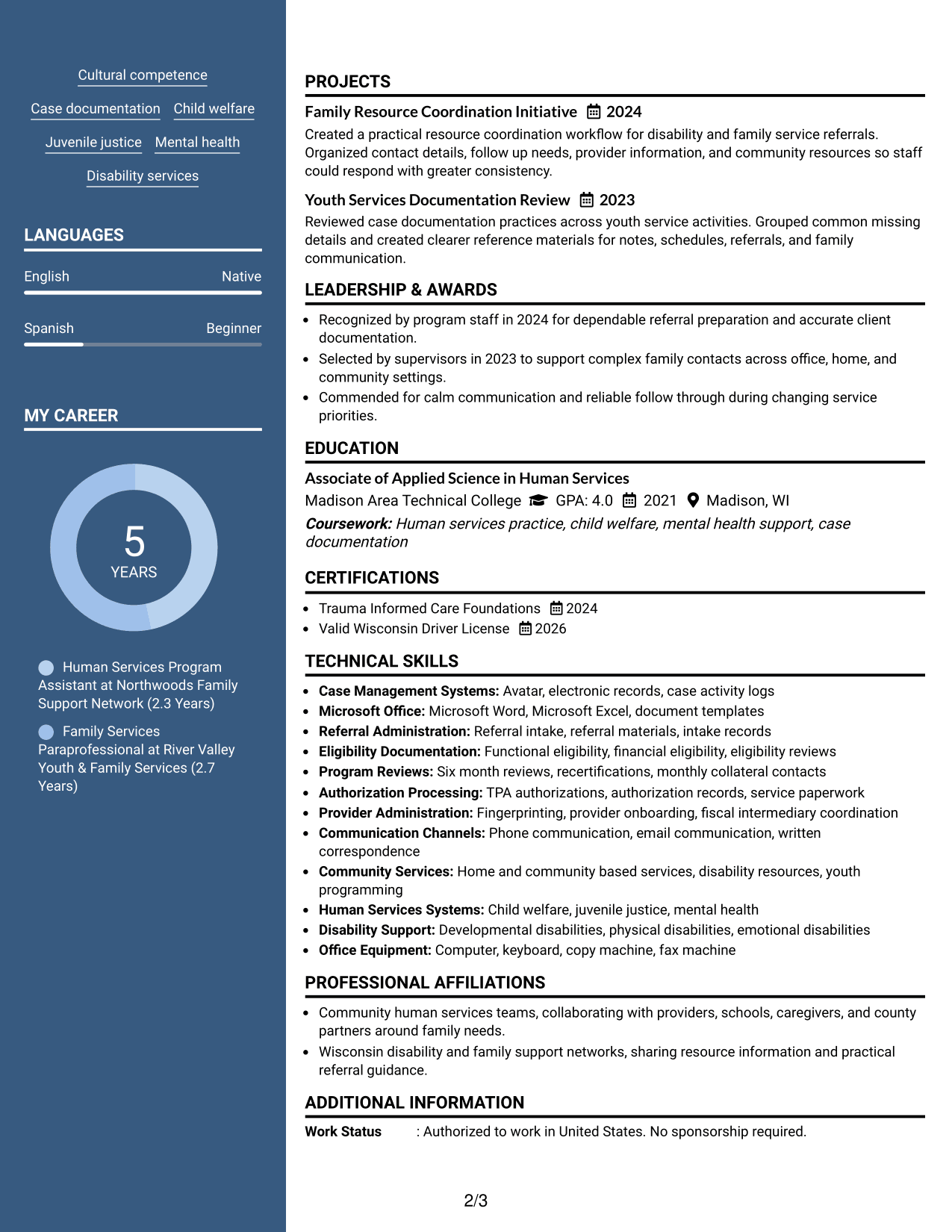
#5 Photo Header Two Column Format Resume Example
The Photo Header Two Column Format combines a photo-led header with two body columns, helping recruiters identify the document quickly while scanning separated resume sections.
Why This Format Works
- Two body columns keep experience and supporting sections distinct beneath the header.
- Header space separates identity details from the resume's evidence and qualifications.
- Section division helps recruiters scan skills, education, credentials, and career history.
Best For
- Markets where resume photos are customary
- Applications needing clear identity separation
- Resumes with varied supporting information
- Readers who prefer grouped body sections
- Content that benefits from two-column scanning
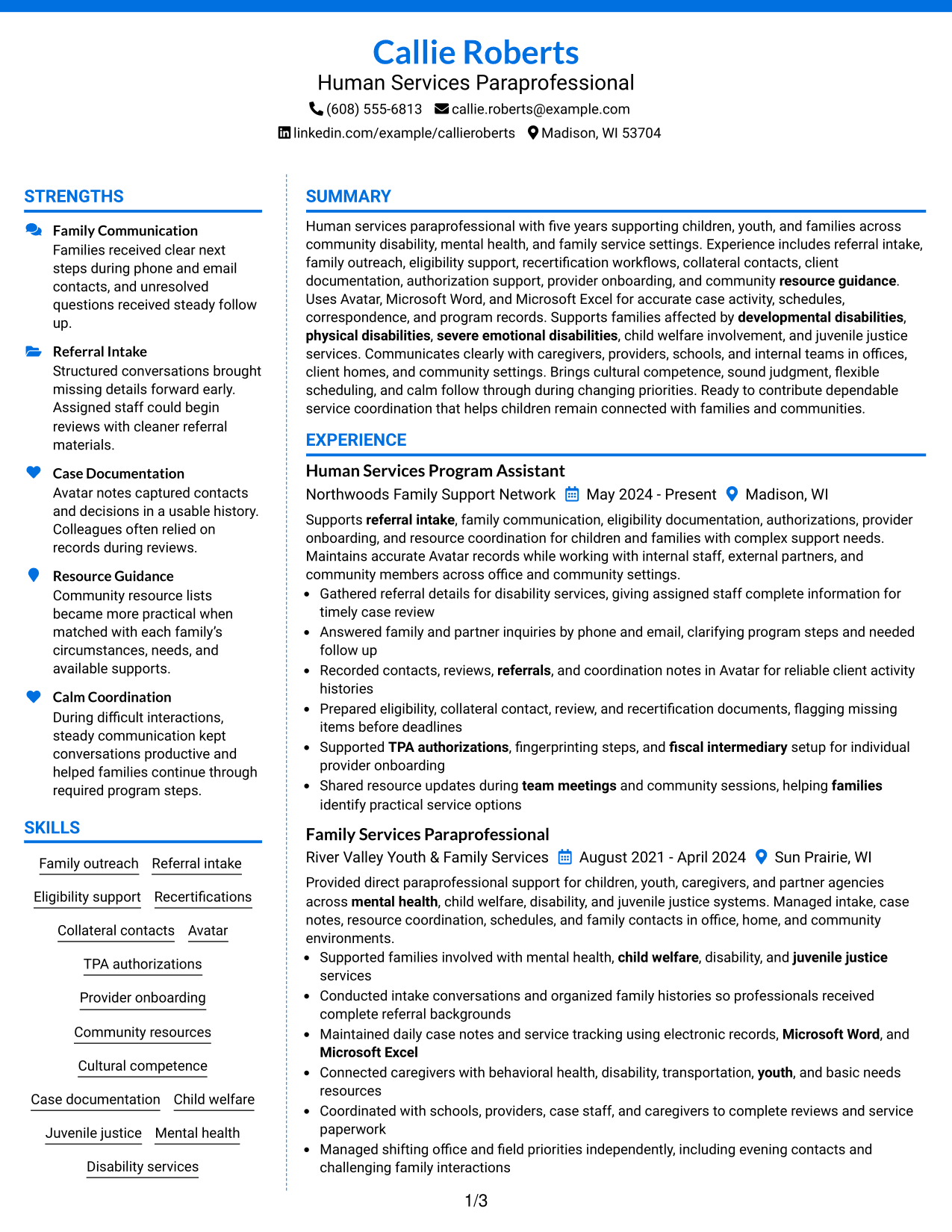
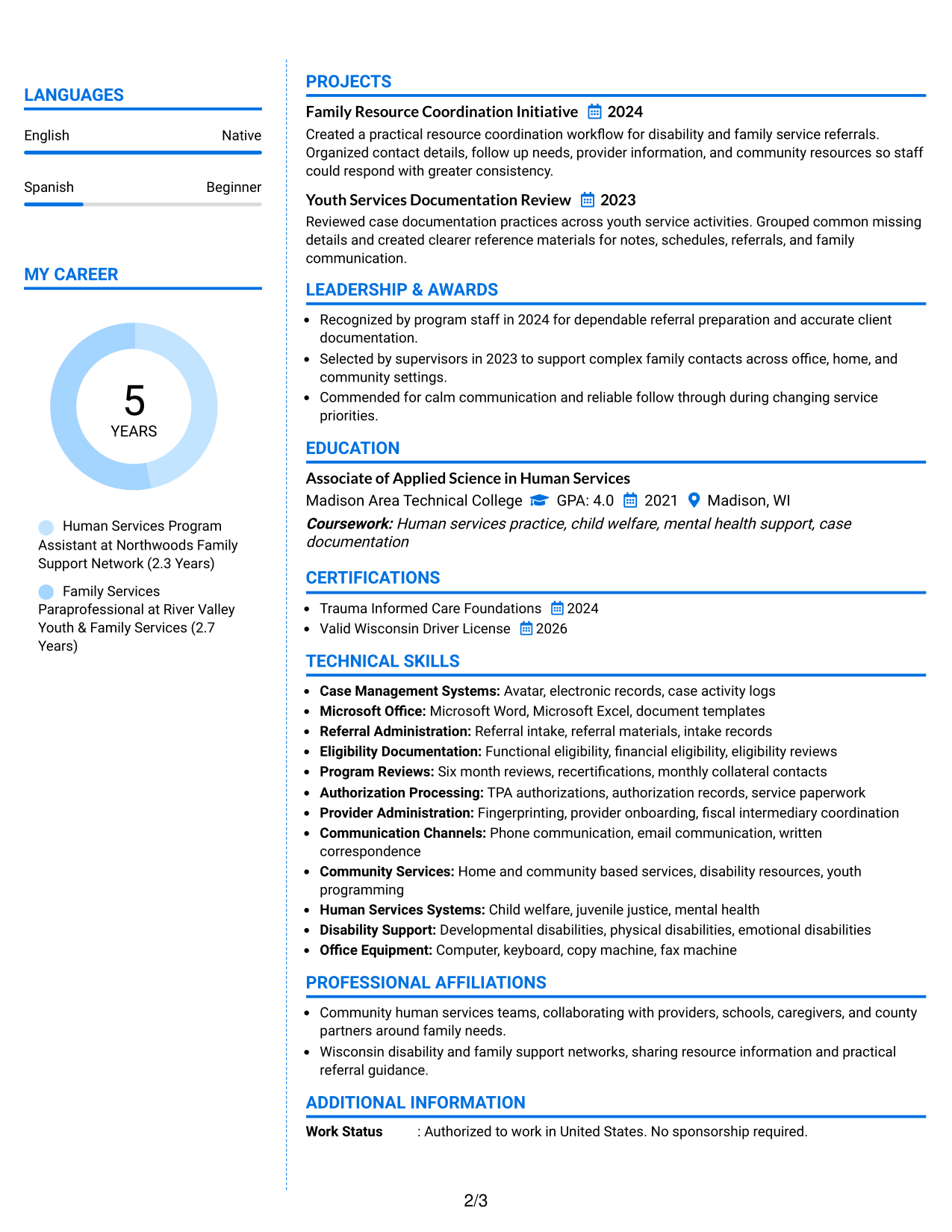
#6 Colored Two Column Format Resume Example
The Colored Two Column Format uses color to mark section areas within a two-column structure, helping recruiters navigate the resume without changing the underlying evidence.
Why This Format Works
- Color cues can make major section boundaries easier to recognize during scanning.
- Two-column organization keeps career history separate from supporting skills and credentials.
- Clear visual grouping helps education and other qualifications remain easy to find.
Best For
- Readers who benefit from stronger visual cues
- Resumes with clearly grouped section types
- Applications allowing restrained color use
- Career histories with several supporting categories
- Content needing quick visual navigation
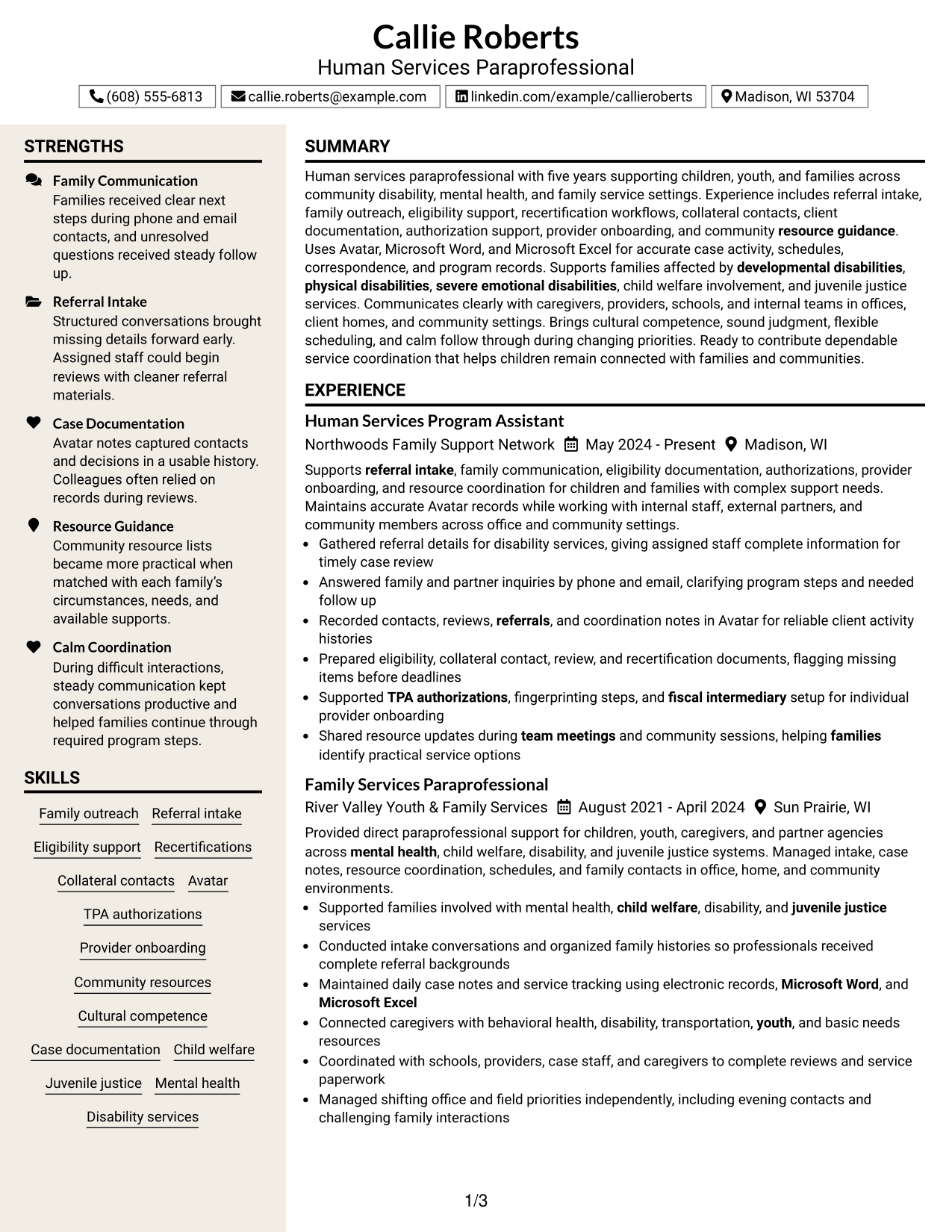
#7 Stylish Two Column Designer Format Resume Example
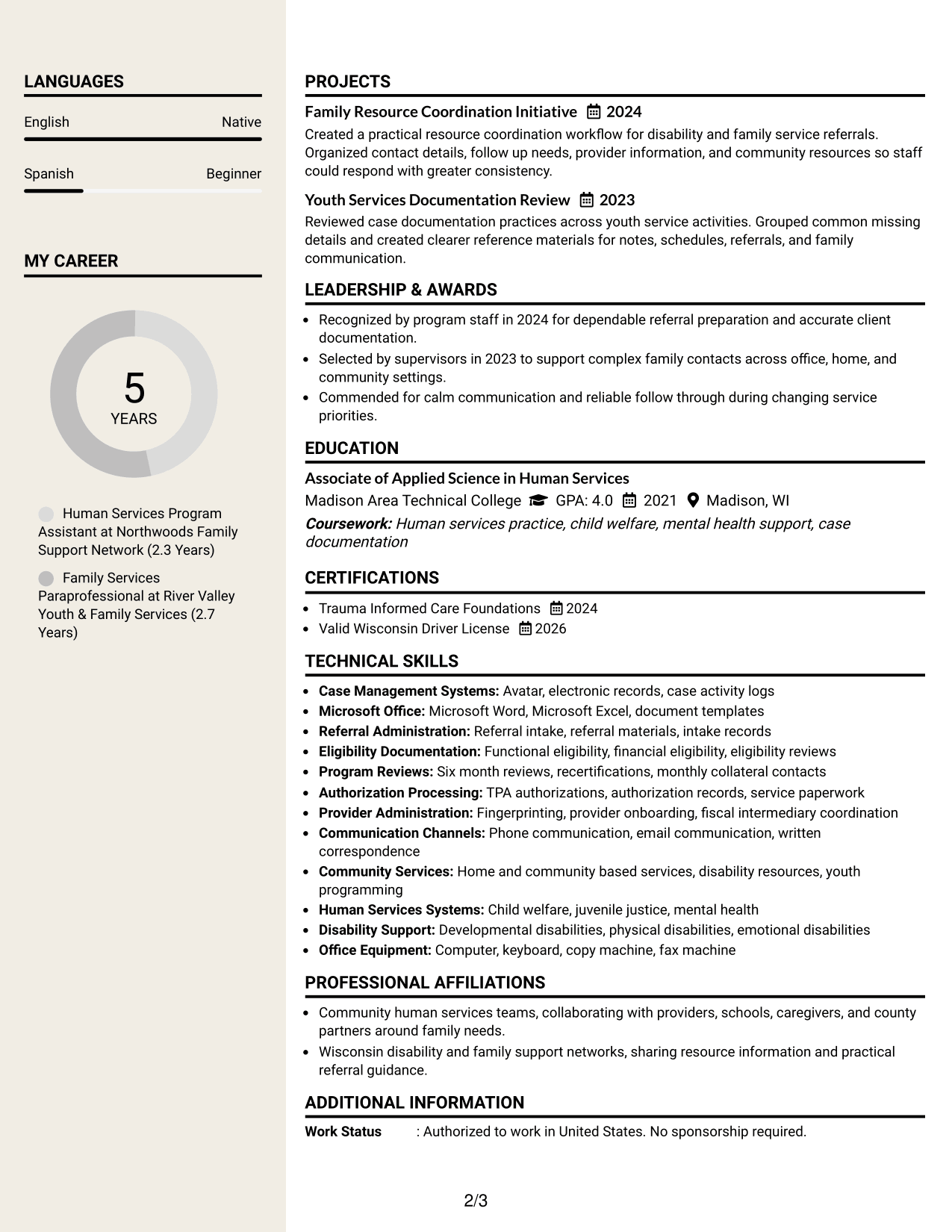
The Stylish Two Column Designer Format adds stronger visual styling to a two-column body, helping recruiters distinguish section groups while reviewing the resume.
Why This Format Works
- Stronger section styling helps recruiters separate experience from supporting qualifications.
- Two-column grouping gives skills, education, and credentials their own readable areas.
- Distinct section treatment supports quick navigation across a content-rich career record.
Best For
- Applications where polished visual styling fits
- Content-rich resumes needing clear grouping
- Readers who scan by section blocks
- Career records with varied supporting evidence
- Resumes balancing structure with visual personality
Why Build Your Children's Long-Term Support - Human Services Paraprofessional Resume with ResumeInMinutes
ResumeInMinutes helps you turn human services experience, program support work, tools, education, and credentials into a resume that is easier to scan and tailor for the exact role.
- Multiple professional resume formats
- ATS-friendly section structure
- Role-specific keyword guidance
- Organized experience and skills sections
- Free PDF resume previews
- Easy resume customization
You can adjust the wording and layout while keeping the resume focused on family support, accurate documentation, eligibility workflows, coordination, and community service evidence that your background supports.
See Also
- 33 Nurse I - Long-Term Care Nursing Resume Templates with Example 2026 (ATS-Optimized)
- 33 Bi-Lingual Medical Billing Customer Service Support Representative Resume Templates with Example 2026
- 33 Office Services Specialist - Regional Office Support Resume Templates with Example 2026 (ATS-Optimized)
- 7 Student Services Support Specialist Resume Templates with Example
- 7 Intern Manufacturing Operations Resume Templates with Example
- 7 Financial Aid Representative Resume Templates with Example
- 7 Administrative Clerk Resume Templates with Example
- 7 Logistics Coordinator - International Programs Resume Templates with Example
- 7 Senior Radar Systems Engineer Resume Templates with Example
- 30+ Bi-Lingual Medical Billing Customer Service Support Representative Cover Letter Templates with Example 2026
Frequently Asked Questions
Are these Children's Long-Term Support - Human Services Paraprofessional resume templates ATS-friendly?
Yes. The formats use clear headings and standard resume sections that support ATS scanning. Your wording should still match the job description and your real experience.
Are these different resumes?
No. The guide shows the same complete Children's Long-Term Support - Human Services Paraprofessional resume in different visual formats so you can compare structure and readability.
What should this resume include?
Include a focused summary, relevant human services experience, education, skills, tools, certifications, and clear bullets showing referral, documentation, eligibility, family outreach, and coordination work you have actually done.
Can I download the resume templates as PDFs?
Yes. Each design includes a free PDF preview so you can review the layout before choosing a format for your application.
Which resume style works well for this role?
A clear one-column or well-organized two-column format can work well when it keeps experience, skills, education, and credentials easy to find. Choose the structure that fits your content without crowding it.
What keywords can help with ATS matching?
Use terms supported by your background, such as referral intake, functional eligibility, financial eligibility, recertifications, collateral contacts, Avatar, TPA authorizations, provider onboarding, and community resources.
Should I include a photo on my resume?
For most U.S. applications, a no-photo resume is usually the safer choice. Use a photo only when it is normal and appropriate for the country or application context.
Can I customize these resume templates?
Yes. You can edit the resume text and layout to match the exact Children's Long-Term Support - Human Services Paraprofessional posting while keeping every claim accurate.