7 Engineering Technician I - Civil Engineering Resume Templates with Example
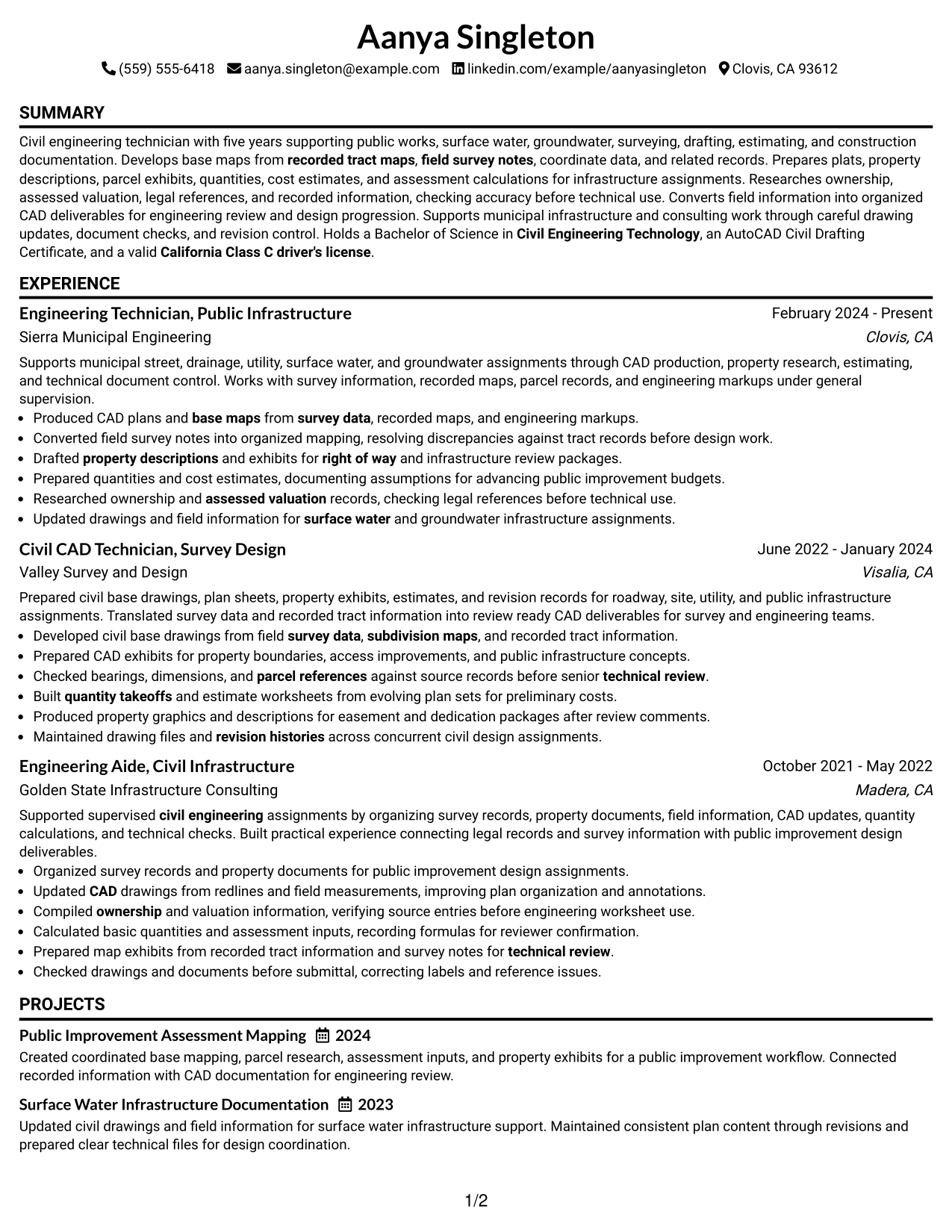
This guide shows you how to build an Engineering Technician I - Civil Engineering resume that is clear, focused, and easy to review. You will see how to organize strong evidence and compare seven practical layouts.
Give priority to civil engineering work that matches the role. Useful evidence includes base mapping, survey data, property descriptions, plats, public works support, quantity takeoffs, cost estimates, assessment calculations, and careful property research.
Use short achievement bullets and clear section headings so a recruiter can find your experience, education, certifications, and technical skills quickly. Keep terms such as computer aided drafting, recorded tract maps, field survey notes, ownership verification, assessed valuation, surface water, and groundwater where they accurately describe your work.
What Makes a Great Engineering Technician I - Civil Engineering Resume in 2026
A strong resume is clear, specific, and easy to scan. It shows relevant civil engineering experience with focused bullets instead of long explanations.
Use accurate keywords such as CAD, base mapping, surveying, property descriptions, cost estimating, assessment calculations, public works, and construction documentation when your background supports them.
The examples shown below are intentionally detailed to demonstrate a range of experiences, skills, accomplishments and relevant keywords. We prefer detailed resumes as they provide more context to the hiring managers and also help the ATS systems identify relevant qualifications and score your resume better for a match. But the length of a resume is an individual choice. If you want a one page resume, just keep the most relevant experience and information for the job. Note: Resume examples are for educational purposes only. Use only information that accurately reflects your experience and qualifications. References to real organizations do not imply affiliation or endorsement.
#1 Simple One Column Format Resume Example
A simple one-column flow gives recruiters a direct top-to-bottom path through every resume section.
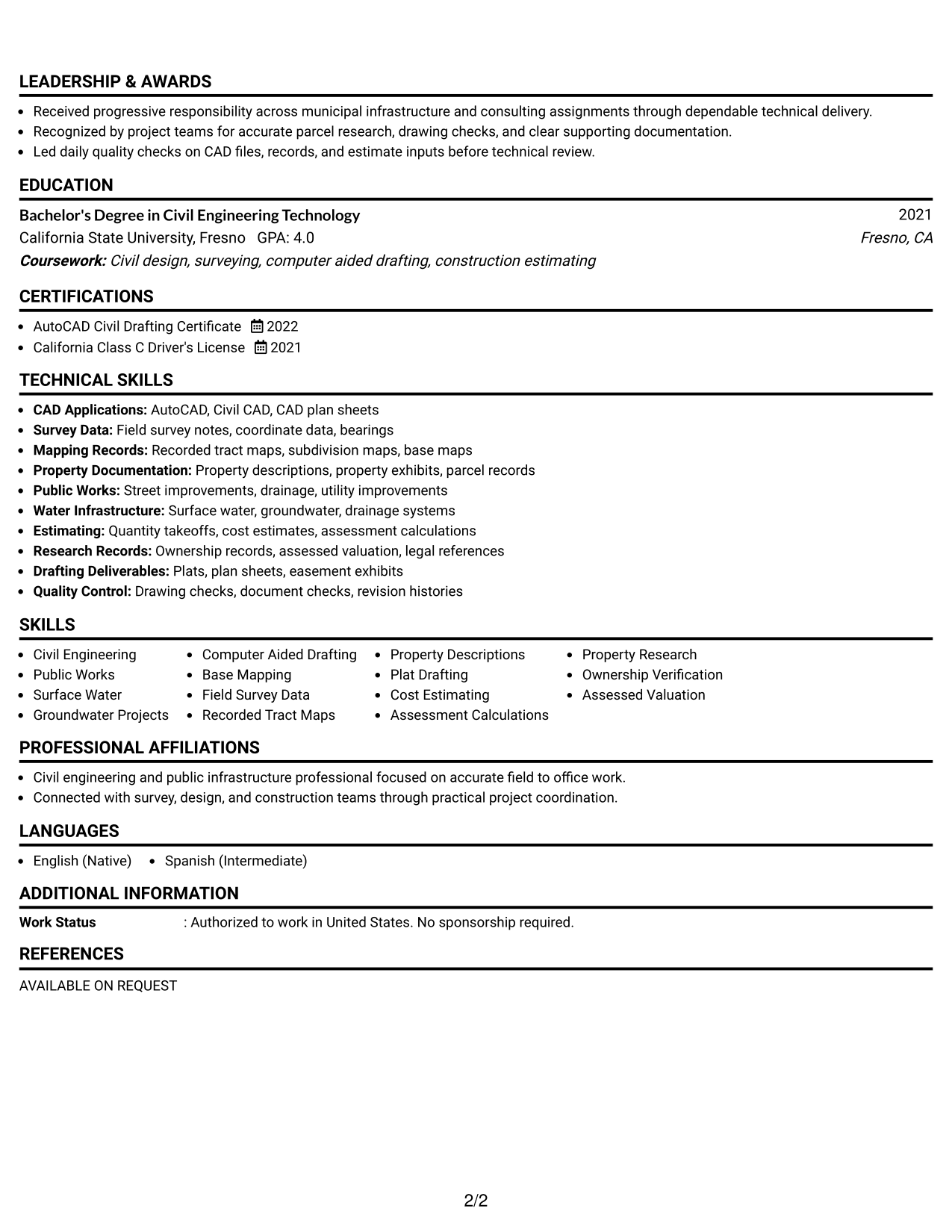
Why This Format Works
- Straight reading order keeps career progression easy to follow.
- Full-width sections give experience bullets room to stay clear.
- Separate headings make skills, education, and credentials easy to locate.
Best For
- Straightforward ATS-focused resumes
- Detailed work history
- Readers who prefer linear scanning
- Experience-first applications
- Clear separation of resume sections
Resume Keywords
- Civil Engineering
- Public Works
- Computer Aided Drafting
- CAD
- Base Mapping
- Field Survey Data
- Recorded Tract Maps
- Property Descriptions
- Plat Drafting
- Cost Estimating
- Assessment Calculations
- Property Research
- Ownership Verification
- Assessed Valuation
- Construction Documentation
#2 Plain One Column with Shaded Labels Resume Example
Shaded section labels help recruiters spot major resume areas while keeping a simple one-column reading path.
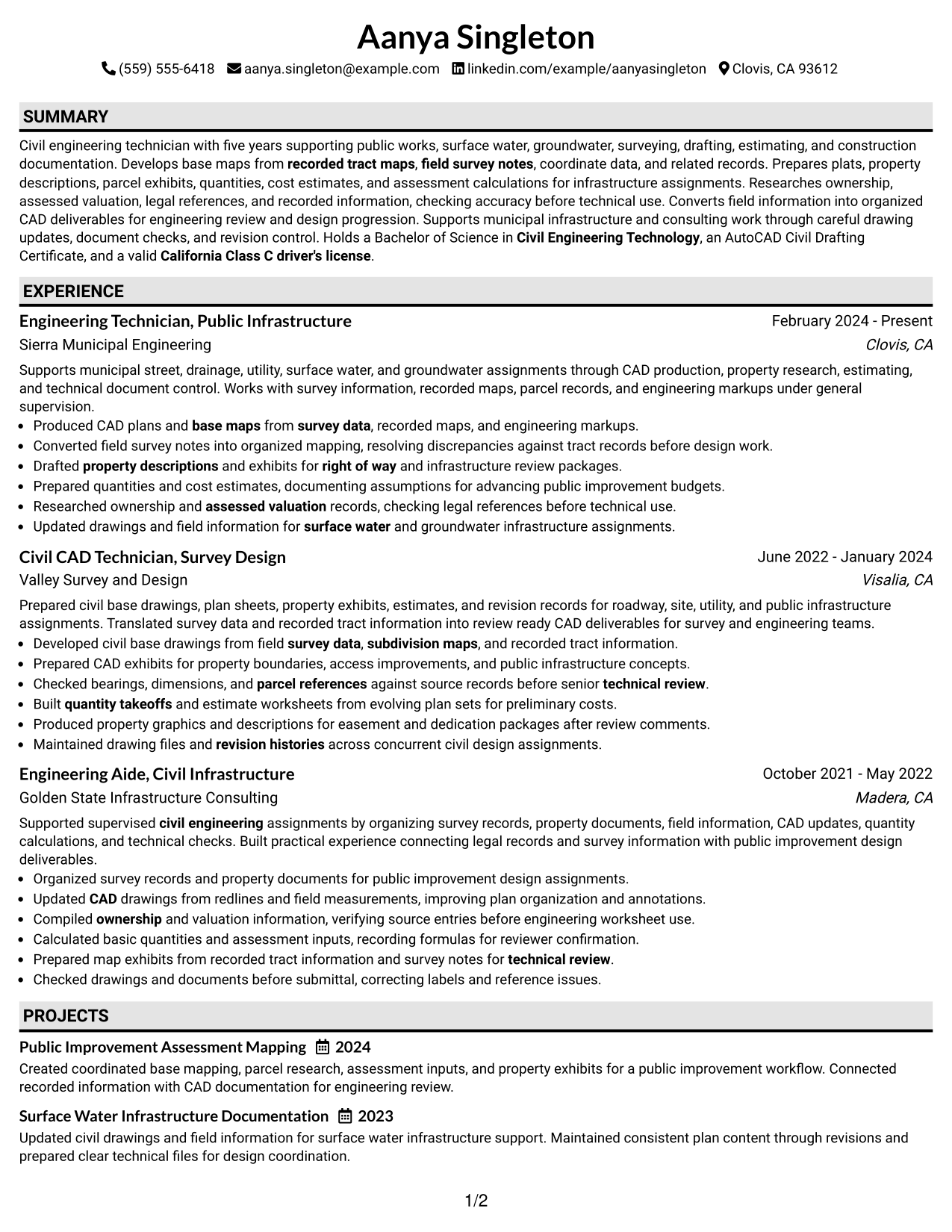
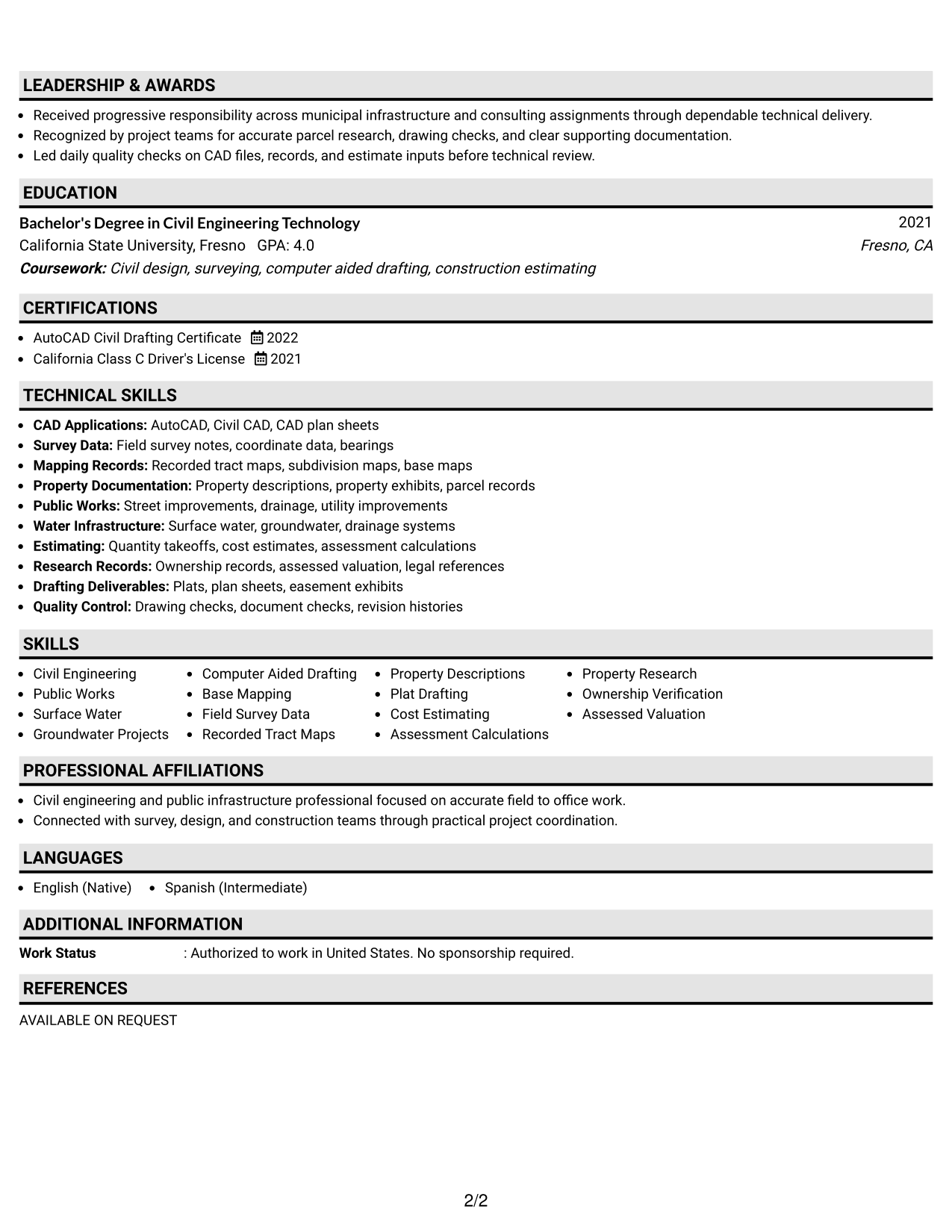
Why This Format Works
- Shaded labels create clear stops between major resume sections.
- Linear structure keeps experience and achievements in an obvious sequence.
- Visible section markers help reviewers return to skills and credentials quickly.
Best For
- Resumes with many clear sections
- Readers who value strong section markers
- Longer experience descriptions
- Applications needing fast section lookup
- Traditional content with light visual structure
#3 One Column Format with Photo Right Resume Example
A right-side photo adds personal identification while the one-column body keeps recruiter scanning direct.
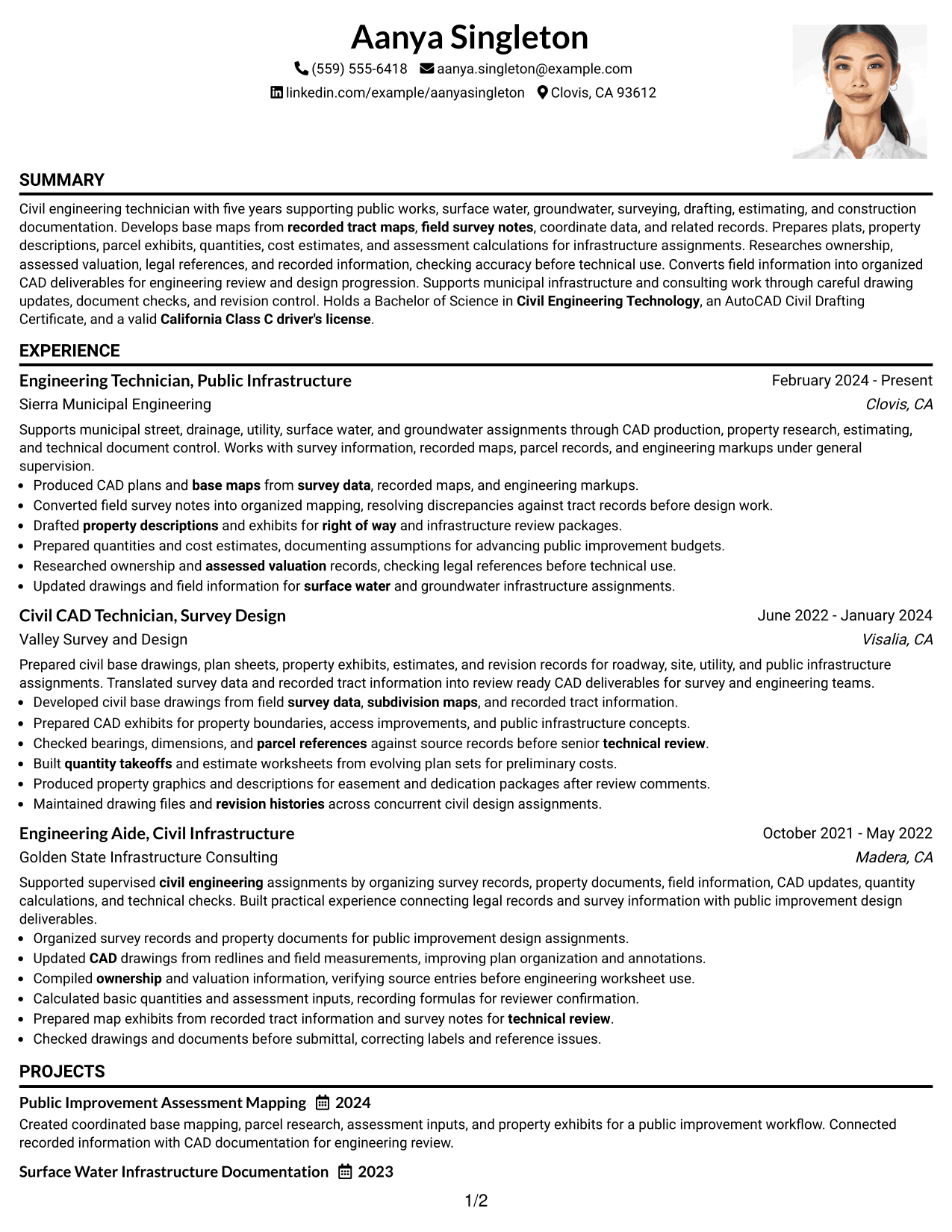
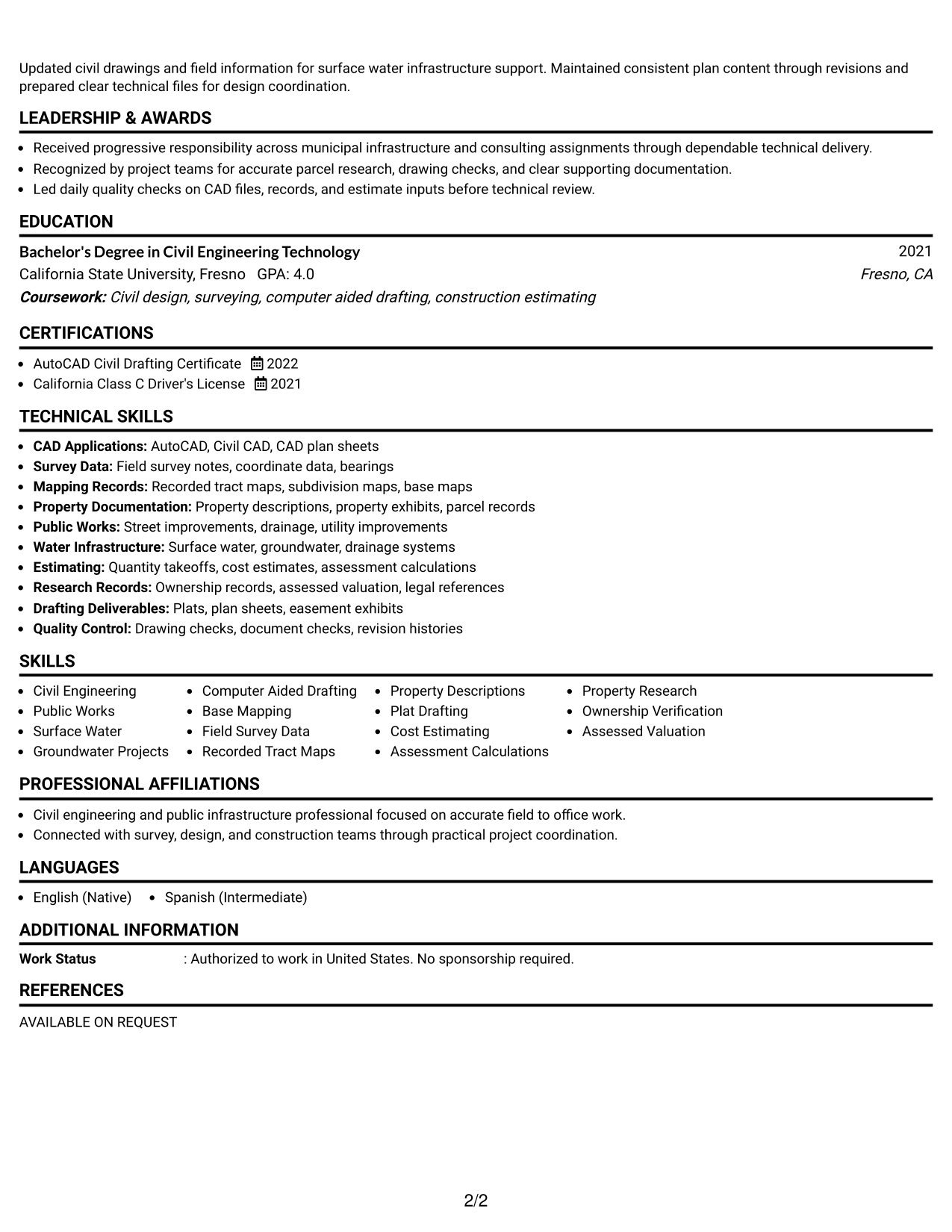
Why This Format Works
- One-column body keeps experience and achievements moving in one clear sequence.
- Right-side photo stays in the header without splitting the main content.
- Full-width sections leave room for skills, education, and credentials.
Best For
- Applications where a photo is customary
- Resume content needing full-width sections
- Readers who prefer a direct body flow
- Career histories with several detailed bullets
- International contexts that accept profile photos
#4 Clean Two Column Sidebar Format Resume Example
A clean two-column sidebar lets recruiters scan supporting details beside the main career record.
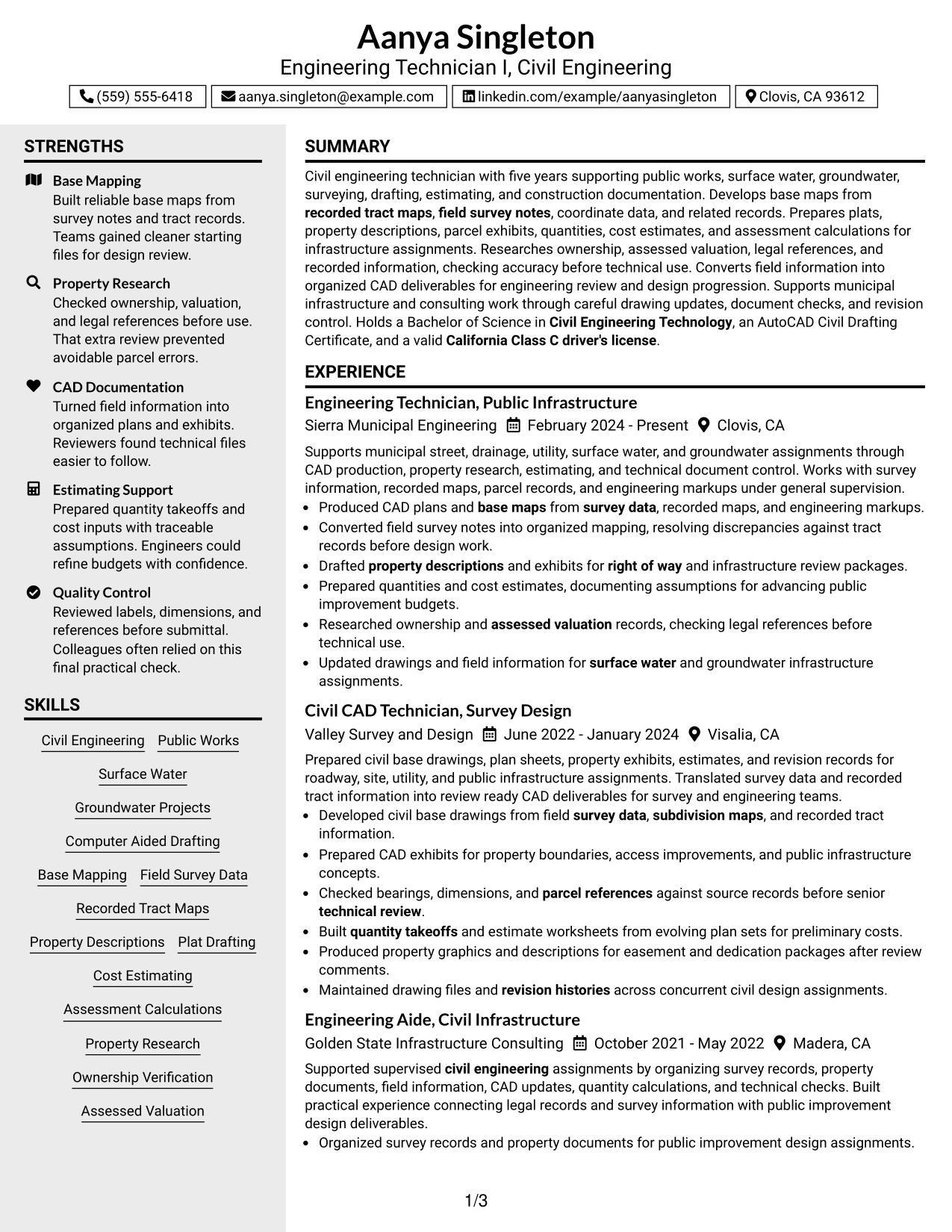
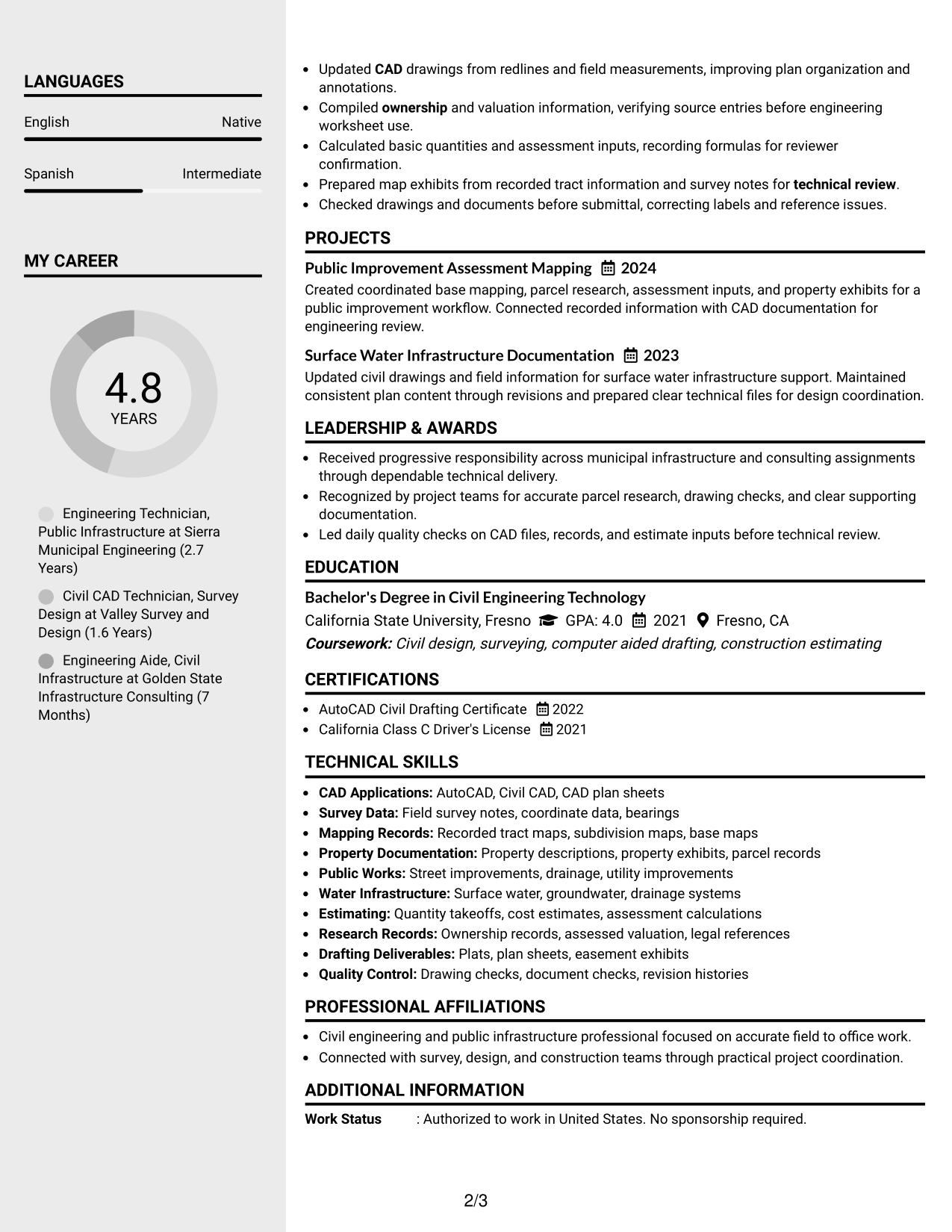
Why This Format Works
- Sidebar structure separates supporting skills from the main experience narrative.
- Parallel columns reduce searching between career history and supporting credentials.
- Main content area keeps achievements readable while secondary details remain nearby.
Best For
- Resumes with broad supporting skills
- Compact access to credentials
- Readers comparing experience with qualifications
- Applications with substantial technical detail
- Balanced main-content and sidebar structure
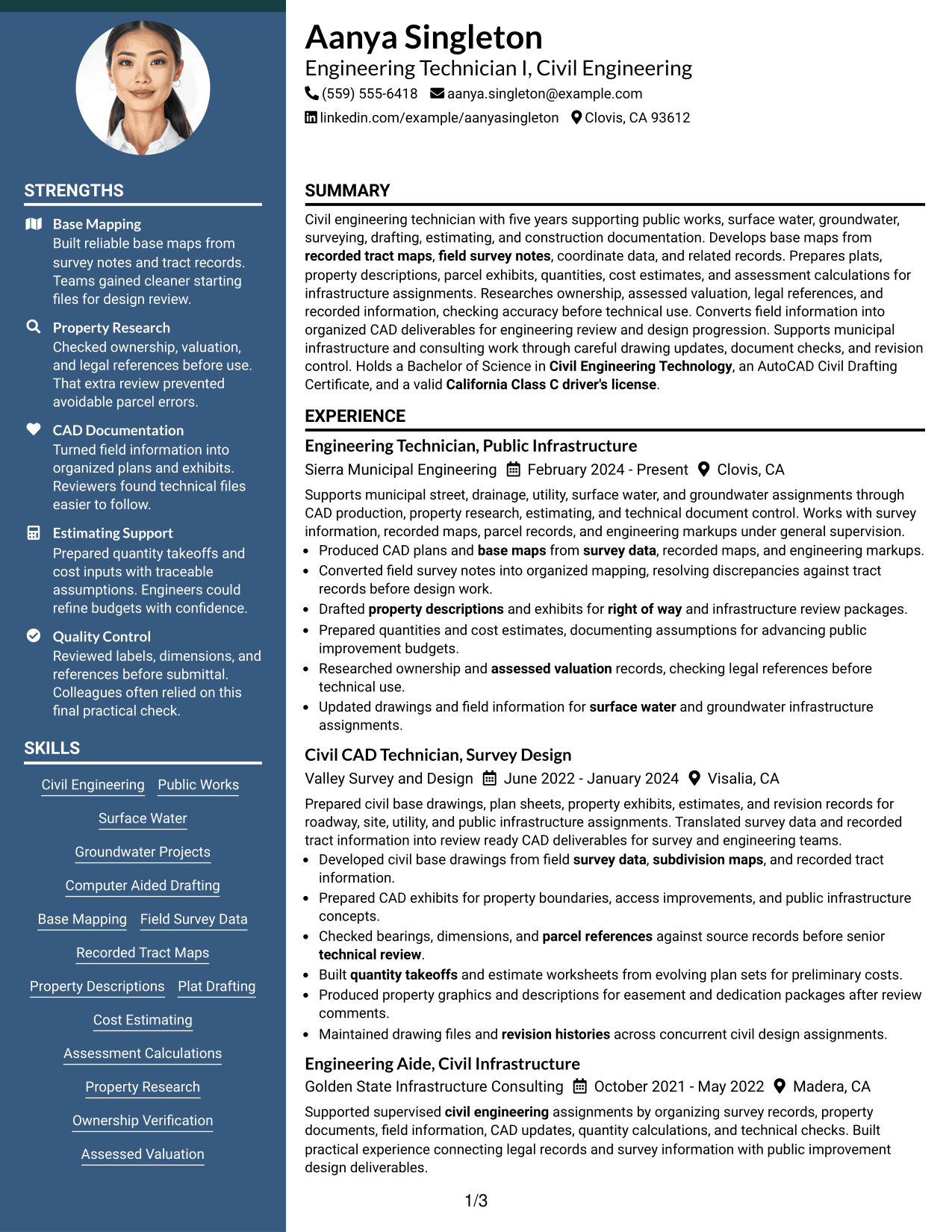
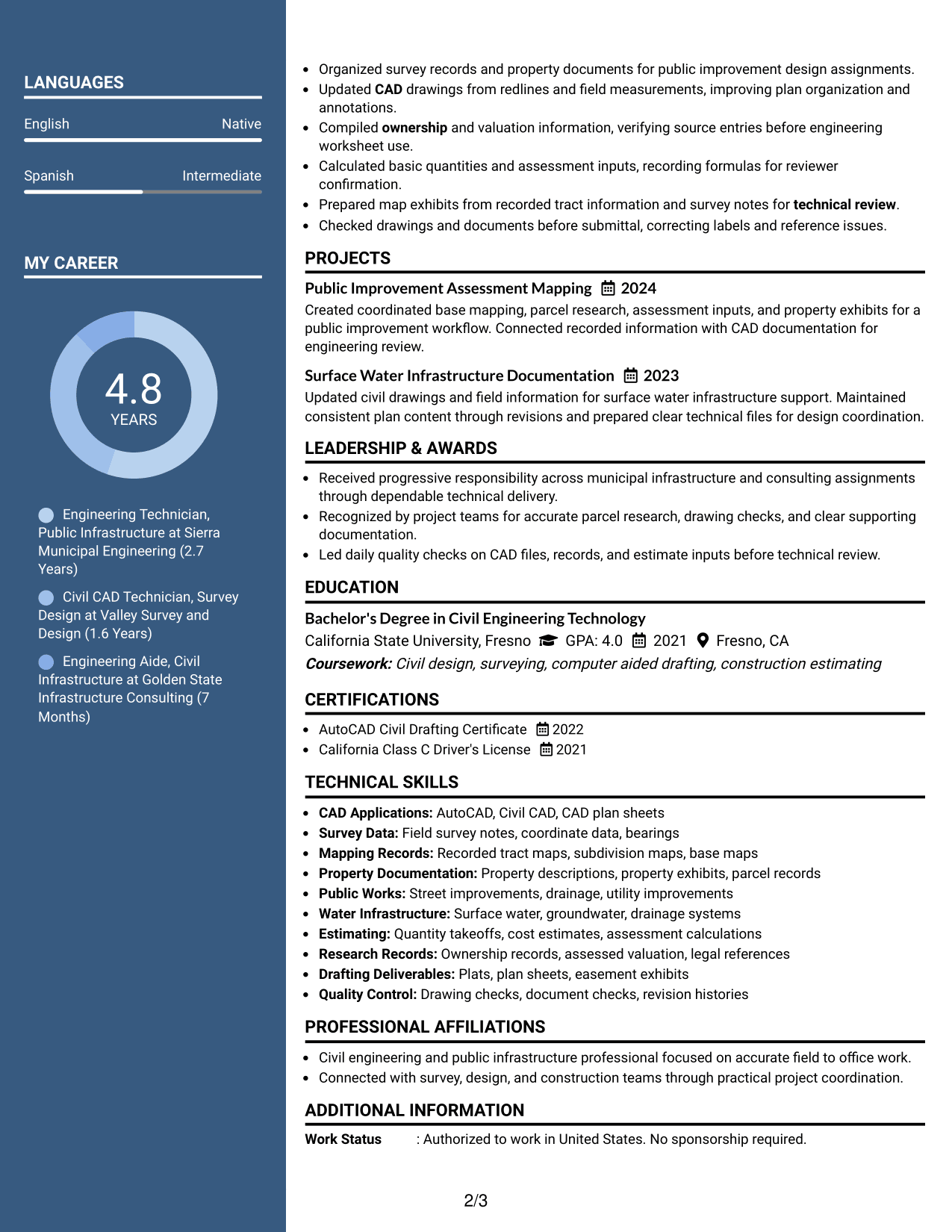
#5 Two Column Format Resume Example
A balanced two-column structure helps recruiters compare career evidence with supporting resume details quickly.
Why This Format Works
- Two body columns divide dense information into manageable reading areas.
- Experience remains distinct from skills, education, and other supporting sections.
- Side-by-side organization helps reviewers compare qualifications without long scrolling.
Best For
- Information-dense technical resumes
- Strong mix of experience and skills
- Readers who compare sections side by side
- Career records with multiple credentials
- Compact organization without a dedicated sidebar
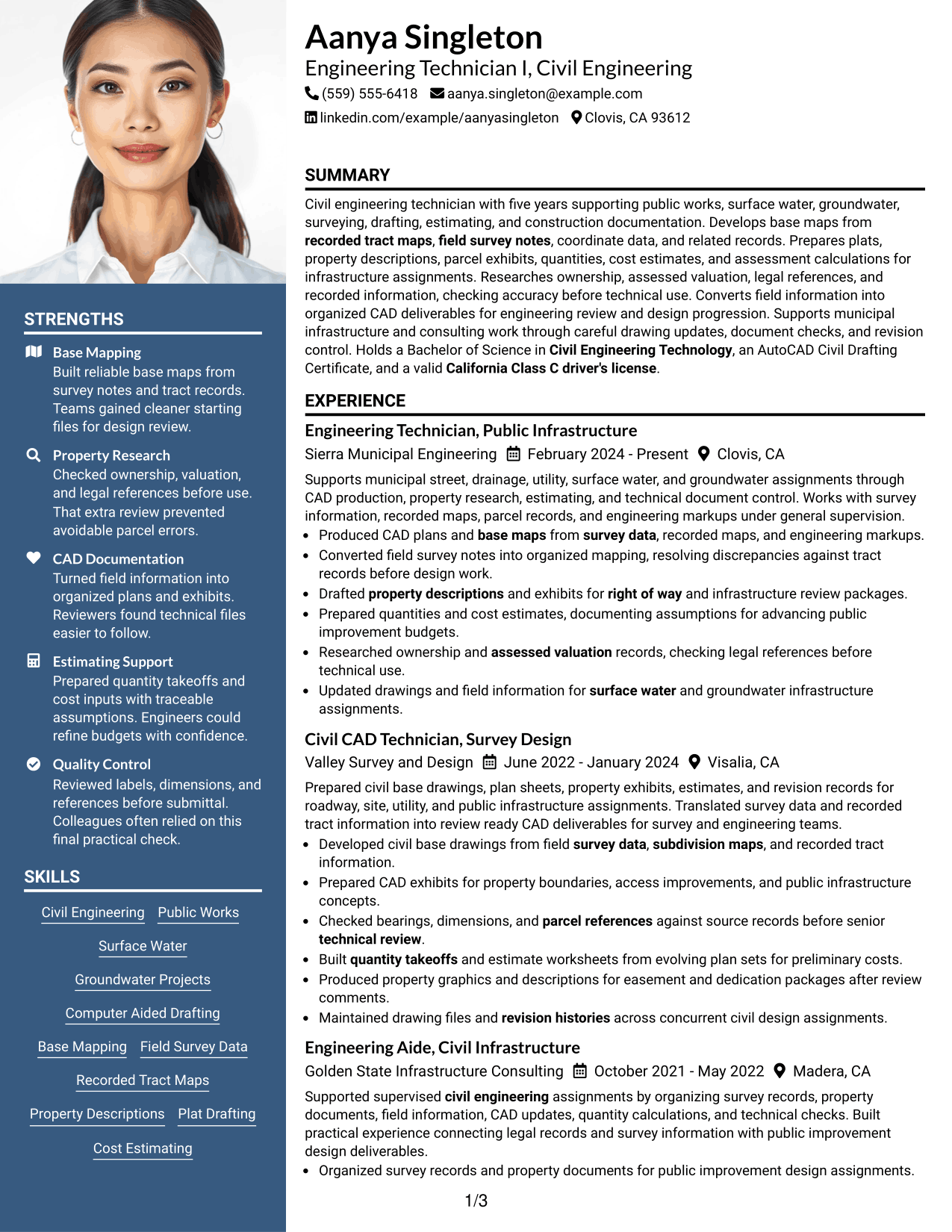
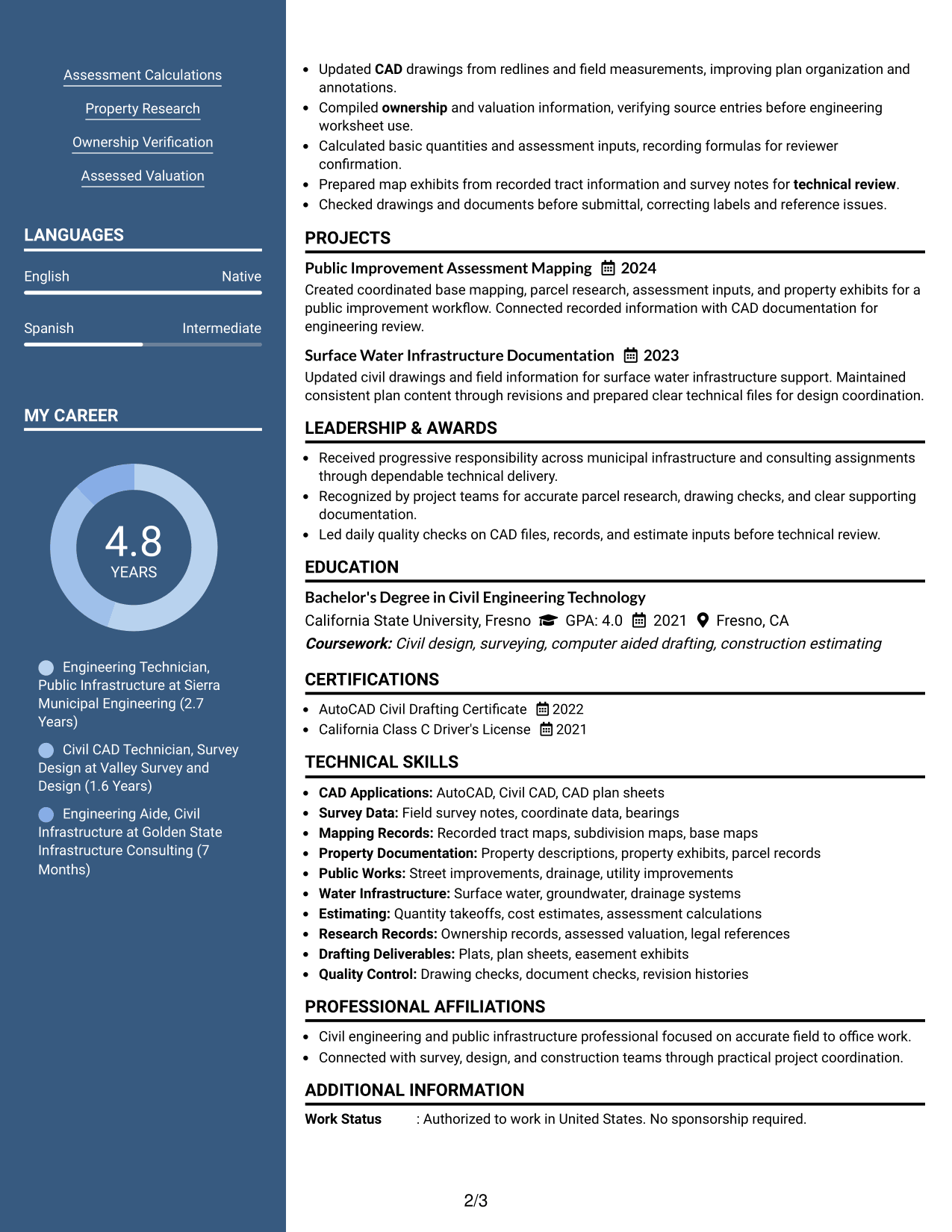
#6 Photo Header Two Column Format Resume Example
A photo header and two-column body give recruiters a clear identity area plus organized resume sections.
Why This Format Works
- Photo header separates personal identification from the resume's detailed content.
- Two-column body gives experience and supporting qualifications distinct reading zones.
- Section separation helps reviewers move between achievements, education, skills, and credentials.
Best For
- Applications where photos are expected
- Resumes with several supporting sections
- Readers needing quick movement between content groups
- Career histories paired with visible qualifications
- International submissions allowing profile images
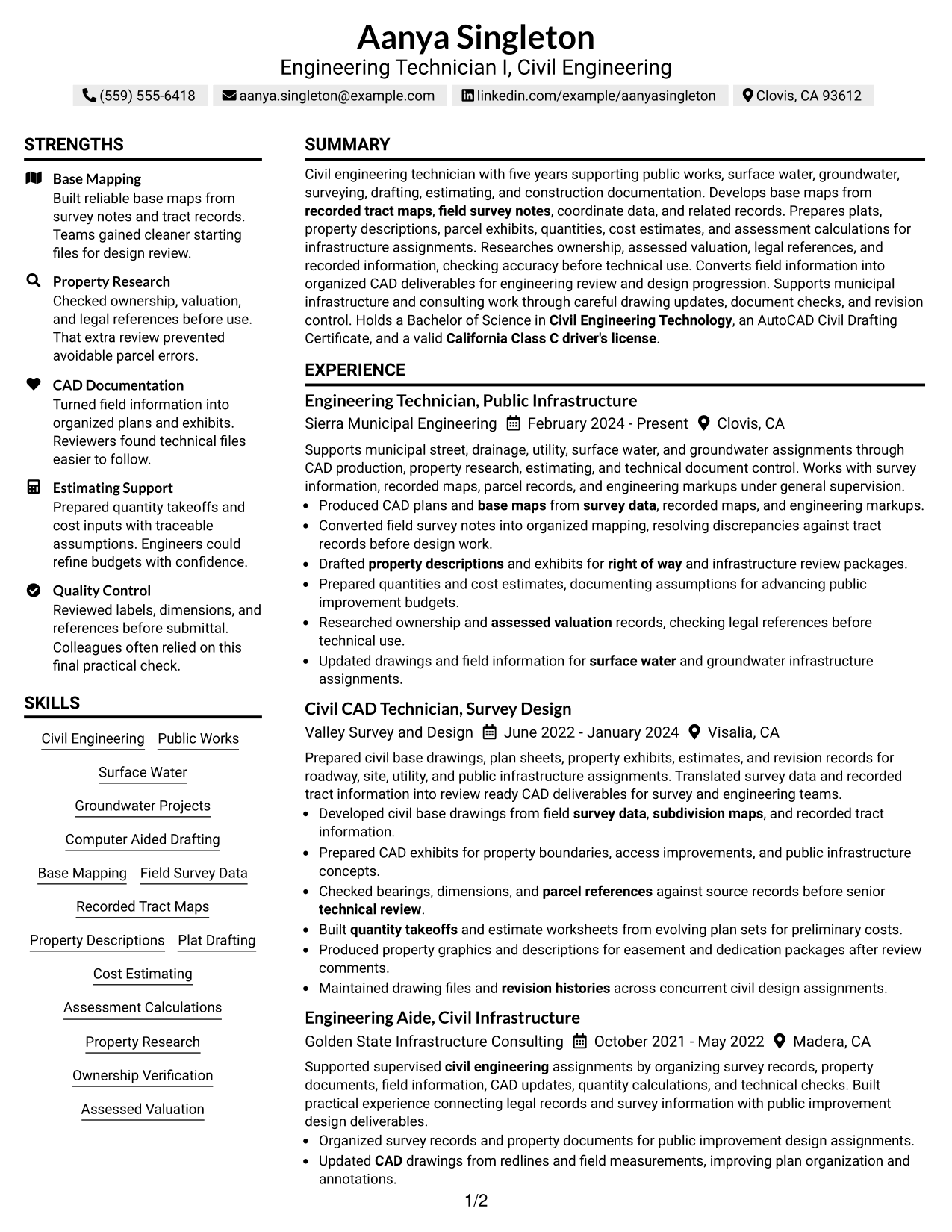
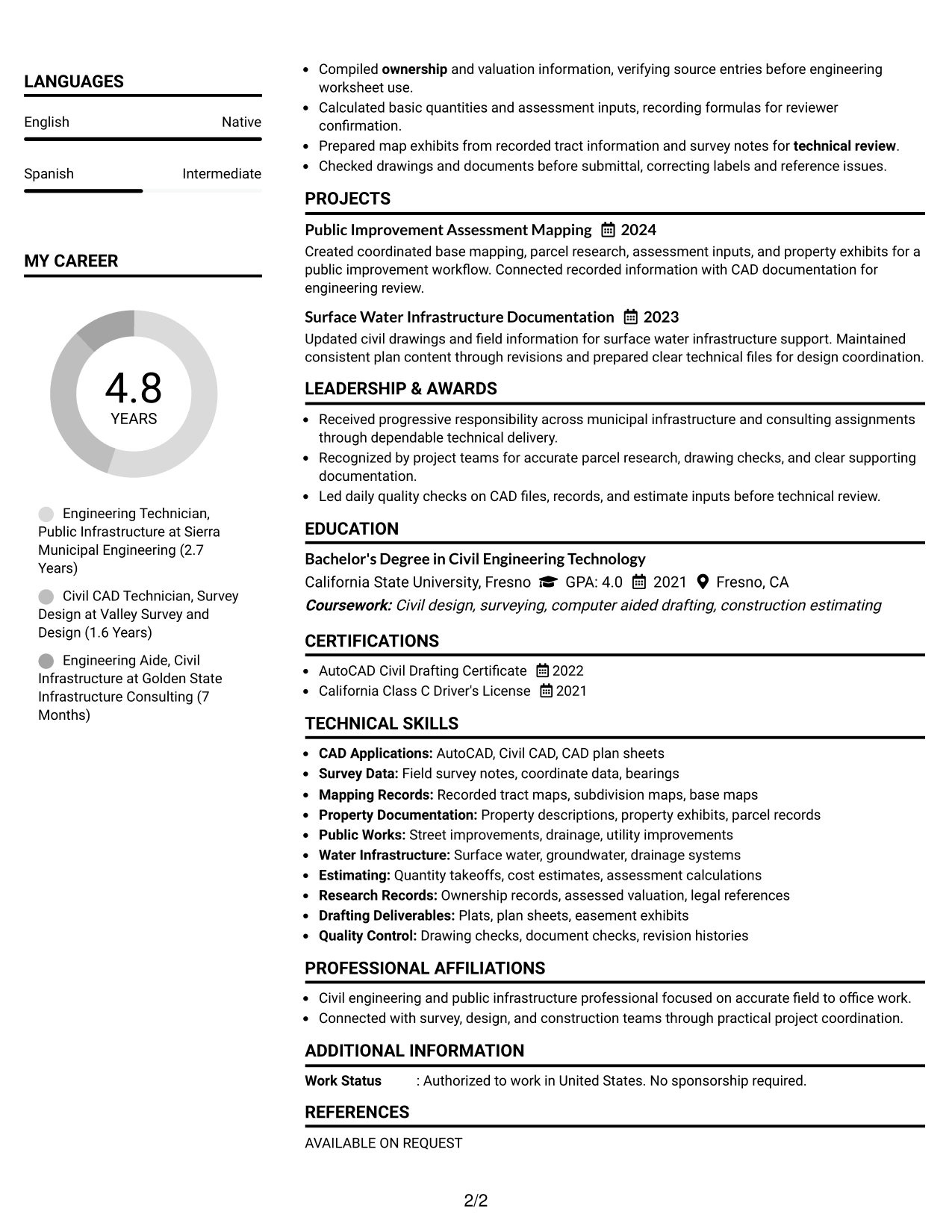
#7 Simple Two Column Format Resume Example
A simple two-column arrangement helps recruiters scan a detailed resume without heavy visual decoration.
Why This Format Works
- Simple columns organize experience and supporting content without extra visual complexity.
- Clear section boundaries help achievements and credentials remain easy to distinguish.
- Balanced spacing supports quick scanning across skills, education, and career history.
Best For
- Technical resumes needing compact structure
- Readers who prefer restrained design
- Applications with several qualification categories
- Experience paired with concise supporting details
- Two-column organization without photo content
Why Build Your Engineering Technician I - Civil Engineering Resume with ResumeInMinutes
ResumeInMinutes helps you turn civil engineering experience, technical skills, education, and credentials into a resume that is easier to scan and adapt.
- ATS-friendly section structure
- Keyword-focused resume content
- Experience and project organization
- Skills and credentials sections
- Free PDF resume previews
- Resume customization support
You can adjust the wording, section order, and visual format while keeping the content centered on civil drafting, surveying, estimating, research, and public infrastructure work.
See Also
- 33 Biomedical Engineering Technician Resume Templates with Example 2026 (ATS-Optimized)
- 7 Engineering Technician 1 Resume Templates with Example
- 7 Engineering Technician - Electromechanical Systems Resume Templates with Example
- 7 Engineering Technician I - Surveying and Drafting Resume Templates with Example
- 7 Engineering Technician Resume Templates with Example
- 33 Manufacturing Engineering Technician Intern Resume Templates with Example 2026 (ATS-Optimized)
- 7 Adjunct Phlebotomy Technician Instructor Resume Templates with Example
- 33 Auto Technician Trainee Resume Templates with Example 2026 (ATS-Optimized)
- 30+ Biomedical Engineering Technician Cover Letter Templates with Example 2026
- 30+ Manufacturing Engineering Technician Intern Cover Letter Templates with Example 2026
Frequently Asked Questions
Are these Engineering Technician I - Civil Engineering resume templates ATS-friendly?
Yes. The layouts use clear resume sections and readable headings. Keep your wording simple and include accurate role keywords from your own experience.
Are these different resumes?
No. The guide shows the same Engineering Technician I - Civil Engineering resume in different visual layouts so you can compare presentation choices.
What should an Engineering Technician I - Civil Engineering resume include?
Include a focused summary, relevant civil engineering experience, education, certifications, technical skills, and clear bullets showing drafting, surveying, mapping, estimating, research, or construction support.
Can I download the resume templates as PDFs?
Yes. Each style includes a free PDF preview so you can compare the layout before choosing a format.
Which resume style works well for this role?
A clear one-column layout is easy to follow, while a well-organized two-column layout can separate supporting skills and credentials from detailed experience. Choose the format that keeps your strongest evidence easy to find.
Which keywords should I include?
Use keywords that match your real background, such as civil engineering, public works, CAD, base mapping, field survey data, recorded tract maps, property descriptions, cost estimating, assessment calculations, and property research.
Should I include a photo on my resume?
For most U.S. applications, a no-photo resume is the safer choice. Use a photo only when it is customary or expected for the application context.
Can I customize these resume templates?
Yes. You can edit the resume text, section order, layout, and PDF format to match the Engineering Technician I - Civil Engineering position.