7 IT Specialist I - Technical Support Resume Templates with Example
This guide shows you how to build an IT Specialist I - Technical Support resume that is clear, focused, and easy to review. You will learn how to organize your evidence so recruiters can find the most important information quickly.
Strong resumes for this role should make service desk experience, desktop support, incident handling, clear documentation, user communication, and dependable assignment ownership easy to verify. Relevant credentials such as CompTIA A+ can strengthen the resume when they are supported by the candidate's record.
The same complete resume appears below in 7 ATS-friendly layouts so you can compare reading order, section structure, and visual organization while keeping the underlying qualifications consistent.
What Makes a Great IT Specialist I - Technical Support Resume in 2026
A strong resume is easy to scan and shows clear ownership of support work, troubleshooting, documentation, and user follow-up.
Use role-relevant terms such as service desk support, desktop management, service management, incident management, Microsoft Office, client device support, service levels, and incident escalation only where the experience supports them.
The examples shown below are intentionally detailed to demonstrate a range of experiences, skills, accomplishments and relevant keywords. We prefer detailed resumes as they provide more context to the hiring managers and also help the ATS systems identify relevant qualifications and score your resume better for a match. But the length of a resume is an individual choice. If you want a one page resume, just keep the most relevant experience and information for the job. Note: Resume examples are for educational purposes only. Use only information that accurately reflects your experience and qualifications. References to real organizations do not imply affiliation or endorsement.
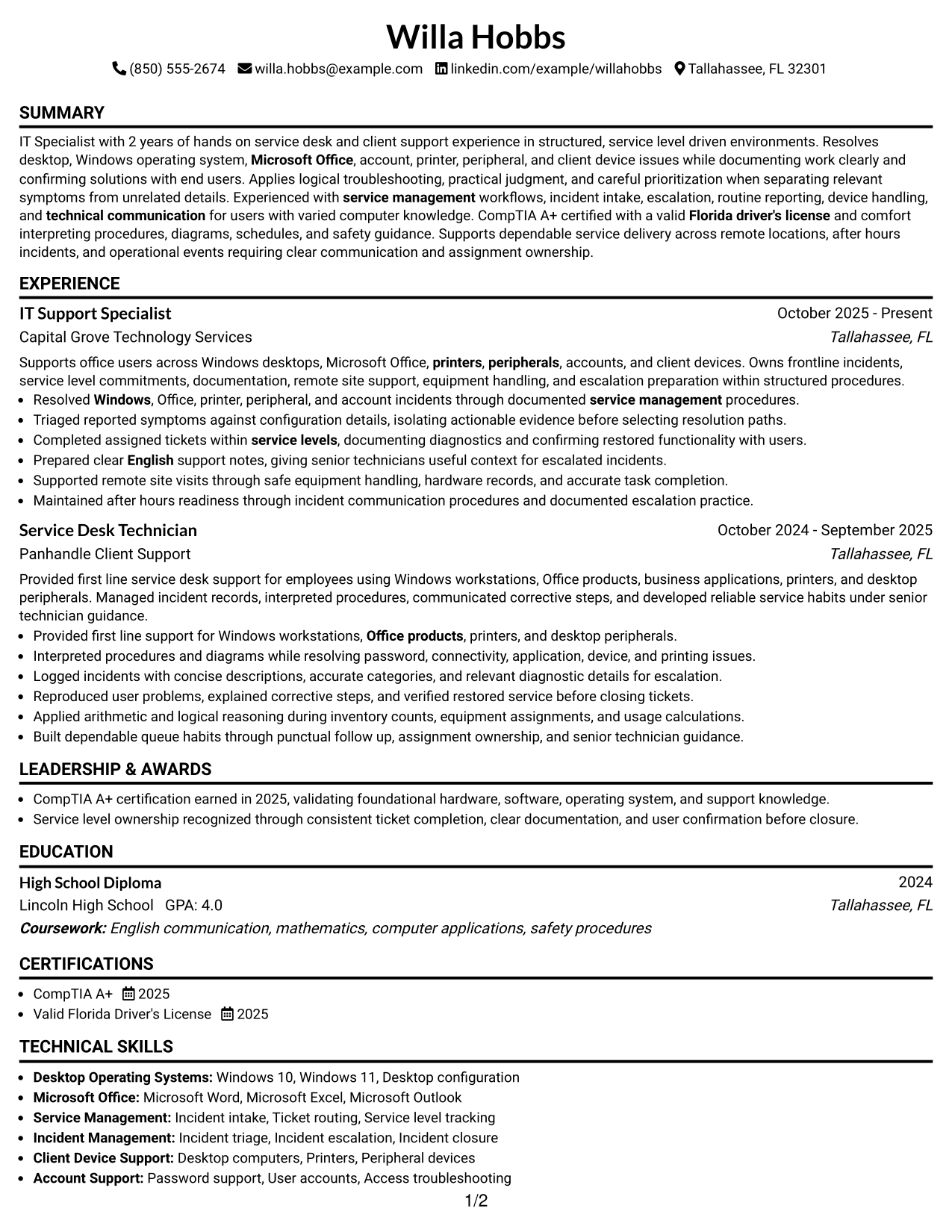
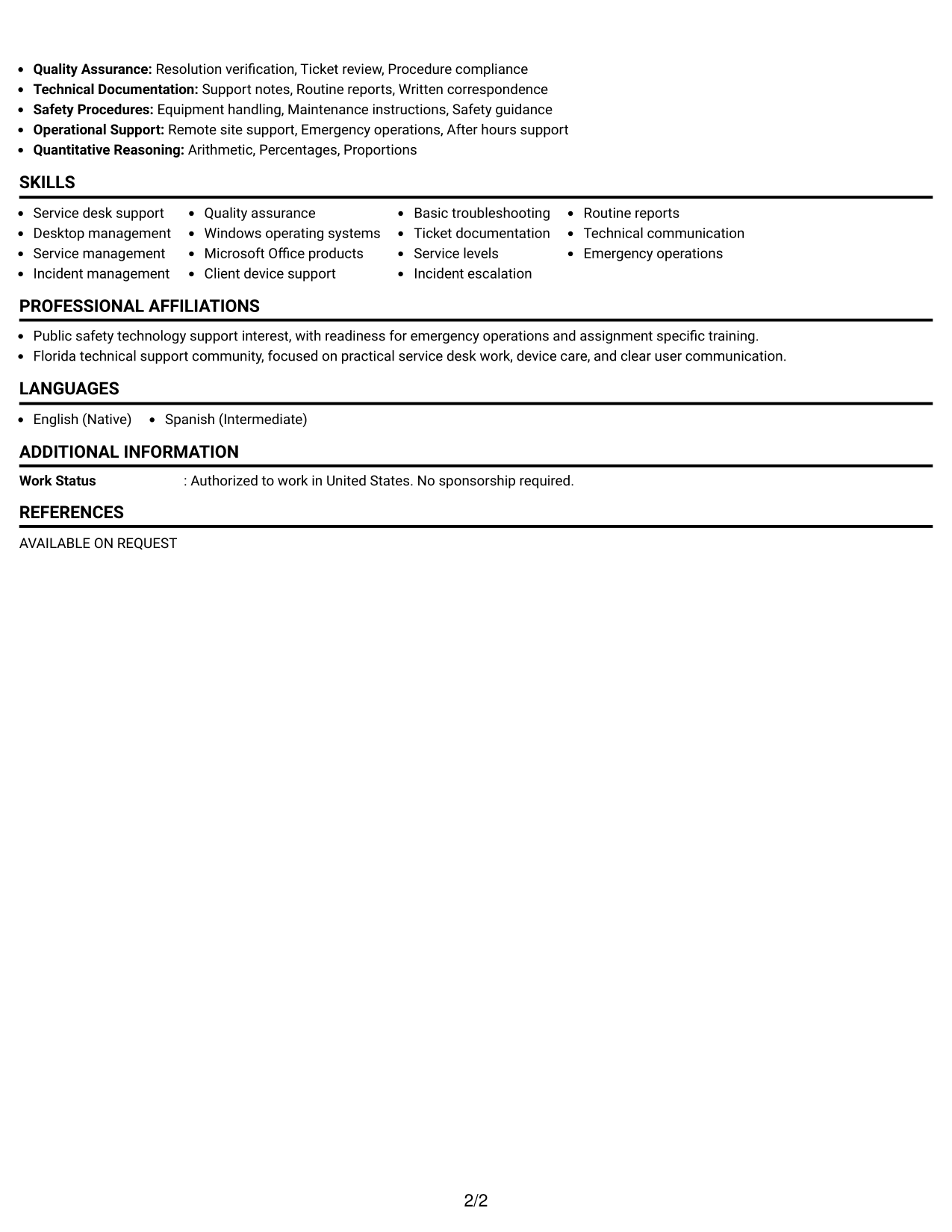
#1 Simple One Column Format Resume Example
The Simple One Column Format gives recruiters a direct top-to-bottom reading order for fast resume scanning.
Why This Format Works
- Straight reading order keeps experience and career progression easy to follow.
- Full-width sections give achievements enough space for clear supporting detail.
- Simple section breaks help recruiters locate skills, education, and credentials quickly.
Best For
- Direct top-to-bottom review
- Experience with detailed bullet points
- Clear ATS reading order
- Straightforward skills and credentials
- Traditional technical support applications
Resume Keywords
- IT Specialist I
- Technical Support
- service desk support
- desktop management
- service management
- incident management
- quality assurance
- Windows operating systems
- Microsoft Office products
- client device support
- ticket documentation
- service levels
- incident escalation
- routine reports
- technical communication
- CompTIA A+
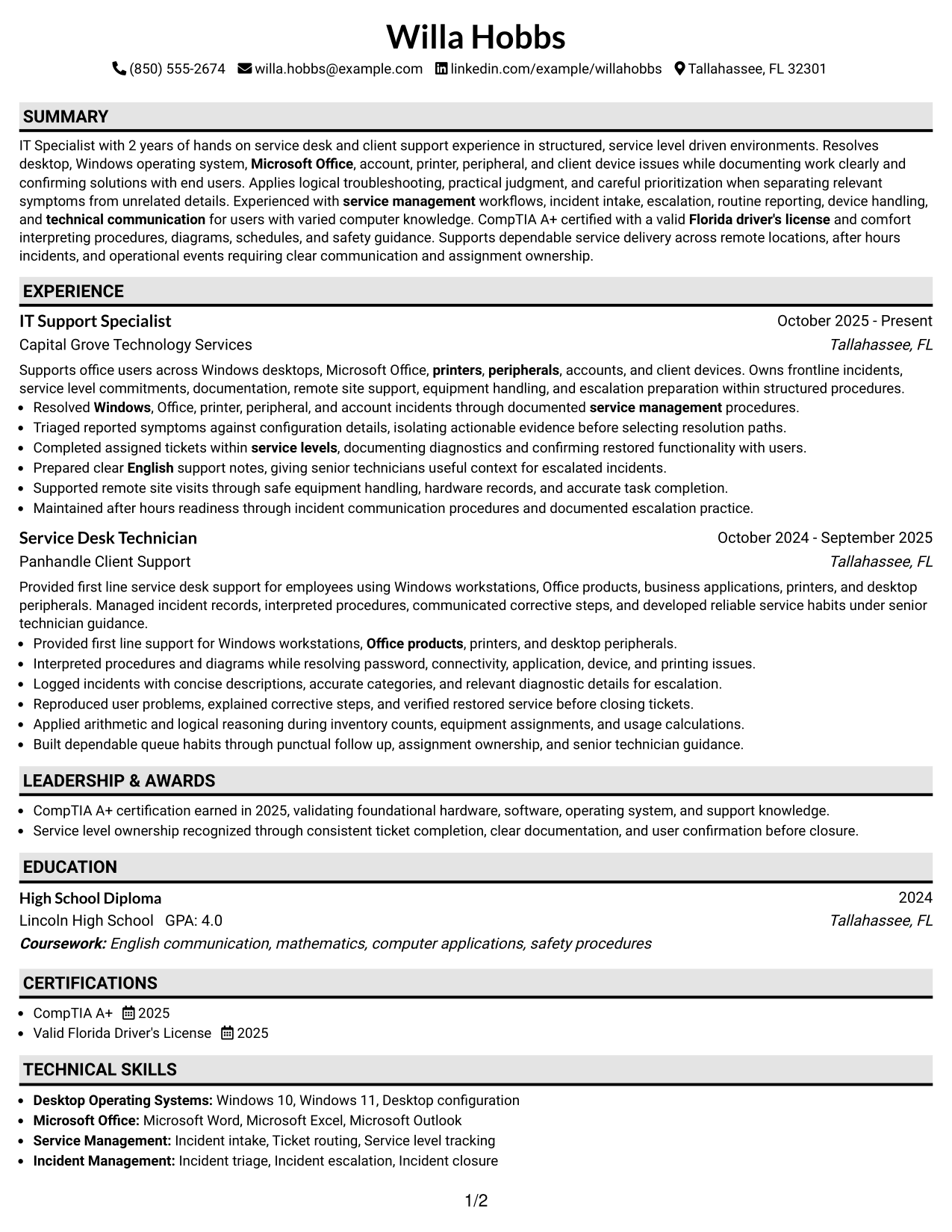
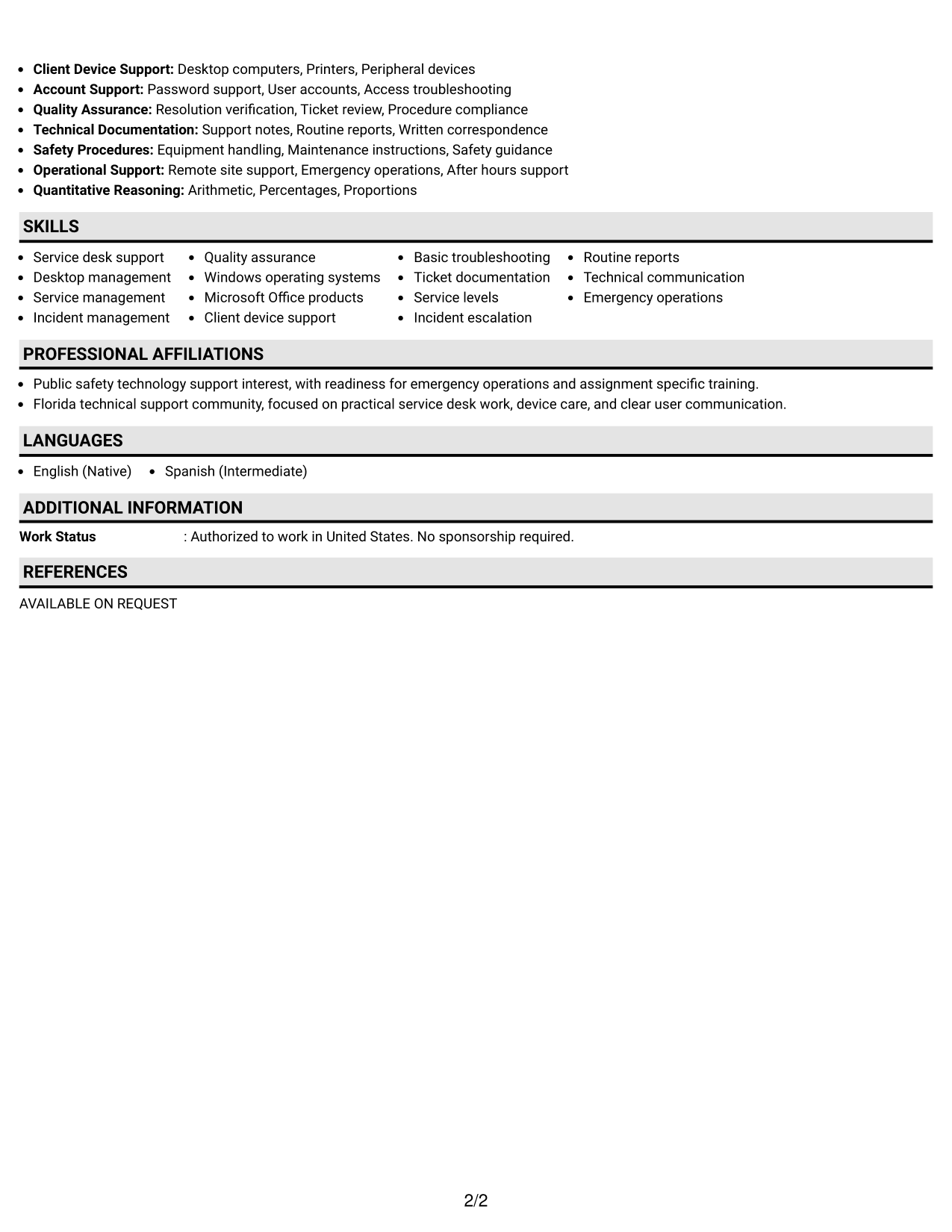
#2 Plain One Column with Shaded Labels Resume Example
Shaded labels divide the one-column flow into clear sections, helping recruiters move through the resume without losing context.
Why This Format Works
- Shaded section labels make major experience and skills areas easier to find.
- One-column flow preserves a steady path through career history and education.
- Visible section boundaries separate achievements from credentials without changing reading order.
Best For
- Readers who prefer clear section markers
- Resumes with several defined sections
- Linear career history review
- Balanced experience and skills content
- Applications needing stronger visual navigation
#3 One Column Format with Photo Right Resume Example
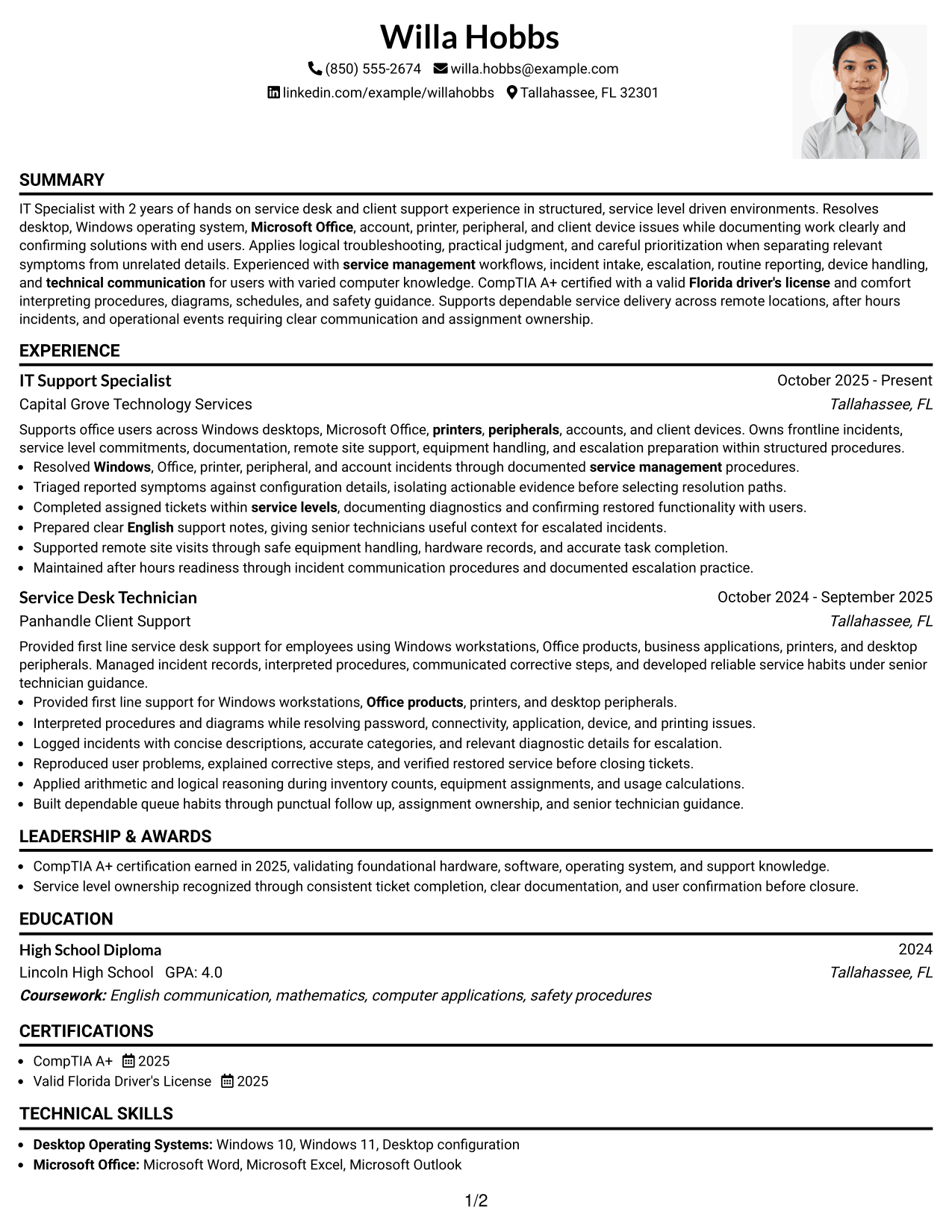
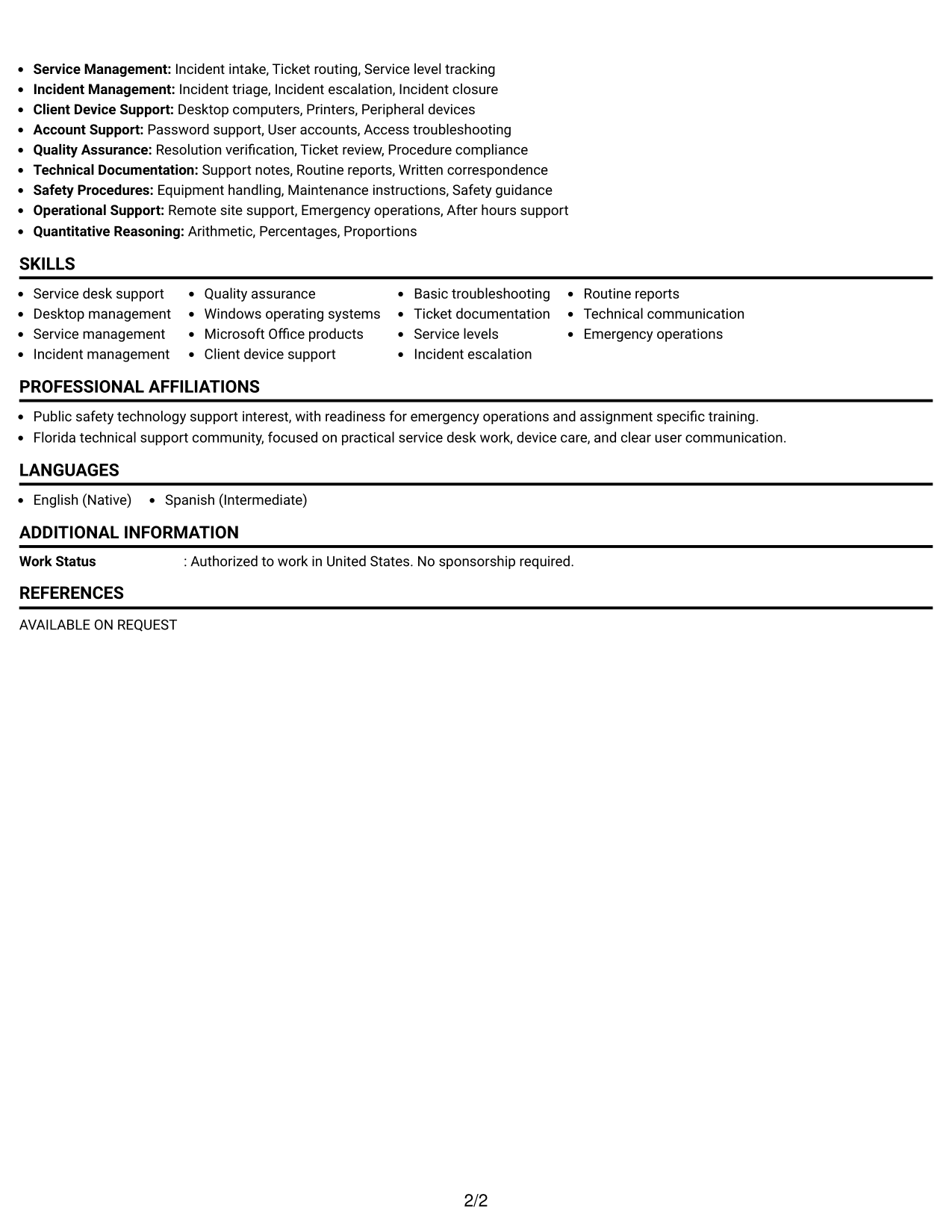
The One Column Format with Photo Right keeps the resume body linear while adding a visible photo in the header area.
Why This Format Works
- Linear body order keeps experience, education, and credentials easy to trace.
- Full-width content gives achievements room for complete, readable resume bullets.
- The header photo stays separate from the main career information flow.
Best For
- Regions where resume photos are expected
- Linear reading with a personal header
- Detailed experience descriptions
- Content needing full-width body space
- Readers who value simple section flow
#4 Clean Two Column Sidebar Format Resume Example
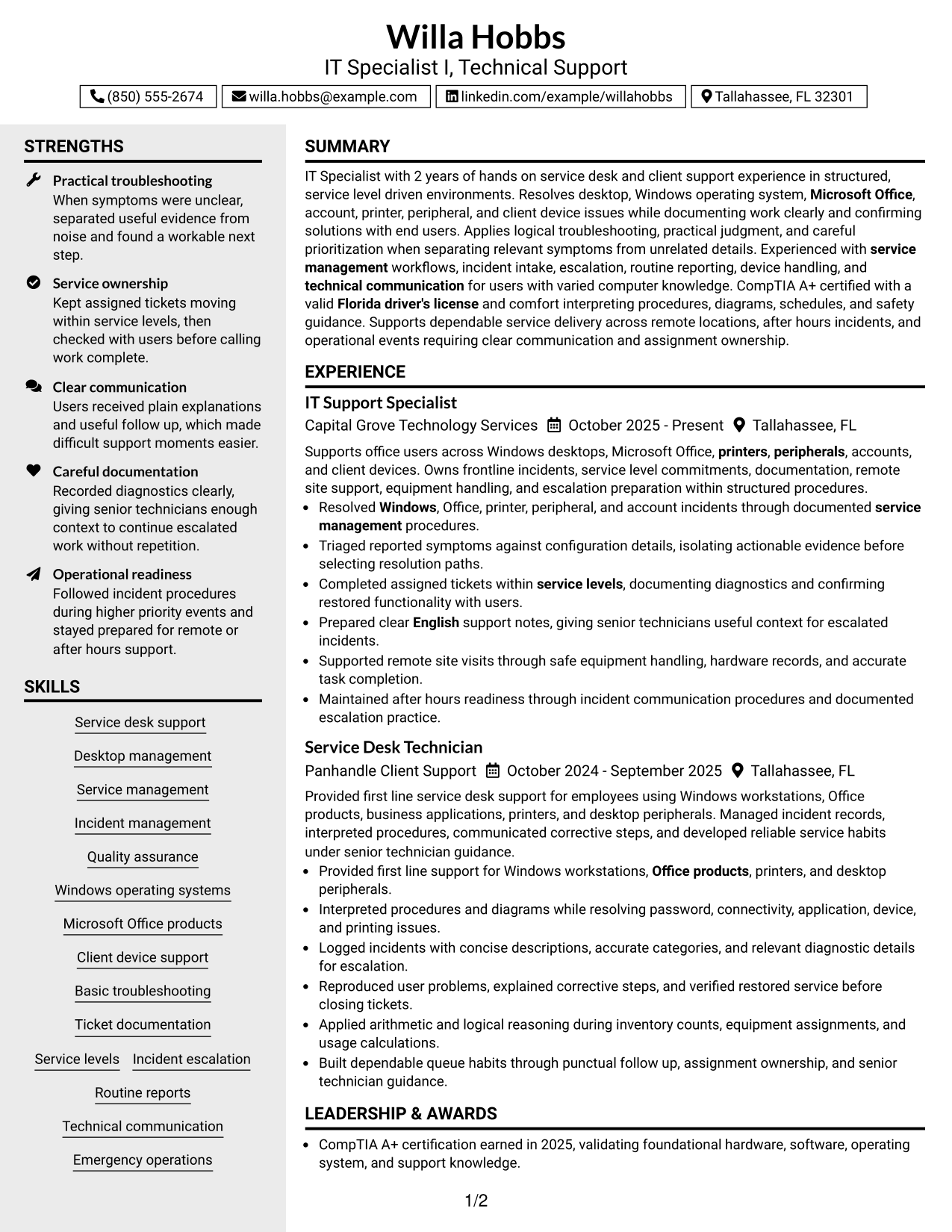
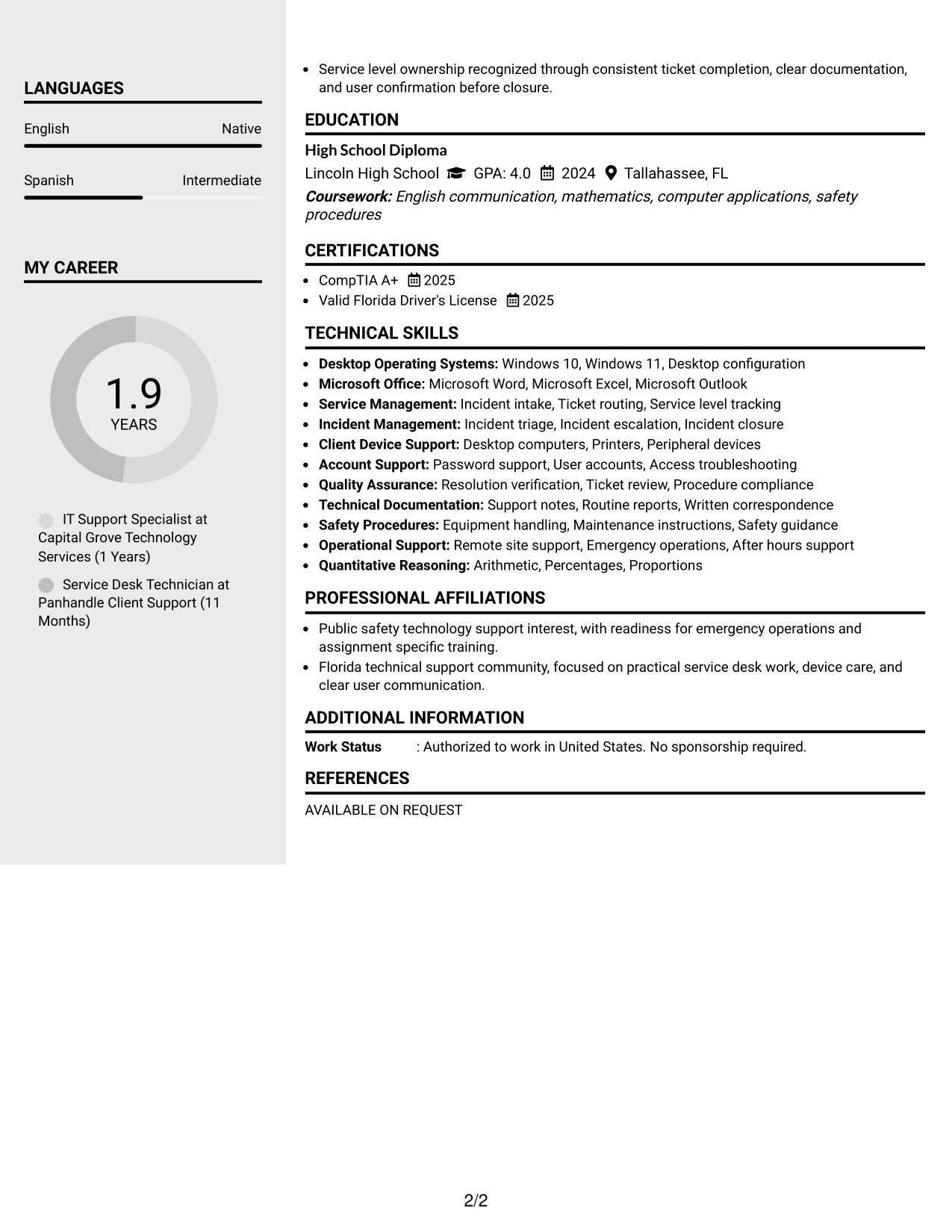
The Clean Two Column Sidebar Format separates supporting details from the main career story so recruiters can scan both efficiently.
Why This Format Works
- Two-column organization separates supporting skills from the main experience narrative.
- A defined sidebar makes credentials easier to locate during a quick review.
- The main column preserves space for achievements and career progression details.
Best For
- Resumes with substantial supporting skills
- Quick credential reference
- Experience that needs a wider main column
- Readers comparing qualifications beside career history
- Compact organization without a photo
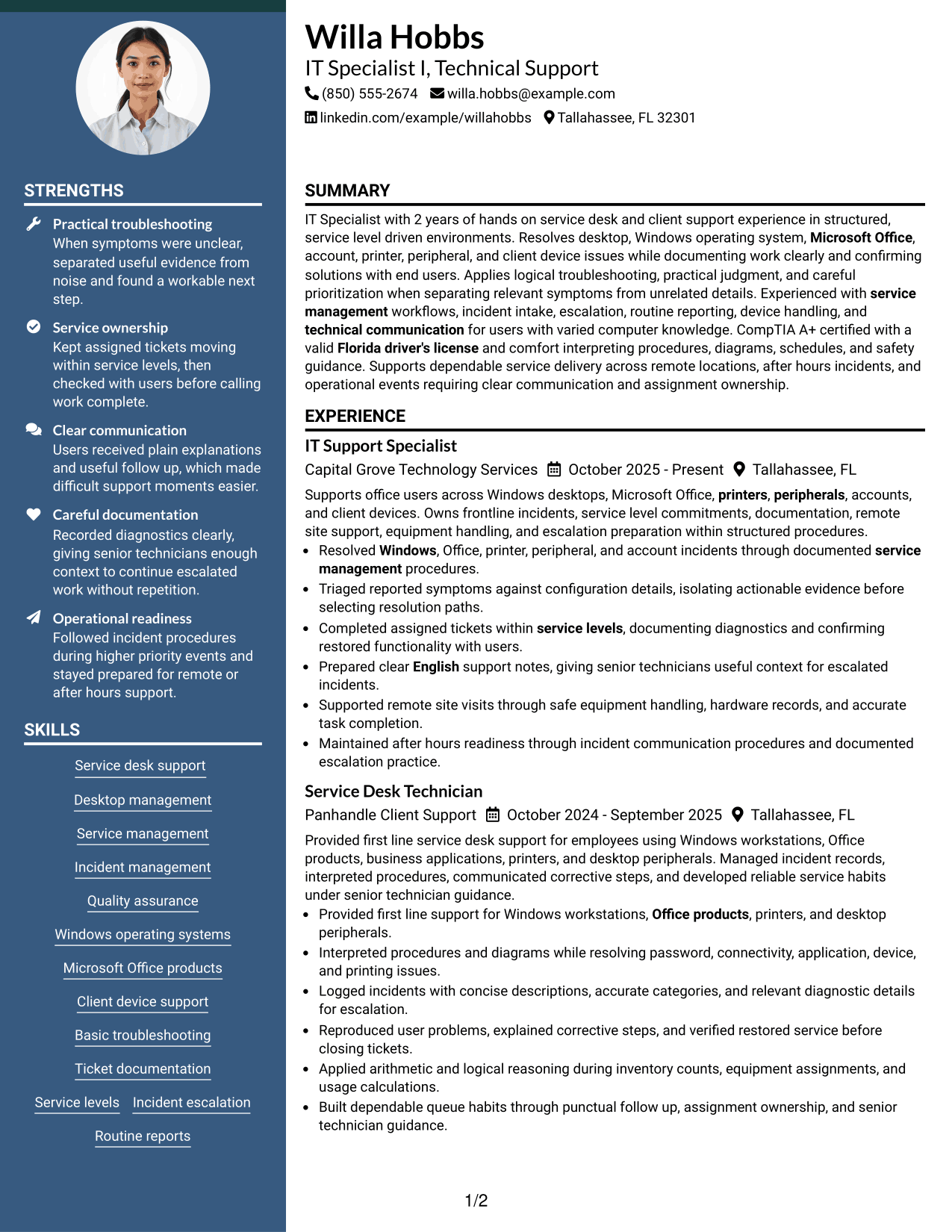
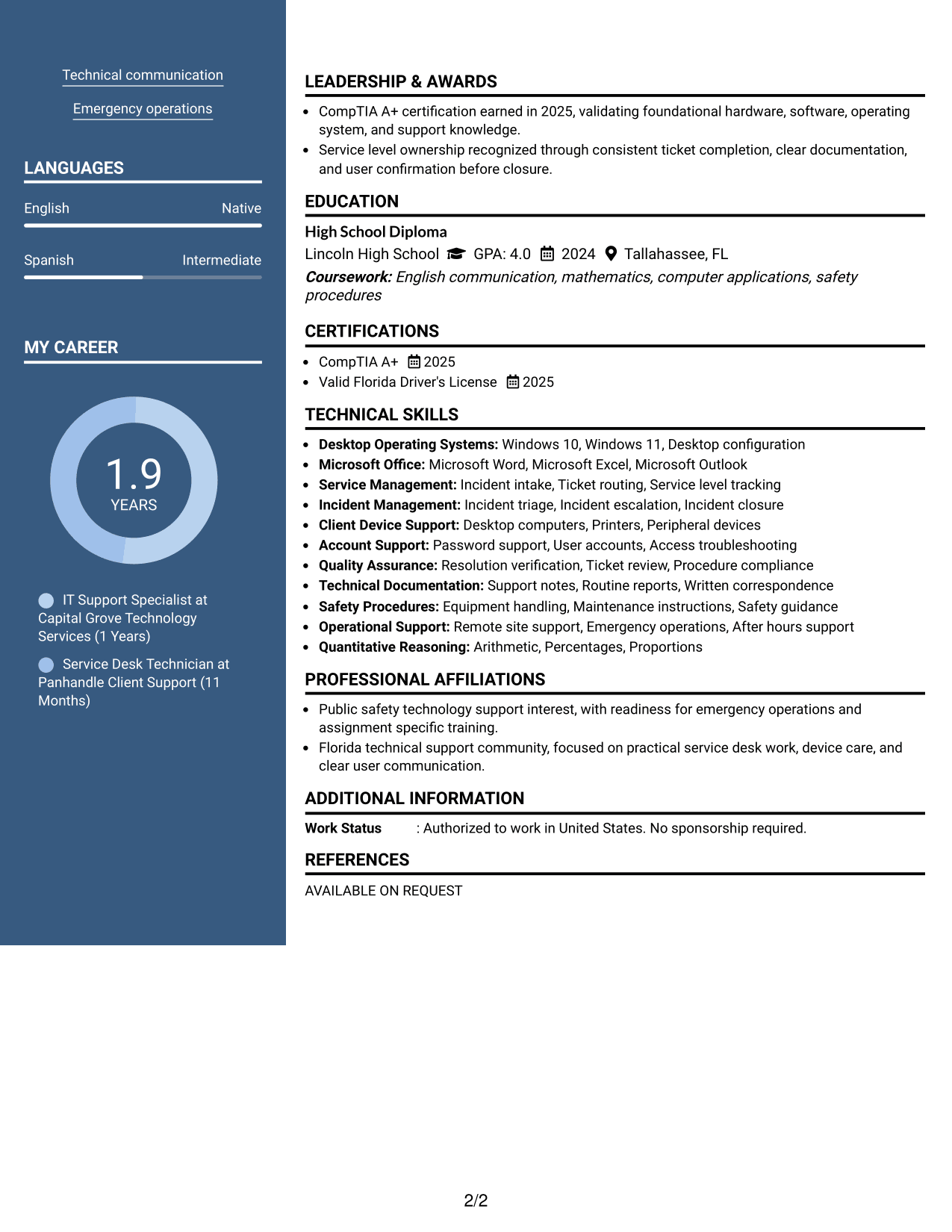
#5 Two Column Format Resume Example
The Two Column Format places resume sections side by side, giving recruiters more than one clear path to key information.
Why This Format Works
- Parallel columns keep skills and credentials visible beside broader experience sections.
- Separated content areas reduce crowding when the resume contains several categories.
- Distinct column structure helps recruiters compare experience with supporting qualifications quickly.
Best For
- Resumes with many compact sections
- Side-by-side qualification review
- Mixed experience and credential content
- Readers who scan before reading deeply
- Technical resumes with varied information
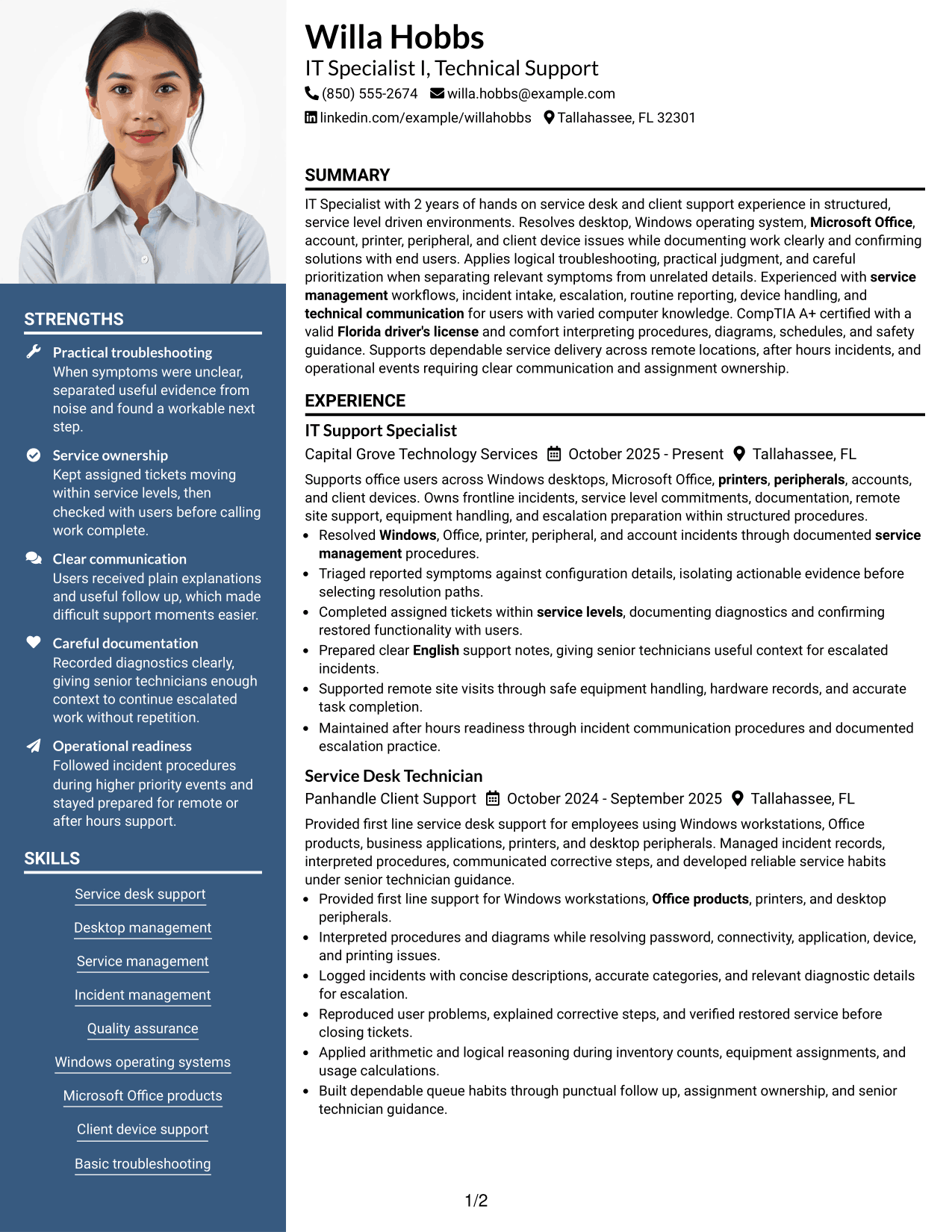
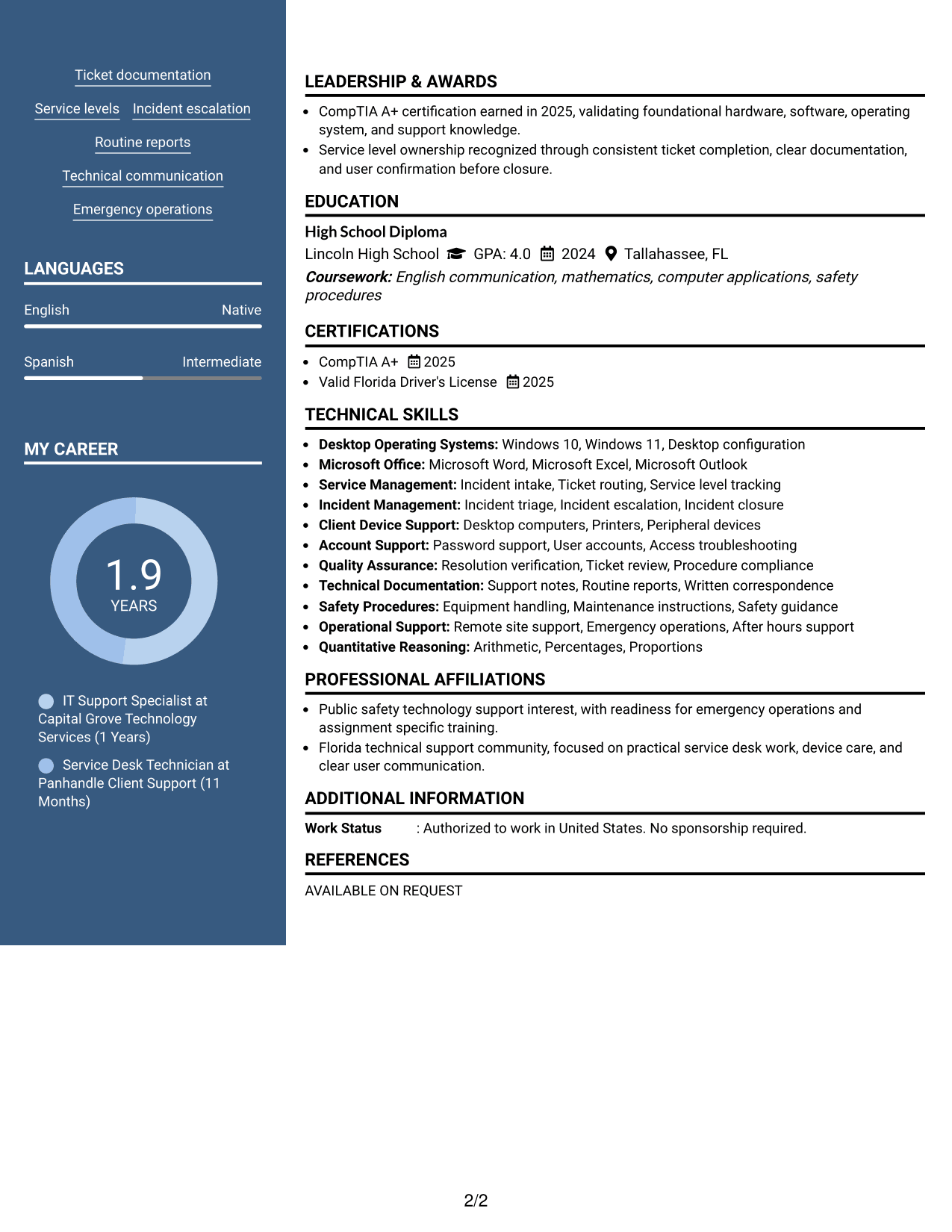
#6 Photo Header Two Column Format Resume Example
The Photo Header Two Column Format combines a prominent photo header with two body columns for structured recruiter scanning.
Why This Format Works
- Two body columns divide experience from supporting qualifications without mixing sections.
- The prominent header identifies the applicant while career content stays structured below.
- Column separation gives skills, education, and credentials distinct places to scan.
Best For
- Markets where a resume photo is customary
- Applications needing a strong visual header
- Two-column separation of career information
- Resumes balancing experience with credentials
- Readers who scan grouped content quickly
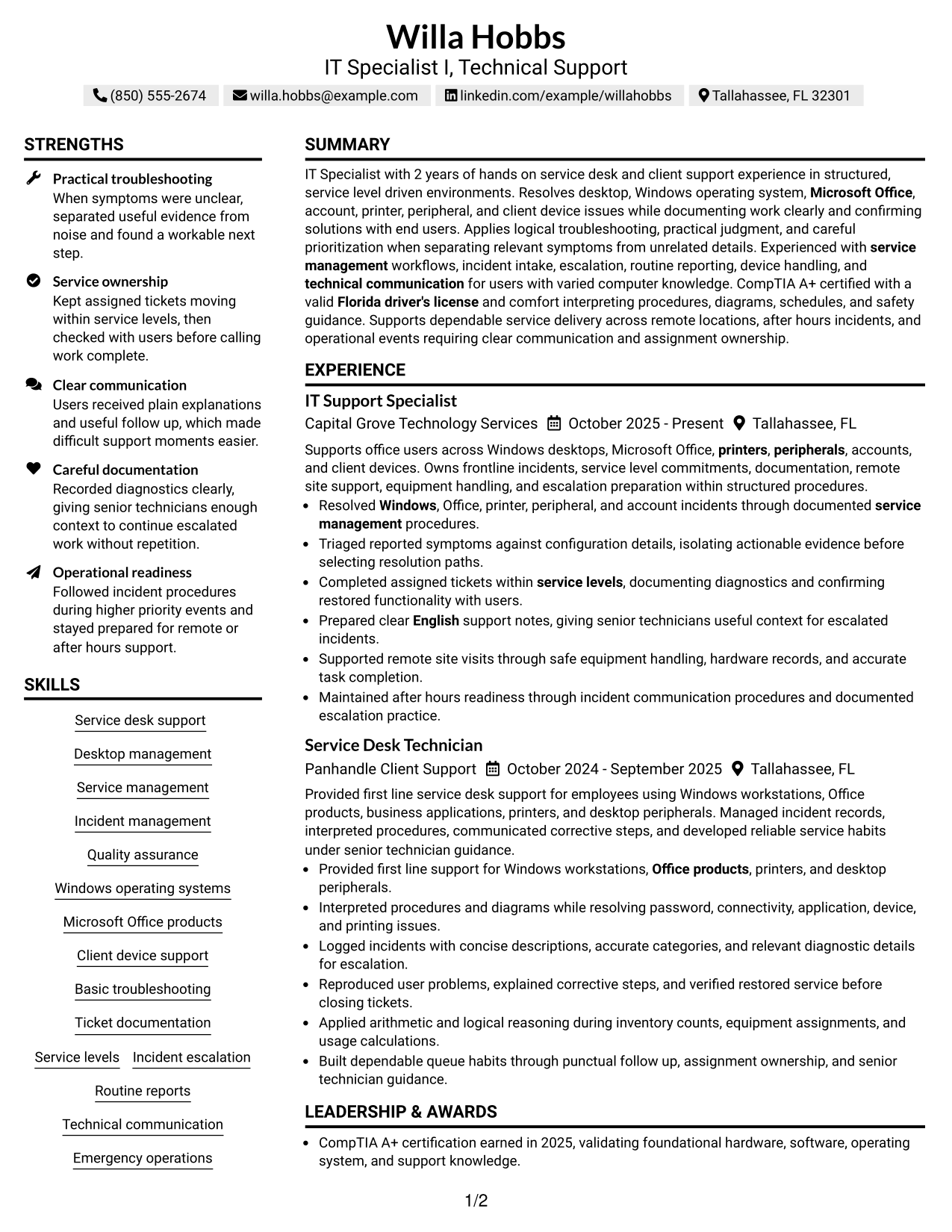
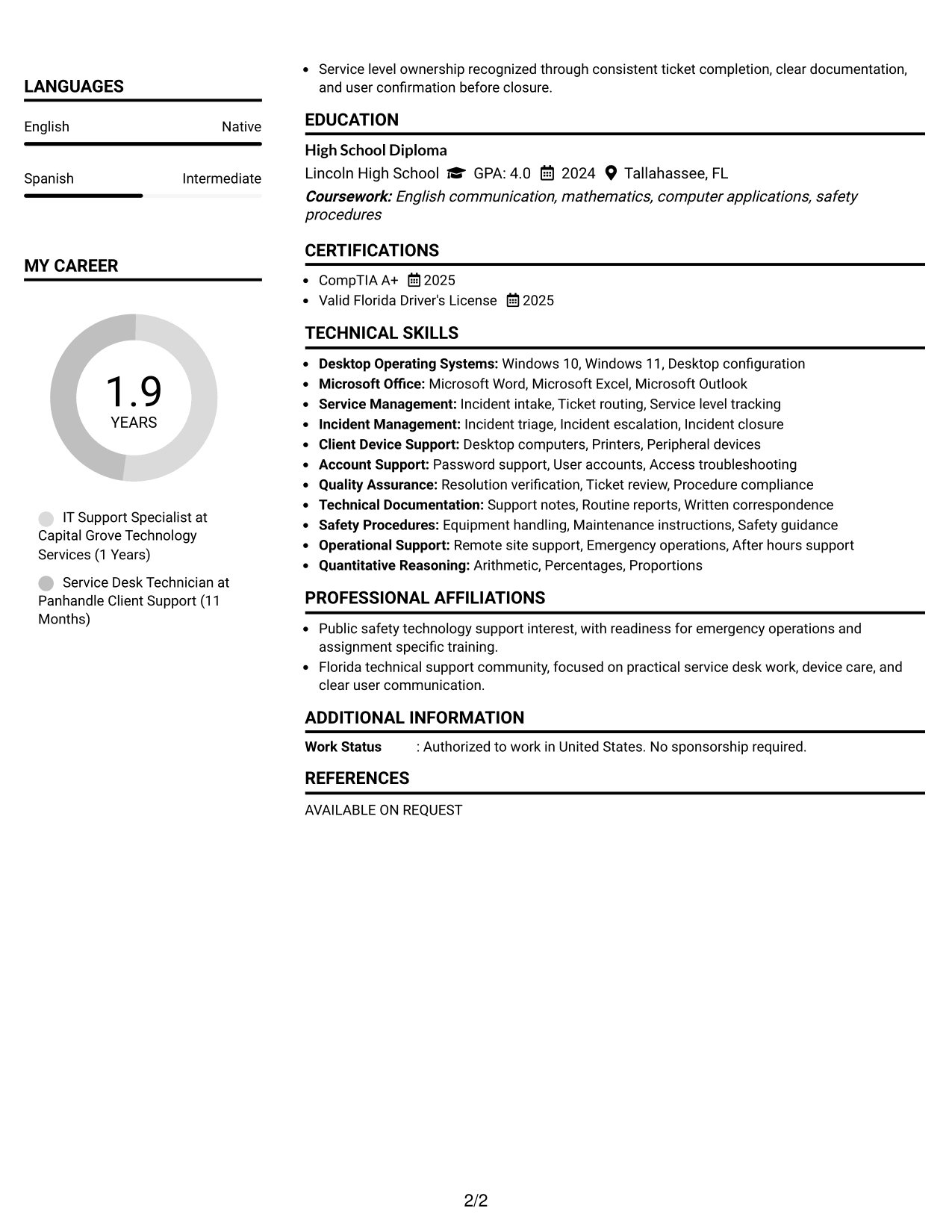
#7 Simple Two Column Format Resume Example
The Simple Two Column Format uses a restrained split layout that lets recruiters review core and supporting sections in parallel.
Why This Format Works
- Simple column division keeps career history distinct from secondary resume sections.
- Parallel structure helps reviewers locate qualifications without interrupting experience reading.
- Balanced section space supports achievements, skills, education, and credentials together.
Best For
- Clean two-column organization
- Career history with several supporting sections
- Parallel review of core qualifications
- Resumes needing compact visual structure
- Readers who prefer restrained formatting
See Also
- 7 IT Support Specialist - Studio Technology Support Resume Templates with Example
- 33 IT Support Technician 1 - Computer Maintenance Support Resume Templates with Example 2026 (ATS-Optimized)
- 33 Cybersecurity IT Audit Manager Resume Templates with Example 2026 (ATS-Optimized)
- 33 Digital Manufacturing IT Program Manager Resume Templates with Example 2026 (ATS-Optimized)
- 33 Director of IT & Cybersecurity Resume Templates with Example 2026 (ATS-Optimized)
- 33 Enterprise Network Engineering & Convergence IT Intern Resume Templates with Example 2026 (ATS-Optimized)
- 33 Information Systems IT Leadership Intern Resume Templates with Example 2026 (ATS-Optimized)
- 7 Information Technology Programmer Analyst - IT Business Analyst Resume Templates with Example
- 30+ Cybersecurity IT Audit Manager Cover Letter Templates with Example 2026
- 30+ Digital Manufacturing IT Program Manager Cover Letter Templates with Example 2026
Frequently Asked Questions
Are these IT Specialist I - Technical Support resume templates ATS-friendly?
Yes. The layouts use clear section structure and readable headings. For ATS results, keep your wording simple and use supported terms from the job description, such as service desk support, desktop management, incident management, and client device support.
Are these different resumes?
No. This guide uses one complete IT Specialist I - Technical Support resume example and presents it in different visual formats.
What should an IT Specialist I - Technical Support resume include?
Include a focused summary, support experience, technical skills, ticket and incident work, education, certifications, and clear evidence of troubleshooting, documentation, and user communication.
Can I download the resume templates as PDFs?
Yes. Each style includes a free PDF download so you can review the format and choose a layout that fits your content.
Which resume style works well for this technical support role?
A clear one-column layout works well when you want a direct reading order. A two-column layout can help separate skills and credentials from experience when the sections remain easy to scan.
How should I show troubleshooting experience without overstating it?
Describe the problems you handled, the steps you took, the procedures you followed, and how you confirmed service was restored. Keep every claim tied to work you actually performed.
Should I include a photo on my resume?
For U.S. applications, a no-photo resume is usually the safer choice. Use a photo only when it is customary or expected for the location and application context.
Can I customize these resume templates?
Yes. You can adjust the text and visual format to match your supported experience while keeping the target role and important resume sections clear.