7 Operations Specialist - Special Operations Team Coordinator Resume Templates with Example
This guide shows you how to build an Operations Specialist - Special Operations Team Coordinator resume that is clear, focused, and easy to review. You will learn how to organize strong evidence for a role that combines emergency operations, data control, field coordination, and team readiness.
Give hiring managers direct proof of your ability to track resources, maintain operational records, support EOC functions, coordinate volunteers, manage grant documentation, and train response teams. Use exact terms such as JUVARE, EOP, EOC, resource requests, fleet tracking, equipment tracking, mandated reporting, and interagency coordination only when they match your real experience.
The same complete resume is shown in 7 layouts so you can compare reading order, section balance, and visual structure while keeping the underlying qualifications consistent.
What Makes a Great Operations Specialist - Special Operations Team Coordinator Resume in 2026
A strong resume makes emergency operations experience easy to scan and shows clear ownership of coordination, records, deployments, training, and field readiness. Keep the summary focused and use concise bullets that show what you handled.
Match important role terms only where your background supports them, including resource requests, JUVARE, EOC support, EOP planning, grant documentation, fleet and equipment tracking, volunteer coordination, and mandated reporting.
The examples shown below are intentionally detailed to demonstrate a range of experiences, skills, accomplishments and relevant keywords. We prefer detailed resumes as they provide more context to the hiring managers and also help the ATS systems identify relevant qualifications and score your resume better for a match. But the length of a resume is an individual choice. If you want a one page resume, just keep the most relevant experience and information for the job. Note: Resume examples are for educational purposes only. Use only information that accurately reflects your experience and qualifications. References to real organizations do not imply affiliation or endorsement.
#1 Plain Two Column Format Resume Example
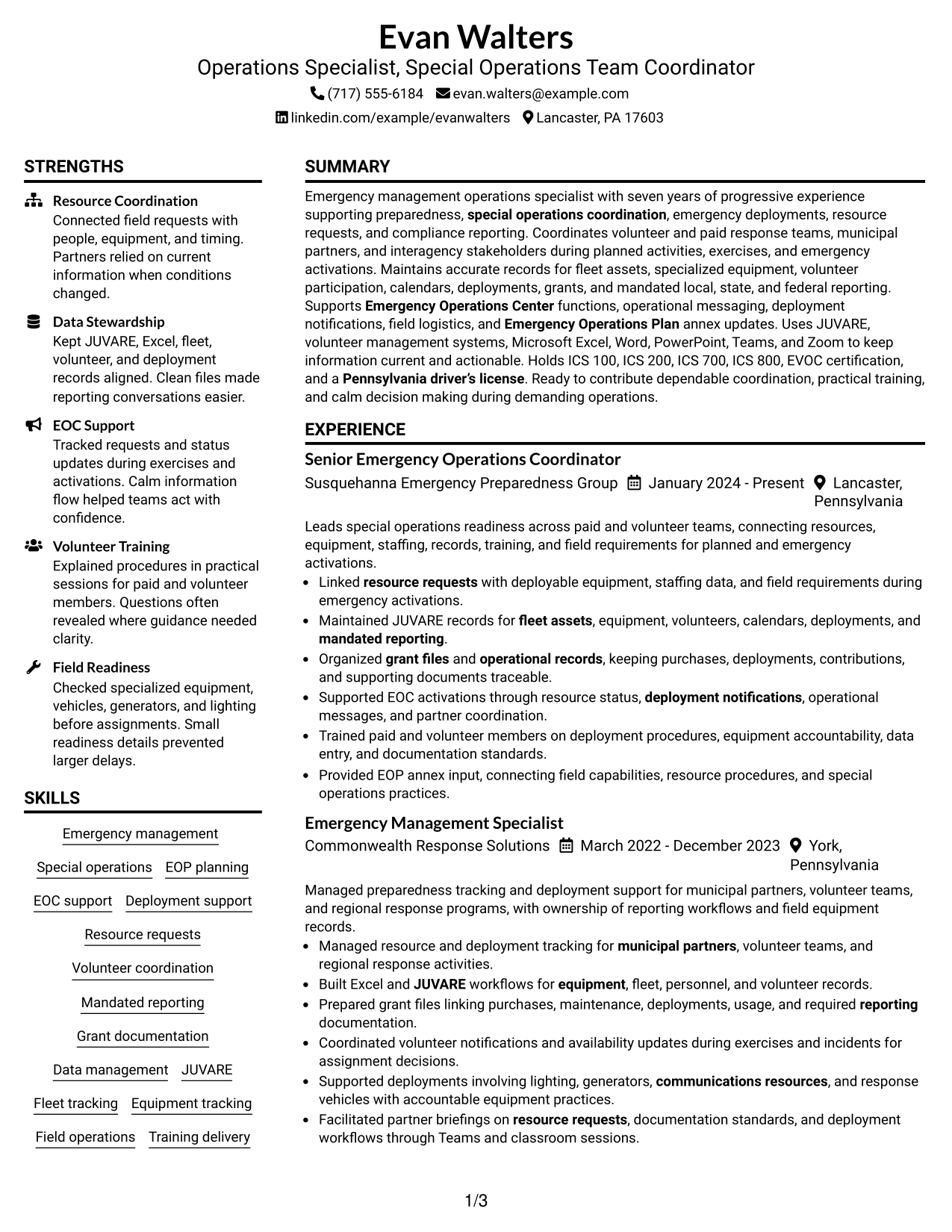
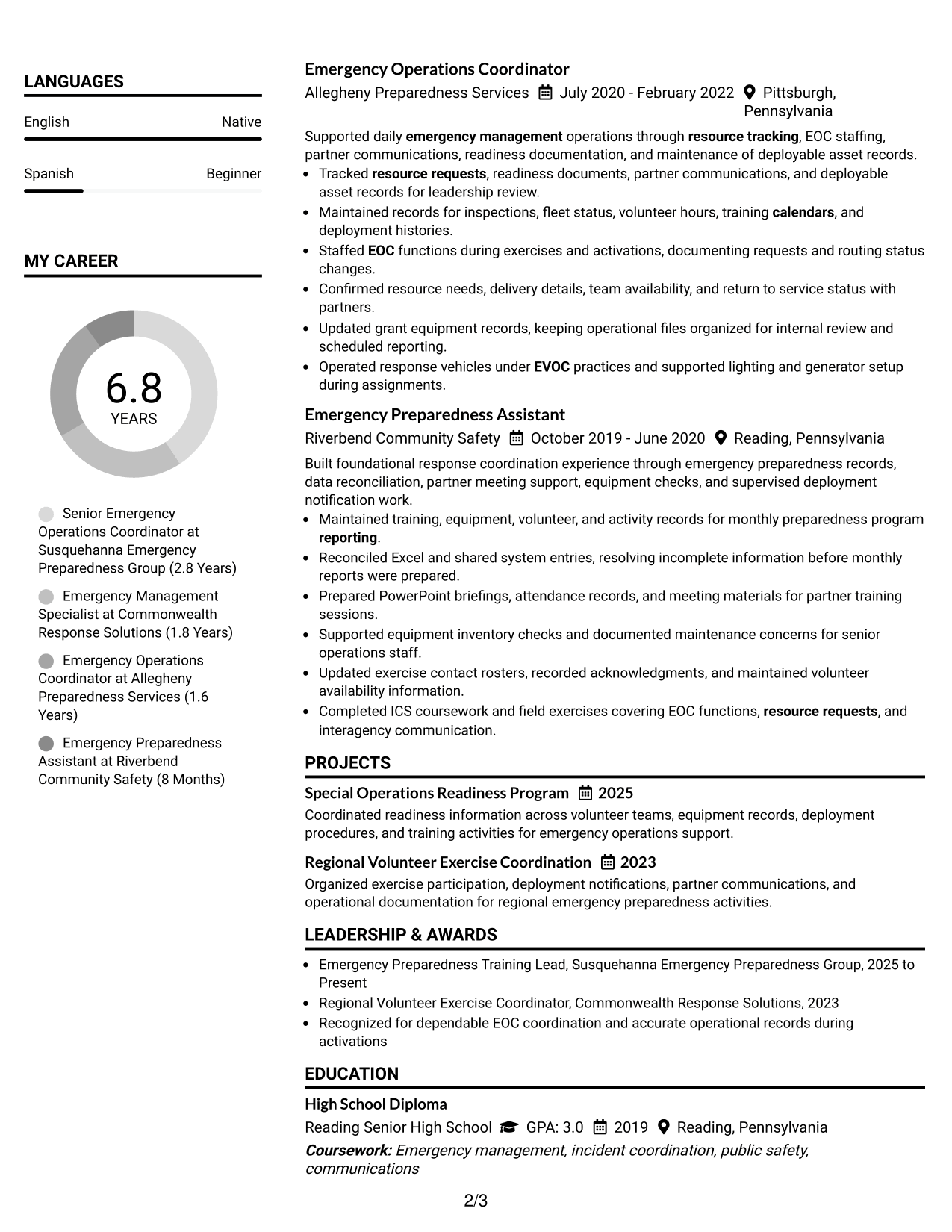
A plain two-column structure separates supporting details from core experience so recruiters can scan the resume quickly.
Resume Snapshot
- Seven years of progressive emergency management and special operations coordination experience
- Experience supporting EOC activations, resource requests, deployments, and interagency partners
- Hands-on data management across JUVARE, Excel, fleet, equipment, and volunteer records
- ICS 100, 200, 700, 800, EVOC, and a Pennsylvania driver’s license
Why This Format Works
- Parallel sections keep core experience visible while supporting credentials remain easy to locate.
- Clear column boundaries help reviewers separate career progression from skills and education.
- Compact organization gives achievements and operational responsibilities distinct places without crowding.
Best For
- Resumes with several supporting credential sections
- Readers who compare experience and skills side by side
- Operational backgrounds with dense recordkeeping evidence
- Applications needing fast section navigation
- Candidates balancing field work and administrative duties
Resume Keywords
- Emergency management
- Special operations coordination
- Emergency Operations Plan
- Emergency Operations Center
- Resource requests
- JUVARE
- Grant documentation
- Volunteer coordination
- Fleet tracking
- Equipment tracking
- Mandated reporting
- Interagency coordination
#2 Simple One Column Format Resume Example
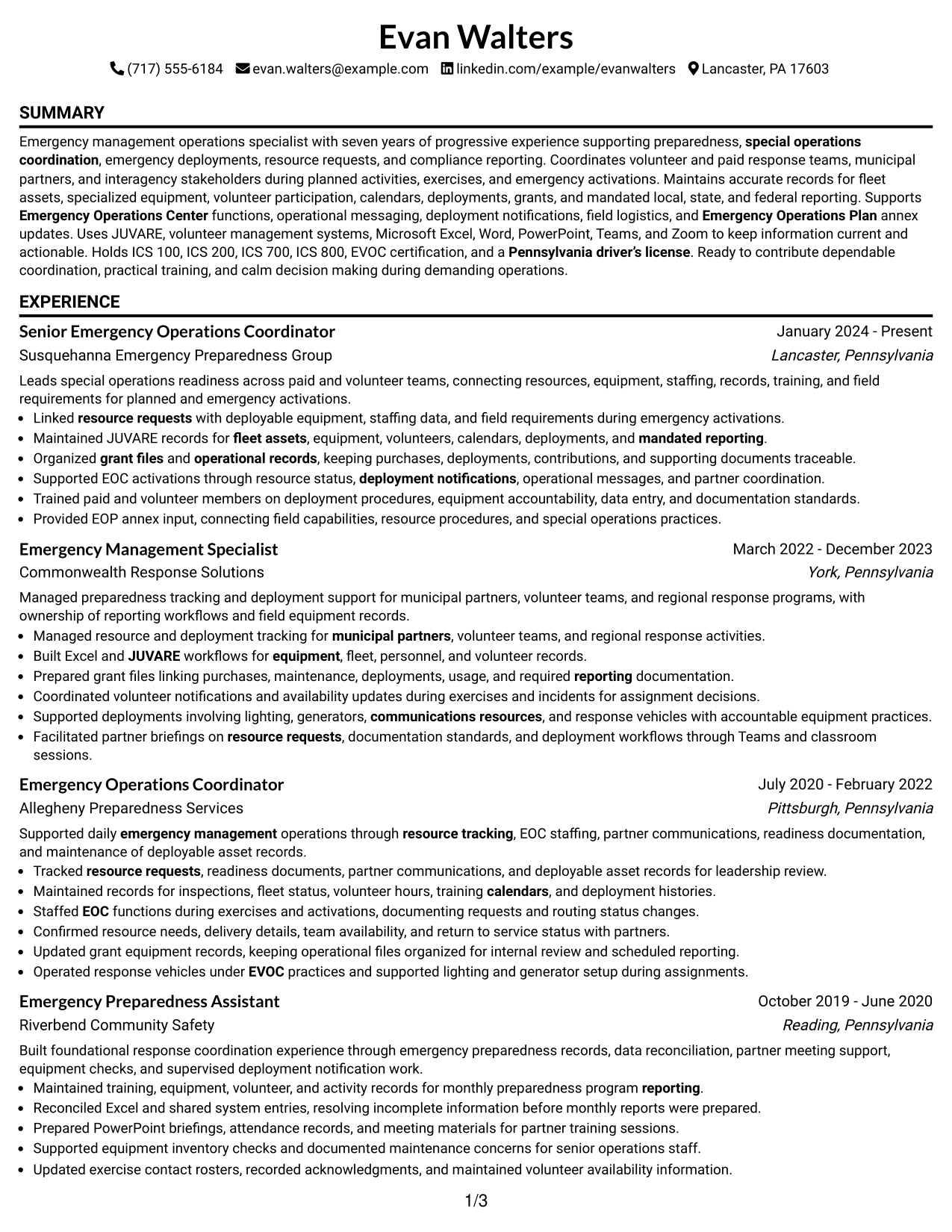
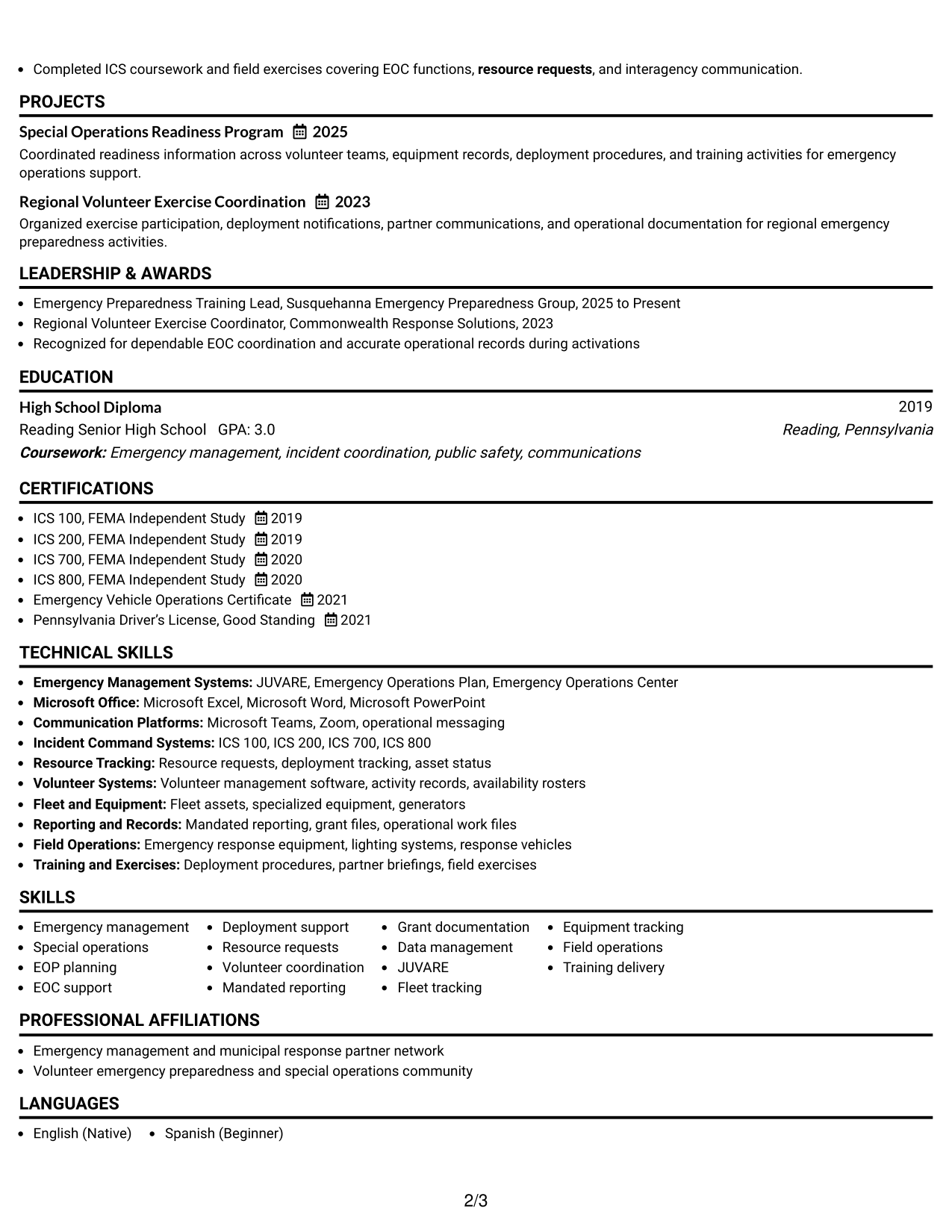
A simple one-column flow gives recruiters one clear reading path from summary through experience, skills, and credentials.
Why This Format Works
- Straight reading order makes career progression easy to follow from top to bottom.
- Full-width sections give experience bullets room to explain responsibilities and achievements clearly.
- Simple section breaks keep skills, education, and credentials easy to find.
Best For
- Applications favoring a traditional reading order
- Experience sections with detailed operational bullets
- Readers who prefer top-to-bottom review
- Resumes with many chronological roles
- Content that benefits from full-width space
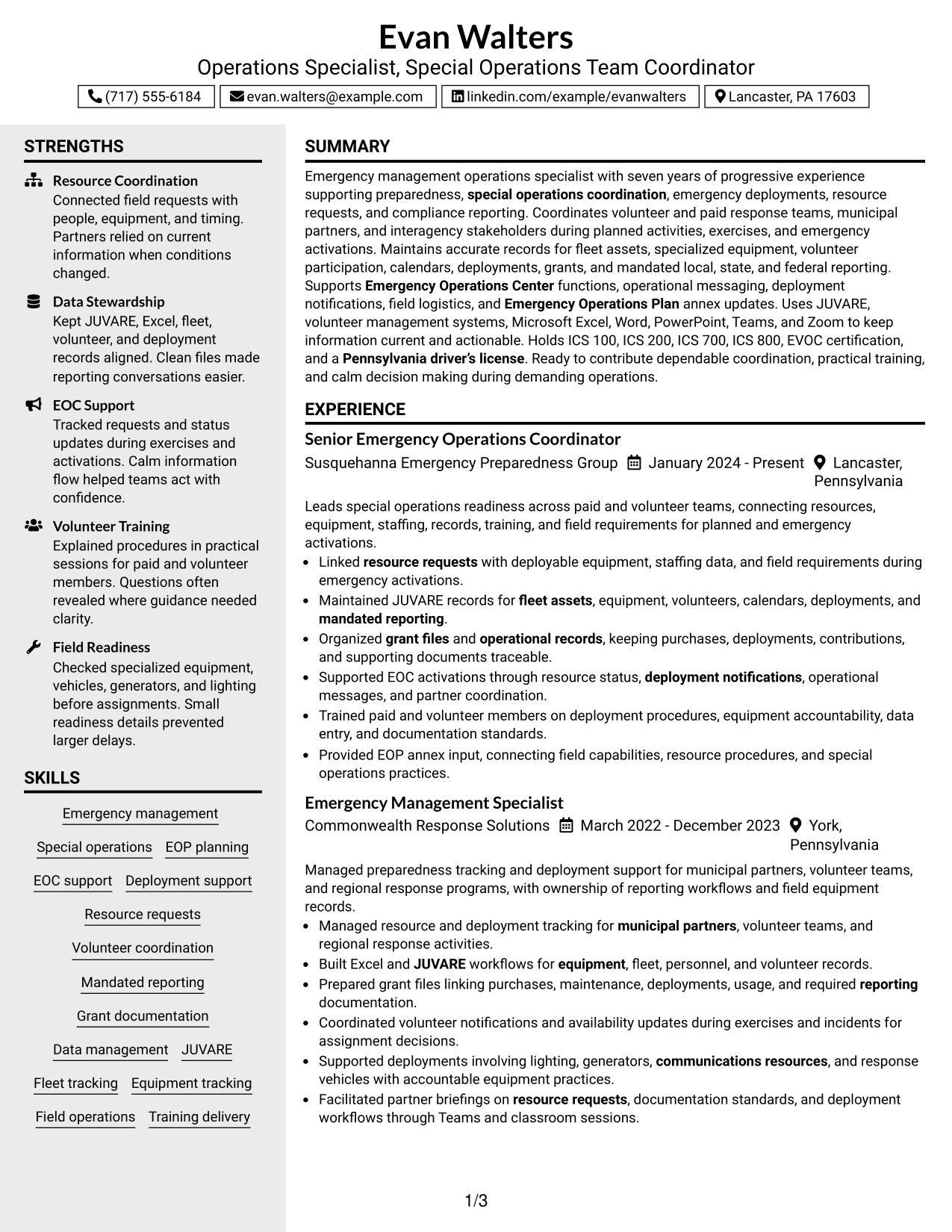
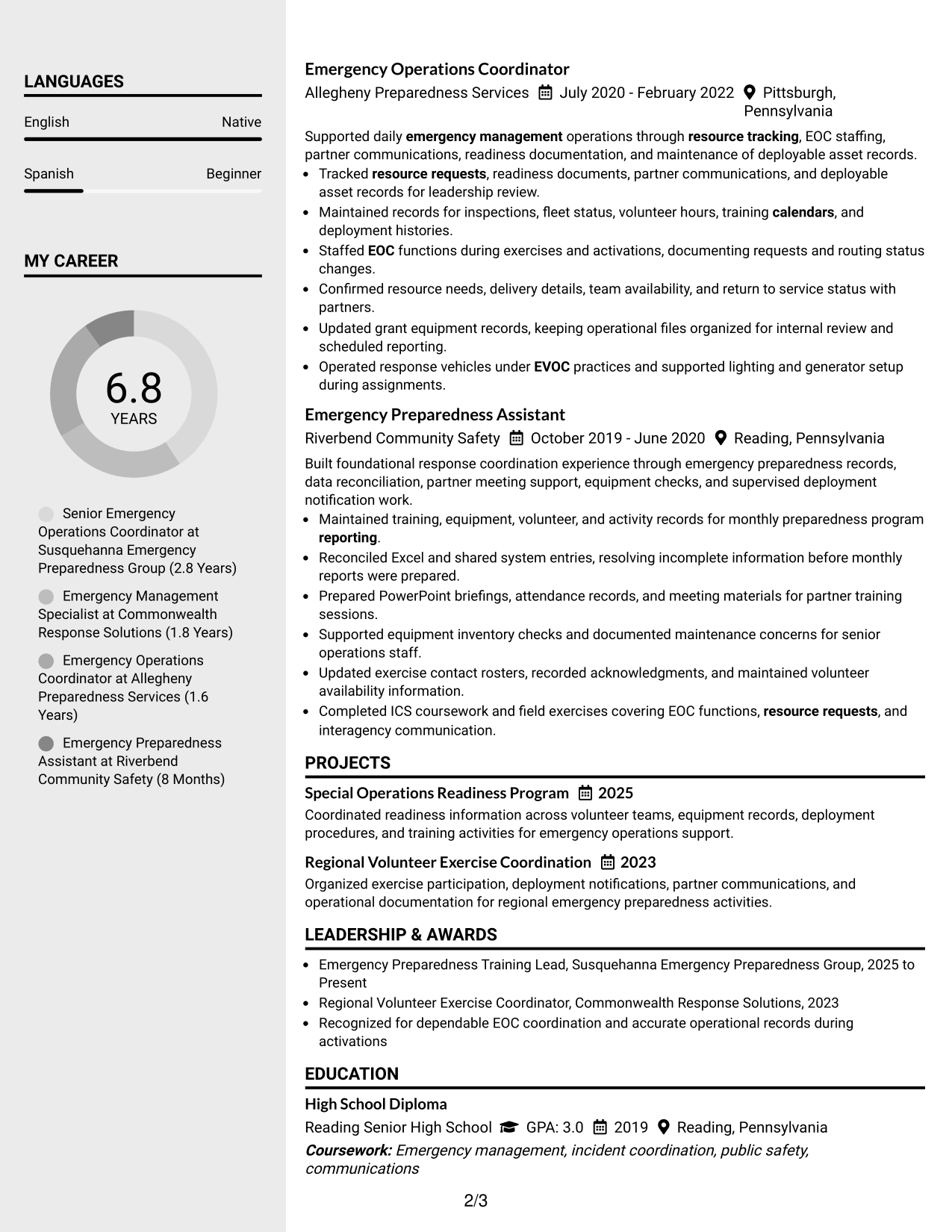
#3 Clean Two Column Sidebar Format Resume Example
A clean two-column sidebar keeps secondary sections compact while recruiters follow the main experience story beside them.
Why This Format Works
- The sidebar groups supporting skills and credentials away from the main career narrative.
- Main-column space keeps experience and achievements in a steady, readable sequence.
- Separated content areas reduce searching when reviewers check qualifications after experience.
Best For
- Resumes with substantial skills and credential content
- Reviewers who verify qualifications after reading experience
- Career histories needing a strong main narrative
- Applications with several supporting sections
- Professionals who want compact secondary information
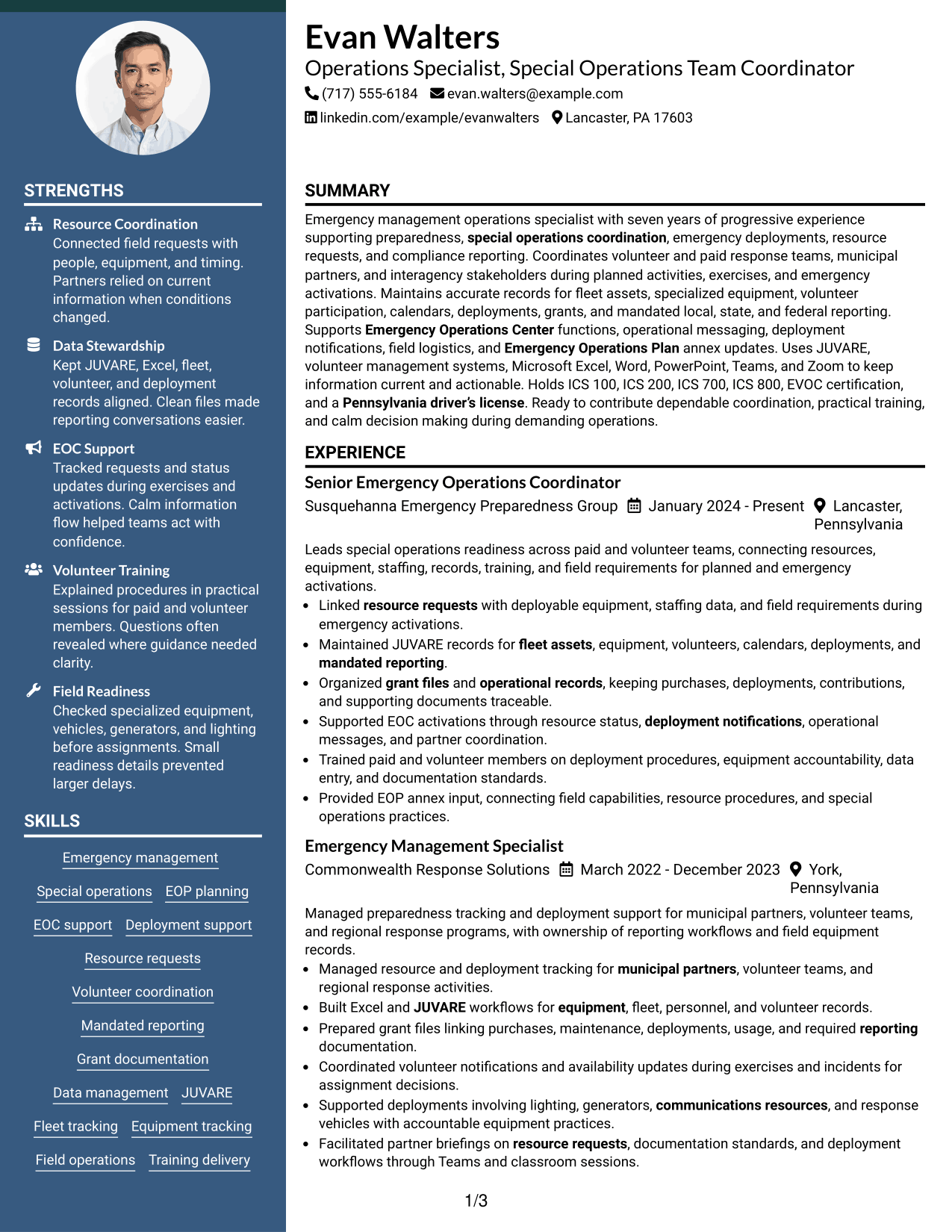
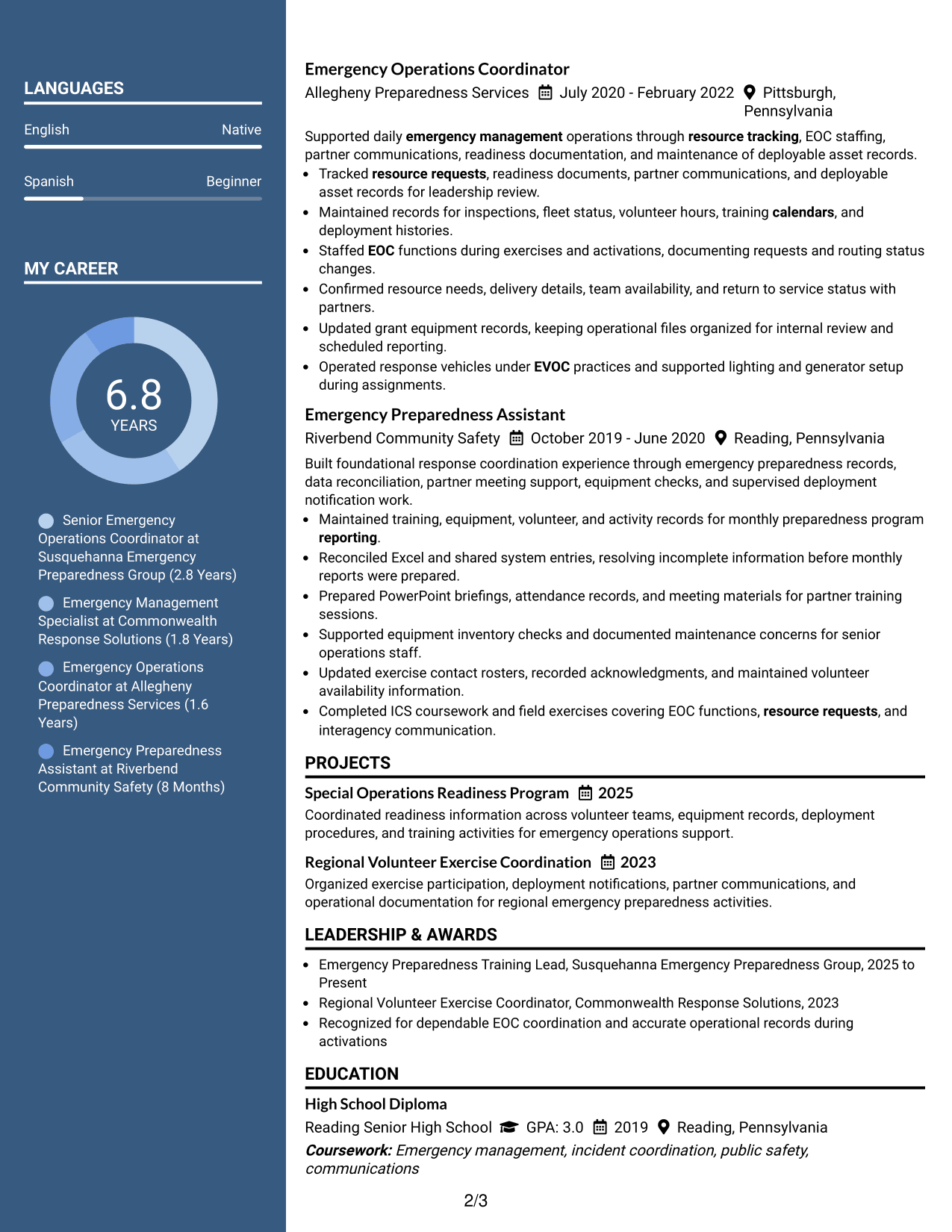
#4 Two Column Format Resume Example
This two-column arrangement lets recruiters compare major resume sections without losing the order of the experience record.
Why This Format Works
- Balanced columns divide high-level sections while preserving a clear path through experience.
- Side-by-side organization helps reviewers move between achievements, skills, and credentials efficiently.
- Defined section blocks make a broad operational background easier to inspect in parts.
Best For
- Resumes with balanced experience and skills content
- Readers who compare major sections quickly
- Operational careers with varied responsibility areas
- Applications needing visible section separation
- Professionals with multiple credentials and tools
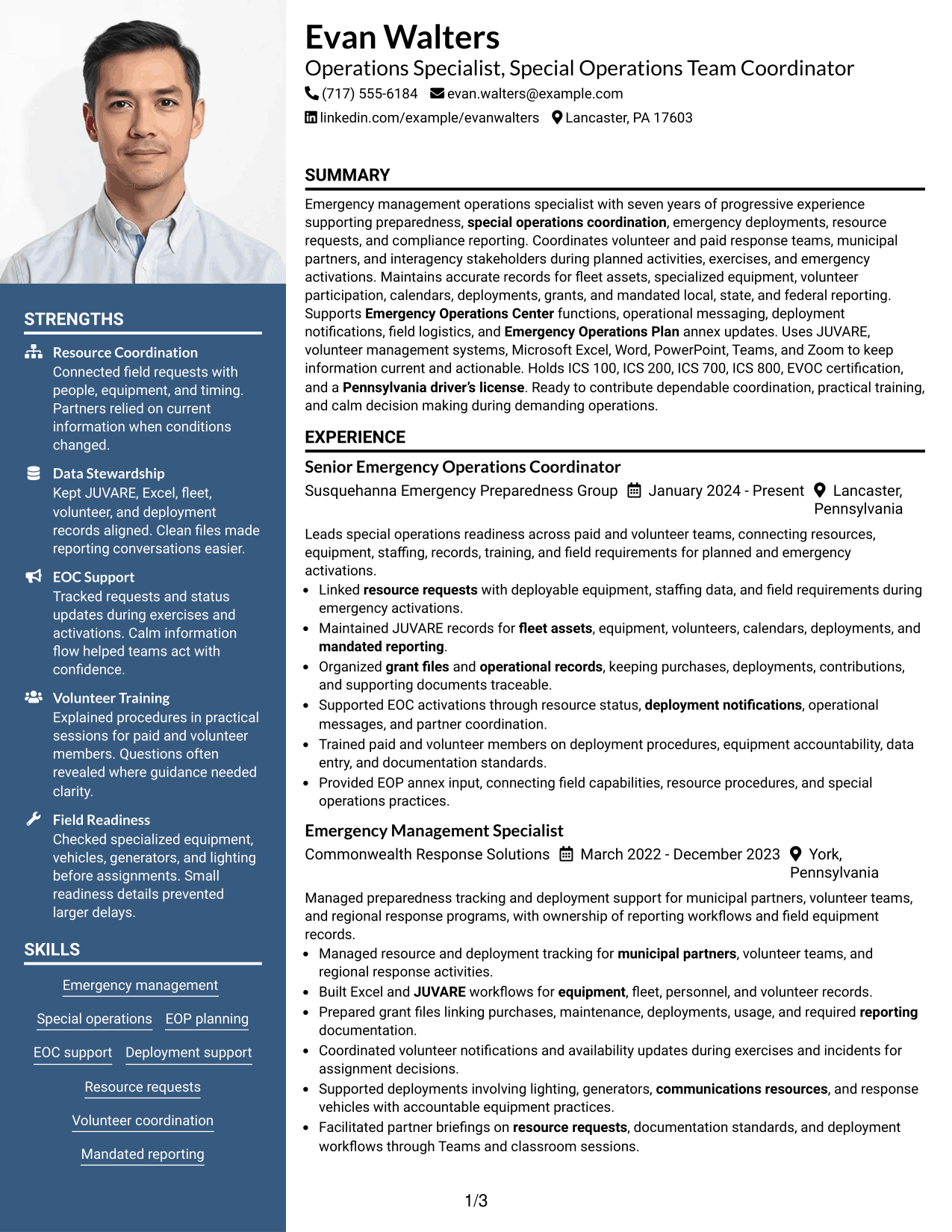
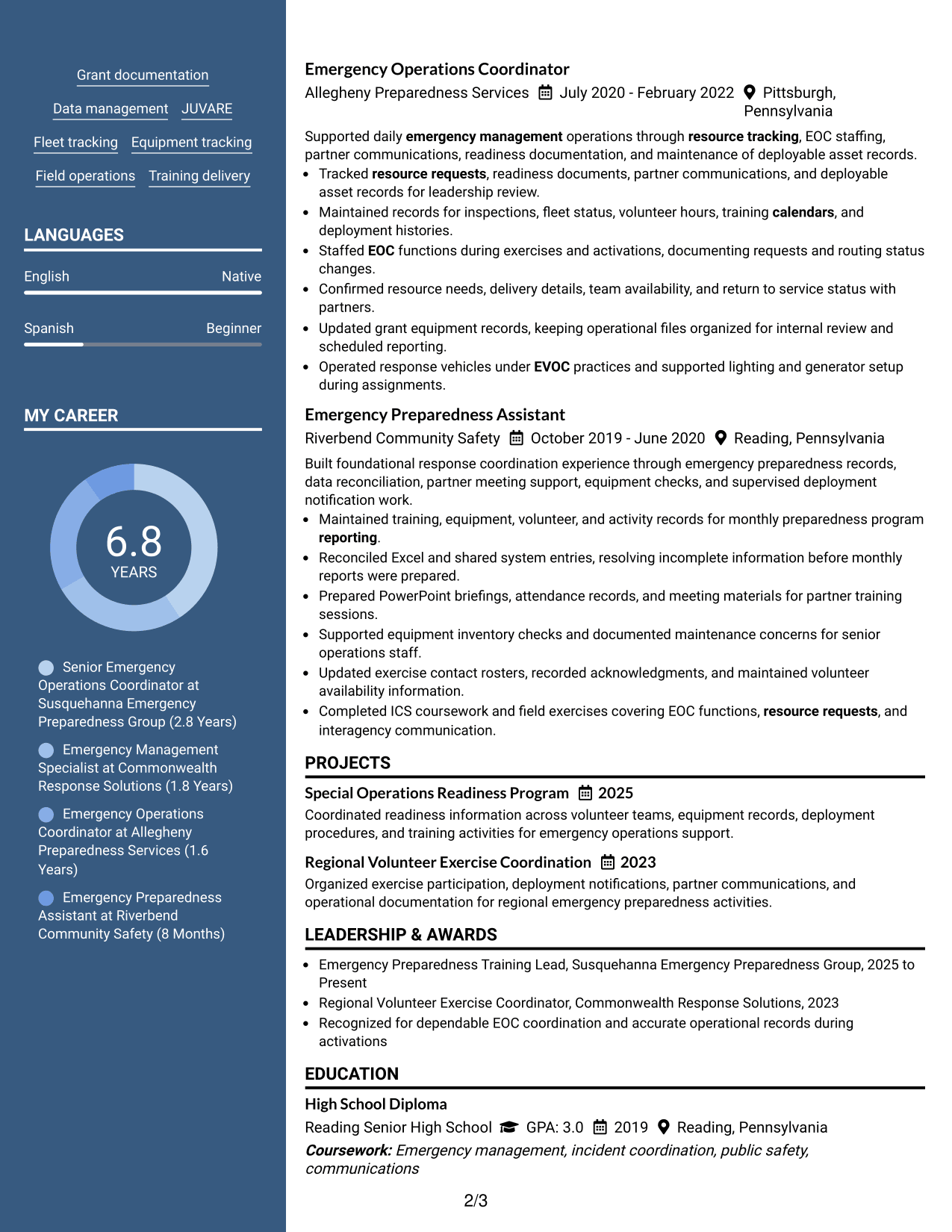
#5 Photo Header Two Column Format Resume Example
A photo header adds personal identification while the two-column body helps recruiters scan major resume sections in parallel.
Why This Format Works
- Two body columns separate supporting qualifications from the main experience sequence.
- The header creates a distinct identity area without changing the resume evidence.
- Section separation helps reviewers locate achievements, skills, education, and credentials quickly.
Best For
- Regions where resume photos are customary
- Applications that permit a professional photo
- Resumes with strong secondary qualification sections
- Readers who scan content in parallel
- Candidates needing clear header identification
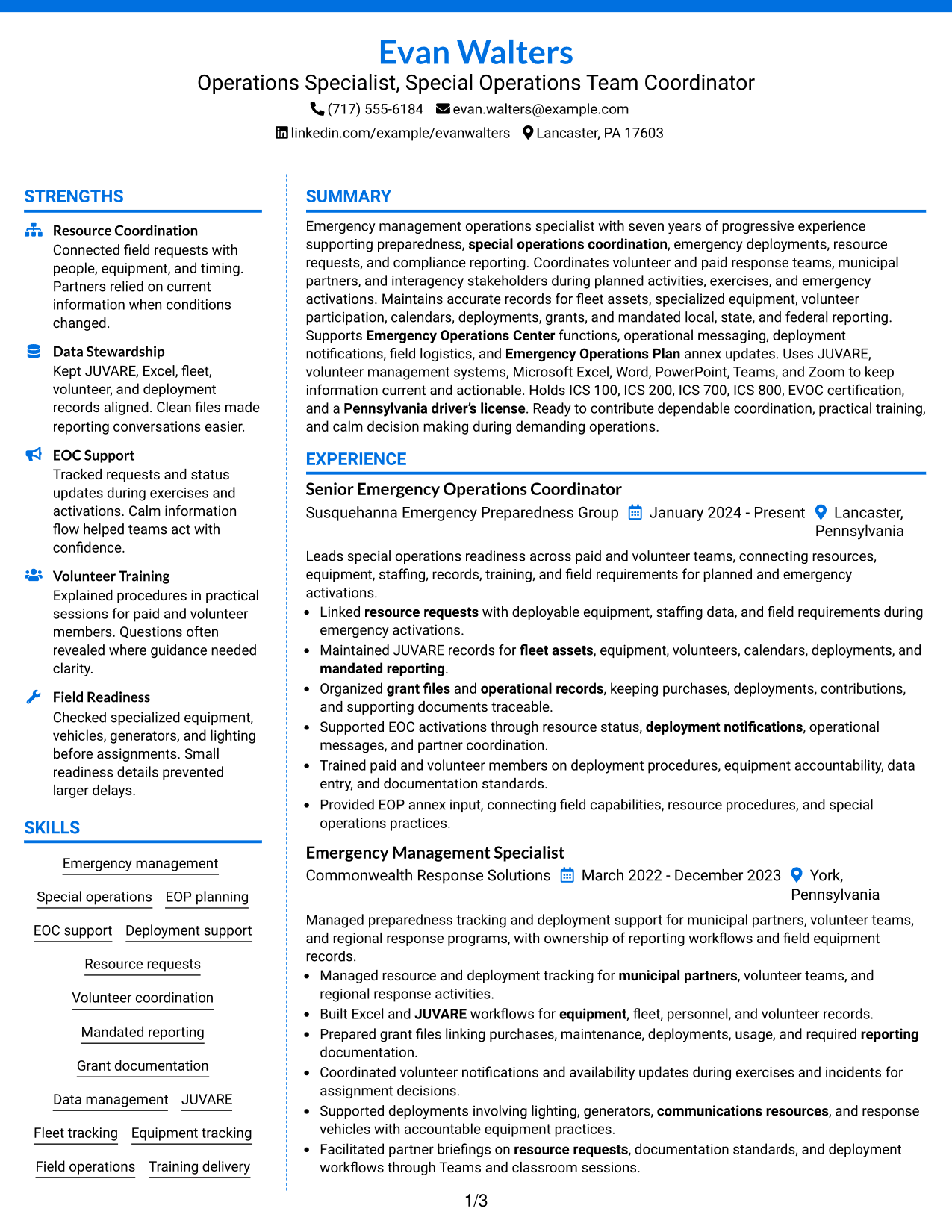
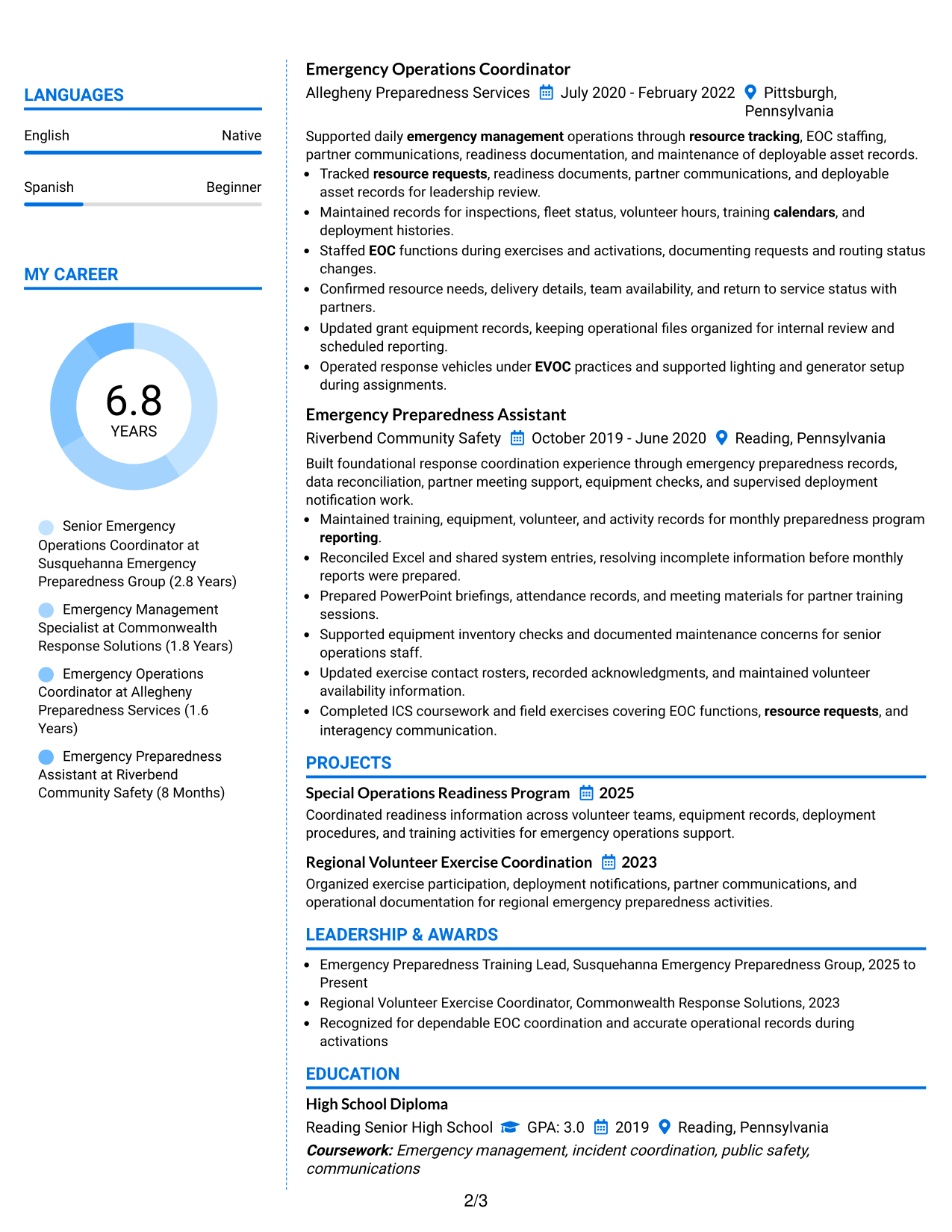
#6 Colored Two Column Format Resume Example
A colored two-column design uses visual section contrast to help recruiters move between experience and supporting information.
Why This Format Works
- Color contrast marks section boundaries without changing the order of career evidence.
- Two-column grouping keeps supporting skills separate from detailed experience and achievements.
- Visible blocks help reviewers return quickly to education, credentials, or other supporting sections.
Best For
- Applications allowing restrained visual color
- Resumes needing stronger section boundaries
- Readers who revisit supporting qualifications often
- Experience-heavy documents with compact secondary content
- Professionals seeking more visual structure
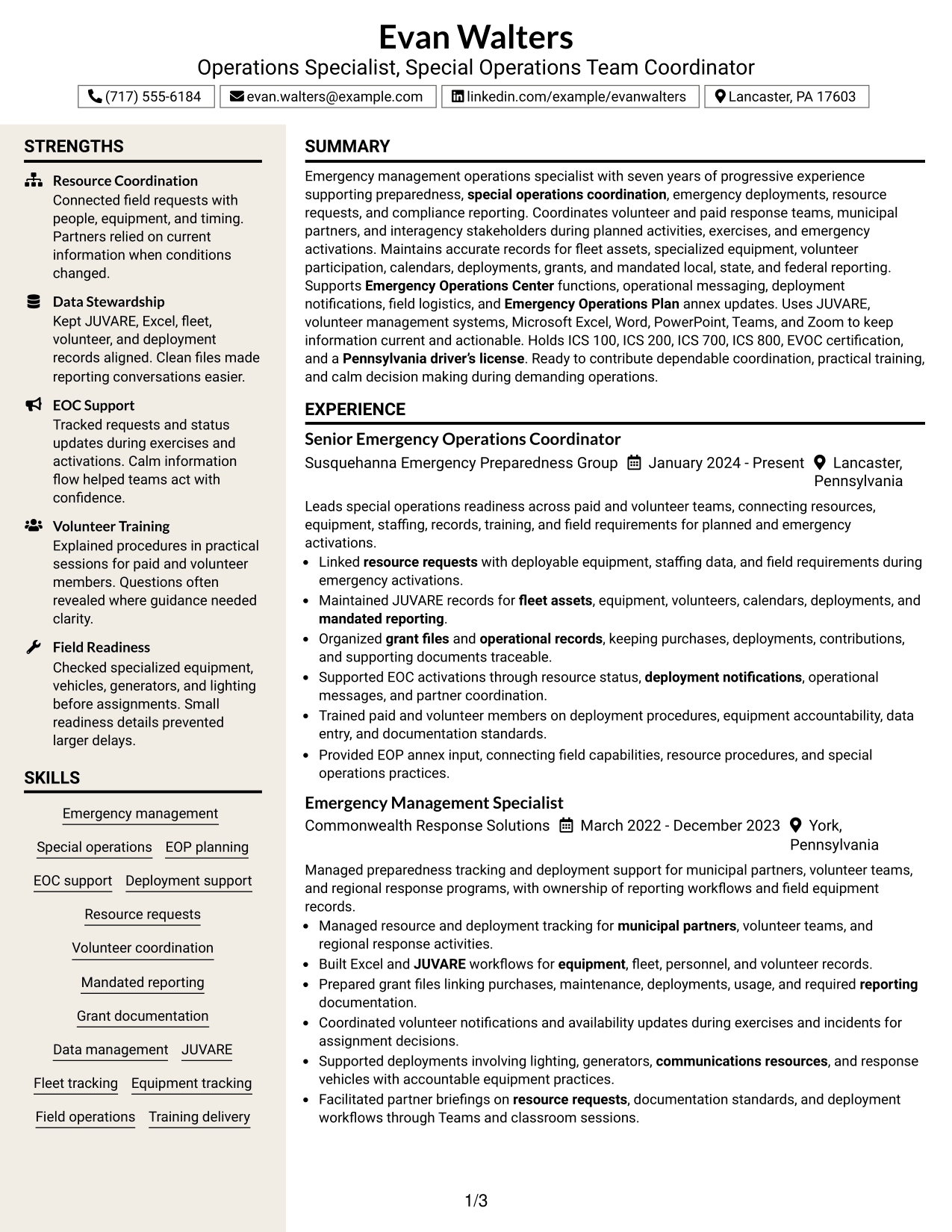
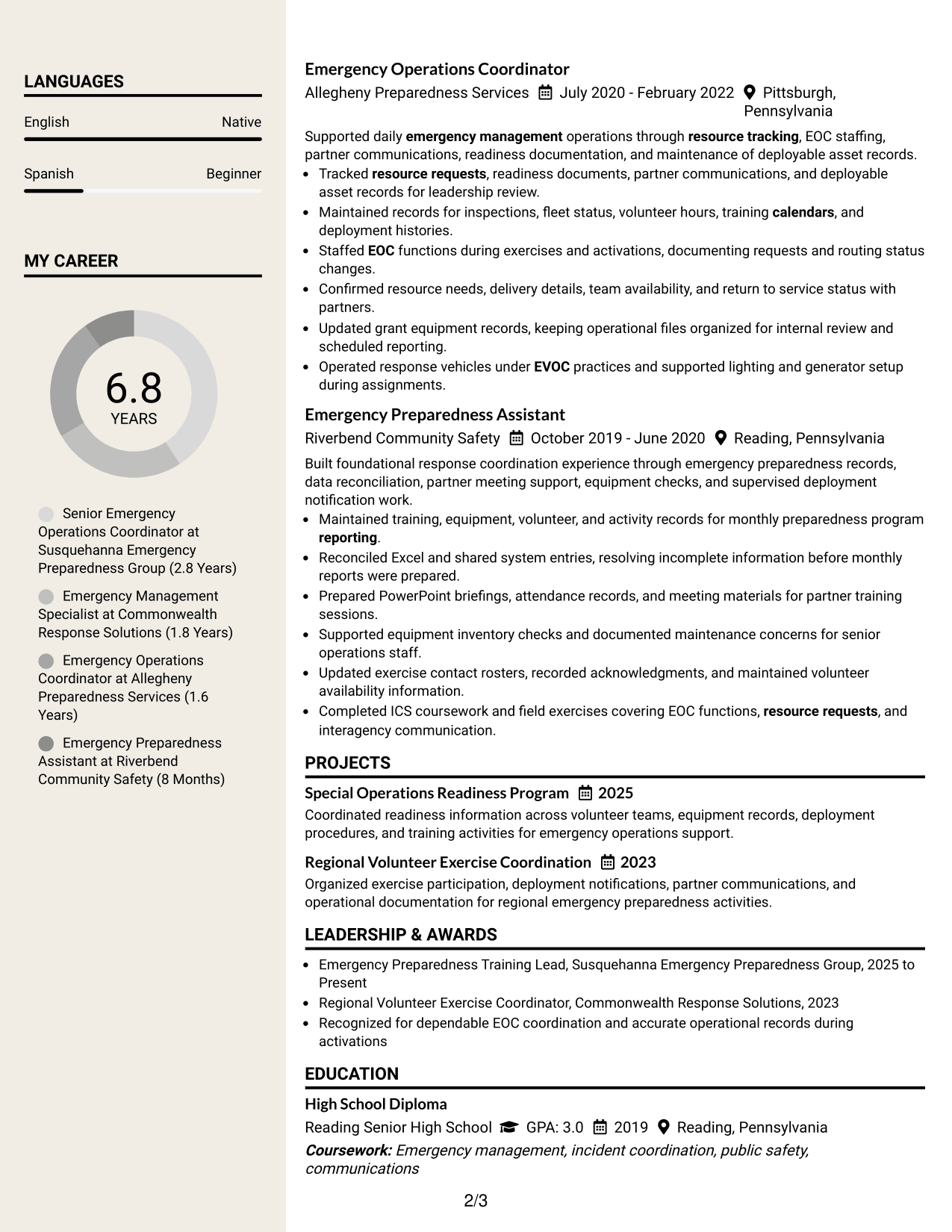
#7 Stylish Two Column Designer Format Resume Example
A stylish two-column layout gives recruiters clear content zones while keeping the experience story and supporting sections distinct.
Why This Format Works
- Distinct content zones separate career history from skills, education, and credentials.
- Structured spacing keeps achievements readable even when the resume contains varied information.
- Two-column organization supports quick cross-checking between experience and supporting qualifications.
Best For
- Applications where polished visual structure fits
- Resumes combining broad experience with many qualifications
- Readers who cross-check evidence across sections
- Candidates wanting stronger content zoning
- Documents with varied but related information
Why Build Your Operations Specialist - Special Operations Team Coordinator Resume with ResumeInMinutes
ResumeInMinutes helps you organize emergency management experience, credentials, tools, and operational records into a resume that is easy to scan and tailor to the exact position.
- Clear experience section structure
- ATS-friendly headings and reading order
- Role-specific keyword guidance
- Organized skills and certification sections
- Free PDF resume previews
- Fast content customization
Use the builder to keep evidence about deployments, data management, training, equipment, and compliance records consistent while adjusting the presentation for each application.
See Also
- 33 Team Leader - Fashion Retail Operations Resume Templates with Example 2026 (ATS-Optimized)
- 33 Administrative Operations Coordinator - Transportation Administration Resume Templates with Example 2026 (ATS-Optimized)
- 33 Environmental Health and Safety Coordinator - Convention Operations Resume Templates with Example 2026 (ATS-Optimized)
- 33 Environmental Health and Safety Coordinator - Venue Safety Operations Resume Templates with Example 2026 (ATS-Optimized)
- 7 Sales & Operations Planning (S&OP) Coordinator Resume Templates with Example
- 33 Water Treatment Operations Coordinator - Treatment Operations Resume Templates with Example 2026 (ATS-Optimized)
- 7 Accountant - Billing Operations Resume Templates with Example
- 33 Analyst - Cybersecurity Operations Resume Templates with Example 2026 (ATS-Optimized)
- 30+ Analyst - Cybersecurity Operations Cover Letter Templates with Example 2026
- 30+ Data Analyst, Operations Cover Letter Templates with Example 2026
Frequently Asked Questions
Are these Operations Specialist - Special Operations Team Coordinator resume templates ATS-friendly?
Yes. The formats use clear sections and readable headings that support ATS scanning. Your results still depend on accurate content and relevant keywords from your own experience.
Are these different resumes?
No. The guide shows the same Operations Specialist - Special Operations Team Coordinator resume in different visual formats so you can compare layout choices without changing the candidate facts.
What should an Operations Specialist - Special Operations Team Coordinator resume include?
Include a focused summary, emergency management experience, resource and deployment work, data and reporting skills, relevant tools, education, certifications, training experience, and field readiness details that you can support.
Which keywords are useful for this resume?
Useful terms may include JUVARE, resource requests, EOC support, EOP planning, deployment notifications, volunteer coordination, grant documentation, fleet tracking, equipment tracking, mandated reporting, and interagency coordination.
How should I show emergency deployment experience?
Use concise experience bullets that state what you coordinated, what records or resources you maintained, who you worked with, and what operational need the work supported. Add numbers only when you can verify them.
Should I list ICS and EVOC credentials?
Yes, when you hold them. Place relevant credentials such as ICS 100, ICS 200, ICS 700, ICS 800, and EVOC in a clear certification section so reviewers can confirm them quickly.
Should I include a photo on a U.S. resume?
Usually not. For U.S. applications, a no-photo resume is generally the safer choice unless a specific application process asks for one.
Can I customize these resume templates?
Yes. You can change the resume text and visual format while keeping your experience, skills, credentials, and job-specific evidence accurate.