7 Sales & Operations Planning (S&OP) Coordinator Resume Templates with Example
This guide shows you how to build a Sales & Operations Planning (S&OP) Coordinator resume that is clear, focused, and easy to review. You will see how to organize your evidence so recruiters can quickly understand your planning strengths and work history.
Strong resumes for this role connect forecasting work with business decisions. Show demand forecasting, shipment planning, order coverage, variance analysis, factory coordination, financial alignment, and practical use of tools such as advanced Excel, Snowflake, Power BI, Power Query, Power Automate, and BIC when those skills are true for you.
The same resume is presented in 7 layouts so you can compare reading order, section balance, and visual structure. Use the examples to decide how to present experience, skills, education, projects, certifications, and measurable results without hiding the facts recruiters need.
What Makes a Great Sales & Operations Planning (S&OP) Coordinator Resume in 2026
A strong S&OP Coordinator resume is direct, easy to scan, and built around planning evidence. It should make forecasting, variance analysis, cross-functional coordination, and process improvement easy to find.
Use precise keywords that match your real experience, including demand forecasting, shipment planning, order coverage, root cause analysis, S&OP metrics, factory scheduling, financial alignment, and the planning tools you actually use.
The examples shown below are intentionally detailed to demonstrate a range of experiences, skills, accomplishments and relevant keywords. We prefer detailed resumes as they provide more context to the hiring managers and also help the ATS systems identify relevant qualifications and score your resume better for a match. But the length of a resume is an individual choice. If you want a one page resume, just keep the most relevant experience and information for the job. Note: Resume examples are for educational purposes only. Use only information that accurately reflects your experience and qualifications. References to real organizations do not imply affiliation or endorsement.
#1 Plain Two Column Format Resume Example
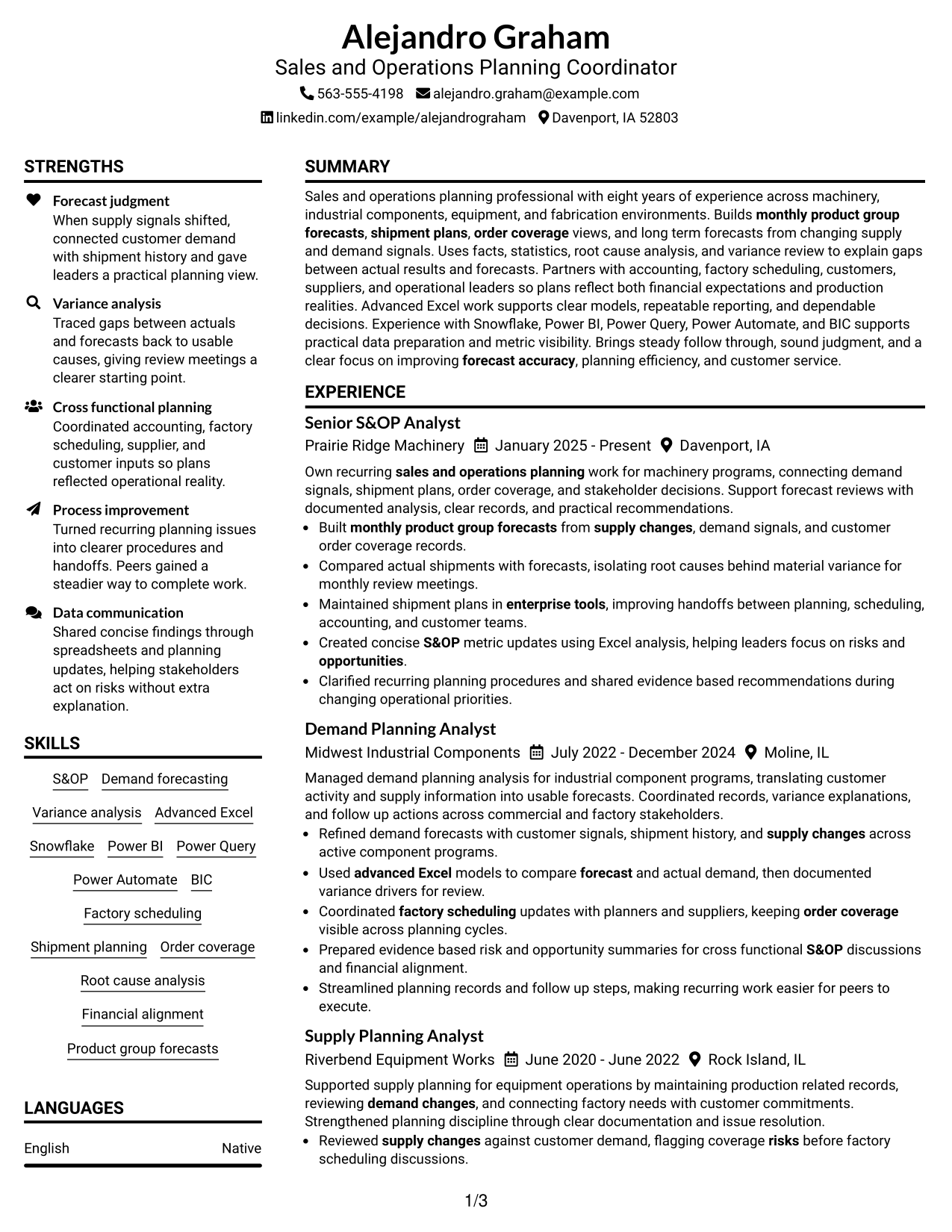
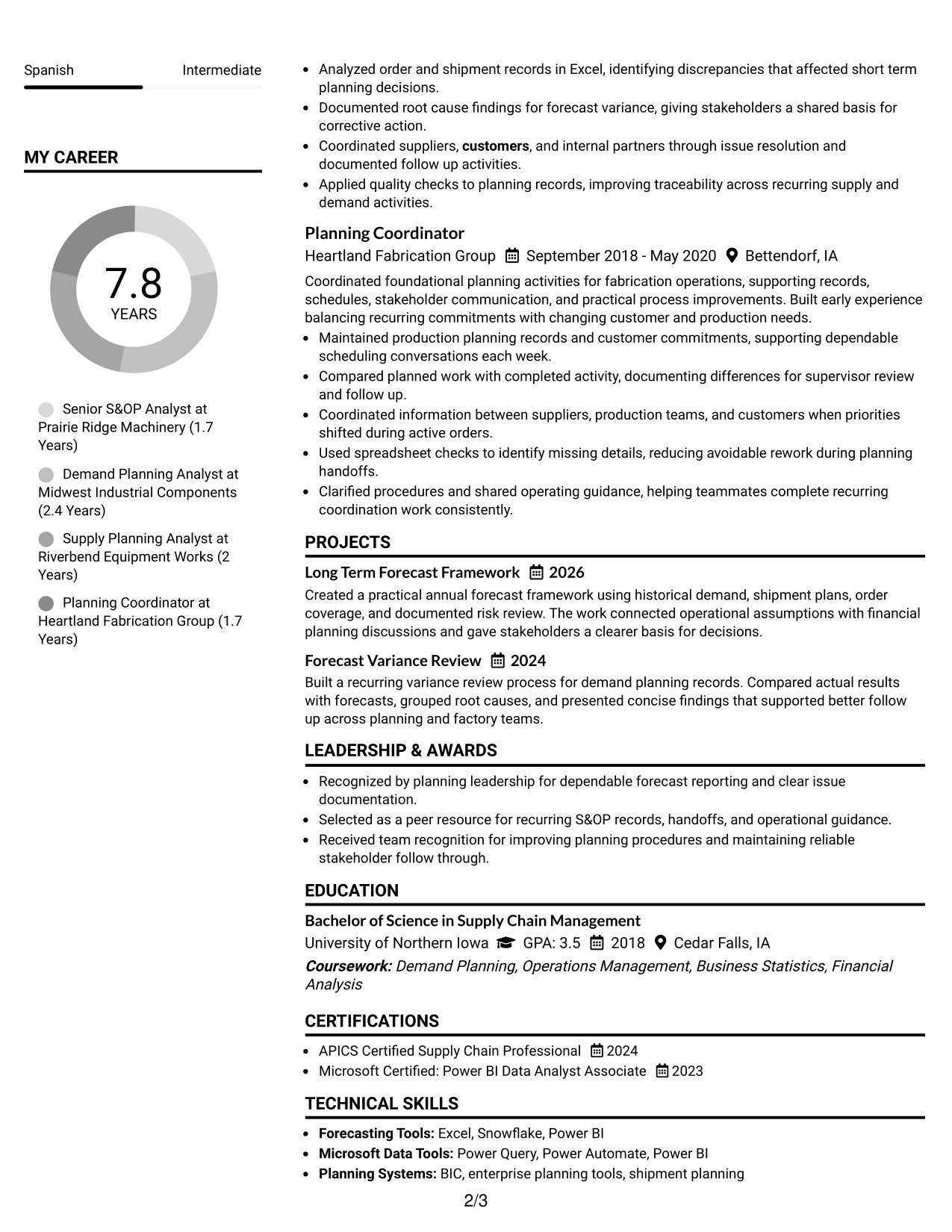
The Plain Two Column Format splits content into two clear areas, helping recruiters scan major resume sections without losing the main reading flow.
Resume Snapshot
- Eight years of relevant sales and operations planning experience
- Bachelor of Science in Supply Chain Management
- Experience with demand forecasting, variance analysis, and factory scheduling
- Advanced Excel plus Snowflake, Power BI, Power Query, Power Automate, and BIC
Why This Format Works
- Two columns separate skills and credentials from the main experience narrative.
- Career progression stays visible while supporting details remain easy to locate.
- Compact section grouping helps achievements and education stay distinct during scanning.
Best For
- Resumes with several supporting skill sections
- Career histories with clear progression
- Readers comparing experience and credentials quickly
- Candidates balancing tools with detailed work history
- Applications needing dense information without a crowded feel
Resume Keywords
- Sales and Operations Planning
- S&OP
- Demand forecasting
- Variance analysis
- Advanced Excel
- Snowflake
- Power BI
- Power Query
- Power Automate
- BIC
- Factory scheduling
- Shipment planning
- Order coverage
- Root cause analysis
- Financial alignment
- Product group forecasts
#2 Simple One Column Format Resume Example
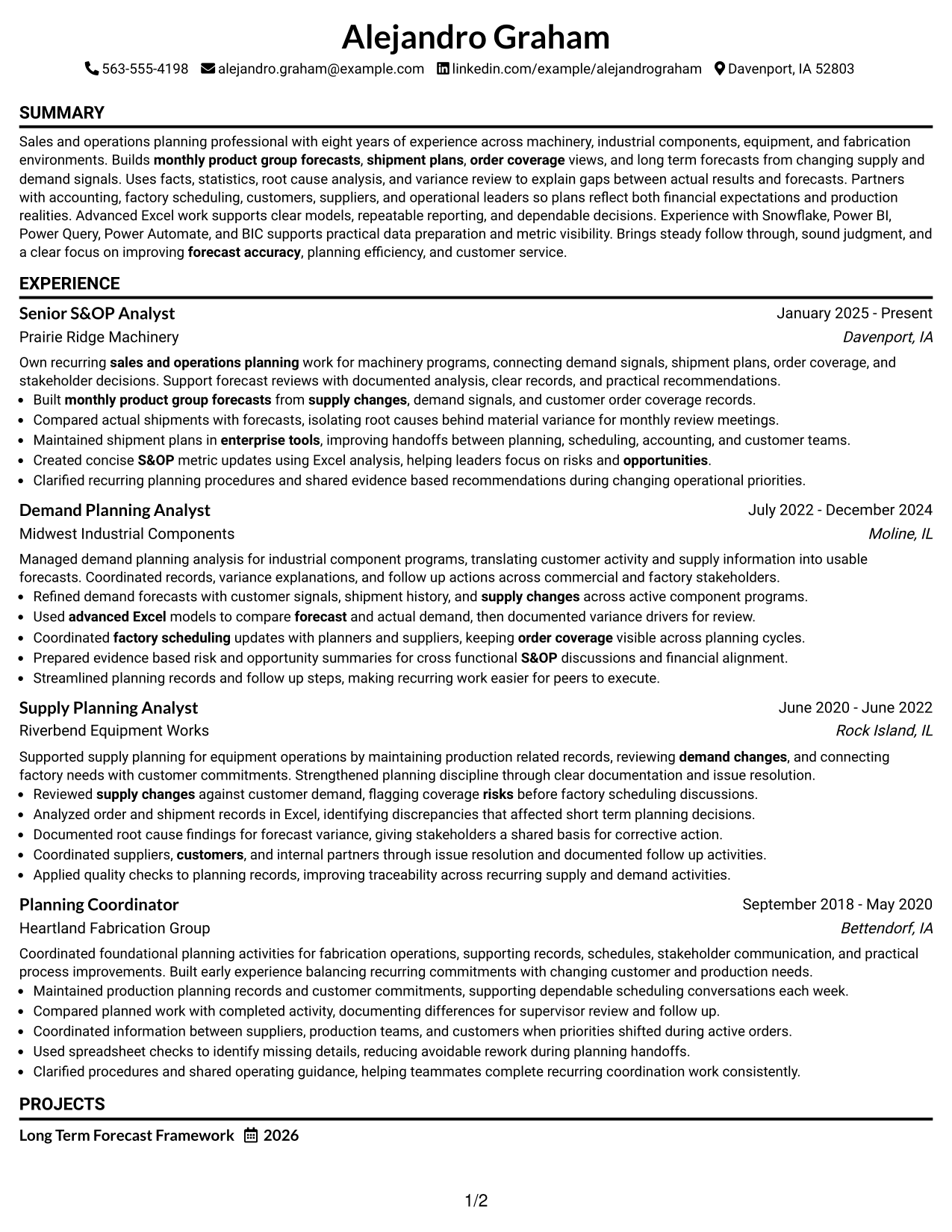
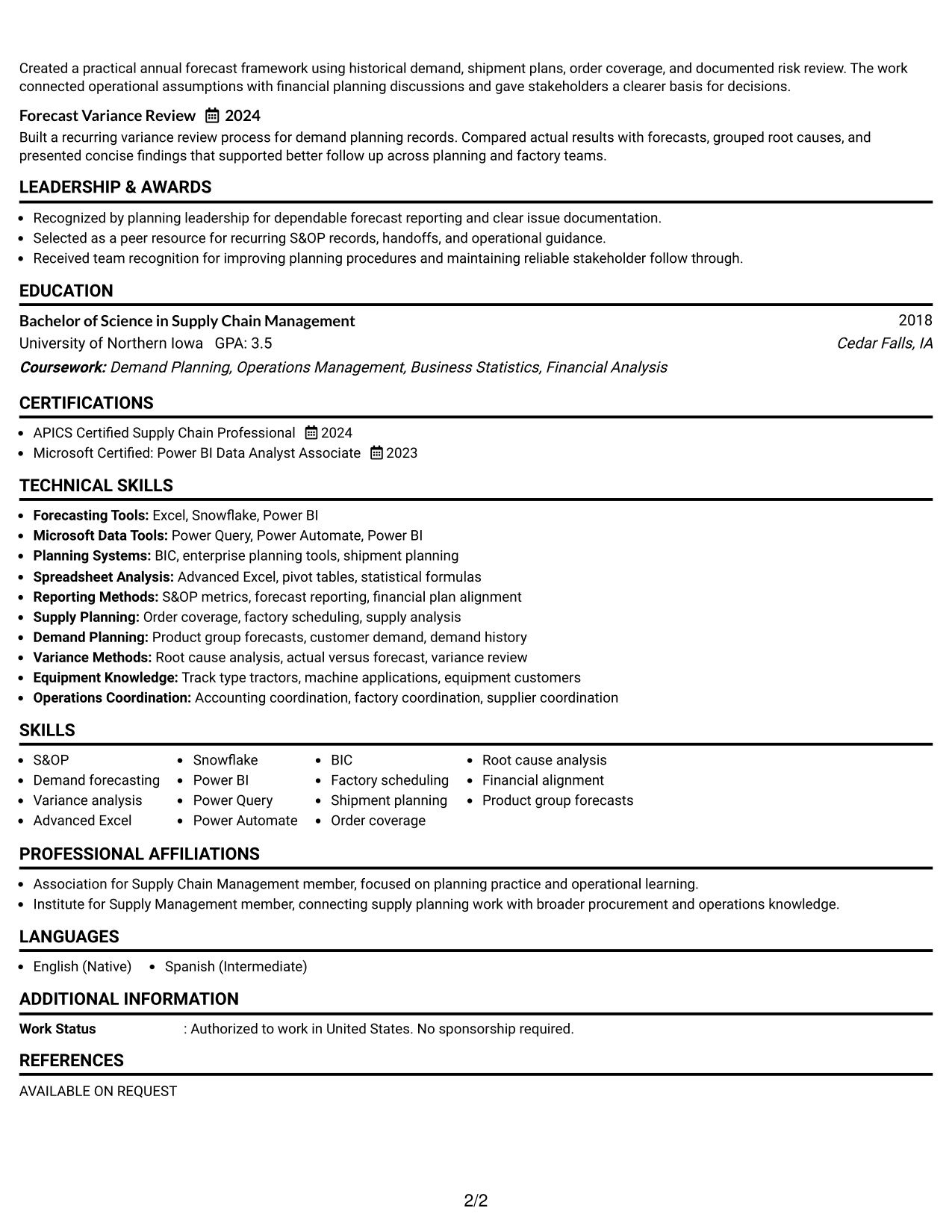
The Simple One Column Format keeps every section in one vertical reading path, making the resume straightforward for recruiters to follow from top to bottom.
Why This Format Works
- A single reading path keeps experience and achievements in a clear sequence.
- Full-width sections give detailed work history room without side-by-side competition.
- Education and credentials follow naturally after the main career evidence.
Best For
- Straightforward recruiter scanning
- Detailed experience descriptions
- Applications where reading order matters most
- Resumes with fewer side sections
- Professionals who prefer a traditional structure
#3 Clean Two Column Sidebar Format Resume Example
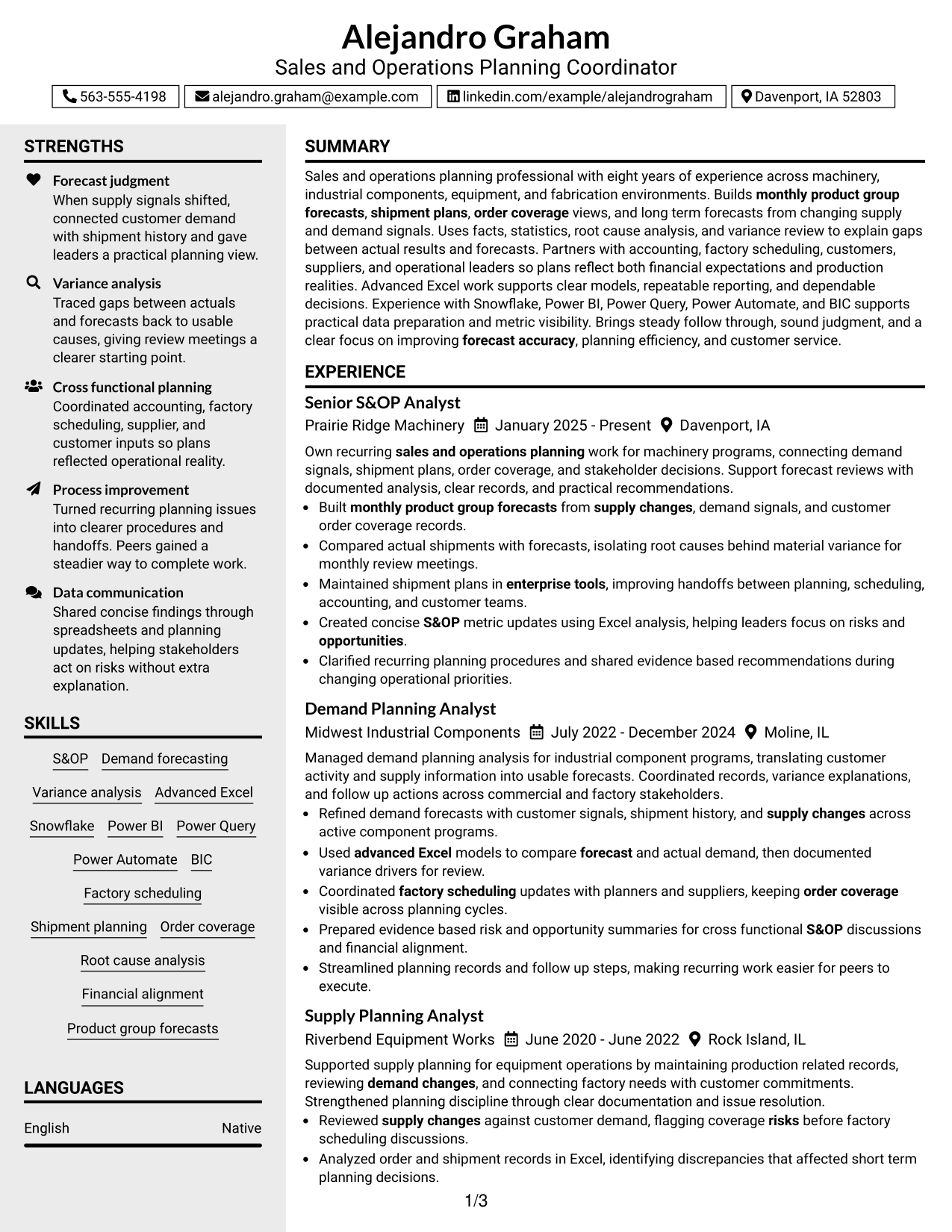
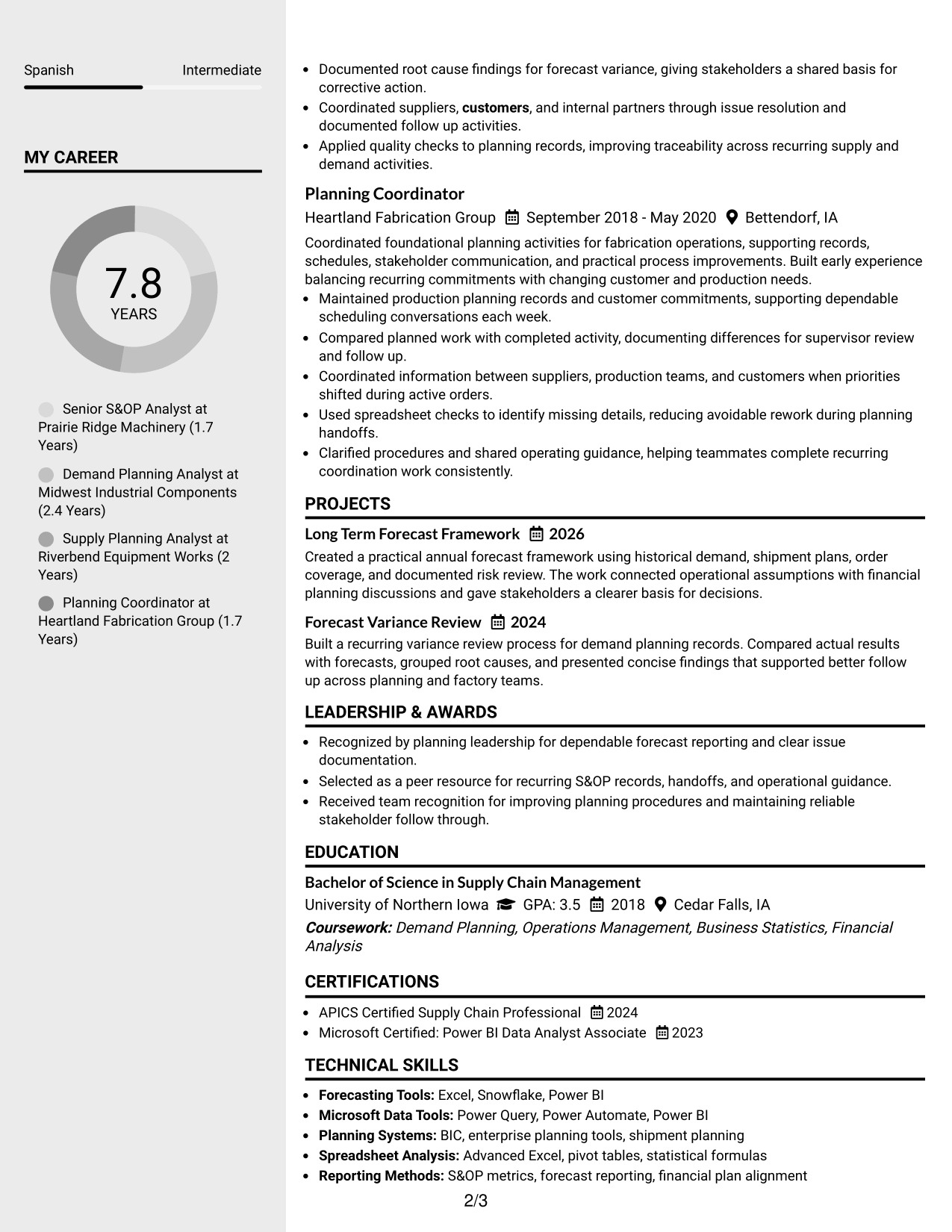
The Clean Two Column Sidebar Format pairs a main content area with a supporting sidebar, so recruiters can review career evidence and reference details in parallel.
Why This Format Works
- The sidebar keeps skills and credentials separate from the central experience story.
- Main-column space preserves a steady view of career progression and achievements.
- Section separation helps recruiters compare supporting qualifications without interrupting work history.
Best For
- Resumes with broad supporting qualifications
- Readers who want quick side references
- Career stories that need a strong main column
- Applications with several tools and credentials
- Professionals separating core evidence from reference details
#4 Two Column Format Resume Example
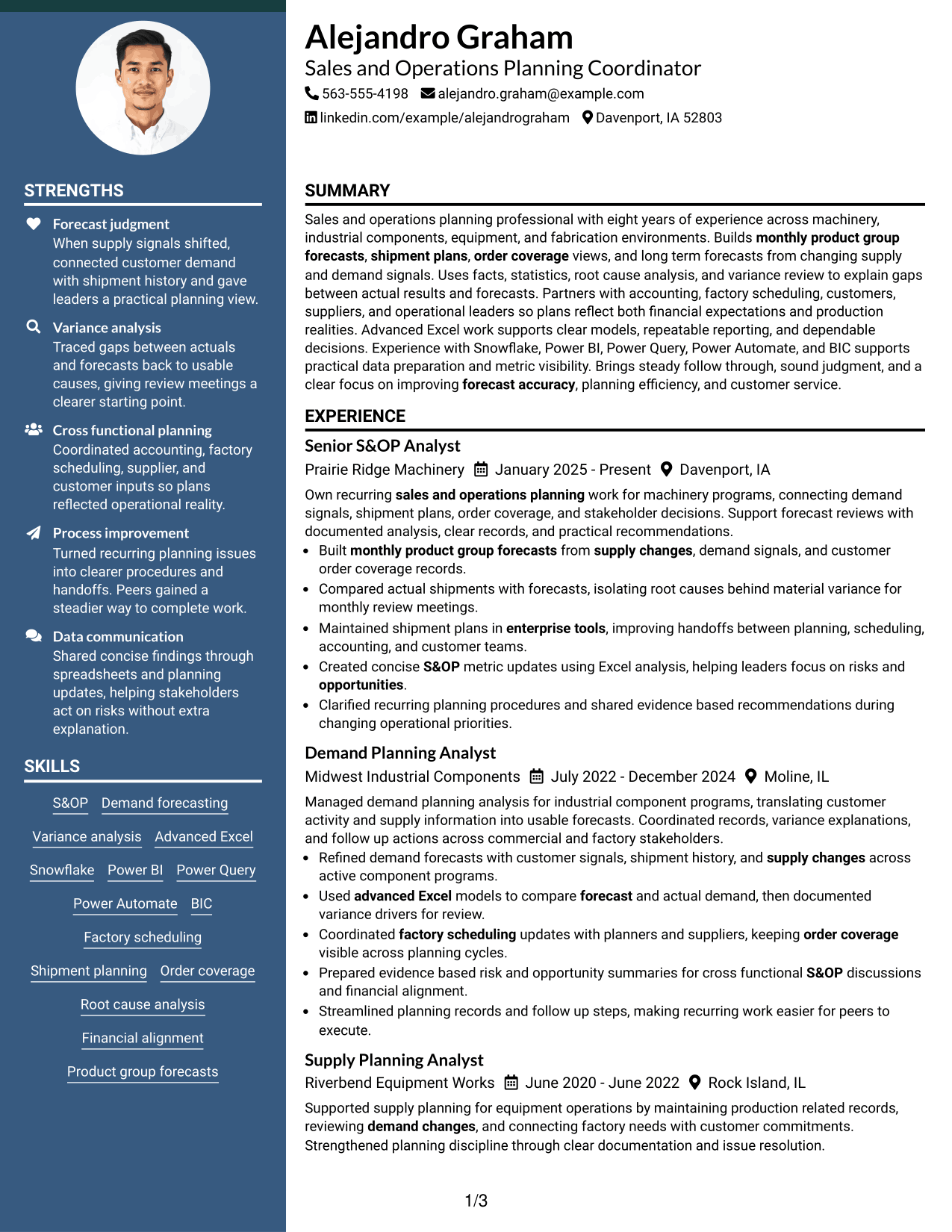
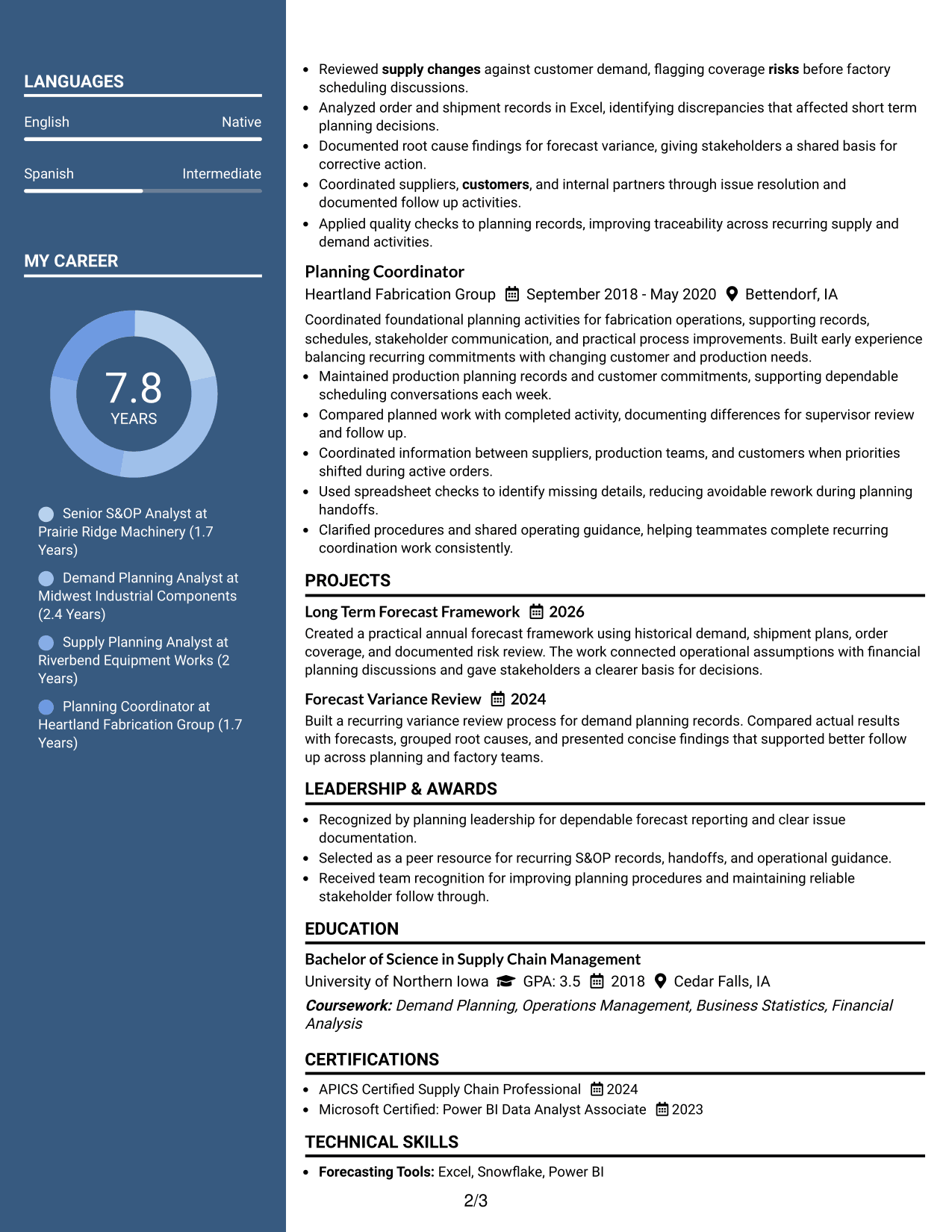
The Two Column Format divides the resume into balanced content areas, helping recruiters move between experience and supporting sections with less scrolling.
Why This Format Works
- Balanced columns give experience and supporting sections clear visual boundaries.
- Parallel organization makes skills and education easier to find beside career details.
- Separated content blocks help achievements stand out without breaking the overall sequence.
Best For
- Balanced experience and skills content
- Resumes with several short supporting sections
- Readers who compare sections side by side
- Applications needing efficient use of horizontal space
- Professionals with mixed career and credential content
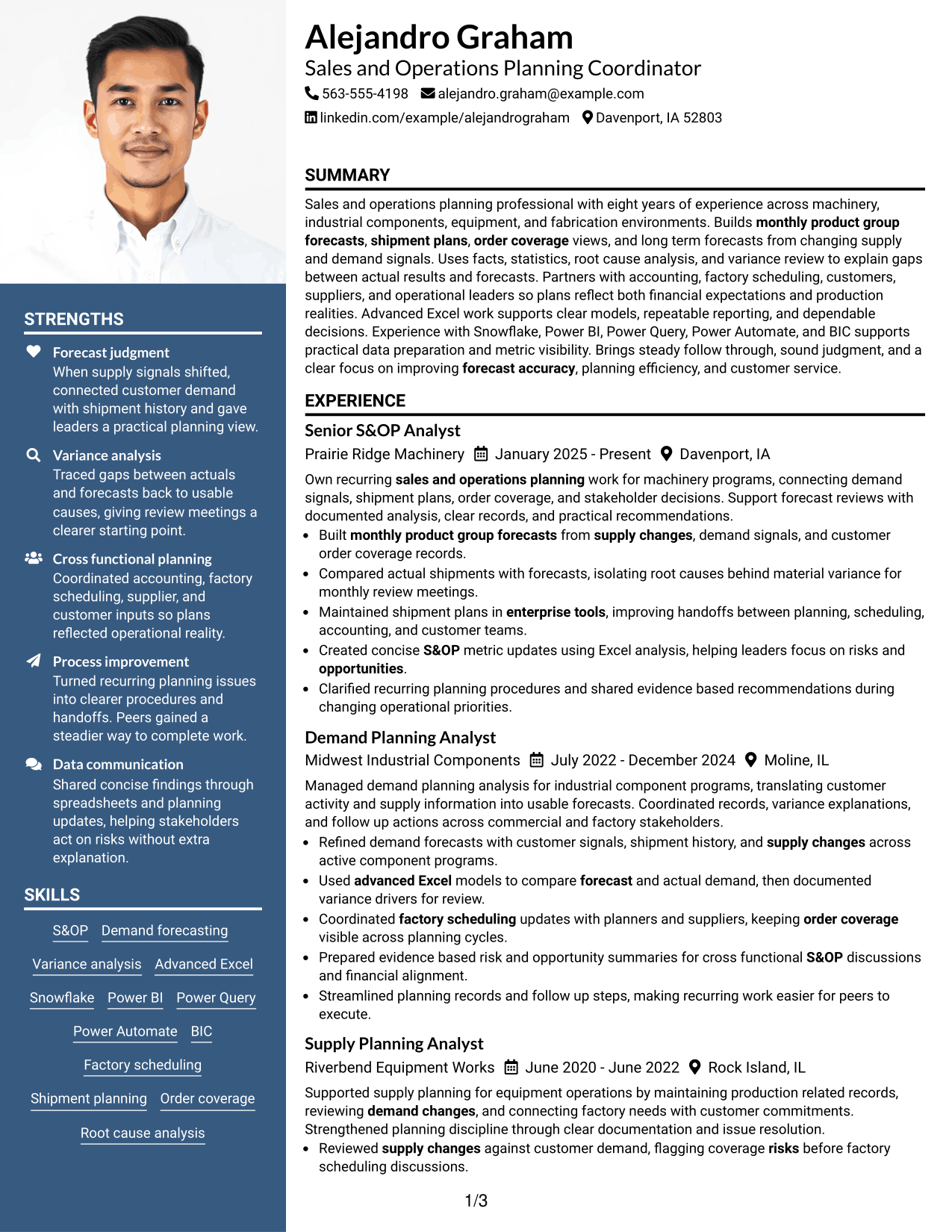
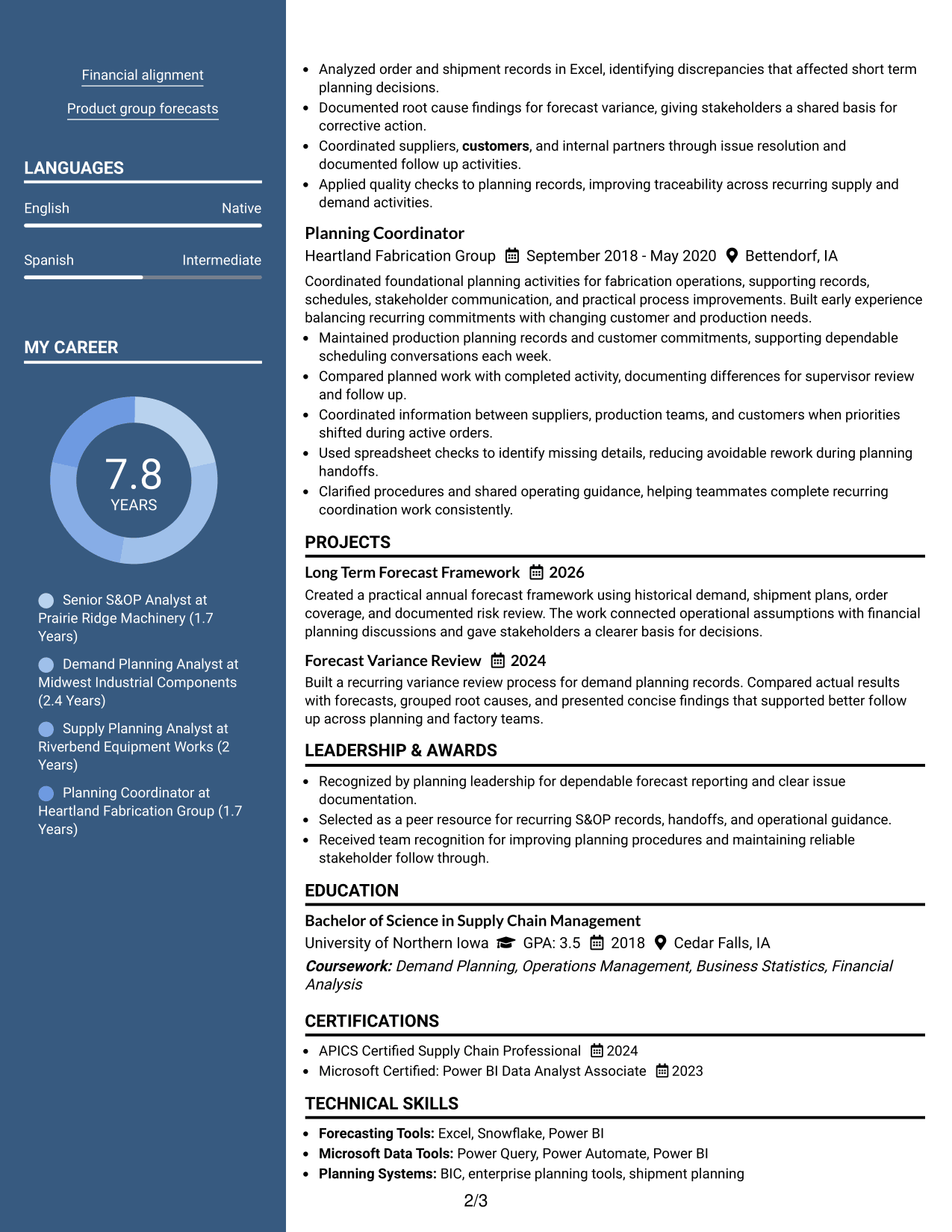
#5 Photo Header Two Column Format Resume Example
The Photo Header Two Column Format combines a photo header with two body columns, giving recruiters a clear identity area before they scan the organized resume sections.
Why This Format Works
- The photo header creates a distinct identity area without changing body content order.
- Two body columns separate career evidence from supporting skills and credentials.
- Defined section areas help recruiters locate achievements, education, and experience efficiently.
Best For
- Markets where resume photos are customary
- Applications needing a distinct personal header
- Resumes with substantial supporting information
- Readers reviewing experience and credentials in parallel
- International contexts that commonly accept professional photos
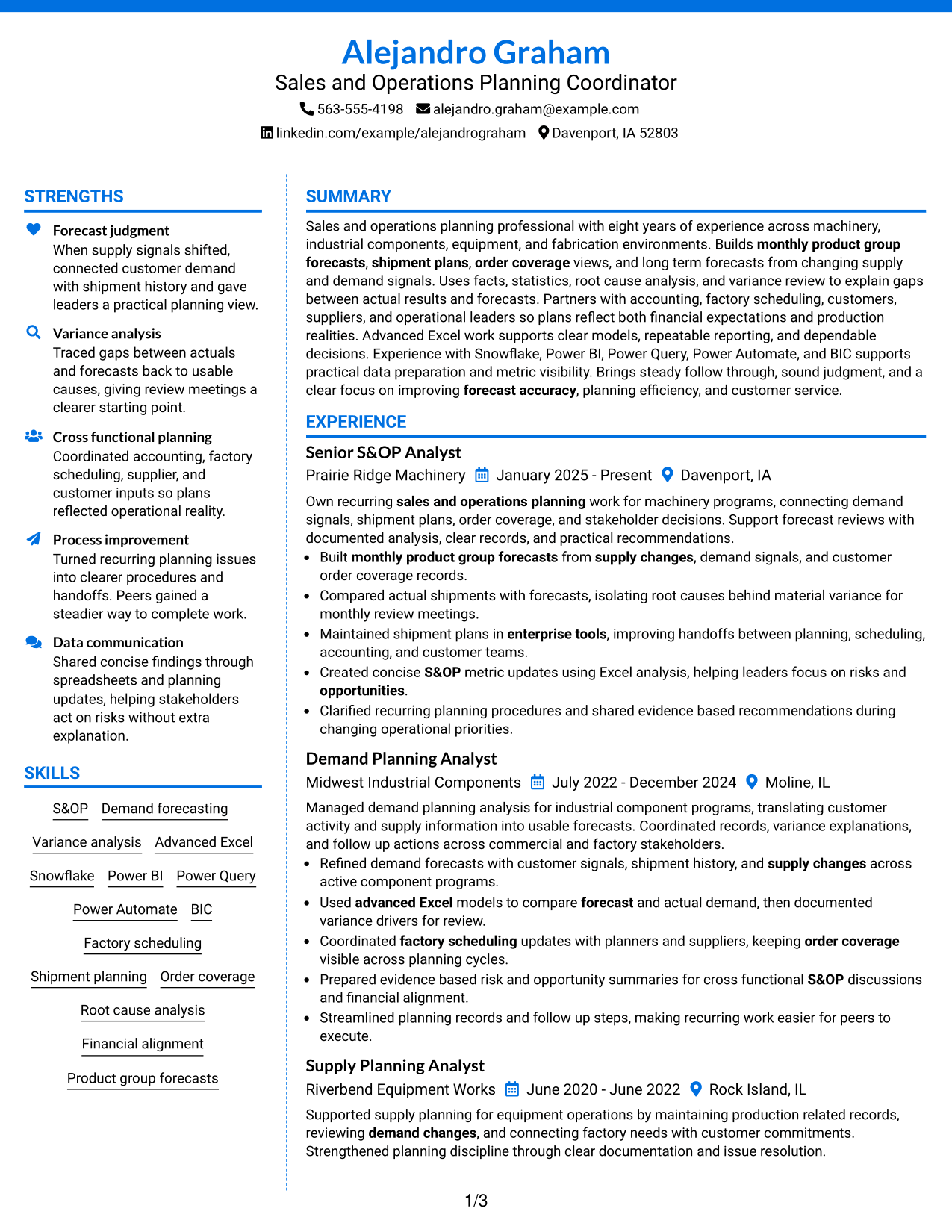
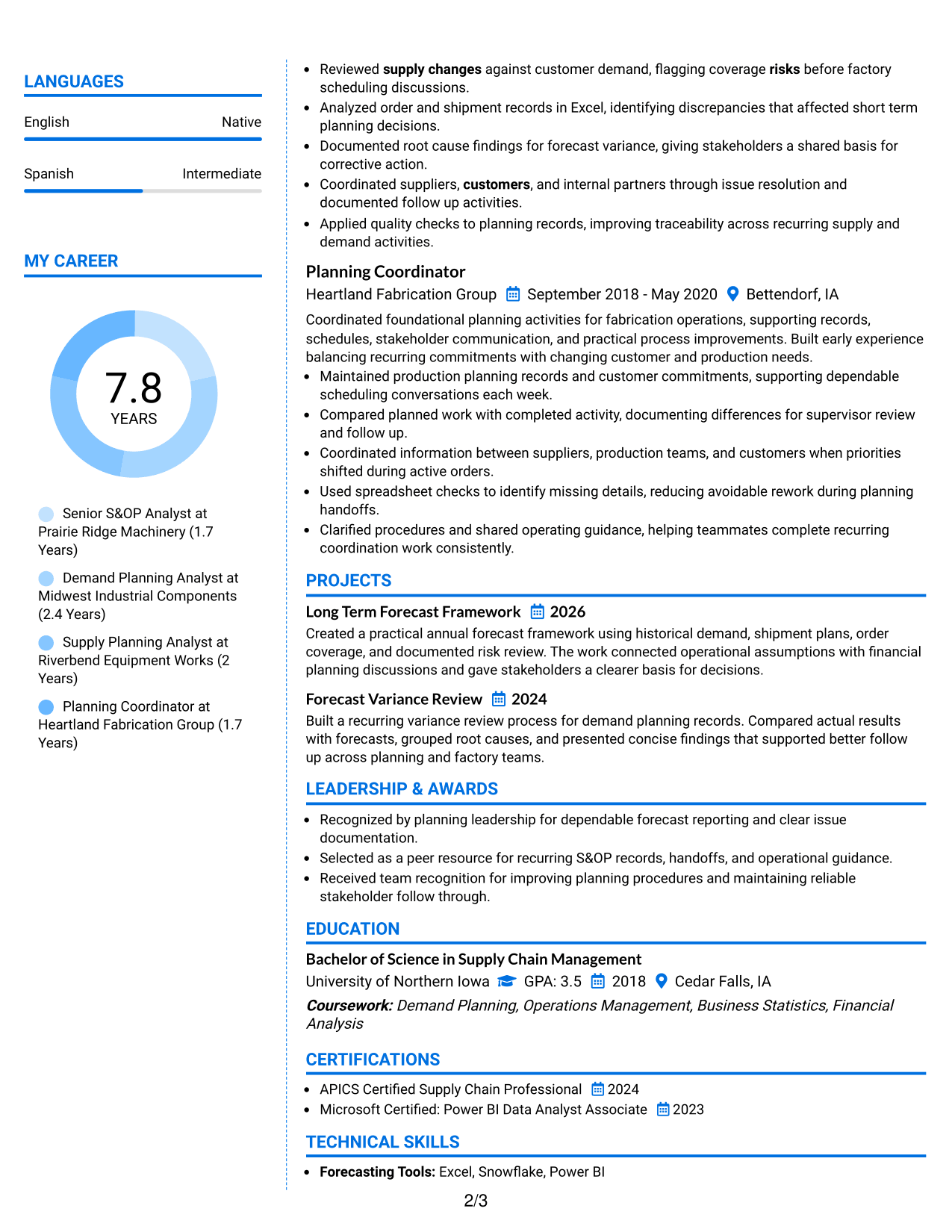
#6 Colored Two Column Format Resume Example
The Colored Two Column Format uses color with a two-column body to separate sections clearly, helping recruiters move between the main career record and supporting information.
Why This Format Works
- Color supports section boundaries while the two columns organize major content groups.
- Experience remains easy to follow beside separate skills and credential sections.
- Clear grouping helps recruiters distinguish achievements from education and supporting details.
Best For
- Applications where subtle color is acceptable
- Resumes needing strong section separation
- Professionals with many supporting details
- Readers who benefit from clear visual grouping
- Content that needs distinction without extra decoration
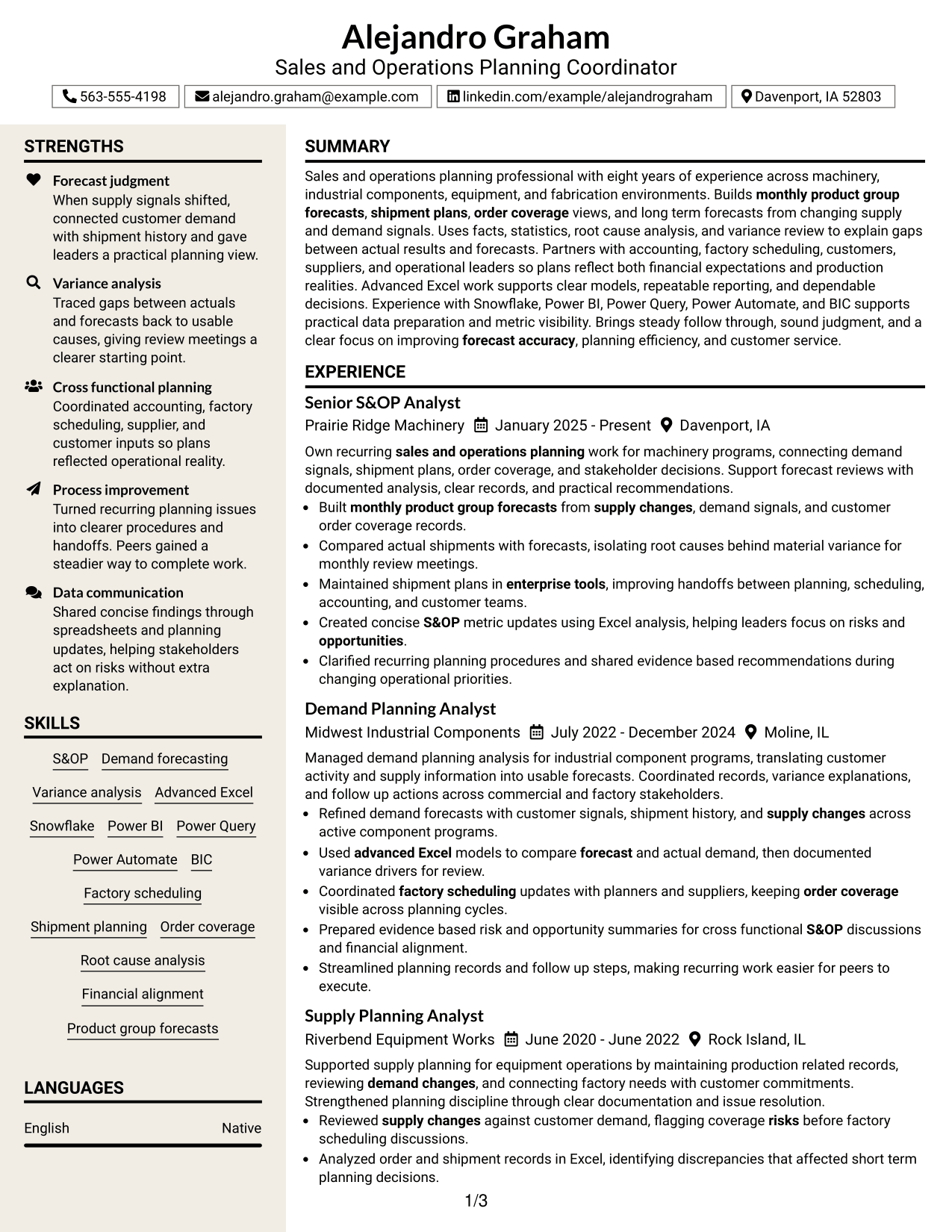
#7 Stylish Two Column Designer Format Resume Example
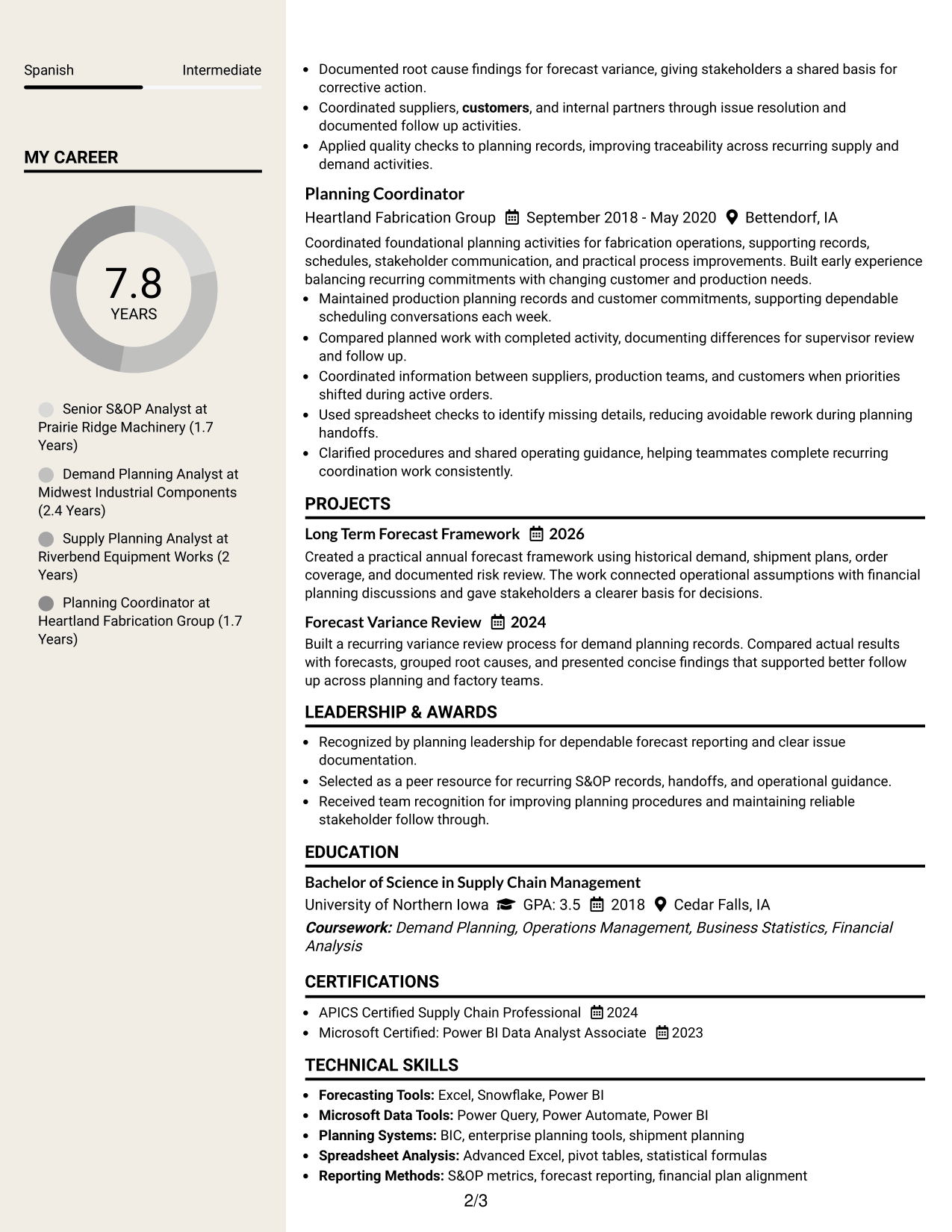
The Stylish Two Column Designer Format presents resume content in two organized columns with stronger visual styling, helping recruiters scan section groups while keeping the document structured.
Why This Format Works
- Two organized columns divide detailed experience from supporting resume information.
- Stronger visual styling makes section changes easier to notice during quick review.
- Structured blocks keep achievements, credentials, and education from blending together.
Best For
- Readers who prefer stronger visual separation
- Resumes with varied content categories
- Applications allowing a more styled presentation
- Professionals balancing detail with compact organization
- Documents needing distinct sections without changing core evidence
Why Build Your Sales & Operations Planning (S&OP) Coordinator Resume with ResumeInMinutes
ResumeInMinutes helps planning professionals turn forecasting work, analysis, tools, projects, and cross-functional responsibilities into a resume that is easier to read and tailor.
- Clear resume format choices
- ATS-friendly section structure
- Role-focused keyword guidance
- Organized skills and tools sections
- Free PDF resume previews
- Fast resume customization
You can adjust the wording and layout while keeping the resume centered on forecasting, planning accuracy, variance review, stakeholder coordination, and dependable execution.
See Also
- 33 Administrative Operations Coordinator - Transportation Administration Resume Templates with Example 2026 (ATS-Optimized)
- 33 Environmental Health and Safety Coordinator - Convention Operations Resume Templates with Example 2026 (ATS-Optimized)
- 33 Environmental Health and Safety Coordinator - Venue Safety Operations Resume Templates with Example 2026 (ATS-Optimized)
- 33 Water Treatment Operations Coordinator - Treatment Operations Resume Templates with Example 2026 (ATS-Optimized)
- 33 Accounts Payable Coordinator Resume Templates with Example 2026 (ATS-Optimized)
- 33 Biological Sciences Pre-Health Student Success and Program Coordinator Resume Templates with Example
- 33 Care Coordinator Resume Templates with Example 2026 (ATS-Optimized)
- 7 Clinical Administrative Coordinator - PA Program Resume Templates with Example
- 30+ Accounts Payable Coordinator Cover Letter Templates with Example 2026
- 30+ Care Coordinator Cover Letter Templates with Example 2026
Frequently Asked Questions
Are these Sales & Operations Planning (S&OP) Coordinator resume templates ATS-friendly?
They use clear sections, readable headings, and standard resume structure. ATS results still depend on the system, so keep important keywords in plain text and use terms that match your real experience.
Are these seven different resumes?
No. This guide shows one Sales & Operations Planning (S&OP) Coordinator resume in different visual formats so you can compare structure without changing the candidate evidence.
What should a Sales & Operations Planning (S&OP) Coordinator resume include?
Include a focused summary, relevant experience, forecasting and variance-analysis skills, planning tools, education, projects, certifications, and results that show how your work supported better planning decisions.
Can I download the resume templates as PDFs?
Yes. Each design includes a free PDF preview so you can compare layout, reading order, and section balance before choosing a format.
Which resume style works well for this role?
A clear one-column or well-structured two-column layout can work well. Choose the format that keeps experience, planning skills, tools, and credentials easy to find without crowding the page.
How should I show forecasting and variance-analysis experience?
Use concise bullets that explain the planning task, the evidence you reviewed, the action you took, and the business result when a measured result is available.
Should I include a photo on my resume?
Include a photo only when it is normal or expected in your location or market. For most U.S. applications, a no-photo resume is usually the safer choice.
Can I customize these resume templates?
Yes. You can change the resume text and visual format while keeping the content accurate for your own S&OP experience, tools, projects, and qualifications.