7 Senior Desktop Technician - Executive Support Resume Templates with Example
This practical guide shows you how to build a Senior Desktop Technician - Executive Support resume that is clear, focused, and easy to review. You will see how strong resume structure helps recruiters understand your value quickly.
Focus on evidence that matches executive technology support work, such as incident ownership, macOS and Windows support, Jamf, Microsoft 365, conferencing, mobile support, vendor coordination, confidentiality, and service improvement. Use short achievement bullets and clear section headings so important details are easy to find.
The same complete resume is shown in 7 ATS-friendly resume layouts so you can compare reading order, section balance, and visual organization before choosing a format.
What Makes a Great Senior Desktop Technician - Executive Support Resume in 2026
A strong resume is easy to scan and shows clear ownership of executive support work. It should connect experience, achievements, skills, and credentials without making the reader search for the main evidence.
Use grounded keywords such as Executive Support, macOS, Jamf, Windows, Microsoft 365, Incident Ownership, Rapid Triage, Vendor Coordination, and Confidentiality where they truthfully match your experience.
The examples shown below are intentionally detailed to demonstrate a range of experiences, skills, accomplishments and relevant keywords. We prefer detailed resumes as they provide more context to the hiring managers and also help the ATS systems identify relevant qualifications and score your resume better for a match. But the length of a resume is an individual choice. If you want a one page resume, just keep the most relevant experience and information for the job. Note: Resume examples are for educational purposes only. Use only information that accurately reflects your experience and qualifications. References to real organizations do not imply affiliation or endorsement.
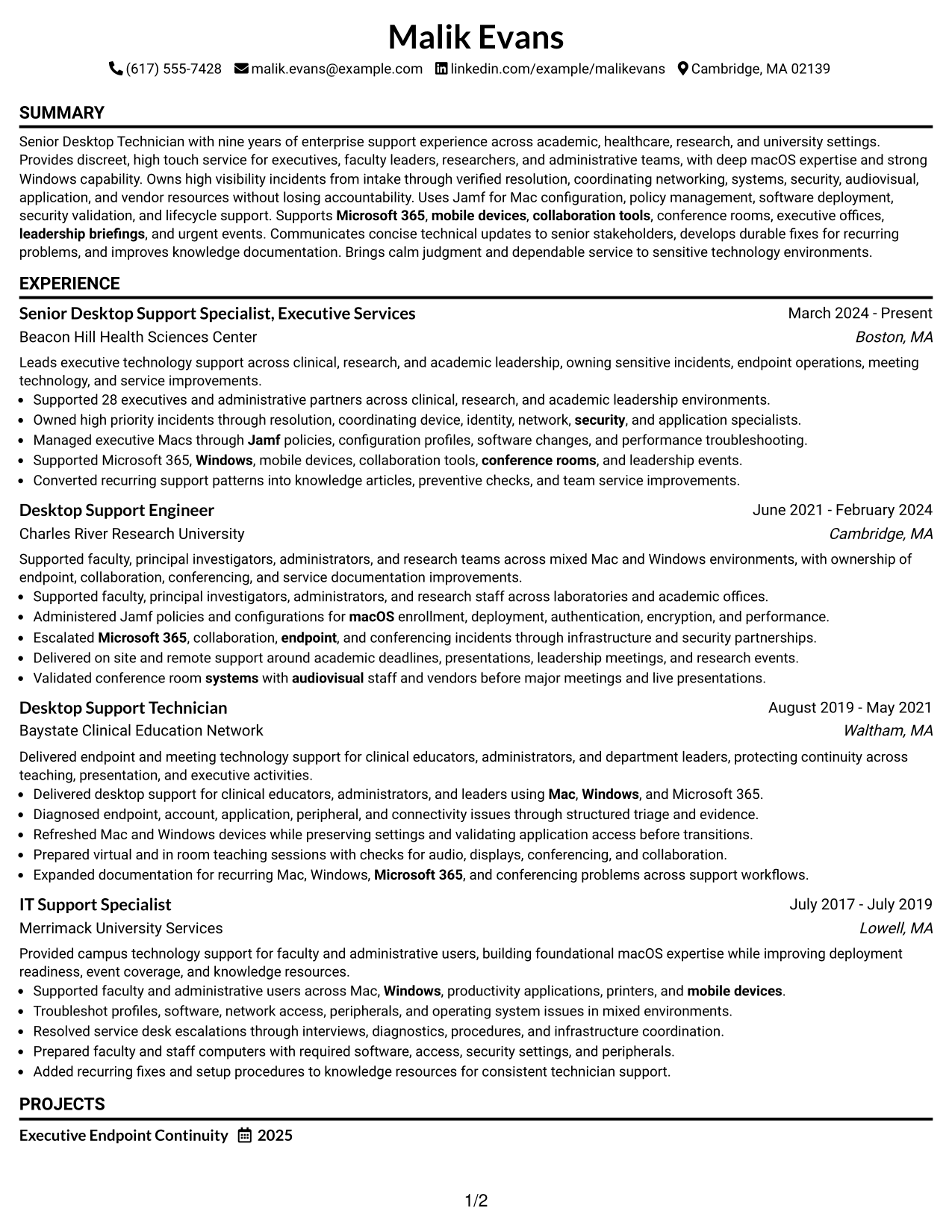
#1 Simple One Column Format Resume Example
The simple one-column flow lets recruiters scan experience, skills, education, and credentials in a steady top-to-bottom order.
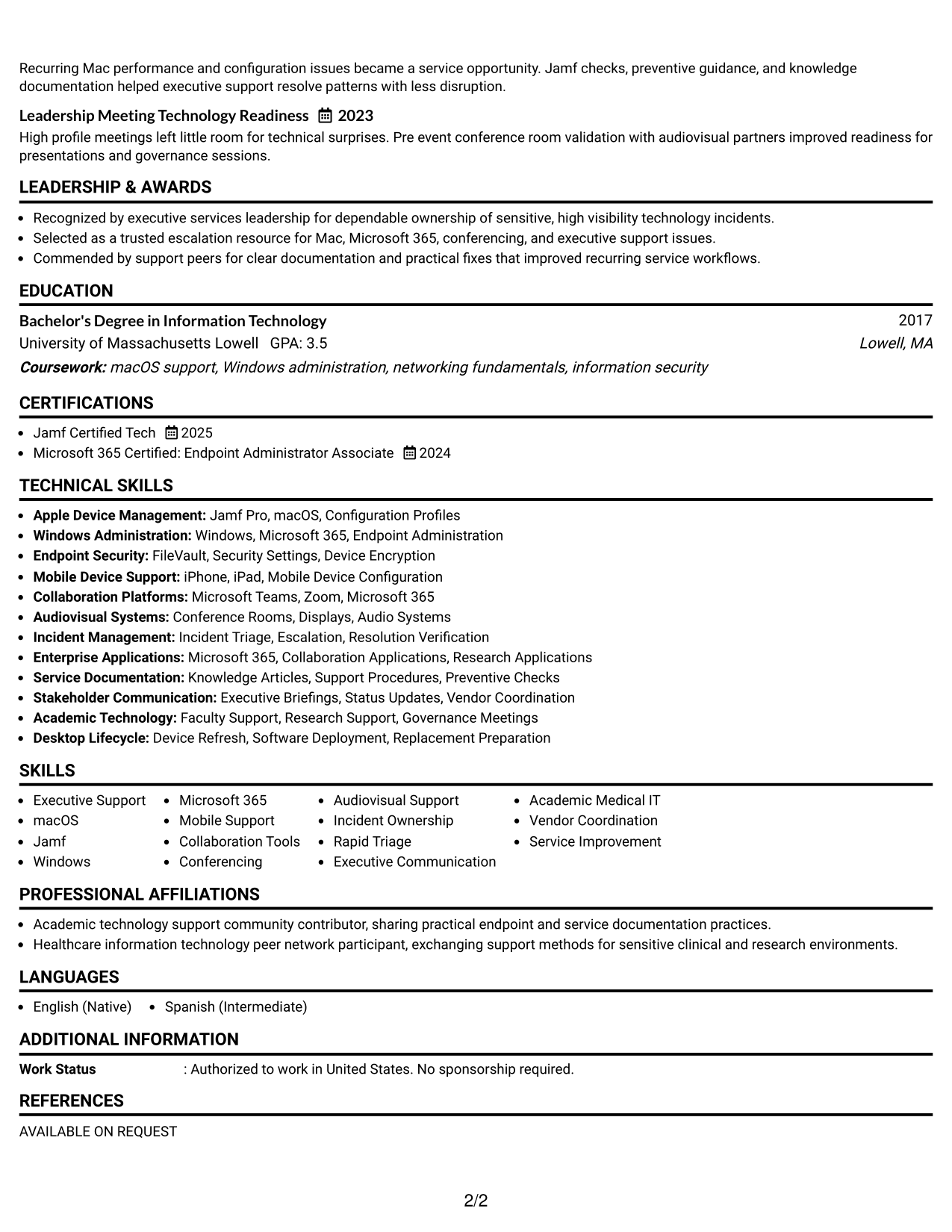
Why This Format Works
- Clear reading order helps recruiters follow career progression without jumping between sections.
- Full-width sections give experience and achievements enough room for concise evidence.
- Simple section breaks keep skills, education, and credentials easy to locate.
Best For
- Straightforward recruiter scanning
- Detailed experience sections
- Clear career progression
- ATS-conscious applications
- Readers who prefer linear structure
Resume Keywords
- Senior Desktop Technician
- Executive Support
- macOS
- Jamf
- Windows
- Microsoft 365
- Incident Ownership
- Rapid Triage
- Vendor Coordination
- Confidentiality
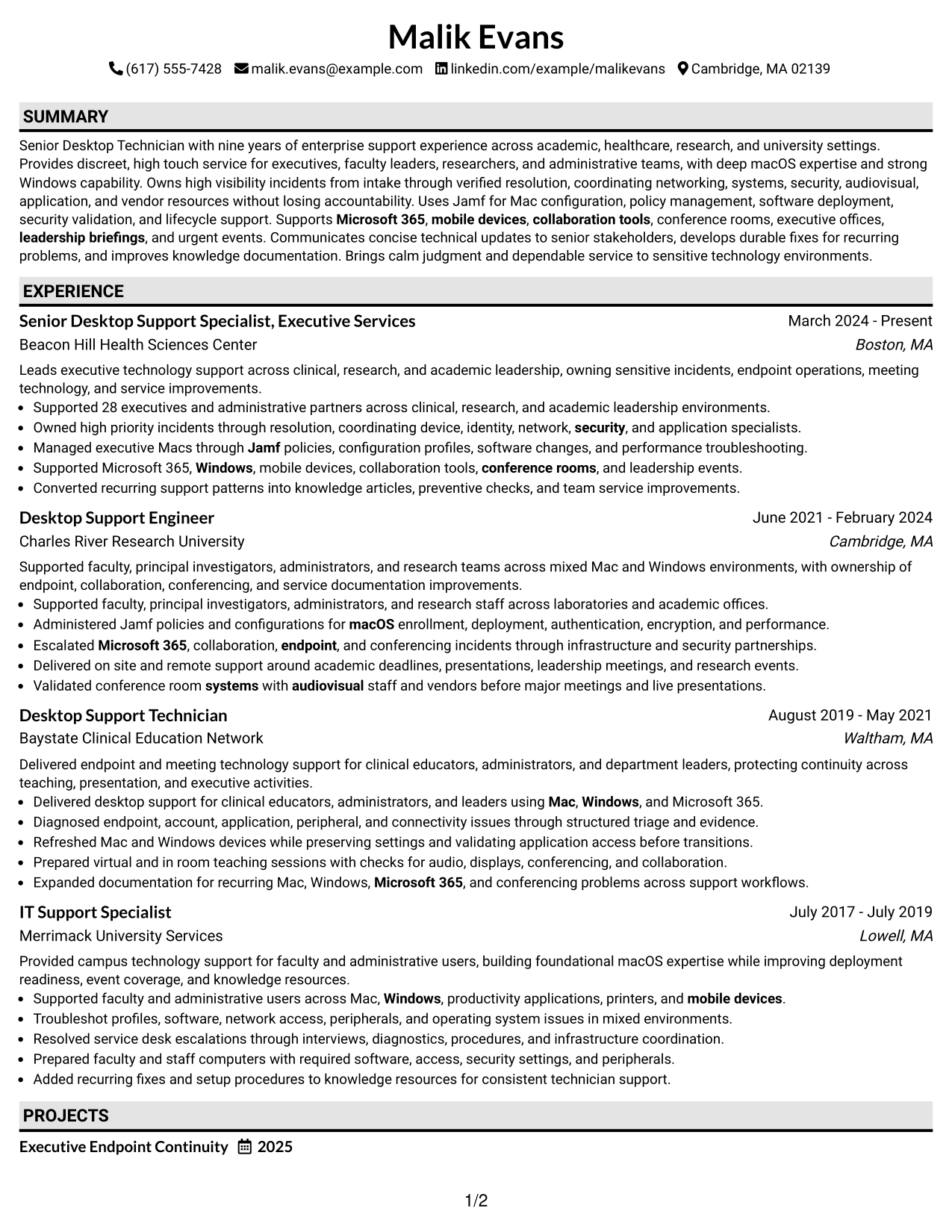
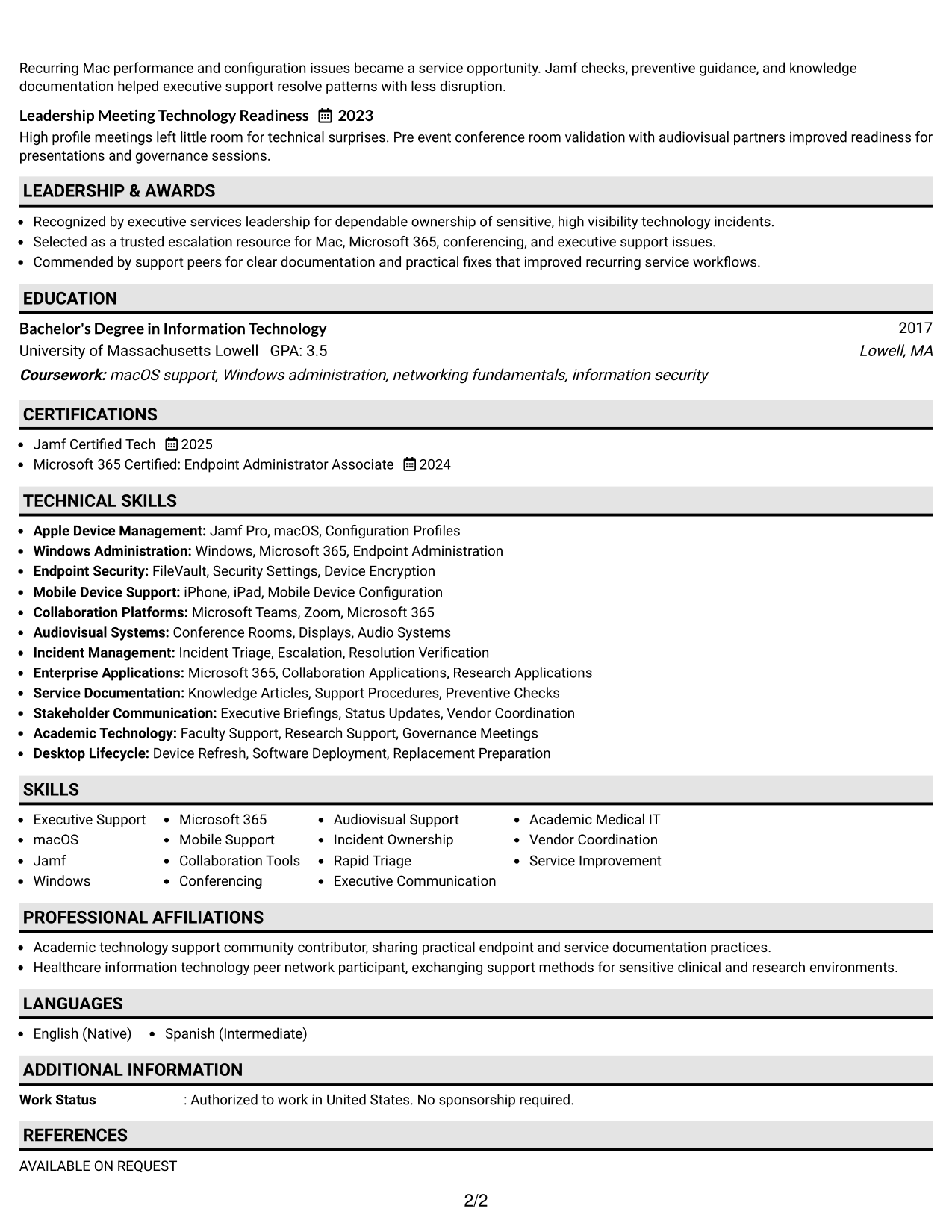
#2 Plain One Column with Shaded Labels Resume Example
Shaded section labels break the one-column resume into clear stops, helping recruiters find major content areas during a quick scan.
Why This Format Works
- Shaded labels make major resume sections easier to spot during fast review.
- Single-column reading keeps experience details in a predictable sequence from top downward.
- Visible section boundaries separate achievements, skills, education, and credentials without clutter.
Best For
- Fast section finding
- Longer experience descriptions
- Readers scanning by category
- Conservative visual preferences
- Applications needing strong section separation
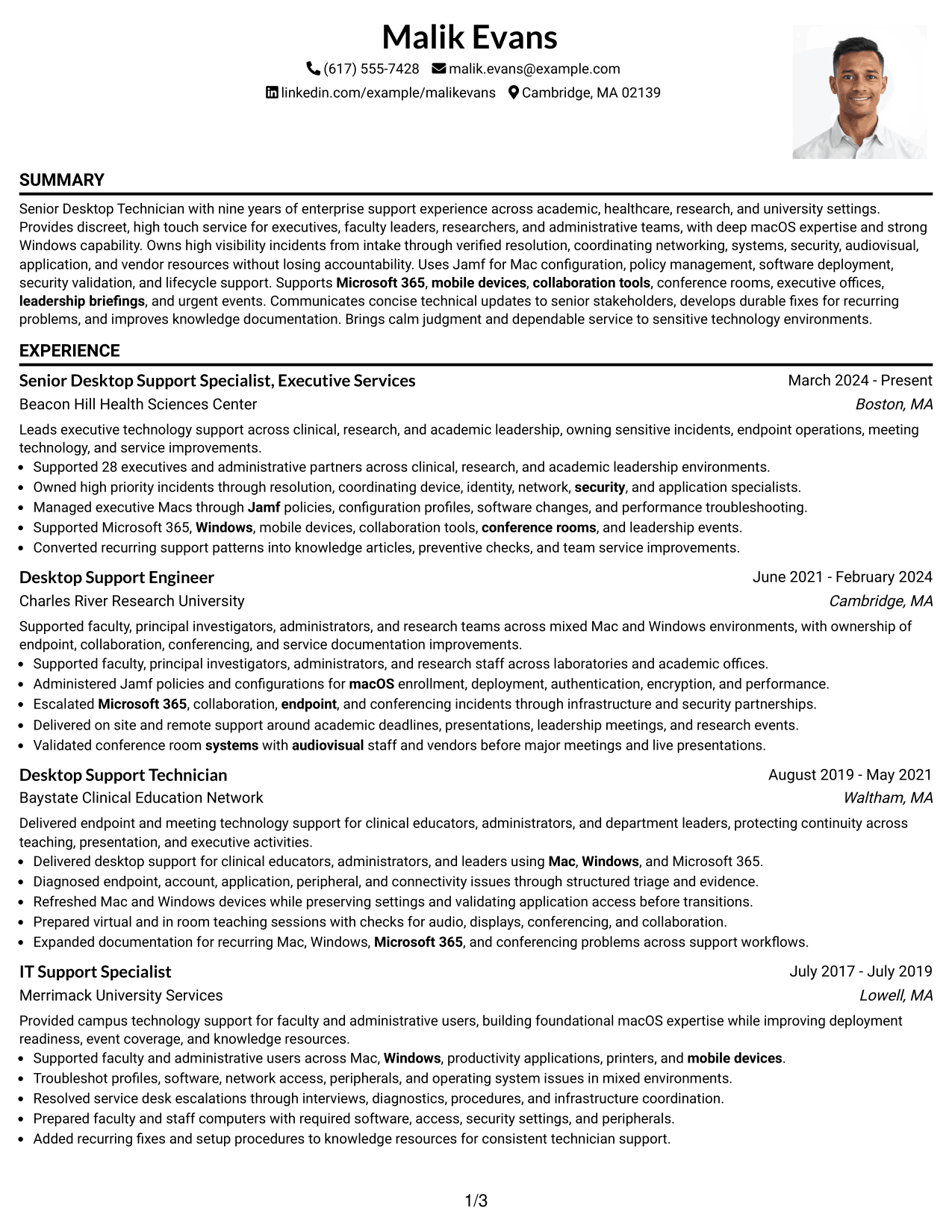
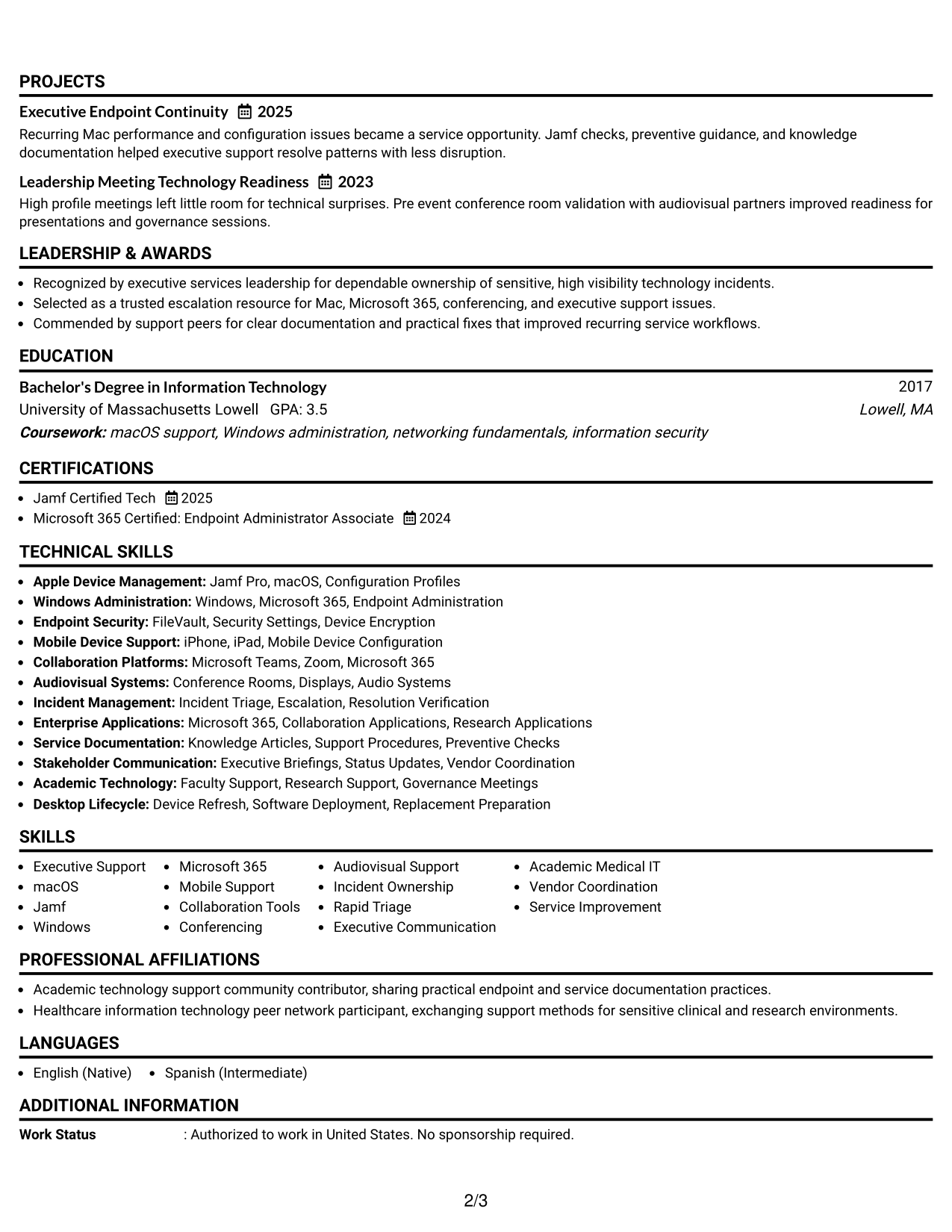
#3 One Column Format with Photo Right Resume Example
This one-column format keeps the body easy to scan while a right-side header photo adds personal identification without changing the reading order.
Why This Format Works
- Linear body structure keeps experience and career progression simple to follow.
- Separate sections give achievements and skills clear space beneath the header.
- Right-side photo stays in the header while credentials remain in normal reading order.
Best For
- Markets where resume photos are customary
- Linear experience review
- Clear header identification
- Professionals wanting a photo without body columns
- Applications using traditional section order
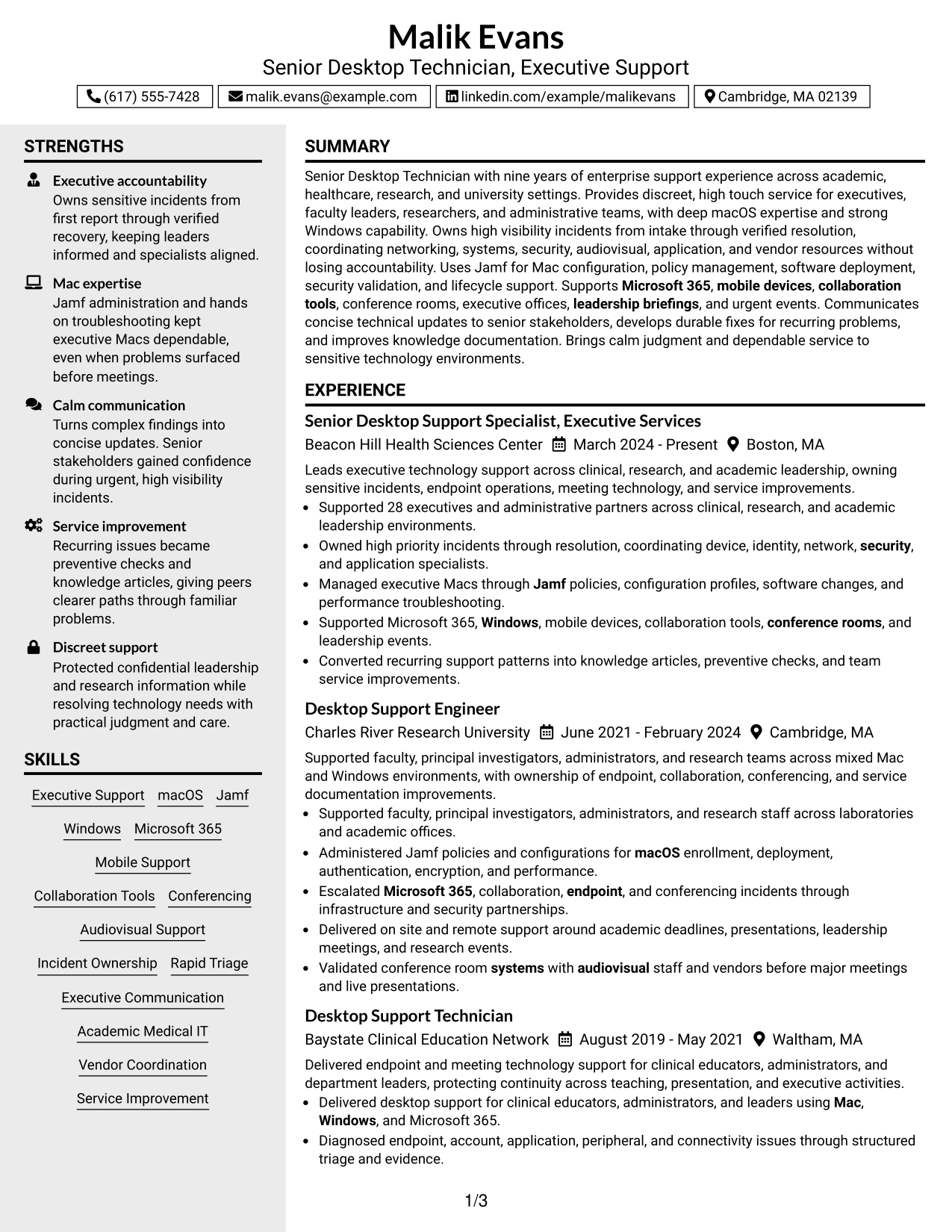
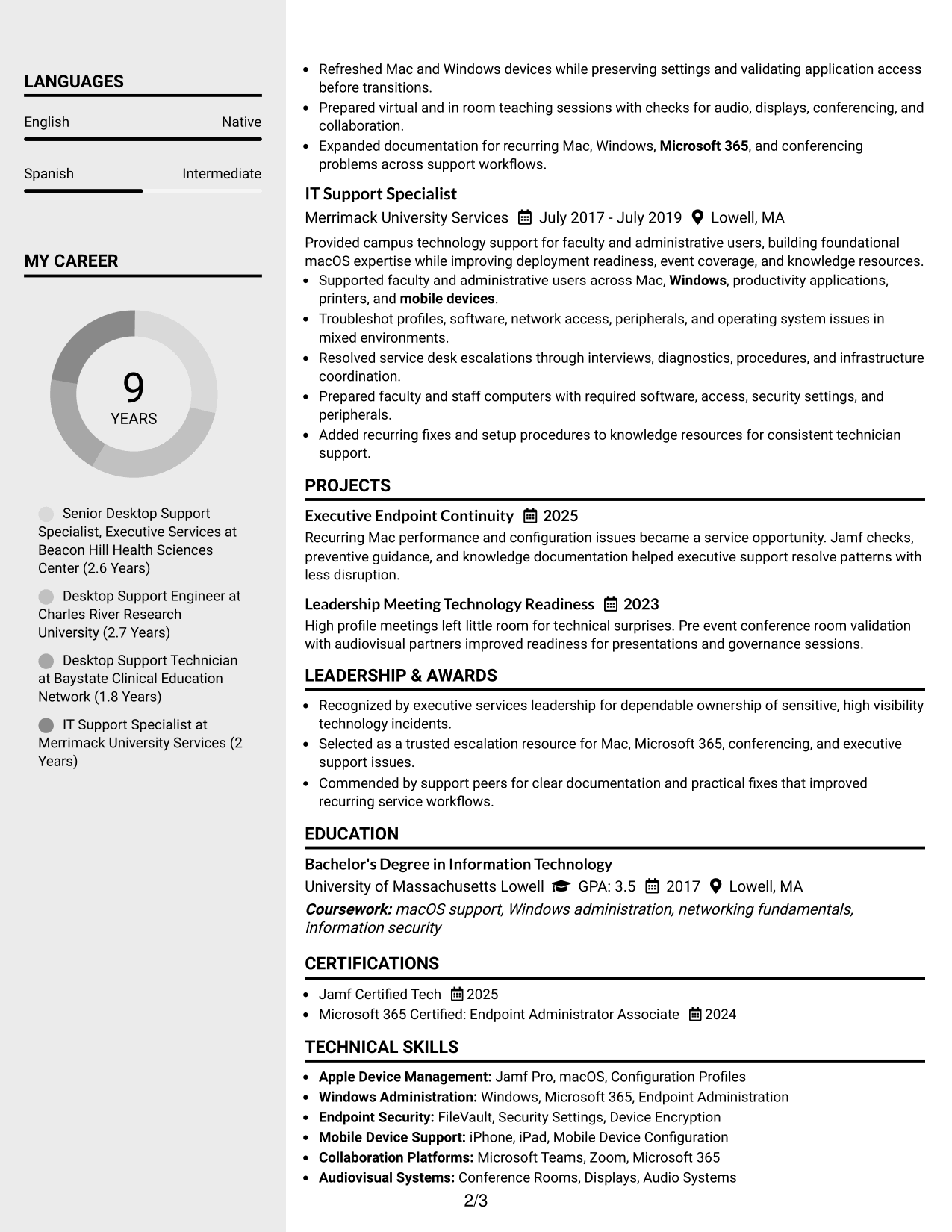
#4 Clean Two Column Sidebar Format Resume Example
The clean two-column sidebar gives recruiters parallel access to supporting details and main career content, reducing back-and-forth scanning.
Why This Format Works
- Two-column separation helps recruiters distinguish core experience from supporting resume details.
- Sidebar organization keeps skills and credentials visible beside the main career history.
- Main content area preserves enough space for achievements and experience evidence.
Best For
- Balanced career and skills review
- Compact supporting details
- Readers comparing qualifications quickly
- Experience-heavy resumes with side information
- Structured two-column organization
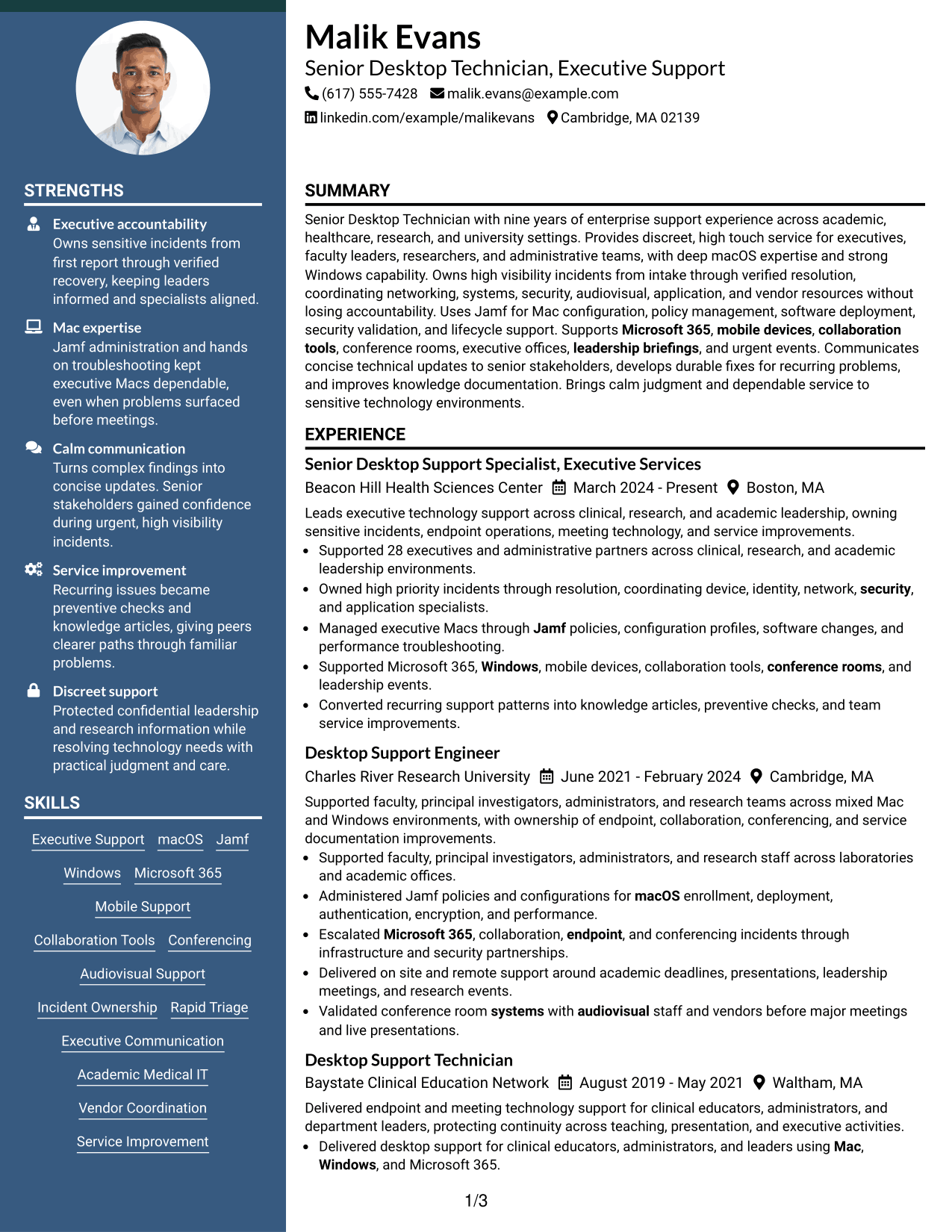
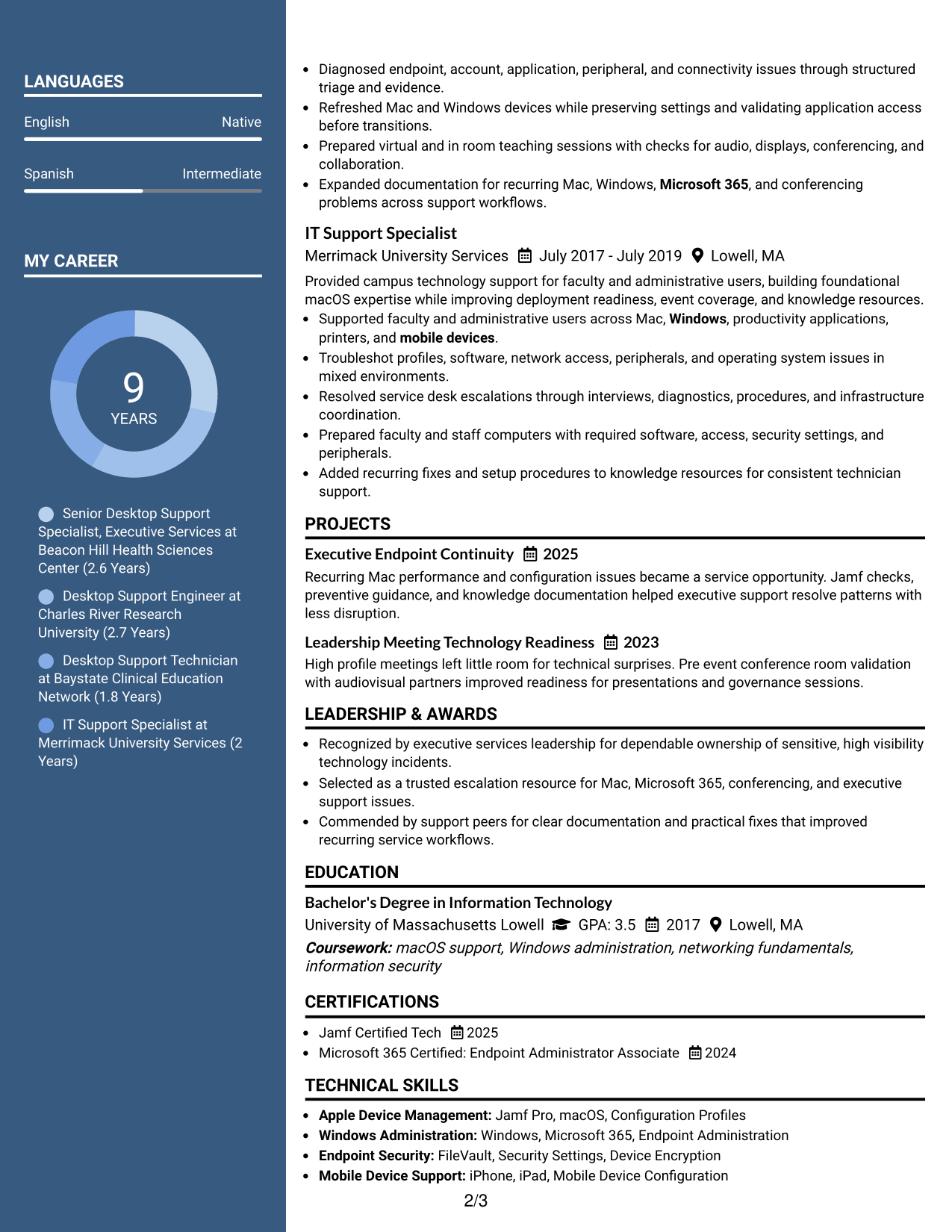
#5 Two Column Format Resume Example
This two-column format groups resume information side by side, helping recruiters compare career evidence with supporting qualifications in less vertical space.
Why This Format Works
- Parallel columns let experience and supporting qualifications remain visible within one scan.
- Clear section grouping helps recruiters compare achievements, skills, and credentials efficiently.
- Shared page width reduces long vertical runs while preserving career progression.
Best For
- Side-by-side qualification review
- Dense but organized content
- Experienced professionals with varied sections
- Readers who scan across categories
- Resumes needing compact vertical flow
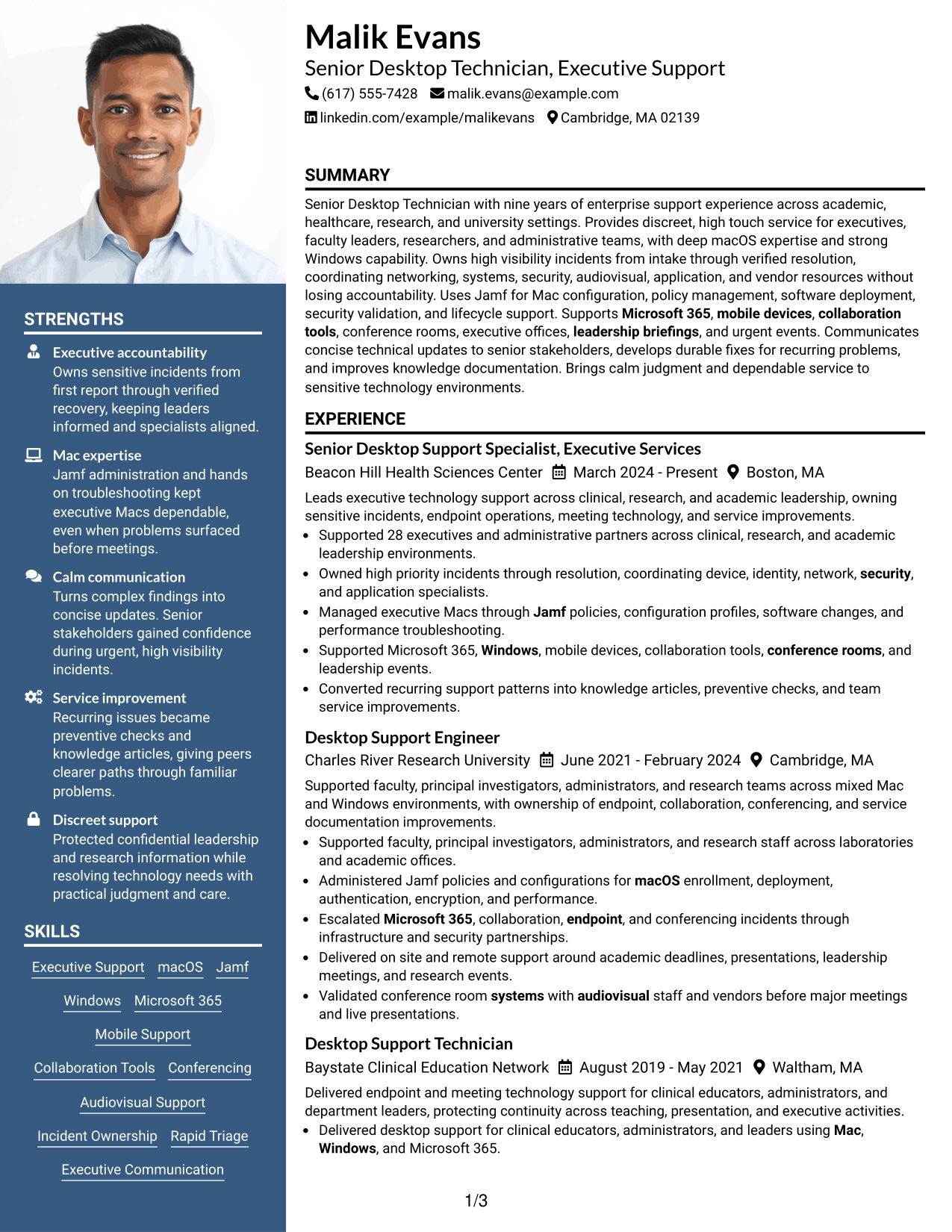
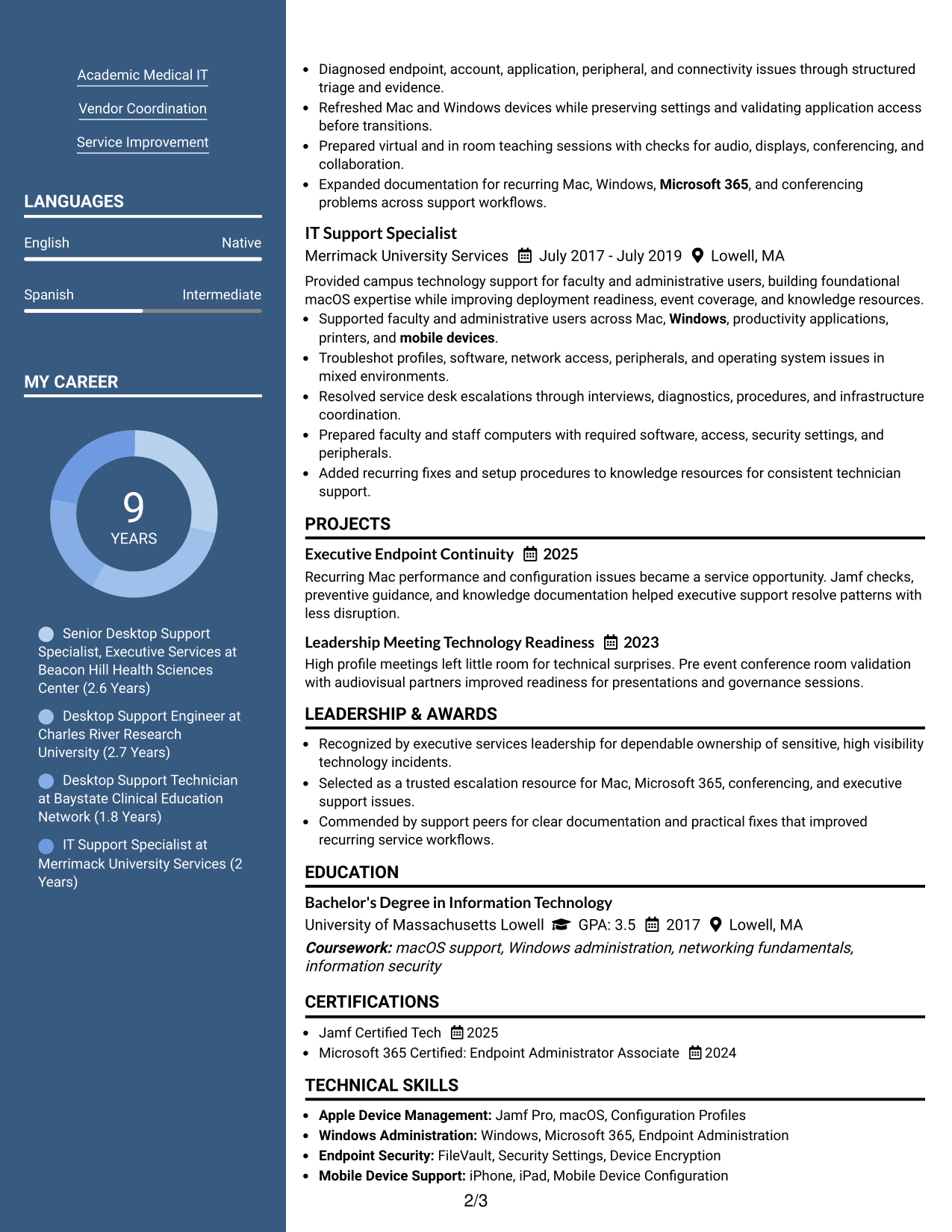
#6 Photo Header Two Column Format Resume Example
A photo header sits above the two-column body, giving recruiters a clear identity area before they scan career content and supporting sections.
Why This Format Works
- Header photo is separate from the two-column body and does not interrupt experience.
- Body columns divide career evidence from supporting skills and credentials for faster navigation.
- Section separation helps recruiters move between achievements, education, and experience efficiently.
Best For
- Markets that commonly use resume photos
- Two-column career summaries
- Distinct header and body structure
- Applications with several supporting sections
- Readers who value quick cross-section navigation
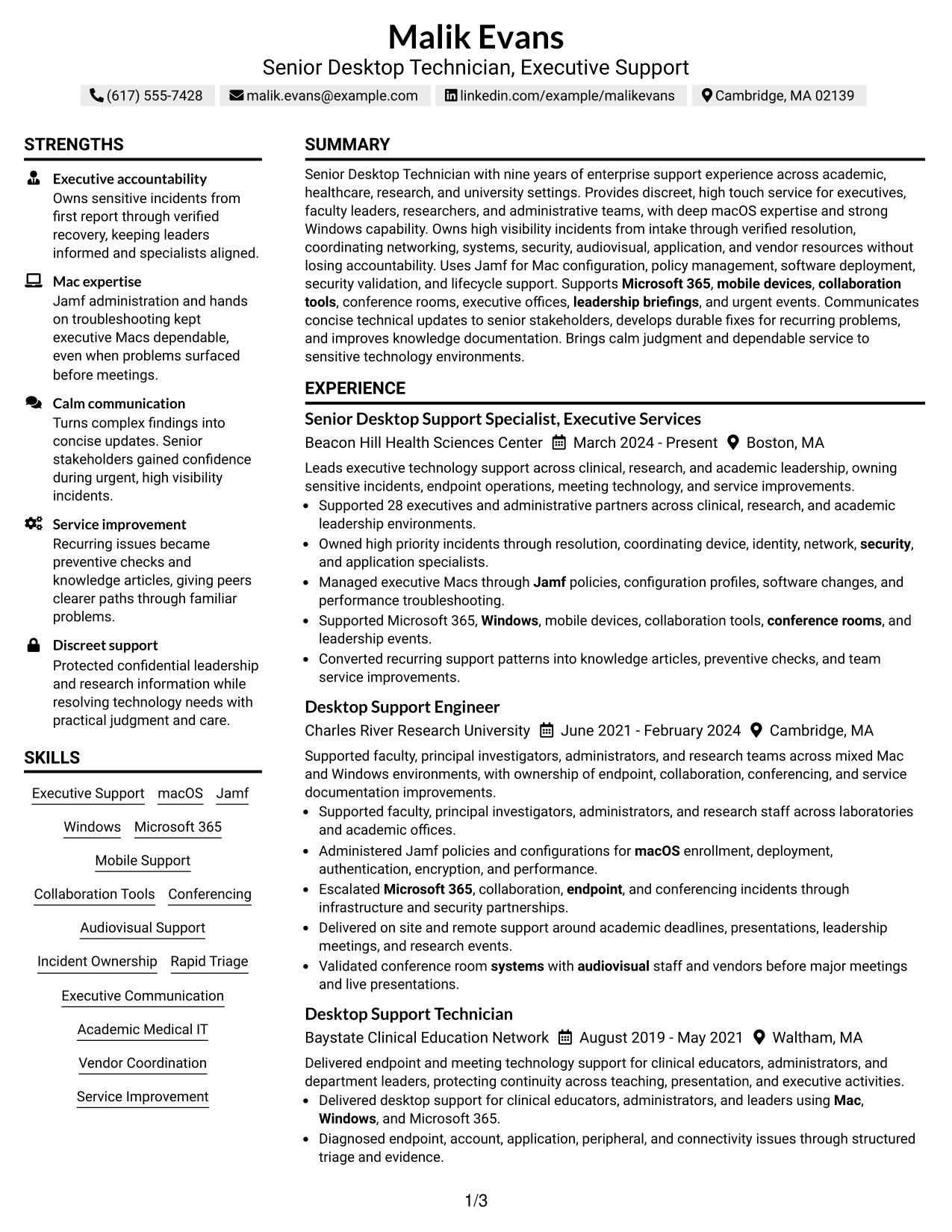
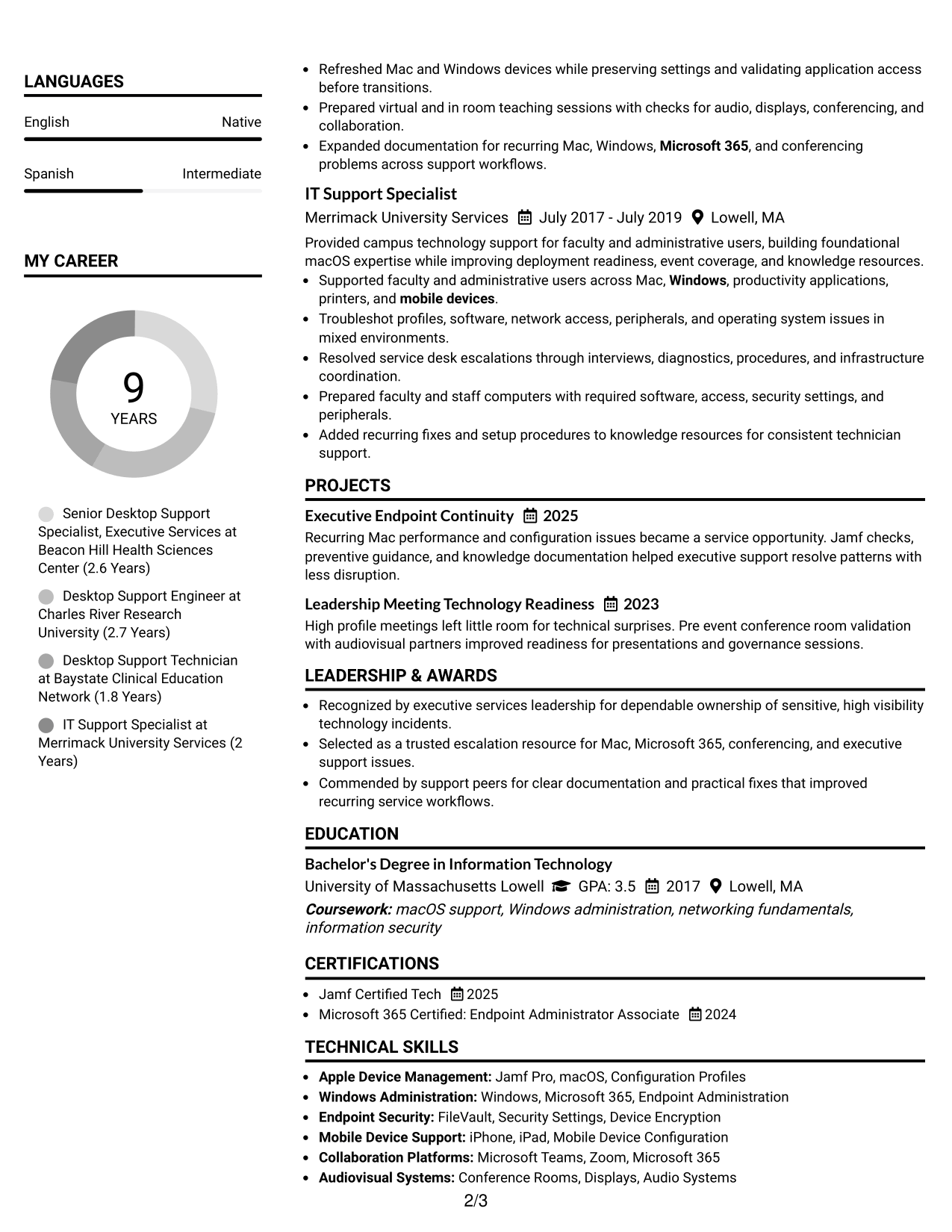
#7 Simple Two Column Format Resume Example
The simple two-column structure gives recruiters a compact view of career history and supporting sections while keeping the page easy to navigate.
Why This Format Works
- Simple column division keeps career history and supporting information visually distinct.
- Compact organization helps recruiters locate skills and credentials without leaving experience context.
- Clear section order supports quick review of achievements, education, and progression.
Best For
- Compact professional resumes
- Quick skills and experience comparison
- Applications with balanced section volume
- Readers who prefer simple two-column layouts
- Career histories with several supporting categories
See Also
- 7 Desktop Support Technician Resume Templates with Example
- 33 IT Support Technician 1 - Computer Maintenance Support Resume Templates with Example 2026 (ATS-Optimized)
- 7 Shop Administrative Technician III - Maintenance Operations Support Resume Templates with Example
- 7 Technology Support Technician - Field Support Resume Templates with Example
- 7 Adjunct Phlebotomy Technician Instructor Resume Templates with Example
- 7 Audiovisual and Oral History Technician Resume Templates with Example
- 33 Auto Technician Trainee Resume Templates with Example 2026 (ATS-Optimized)
- 7 Automation Technician Resume Templates with Example
- 30+ Auto Technician Trainee Cover Letter Templates with Example 2026
- 30+ Automotive Service Technician Cover Letter Templates with Example 2026
Frequently Asked Questions
Are these Senior Desktop Technician - Executive Support resume templates ATS-friendly?
Yes. The formats use clear resume sections and readable headings. Keep your text simple, use standard section names, and include role-specific keywords only when they match your real experience.
Are these different candidate resumes?
No. The guide shows one complete Senior Desktop Technician - Executive Support resume in different visual layouts so you can compare structure and presentation.
What should a Senior Desktop Technician - Executive Support resume include?
Include a focused summary, relevant experience, technical skills, certifications, education, and concise achievements. Strong examples also show incident ownership, executive communication, device support, meeting technology, and service improvement.
Which keywords are useful for this resume?
Useful grounded terms can include Executive Support, macOS, Jamf, Windows, Microsoft 365, VIP support, conferencing, audiovisual support, rapid triage, vendor coordination, knowledge base documentation, and confidentiality.
How should I write experience bullets for executive support work?
Start with the action you took, show the scope or result when available, and explain your ownership. Keep each bullet direct and avoid adding tools or results you cannot support.
Should I include certifications?
Yes, when they are relevant and current. Certifications such as Jamf or Microsoft endpoint administration can support your technical background when they match your actual credentials.
Should I include a photo on my resume?
For most U.S. applications, a no-photo resume is the safer choice. Use a photo only when it is normal and appropriate for the country or market where you are applying.
Can I customize these resume templates?
Yes. You can adjust the text and visual style while keeping the strongest evidence easy to scan and relevant to the Senior Desktop Technician - Executive Support role.