Styles
Download
Buy
Log In

Create an account to save your masterpiece. Only you can access the resumes and cover letters created and stored in your account.
We’ll take you to checkout right after you log in or create your account.
Hold on! Before we create your PDF masterpiece, log in or create an account to keep it safe and secure!
Hang on! Before your PDF preview, log in or create an account to save your progress securely!
Log in or sign up to access your files—it's all yours once we know it’s really you!
Sign up or log in to upload your files — your content, your control, once we verify it’s you!
Please log in so that we know it's really you before we proceed!
Ready for AI magic on your cover letter? Log in or create an account to save your masterpiece!
Log in or create an account to save your recent master piece changes to the server.
Log in or create an account to Save As your recent masterpiece on the server.
Log in or create an account to rename your file.
To edit this template, we need to create and save a new copy. Please log in or sign up to continue
By continuing, you accept Terms and use of essential cookies and browser storage, as described in Privacy Policy.
By continuing, you accept Terms and use of essential cookies and browser storage, as described in Privacy Policy.
Enter your email address and we’ll send you a link to reset your password
An email with a link to reset your password was sent to the email address associated with your accountWe're experiencing some issues on our end. Please try again later.An email with a link to reset your password was sent to the email address associated with your account

Password reset is now complete. Logging in now...
Experienced Software Engineer:
Ethan Davis, with 5 years of expertise in Java, Python, and cloud technologies. Proven track record of leading development teams at XYZ Corp to build scalable web applications. AWS Solutions Architect certified. Previously held a Software Developer role at ABC Tech, where I contributed to cloud migration projects and enhanced system performance. Certified in Agile Methodologies and Python Programming.
View the Created Resume: Software Engineer
Experienced Nurse Practitioner:
Olivia Johnson, with 14 years of expertise in providing patient care in both clinical and hospital settings. Proven ability to diagnose and treat a wide range of medical conditions, with a specialization in family medicine. Board Certified Family Nurse Practitioner (FNP-BC). Previously served as a Registered Nurse at City General Hospital, where I implemented patient care plans and coordinated with multidisciplinary teams. Certified in Advanced Cardiovascular Life Support (ACLS) and Pediatric Advanced Life Support (PALS).
View the Created Resume: Family Nurse Practitioner
Driven Software Engineering Intern: Create a a tailored resume for this job posting url
https://www.google.com/search?q=software+engineer (Link shortened for illustration)
Entry Level Marketing Agent: Create a tailored resume for this job posting
Job Position: Entry Level Marketing Agent
Location: Chicago, IL
Schedule: Weekends Off
Salary: $978 - $1,356 per week
Job Description: We are seeking a highly motivated and enthusiastic individual to join our team as an Entry Level Marketing Agent. This is an exciting opportunity for a self-driven person who is eager to learn and grow within the marketing field. As an Entry Level Marketing Agent, you will play a vital role in supporting our marketing initiatives and gaining hands-on experience in various aspects of marketing....... Full Job Description
Experienced Senior Scrum Master: Alex Johnson, with 8 years of expertise in leading Agile teams to deliver high-quality software solutions. Proven track record of facilitating Scrum ceremonies, coaching teams on Agile practices, and driving continuous improvement. Certified ScrumMaster (CSM) and Certified Scrum Professional (CSP). Previously led Agile transformation initiatives at Tech Solutions Inc., enhancing team efficiency and project delivery timelines. Certified in Lean Six Sigma and Agile Coaching.
View the Created Resume: Agile Coach
Experienced Marketing Professional:
Noah Anderson, with 10 years of expertise in developing and executing comprehensive marketing strategies across digital and traditional channels. Proven track record of increasing brand awareness, driving customer engagement, and boosting sales. Certified Digital Marketing Professional (CDMP) and Google Analytics Certified. Previously managed marketing campaigns at Bright Ideas Inc., leading to a 30% increase in online conversions. Certified in SEO, Content Marketing, and Social Media Strategy.
View the Created Resume: Marketing Professional
Experienced Sales Professional:
Michael Lee, with 8 years of expertise in B2B and B2C sales, specializing in building strong client relationships and consistently exceeding sales targets. Proven track record of driving revenue growth and expanding market share. Certified Sales Executive (CSE) and HubSpot Sales Software Certified. Previously served as a Sales Manager at Global Solutions, where I led a team to achieve a 25% increase in quarterly sales. Certified in Negotiation Skills and Customer Relationship Management (CRM).
View the Created Resume: Experienced Sales Professional
Motivated MBA Intern: Sarah Thompson, with a strong foundation in business strategy, finance, and marketing. Eager to apply academic knowledge to real-world challenges in a dynamic business environment. Proven ability to analyze data, develop business plans, and collaborate with teams. Recently completed an MBA at University of Chicago, with a focus on Corporate Finance and Marketing Strategy. Gained hands-on experience through internships at XYZ Corp, where I contributed to market research and financial modeling projects. Certified in Microsoft Excel and Data Analysis.
View the Created Resume: Marketing Analyst
Driven Technology Intern:
Daniel Allen, with a focus on website security and a solid background in cybersecurity principles. Eager to leverage academic knowledge and hands-on skills to contribute to securing web applications and protecting data. Recently completed a degree in Computer Science at [University Name], specializing in Cybersecurity and Network Security. Gained practical experience through internships at SecureTech, where I assisted in conducting vulnerability assessments and implementing security protocols. Certified in CompTIA Security+ and Ethical Hacking.
View the Created Resume: Cybersecurity Specialist
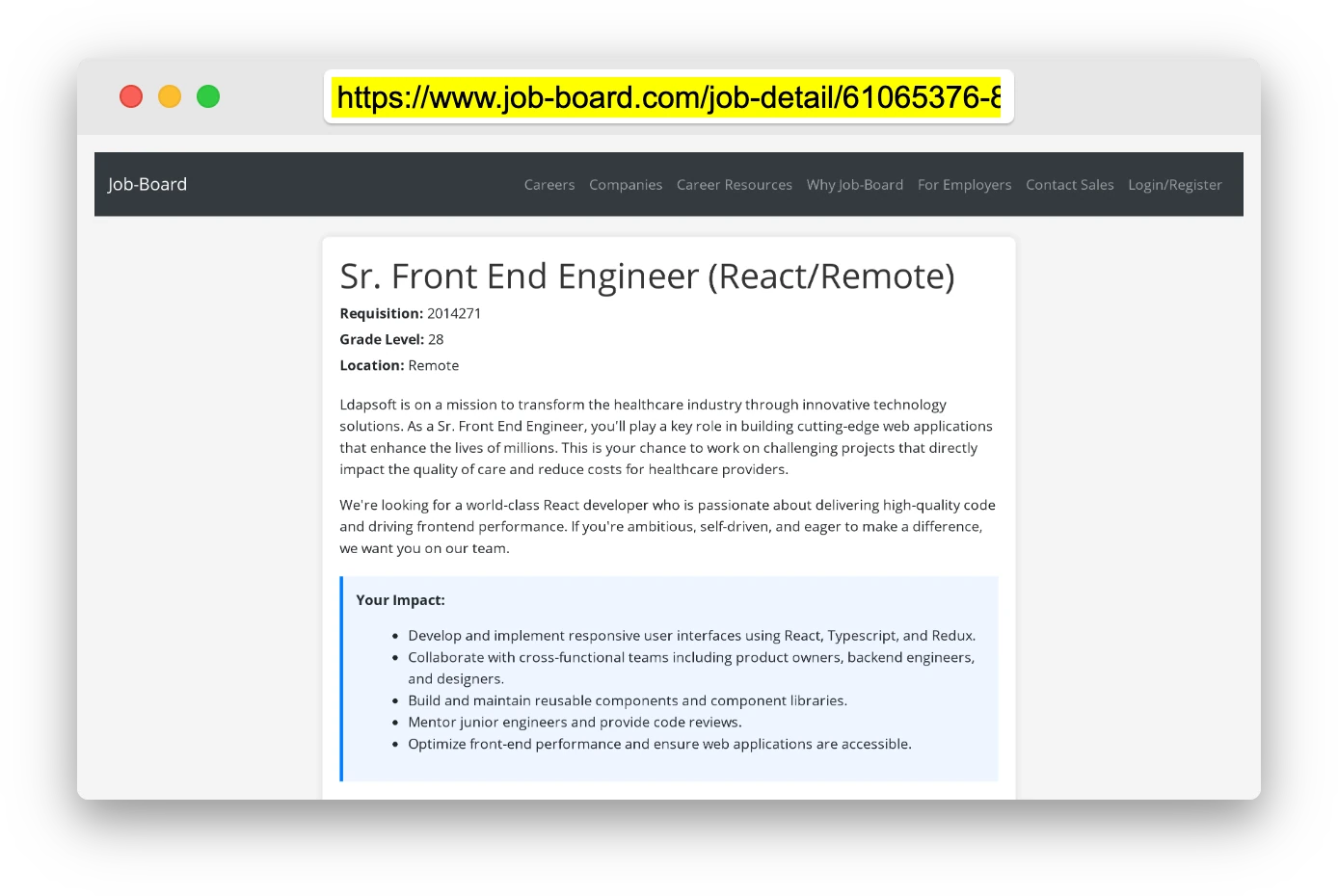
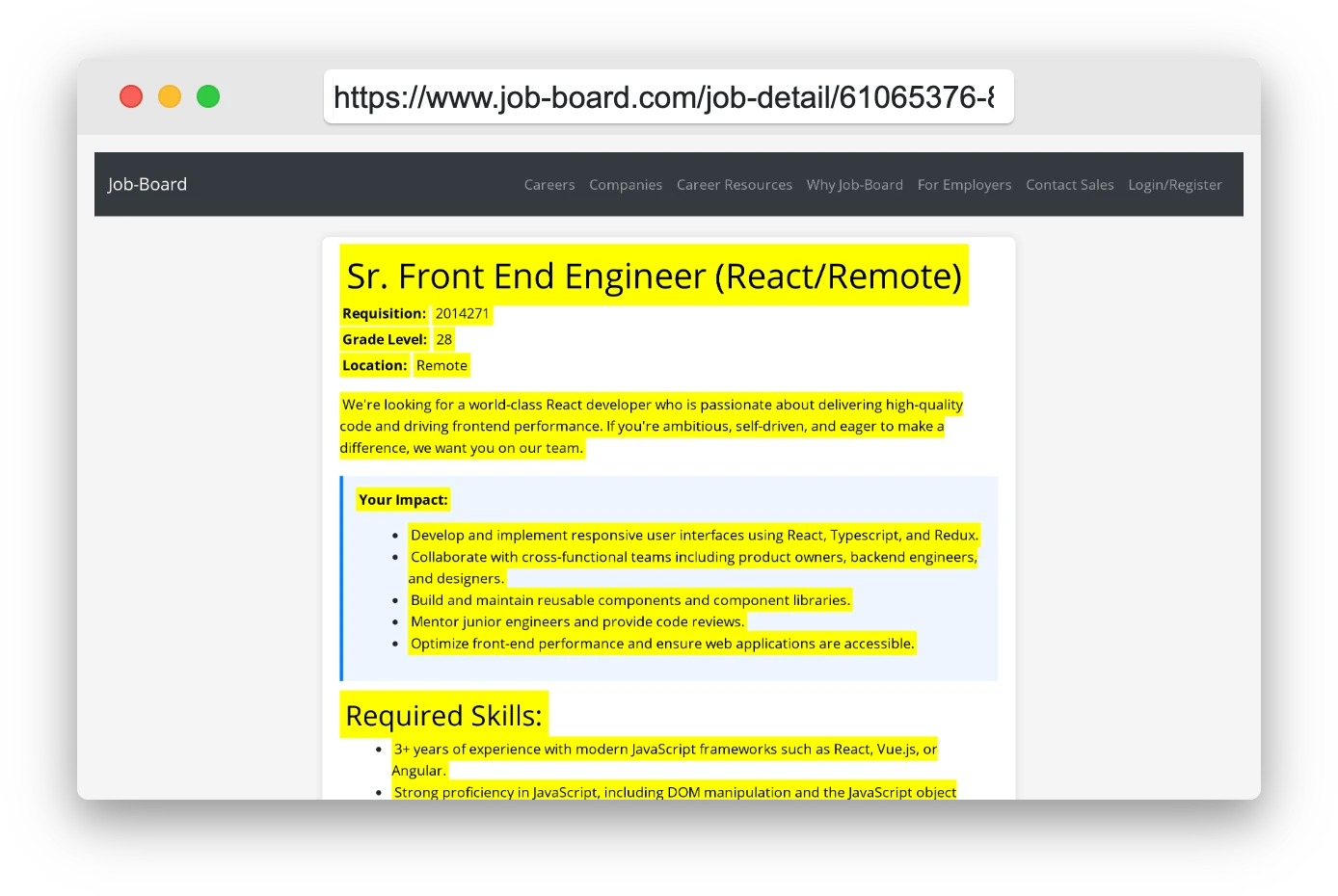
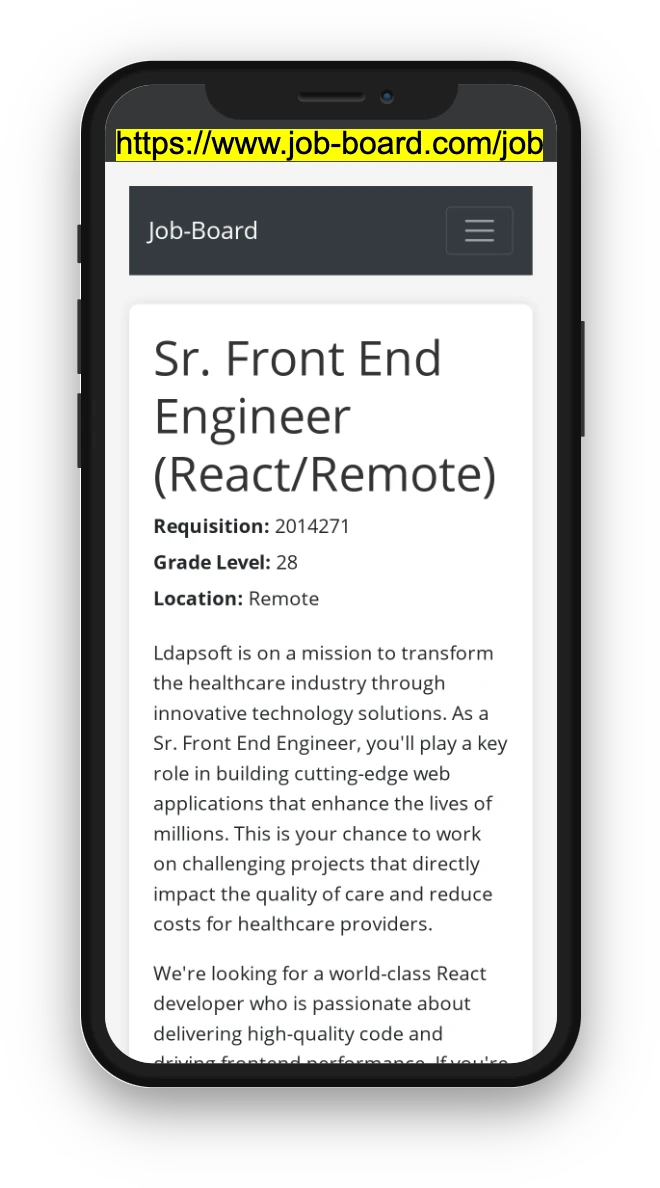
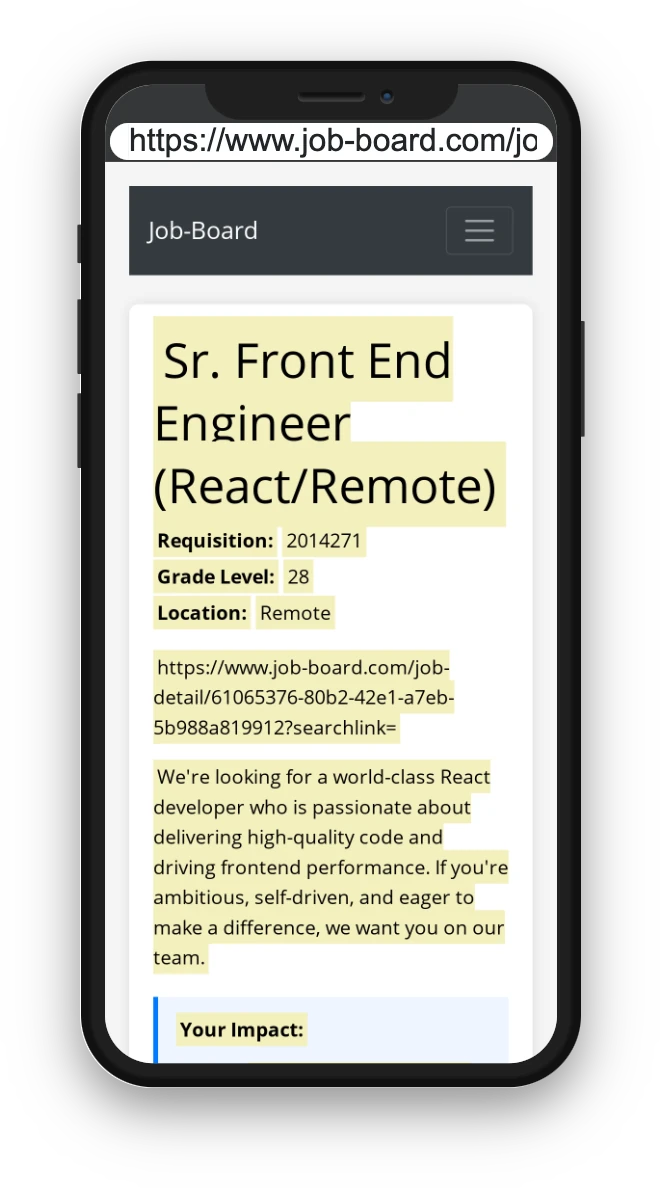
Open any job listing on platforms like Indeed, LinkedIn Jobs, Seek, Dice, Reed.co.uk, Jora, StepStone, JobStreet, or Bayt, and copy either the job posting URL or the description. Only one is needed, as shown in the yellow highlighted screenshots.
| Name | File Type | Last Modified: | Description: |
|---|
Warning: This action is irreversible. Once you click submit, the files will be permanently deleted.
| Delete | Name | Last Updated |
Use This File
Select this to use the file for generating your resume and cover letter. Only one source—uploaded file, selected file, or LinkedIn text—can be used.
|
|---|
| Delete | Name | Last Updated |
Use This File
Select this to use the file for generating your resume and cover letter. Only one source—uploaded file, selected file, or LinkedIn text—can be used.
|
|---|
You can download your LinkedIn profile as a PDF by opening linkedin.com in a web browser, clicking your profile photo, selecting the “More” or “Resources” button, and choosing “Save to PDF.” You can then attach the PDF using the Upload From Computer tab.
If you have copied the LinkedIn profile text, paste it below. See how to copy your profile from LinkedIn
Experienced Software Engineer:
Ethan Davis, with 5 years of expertise in Java, Python, and cloud technologies. Proven track record of leading development teams at XYZ Corp to build scalable web applications. AWS Solutions Architect certified. Previously held a Software Developer role at ABC Tech, where I contributed to cloud migration projects and enhanced system performance. Certified in Agile Methodologies and Python Programming.
View the Created Resume: Software Engineer
Experienced Nurse Practitioner:
Olivia Johnson, with 14 years of expertise in providing patient care in both clinical and hospital settings. Proven ability to diagnose and treat a wide range of medical conditions, with a specialization in family medicine. Board Certified Family Nurse Practitioner (FNP-BC). Previously served as a Registered Nurse at City General Hospital, where I implemented patient care plans and coordinated with multidisciplinary teams. Certified in Advanced Cardiovascular Life Support (ACLS) and Pediatric Advanced Life Support (PALS).
View the Created Resume: Family Nurse Practitioner
Experienced Senior Scrum Master: Alex Johnson, with 8 years of expertise in leading Agile teams to deliver high-quality software solutions. Proven track record of facilitating Scrum ceremonies, coaching teams on Agile practices, and driving continuous improvement. Certified ScrumMaster (CSM) and Certified Scrum Professional (CSP). Previously led Agile transformation initiatives at Tech Solutions Inc., enhancing team efficiency and project delivery timelines. Certified in Lean Six Sigma and Agile Coaching.
View the Created Resume: Agile Coach
Experienced Marketing Professional:
Noah Anderson, with 10 years of expertise in developing and executing comprehensive marketing strategies across digital and traditional channels. Proven track record of increasing brand awareness, driving customer engagement, and boosting sales. Certified Digital Marketing Professional (CDMP) and Google Analytics Certified. Previously managed marketing campaigns at Bright Ideas Inc., leading to a 30% increase in online conversions. Certified in SEO, Content Marketing, and Social Media Strategy.
View the Created Resume: Marketing Professional
Experienced Sales Professional:
Michael Lee, with 8 years of expertise in B2B and B2C sales, specializing in building strong client relationships and consistently exceeding sales targets. Proven track record of driving revenue growth and expanding market share. Certified Sales Executive (CSE) and HubSpot Sales Software Certified. Previously served as a Sales Manager at Global Solutions, where I led a team to achieve a 25% increase in quarterly sales. Certified in Negotiation Skills and Customer Relationship Management (CRM).
View the Created Resume: Experienced Sales Professional
Motivated MBA Intern: Sarah Thompson, with a strong foundation in business strategy, finance, and marketing. Eager to apply academic knowledge to real-world challenges in a dynamic business environment. Proven ability to analyze data, develop business plans, and collaborate with teams. Recently completed an MBA at University of Chicago, with a focus on Corporate Finance and Marketing Strategy. Gained hands-on experience through internships at XYZ Corp, where I contributed to market research and financial modeling projects. Certified in Microsoft Excel and Data Analysis.
View the Created Resume: Marketing Analyst
Driven Technology Intern:
Daniel Allen, with a focus on website security and a solid background in cybersecurity principles. Eager to leverage academic knowledge and hands-on skills to contribute to securing web applications and protecting data. Recently completed a degree in Computer Science at [University Name], specializing in Cybersecurity and Network Security. Gained practical experience through internships at SecureTech, where I assisted in conducting vulnerability assessments and implementing security protocols. Certified in CompTIA Security+ and Ethical Hacking.
View the Created Resume: Cybersecurity Specialist
Try these controls