Create an account to save your masterpiece. Only you can access the resumes and cover letters created and stored in your account. We’ll take you to checkout right after you log in or create your account. Hold on! Before we create your PDF masterpiece, log in or create an account to keep it safe and secure! Hang on! Before your PDF preview, log in or create an account to save your progress securely! Log in or sign up to access your files—it's all yours once we know it’s really you! Sign up or log in to upload your files — your content, your control, once we verify it’s you! Please log in so that we know it's really you before we proceed! Ready for AI magic on your cover letter? Log in or create an account to save your masterpiece! Log in or create an account to save your recent master piece changes to the server. Log in or create an account to Save As your recent masterpiece on the server. Log in or create an account to rename your file. To edit this template, we need to create and save a new copy. Please log in or sign up to continue
By continuing, you accept Terms and use of essential cookies and browser storage, as described in Privacy Policy.
Loading Google sign-in…
or
Invalid email or password.The email address you entered is not found. Please check for any errors or a new account.We're experiencing some issues on our end. Please try again later.There was a problem with your request. Please check your input and try again.
Log In
Sign Up
By continuing, you accept Terms and use of essential cookies and browser storage, as described in Privacy Policy.
Loading Google sign-in…
or
The email address you entered is already registered with Google login. Please use the Google login button above to log inThis email is already associated with an account created using email and password. Please log in using the standard login method.The email address you entered is already registered. Please use a different email address or with your existing account.We're experiencing some issues on our end. Please try again later.There was a problem with your request. Please check your input and try again.
Already have an account?
Submit
Reset your password
Enter your email address and we’ll send you a link to reset your password
An email with a link to reset your password was sent to the email address associated with your accountWe're experiencing some issues on our end. Please try again later.
Reset Password
Check your inbox
An email with a link to reset your password was sent to the email address associated with your account
Didn't get an email?
Reset your password
The reset password link has expired. Click to request a new reset password link.Unable to find the associated accountWe're experiencing some issues on our end. Please try again later.There was a problem with your request. Please check your input and try again.
Reset Password
Password Reset Complete
Password reset is now complete. Logging in now...
Invalid email or password.The email address you entered is not found. Please check for any errors or a new account.We're experiencing some issues on our end. Please try again later.There was a problem with your request. Please check your input and try again.
If you are not logged in automatically, please
PDF Footer and Margins Setup
The margins are applied to the document, and the footer shows up in the preview and the PDF
Footer Font Settings
Are you applying for a specific job so we can tailor your resume to it?Are you applying for a specific job so we can tailor your cover letter to it?
Your data stays private and is never used for training.Privacy Policy
Enter a Job Link or Copy/Paste the Job Description Text Below
Your data stays private and is never used for training.Privacy Policy
Do you have a resume or LinkedIn profile?
OR GENERATE YOUR RESUME WITHOUT THEMOR GENERATE YOUR COVER LETTER WITHOUT THEM
Your data stays private and is never used for training.Privacy Policy
Drop your resume or choose a file
Drop your resume
or
PDF, or Word — 3 MB max
Your data stays private and is never used for training.Privacy Policy
Attach Your LinkedIn Profile (Attach PDF or Copy Text)
Website link found! Ready to create resume from:
Your data stays private and is never used for training.Privacy Policy
Select from one of your existing resumes
Select from one of Resumes you’ve already created on this platform
Your data stays private and is never used for training.Privacy Policy
Examples of how to write your details
Experienced Software Engineer:
Ethan Davis, with 5 years of expertise in Java, Python, and cloud technologies. Proven track record of leading development teams at XYZ Corp to build scalable web applications. AWS Solutions Architect certified. Previously held a Software Developer role at ABC Tech, where I contributed to cloud migration projects and enhanced system performance. Certified in Agile Methodologies and Python Programming. View the Created Resume: Software Engineer
Experienced Nurse Practitioner:
Olivia Johnson, with 14 years of expertise in providing patient care in both clinical and hospital settings. Proven ability to diagnose and treat a wide range of medical conditions, with a specialization in family medicine. Board Certified Family Nurse Practitioner (FNP-BC). Previously served as a Registered Nurse at City General Hospital, where I implemented patient care plans and coordinated with multidisciplinary teams. Certified in Advanced Cardiovascular Life Support (ACLS) and Pediatric Advanced Life Support (PALS). View the Created Resume: Family Nurse Practitioner
Driven Software Engineering Intern:
Create a a tailored resume for this job posting url
https://www.google.com/search?q=software+engineer (Link shortened for illustration)
Daniel Allen, currently pursuing a B.S. in Computer Science with a strong foundation in full-stack development. Proficient in JavaScript, React, and backend development using Python. Experienced with relational databases like PostgreSQL and MySQL. Demonstrated ability to lead collaborative software projects during academic and internship work, including developing scalable web applications and optimizing system performance. Strong interest in AI/ML technologies and passionate about building products that solve real-world problems. Eager to contribute to cutting-edge innovation in a fast-paced, cross-functional engineering environment. Here is my info: Daniel Allen Male (214) 555-0171 [email protected] linkedin.com/in/danielallen 400 Elm St, Dallas, TX 75201 View the Created Resume: Software Engineer Intern
Entry Level Marketing Agent:
Create a tailored resume for this job posting
Job Position: Entry Level Marketing Agent
Location: Chicago, IL
Schedule: Weekends Off
Salary: $978 - $1,356 per week
Job Description: We are seeking a highly motivated and enthusiastic individual to join our team as an Entry Level Marketing Agent. This is an exciting opportunity for a self-driven person who is eager to learn and grow within the marketing field. As an Entry Level Marketing Agent, you will play a vital role in supporting our marketing initiatives and gaining hands-on experience in various aspects of marketing....... Full Job Description
Experienced Senior Scrum Master: Alex Johnson, with 8 years of expertise in leading Agile teams to deliver high-quality software solutions. Proven track record of facilitating Scrum ceremonies, coaching teams on Agile practices, and driving continuous improvement. Certified ScrumMaster (CSM) and Certified Scrum Professional (CSP). Previously led Agile transformation initiatives at Tech Solutions Inc., enhancing team efficiency and project delivery timelines. Certified in Lean Six Sigma and Agile Coaching. View the Created Resume: Agile Coach
Experienced Marketing Professional:
Noah Anderson, with 10 years of expertise in developing and executing comprehensive marketing strategies across digital and traditional channels. Proven track record of increasing brand awareness, driving customer engagement, and boosting sales. Certified Digital Marketing Professional (CDMP) and Google Analytics Certified. Previously managed marketing campaigns at Bright Ideas Inc., leading to a 30% increase in online conversions. Certified in SEO, Content Marketing, and Social Media Strategy. View the Created Resume: Marketing Professional
Experienced Sales Professional:
Michael Lee, with 8 years of expertise in B2B and B2C sales, specializing in building strong client relationships and consistently exceeding sales targets. Proven track record of driving revenue growth and expanding market share. Certified Sales Executive (CSE) and HubSpot Sales Software Certified. Previously served as a Sales Manager at Global Solutions, where I led a team to achieve a 25% increase in quarterly sales. Certified in Negotiation Skills and Customer Relationship Management (CRM). View the Created Resume: Experienced Sales Professional
Motivated MBA Intern: Sarah Thompson, with a strong foundation in business strategy, finance, and marketing. Eager to apply academic knowledge to real-world challenges in a dynamic business environment. Proven ability to analyze data, develop business plans, and collaborate with teams. Recently completed an MBA at University of Chicago, with a focus on Corporate Finance and Marketing Strategy. Gained hands-on experience through internships at XYZ Corp, where I contributed to market research and financial modeling projects. Certified in Microsoft Excel and Data Analysis. View the Created Resume: Marketing Analyst
Driven Technology Intern:
Daniel Allen, with a focus on website security and a solid background in cybersecurity principles. Eager to leverage academic knowledge and hands-on skills to contribute to securing web applications and protecting data. Recently completed a degree in Computer Science at [University Name], specializing in Cybersecurity and Network Security. Gained practical experience through internships at SecureTech, where I assisted in conducting vulnerability assessments and implementing security protocols. Certified in CompTIA Security+ and Ethical Hacking. View the Created Resume: Cybersecurity Specialist
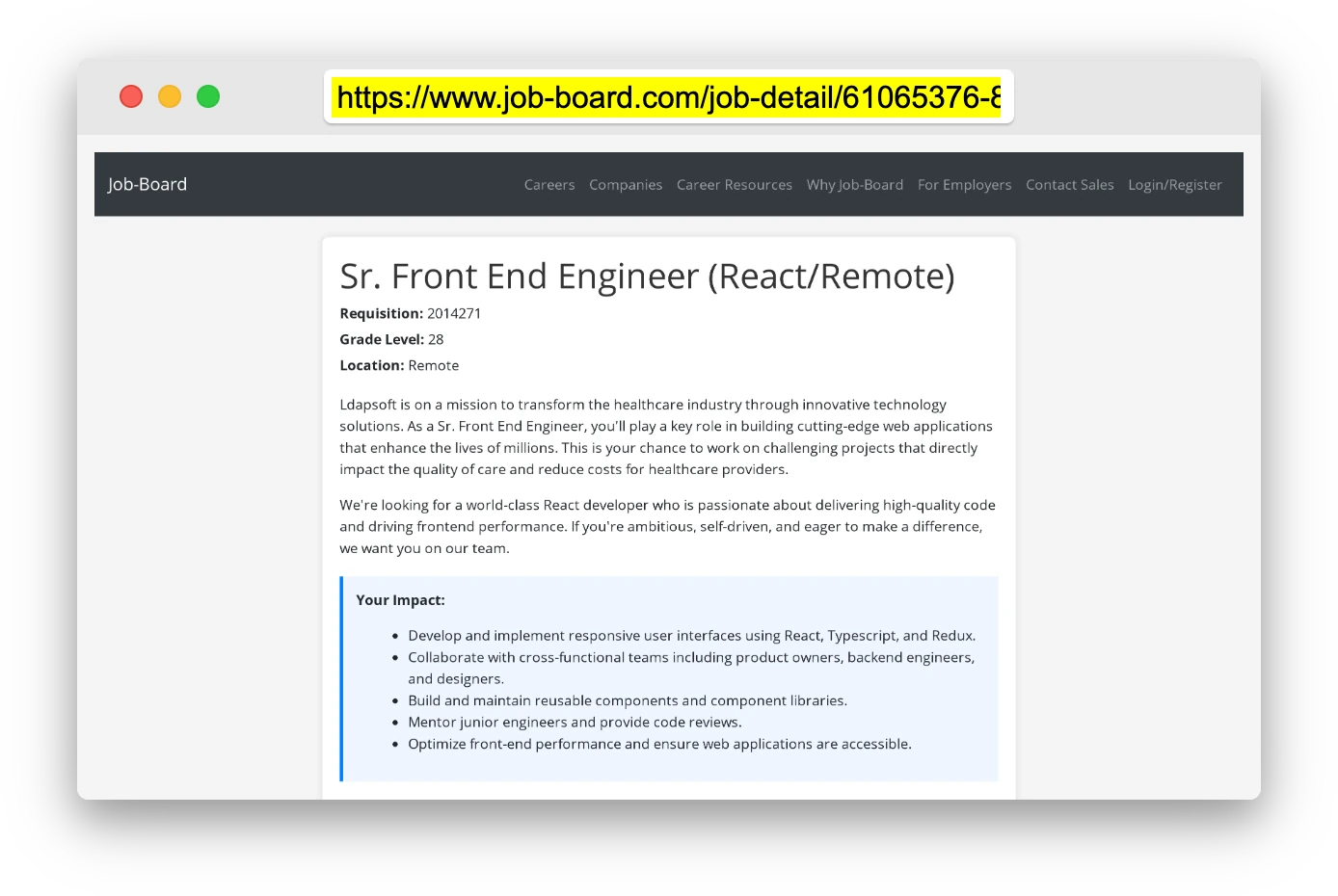
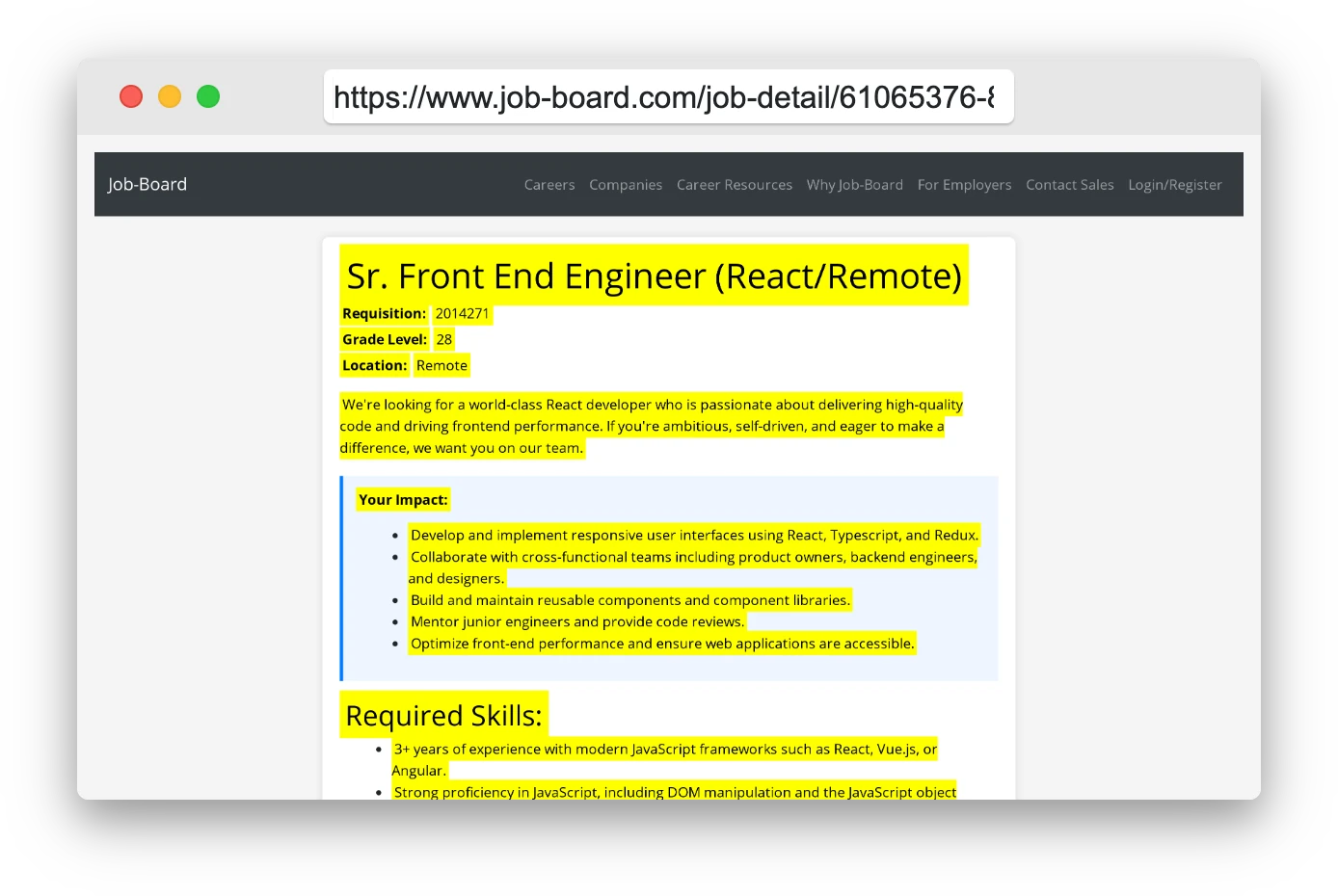
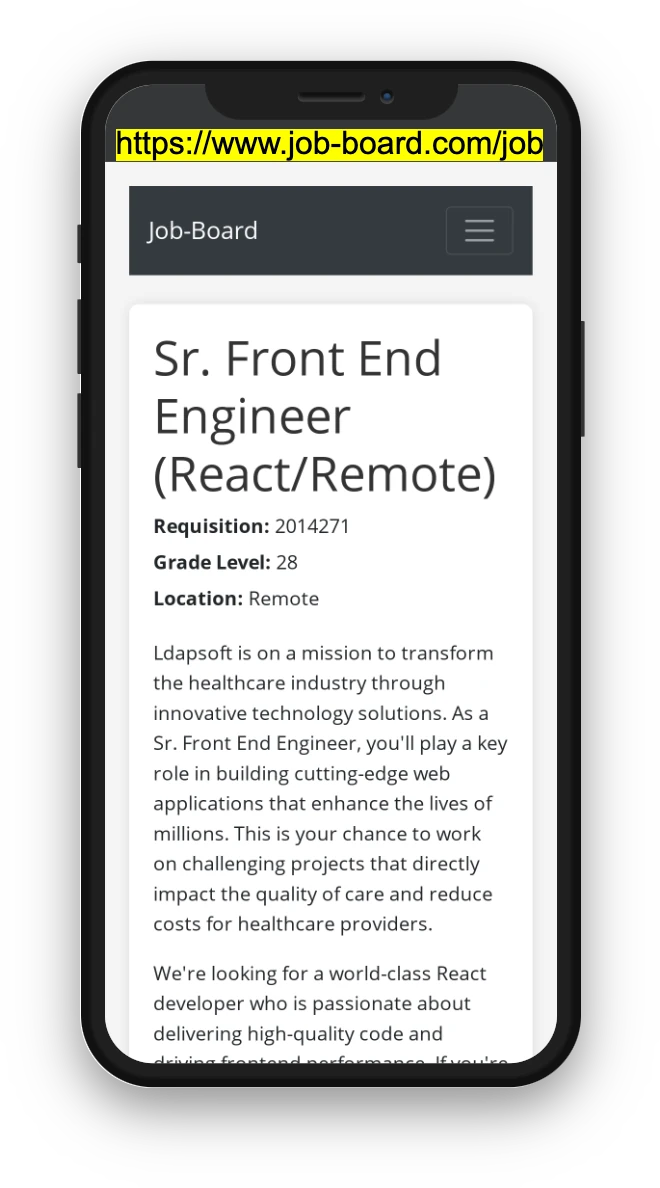
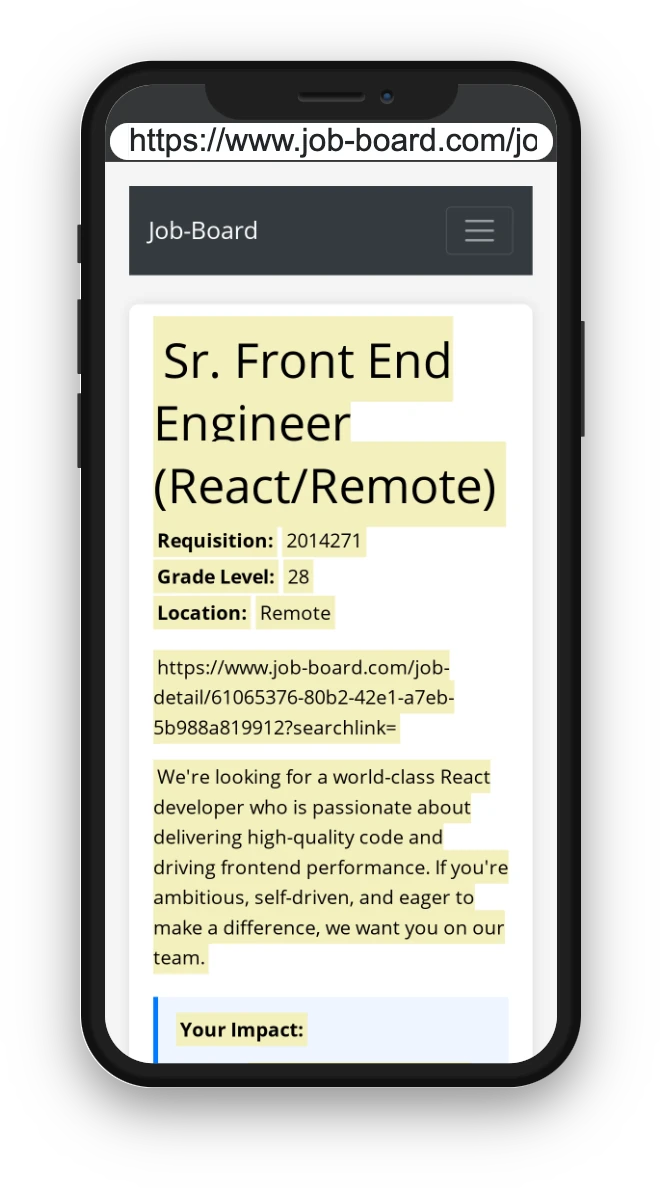
Where to Find the Job Posting Website Link and Description?
Explore examples to define detailed criteria and ensure your resume highlights what truly matters.
Explore examples to define detailed criteria and ensure your resume highlights what truly matters.
Open any job listing on platforms like Indeed, LinkedIn Jobs, Seek, Dice, Reed.co.uk, Jora, StepStone, JobStreet, or Bayt, and copy either the job posting URL or the description. Only one is needed, as shown in the yellow highlighted screenshots.
OR
OR
Drag the into the box to verify you're human.
Drop here
My Resumes
Displaying {number_of_files} files (out of {total_of_all_files} total)
Name
File Type
Last Modified:
Description:
Rename File
Filename already exists!
Delete Files
Warning: This action is irreversible. Once you click submit, the files will be permanently deleted.
Heading text
Upload From Computer
Upload
Select From Existing
LinkedIn
Drag & Drop files anywhere in this tab, or
Uploaded Files
Delete
Name
Last Updated
Use This File
Select this to use the file for generating your resume and cover letter. Only one source—uploaded file, selected file, or LinkedIn text—can be used.
My Files
Resumes or cover letters you create will appear here. No files available yet.
Delete
Name
Last Updated
Use This File
Select this to use the file for generating your resume and cover letter. Only one source—uploaded file, selected file, or LinkedIn text—can be used.
Add LinkedIn Profile PDF
You can download your LinkedIn profile as a PDF by opening linkedin.com in a web browser, clicking your profile photo, selecting the “More” or “Resources” button, and choosing “Save to PDF.” You can then attach the PDF using the Upload From Computer tab.
Paste Your LinkedIn Profile Text
If you have copied the LinkedIn profile text, paste it below. See how to copy your profile from LinkedIn
Select this to use the LinkedIn profile text for generating your resume and cover letter. Only one source—uploaded file, selected file, or LinkedIn text—can be used.
Examples of How to Define Custom Criteria
Where to Find the Job Posting Website Link and Description?
Where to Find the Job Posting Website Link and Description?
Experienced Software Engineer:
Ethan Davis, with 5 years of expertise in Java, Python, and cloud technologies. Proven track record of leading development teams at XYZ Corp to build scalable web applications. AWS Solutions Architect certified. Previously held a Software Developer role at ABC Tech, where I contributed to cloud migration projects and enhanced system performance. Certified in Agile Methodologies and Python Programming. View the Created Resume: Software Engineer
Experienced Nurse Practitioner:
Olivia Johnson, with 14 years of expertise in providing patient care in both clinical and hospital settings. Proven ability to diagnose and treat a wide range of medical conditions, with a specialization in family medicine. Board Certified Family Nurse Practitioner (FNP-BC). Previously served as a Registered Nurse at City General Hospital, where I implemented patient care plans and coordinated with multidisciplinary teams. Certified in Advanced Cardiovascular Life Support (ACLS) and Pediatric Advanced Life Support (PALS). View the Created Resume: Family Nurse Practitioner
Experienced Senior Scrum Master: Alex Johnson, with 8 years of expertise in leading Agile teams to deliver high-quality software solutions. Proven track record of facilitating Scrum ceremonies, coaching teams on Agile practices, and driving continuous improvement. Certified ScrumMaster (CSM) and Certified Scrum Professional (CSP). Previously led Agile transformation initiatives at Tech Solutions Inc., enhancing team efficiency and project delivery timelines. Certified in Lean Six Sigma and Agile Coaching. View the Created Resume: Agile Coach
Experienced Marketing Professional:
Noah Anderson, with 10 years of expertise in developing and executing comprehensive marketing strategies across digital and traditional channels. Proven track record of increasing brand awareness, driving customer engagement, and boosting sales. Certified Digital Marketing Professional (CDMP) and Google Analytics Certified. Previously managed marketing campaigns at Bright Ideas Inc., leading to a 30% increase in online conversions. Certified in SEO, Content Marketing, and Social Media Strategy. View the Created Resume: Marketing Professional
Experienced Sales Professional:
Michael Lee, with 8 years of expertise in B2B and B2C sales, specializing in building strong client relationships and consistently exceeding sales targets. Proven track record of driving revenue growth and expanding market share. Certified Sales Executive (CSE) and HubSpot Sales Software Certified. Previously served as a Sales Manager at Global Solutions, where I led a team to achieve a 25% increase in quarterly sales. Certified in Negotiation Skills and Customer Relationship Management (CRM). View the Created Resume: Experienced Sales Professional
Motivated MBA Intern: Sarah Thompson, with a strong foundation in business strategy, finance, and marketing. Eager to apply academic knowledge to real-world challenges in a dynamic business environment. Proven ability to analyze data, develop business plans, and collaborate with teams. Recently completed an MBA at University of Chicago, with a focus on Corporate Finance and Marketing Strategy. Gained hands-on experience through internships at XYZ Corp, where I contributed to market research and financial modeling projects. Certified in Microsoft Excel and Data Analysis. View the Created Resume: Marketing Analyst
Driven Technology Intern:
Daniel Allen, with a focus on website security and a solid background in cybersecurity principles. Eager to leverage academic knowledge and hands-on skills to contribute to securing web applications and protecting data. Recently completed a degree in Computer Science at [University Name], specializing in Cybersecurity and Network Security. Gained practical experience through internships at SecureTech, where I assisted in conducting vulnerability assessments and implementing security protocols. Certified in CompTIA Security+ and Ethical Hacking. View the Created Resume: Cybersecurity Specialist