US English


7 Information Technology Technician - Endpoint and User Support Resume Templates with Example
By Ria · Last Updated On October 15, 2026
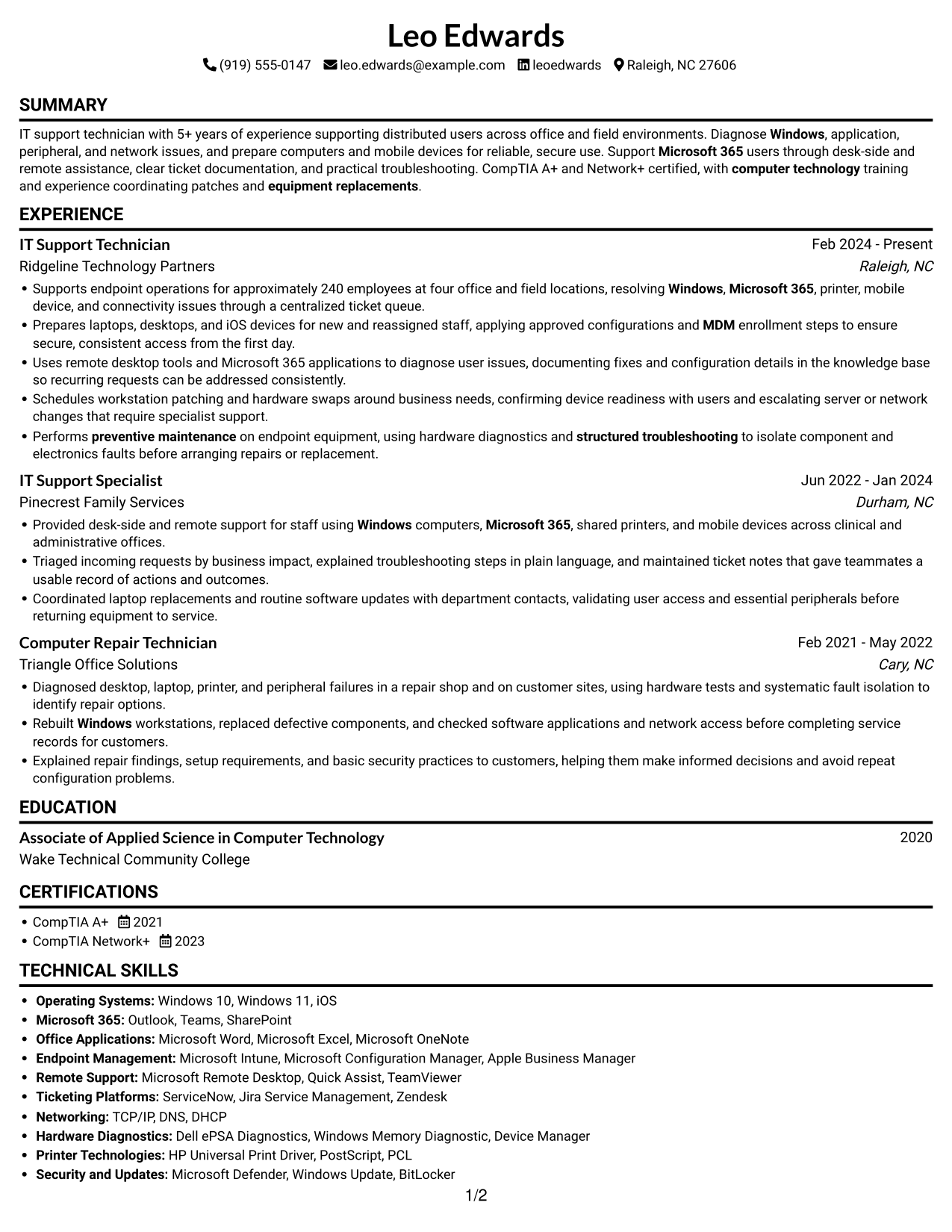
Resume example — page 1

This guide shows you how to build an Information Technology Technician - Endpoint and User Support resume that makes your skills and results easy to review. You will learn how to organize your experience and choose a clear format for this exact role.

Strong resumes connect endpoint support work to service results. Use clear bullets to show how you diagnose Windows, Microsoft 365, printer, mobile device, and network issues, prepare equipment, document fixes, and keep users informed.

The example is presented in 7 layouts, so you can compare the same resume in different designs. The page includes PNG image previews and links to view or customize the example in the editor.

What Makes a Great Information Technology Technician - Endpoint and User Support Resume in 2026

A strong resume makes endpoint support, troubleshooting, and user service easy to find. Use concise experience bullets to show the work you handled and its scope, such as supporting about 240 employees across four locations.

Include relevant terms such as Windows, Microsoft 365, iOS, mobile device management, remote desktop support, ticket prioritization, knowledge-base documentation, patching, and preventive maintenance. Add certifications and tools only when they match your own experience.

Note: Resume examples are for educational purposes only. Use only information that accurately reflects your experience and qualifications. References to real organizations do not imply affiliation or endorsement.

#1 Simple One Column Format Resume Example

Simple One Column Format keeps resume sections in one reading path, making experience, skills, and education easy to follow.
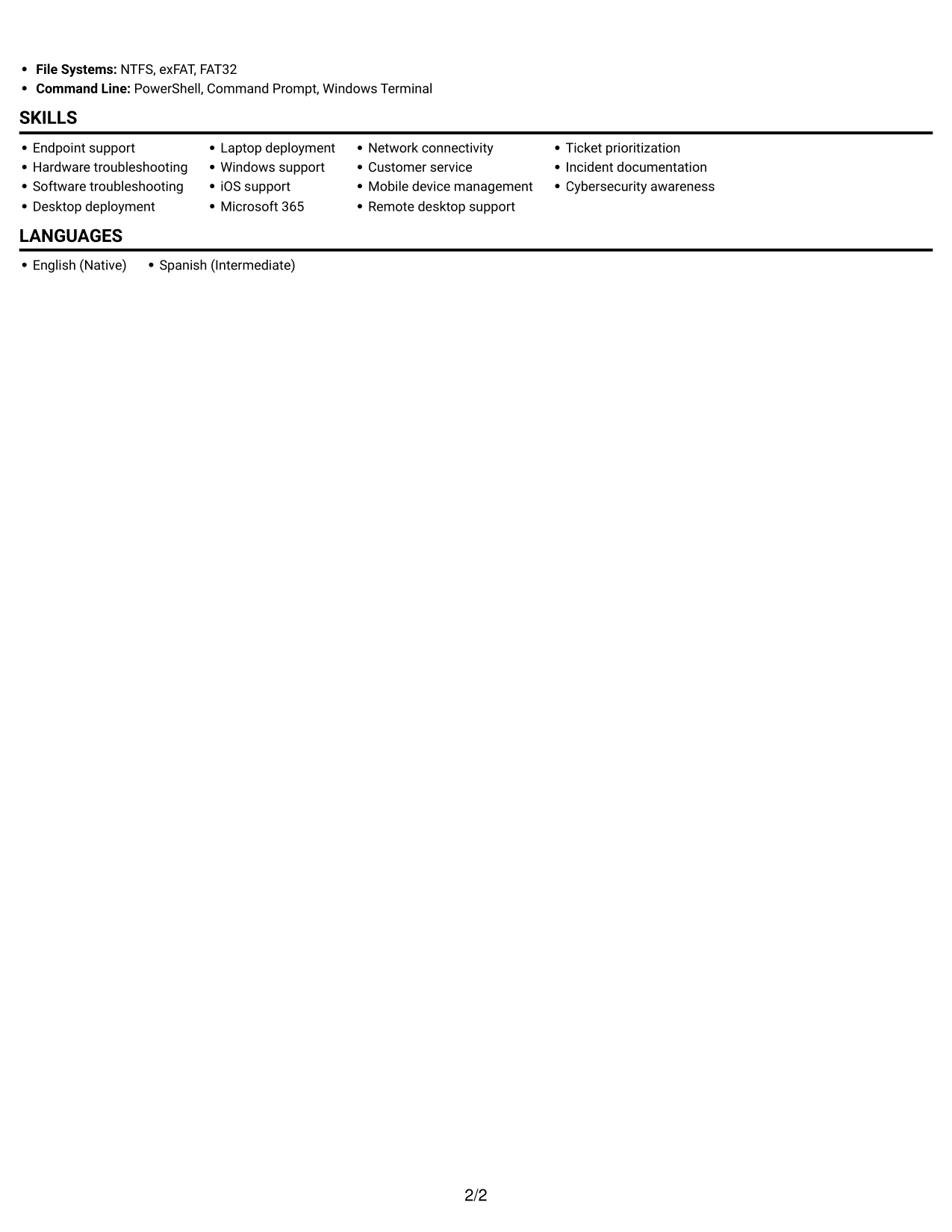
 
Resume example — page 1   Resume example — page 2

Why This Format Works

  • Experience entries follow one reading path, so career progression stays easy to track.
  • Skills remain visible within the same section sequence as career details.
  • Education and certifications can be checked without switching between content columns.

Best For

  • Single-path resume reading
  • Chronological work histories
  • Skills and education in one document
  • Section-by-section review
  • Resumes without parallel columns

Resume Keywords

  • Endpoint support
  • Windows
  • Microsoft 365
  • Customer service
  • MDM
  • Remote desktop support
  • Ticket prioritization
  • Incident documentation
  • equipment replacements
  • preventive maintenance
  • Cybersecurity awareness
  • structured troubleshooting
  • CompTIA A+
  • computer technology
 

#2 Simple Two Column Format Resume Example

Simple Two Column Format places resume content in two columns, giving reviewers a way to scan experience alongside supporting details.
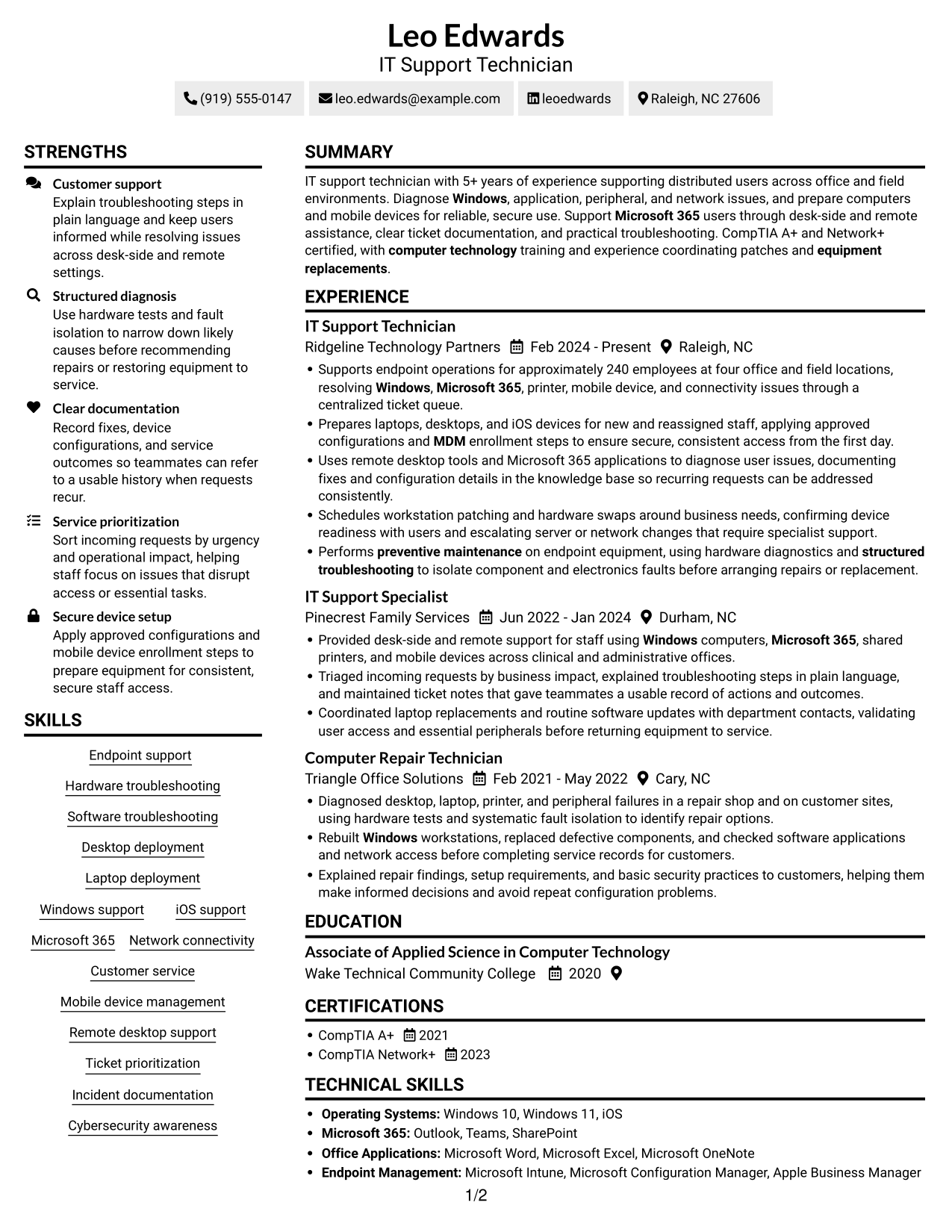
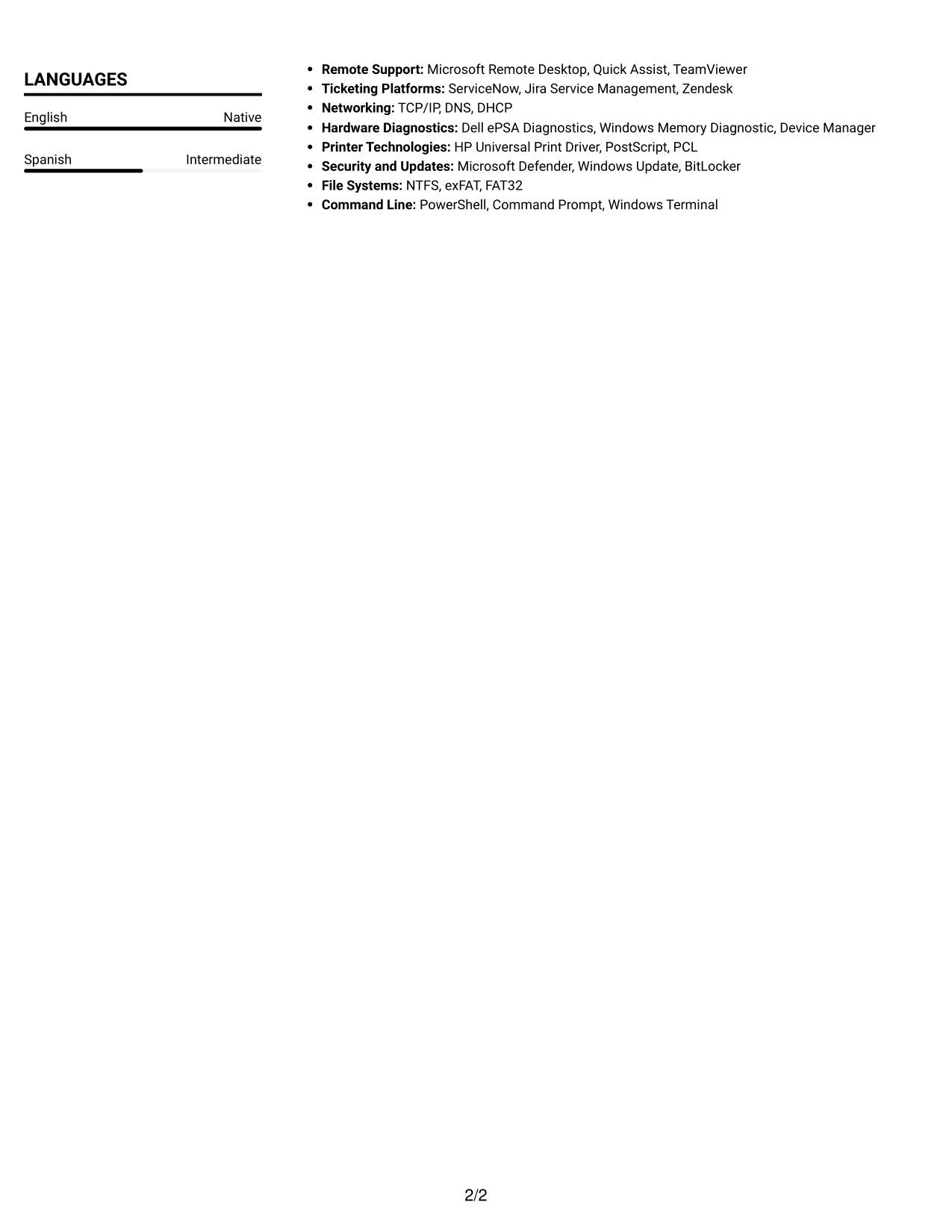
 
Resume example — page 1   Resume example — page 2

Why This Format Works

  • Work history can remain easy to follow while supporting sections stay nearby.
  • Reviewers can locate education and certifications without searching through every job entry.
  • Grouped skills are easier to scan apart from career details.

Best For

  • Two-area content organization
  • Experience with supporting details
  • Resumes with several content groups
  • Readers comparing resume sections
  • Skills and credentials beside work history

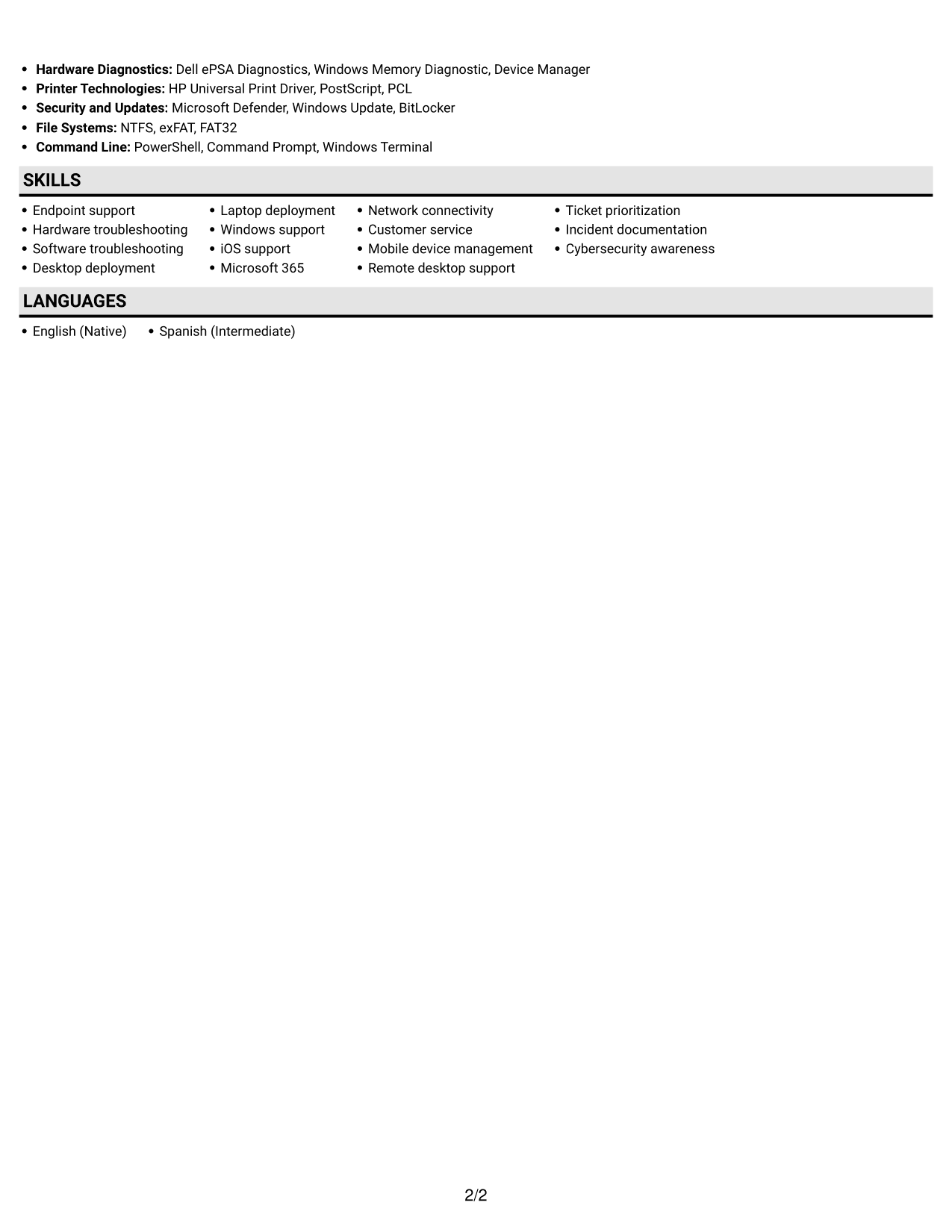
#3 Plain One Column with Shaded Labels Resume Example

Plain One Column with Shaded Labels uses shaded section labels within one reading path, helping reviewers find key resume areas.
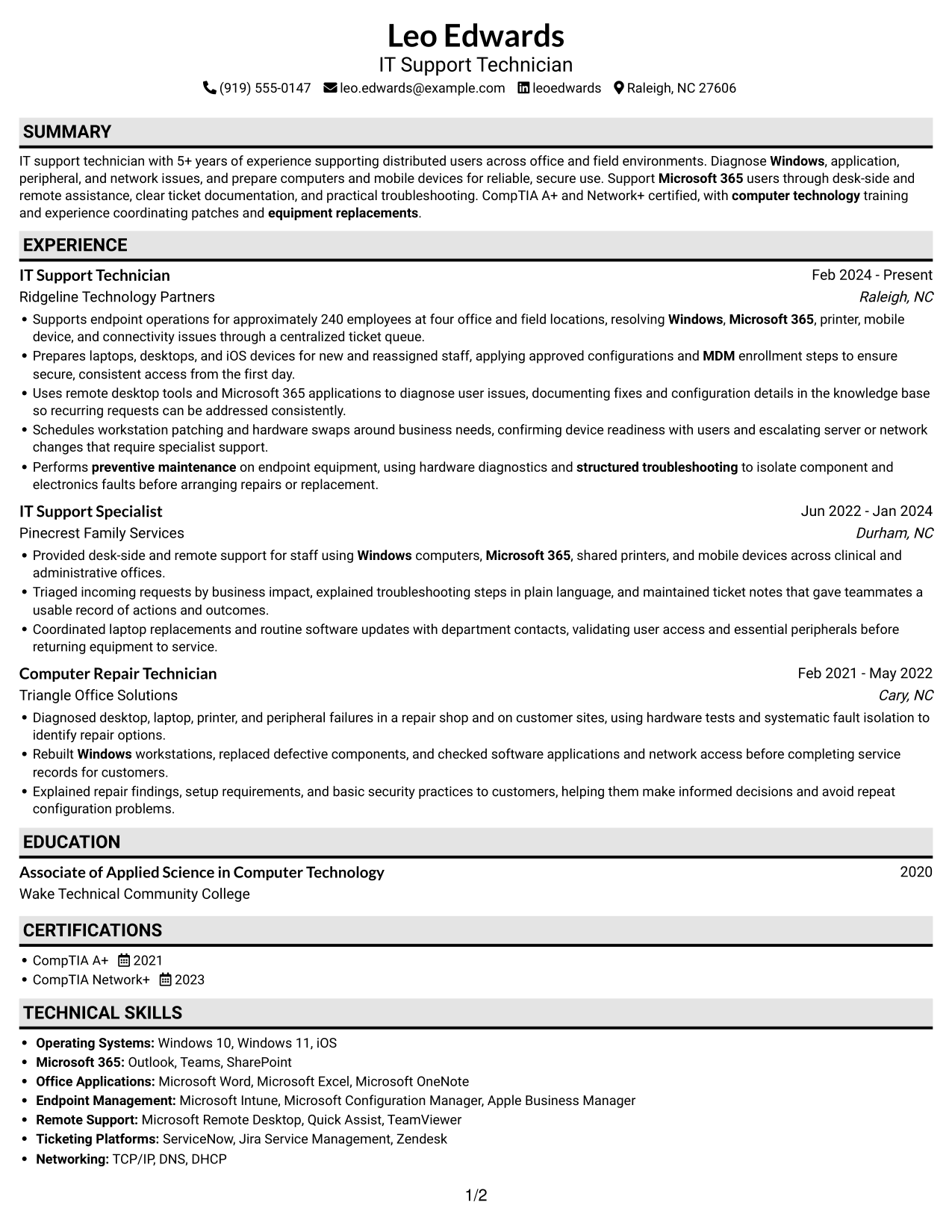
 
Resume example — page 1   Resume example — page 2

Why This Format Works

  • Shaded labels mark section boundaries, helping reviewers locate experience and education quickly.
  • One reading path keeps job entries in a clear chronological sequence.
  • Labeled sections make skills and certifications easier to find.

Best For

  • Labeled section navigation
  • Single-column reading
  • Chronological experience records
  • Quick section lookup
  • Resumes with several content groups
 

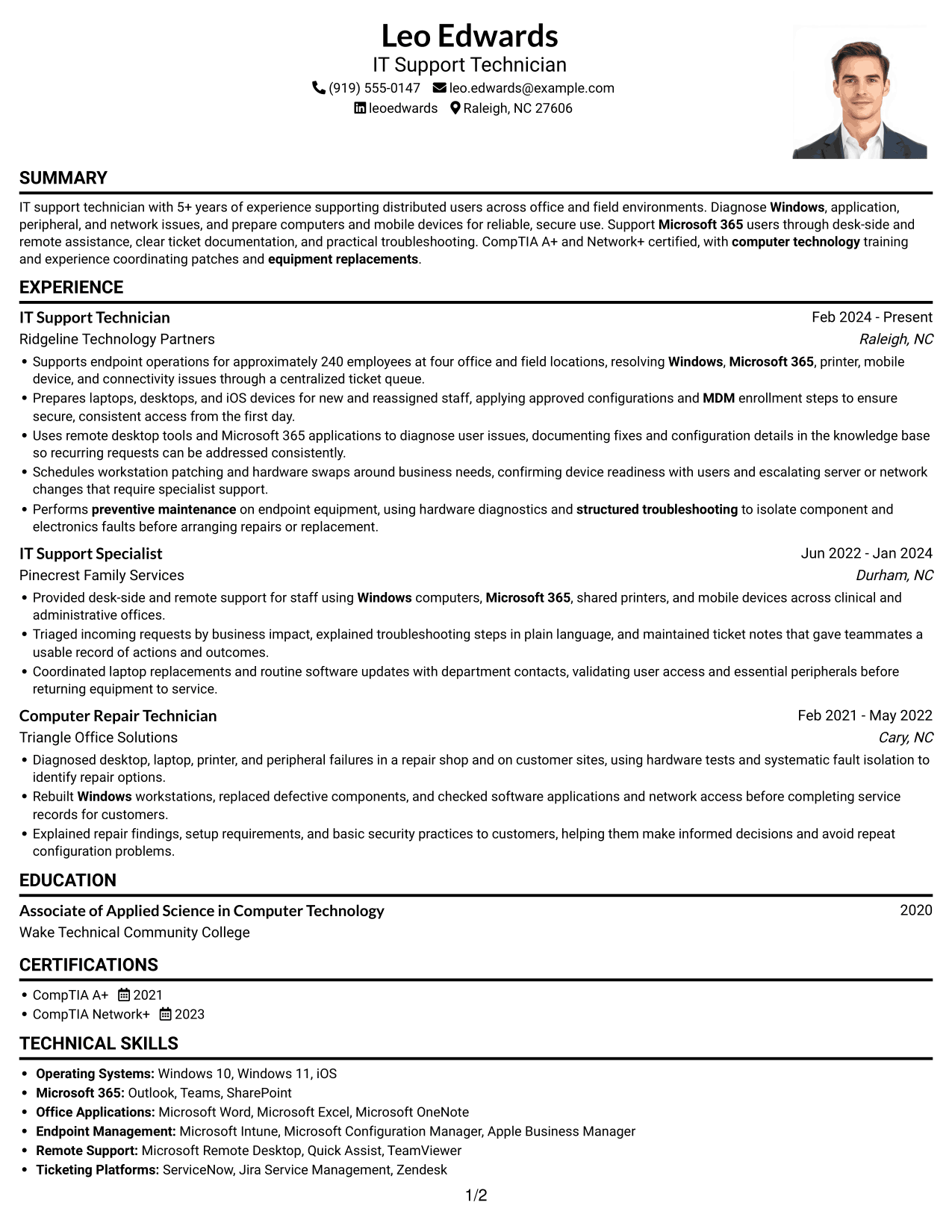
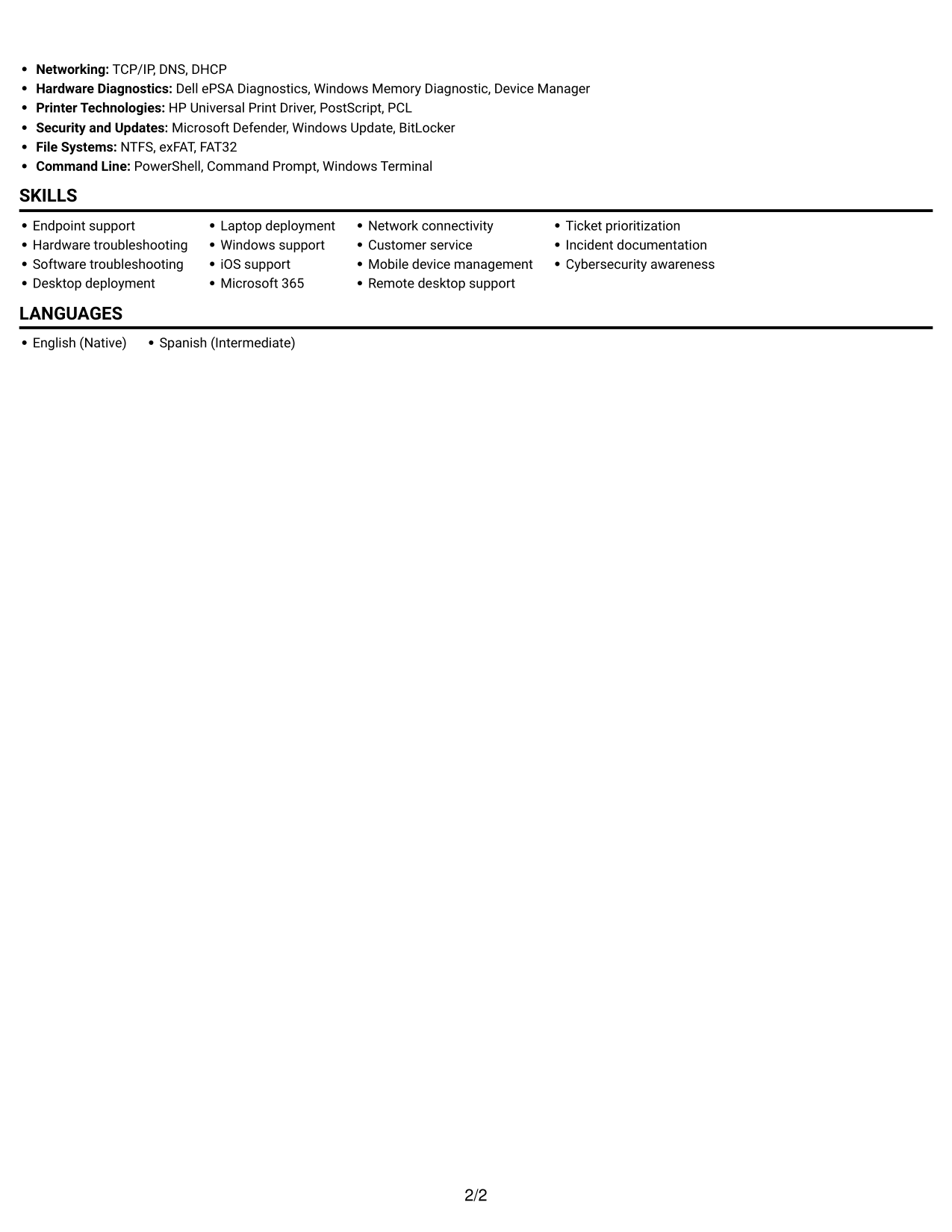
#4 One Column Format with Photo Right Resume Example

One Column Format with Photo Right keeps resume content in one reading path and places the photo at the right for a distinct visual profile.
 
Resume example — page 1   Resume example — page 2

Why This Format Works

  • One content column keeps experience entries in a single sequence from role to role.
  • Skills, education, and certifications stay within the same reading path as experience.
  • The right-side photo adds a visual point while the resume text remains in one column.

Best For

  • Single-column resume reading
  • Photo-based visual preference
  • Chronological experience details
  • Text-first content with a portrait
  • Resume reviews centered on career history
 

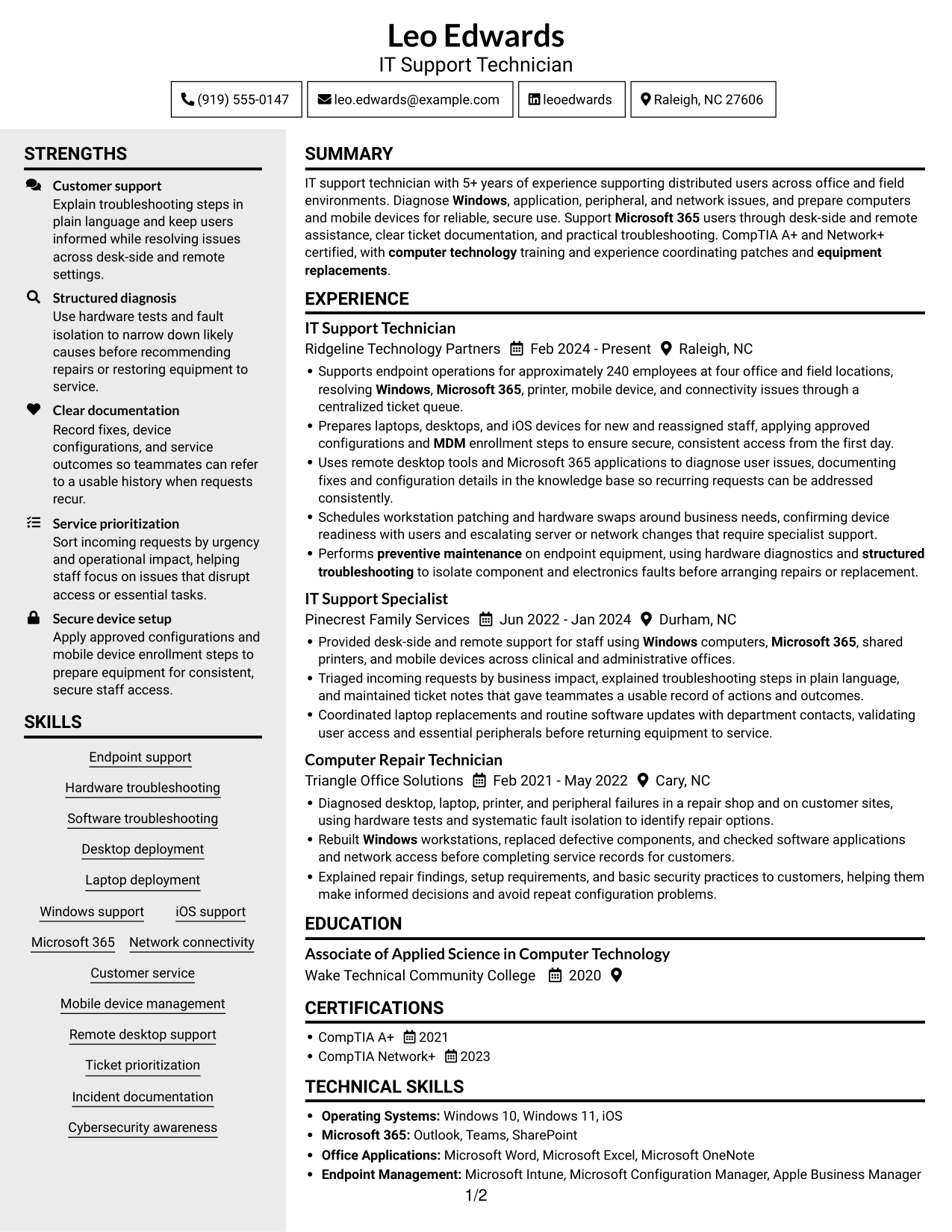
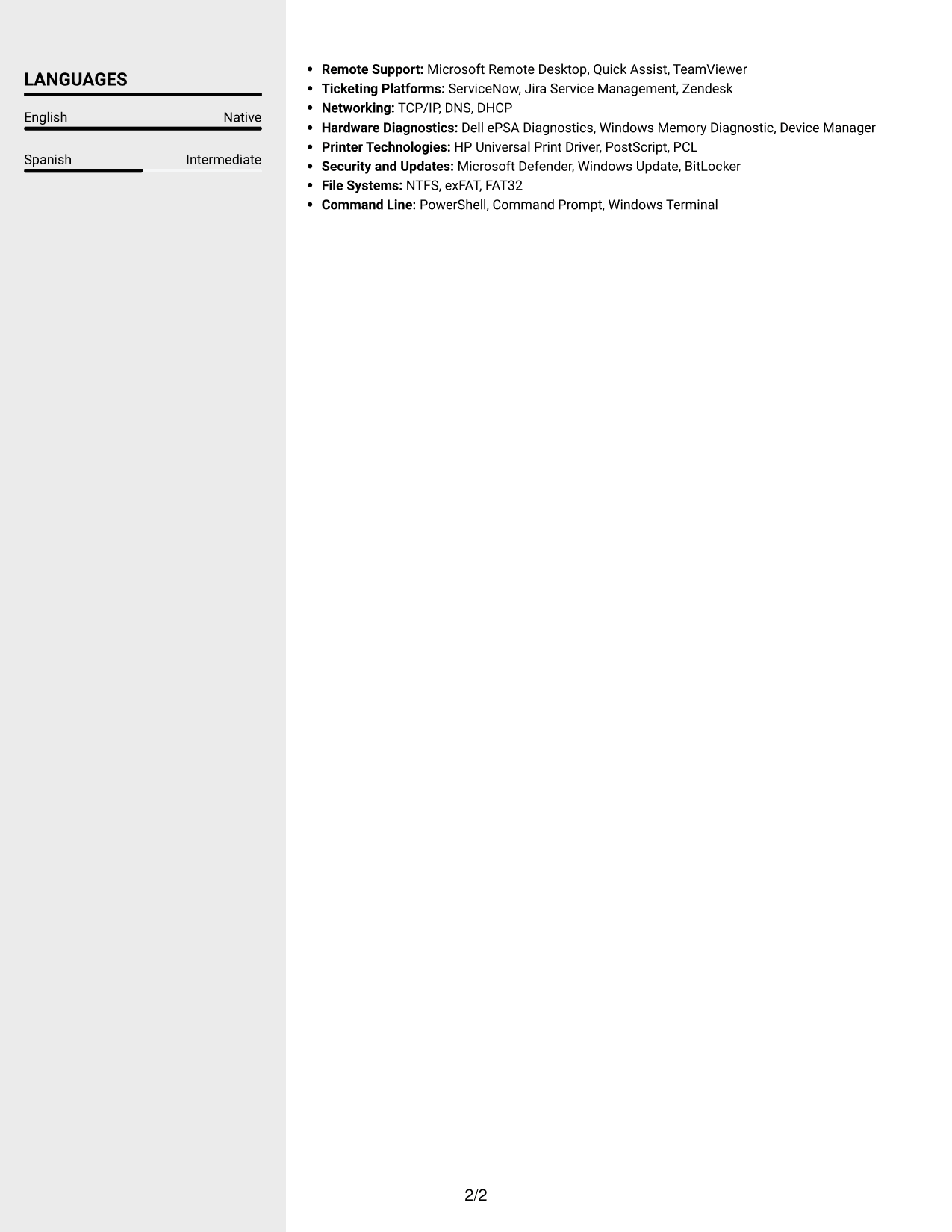
#5 Clean Two Column Sidebar Format Resume Example

Clean Two Column Sidebar Format separates supporting resume details from the main content, helping reviewers locate skills and credentials.
 
Resume example — page 1   Resume example — page 2

Why This Format Works

  • The sidebar can group skills and credentials apart from the main experience sequence.
  • Reviewers can follow career history while keeping supporting details close at hand.
  • Separate content areas make education easier to distinguish from work history.

Best For

  • Sidebar-based content organization
  • Resume details beside work history
  • Grouped skills and credentials
  • Quick access to supporting sections
  • Two-area resume reading


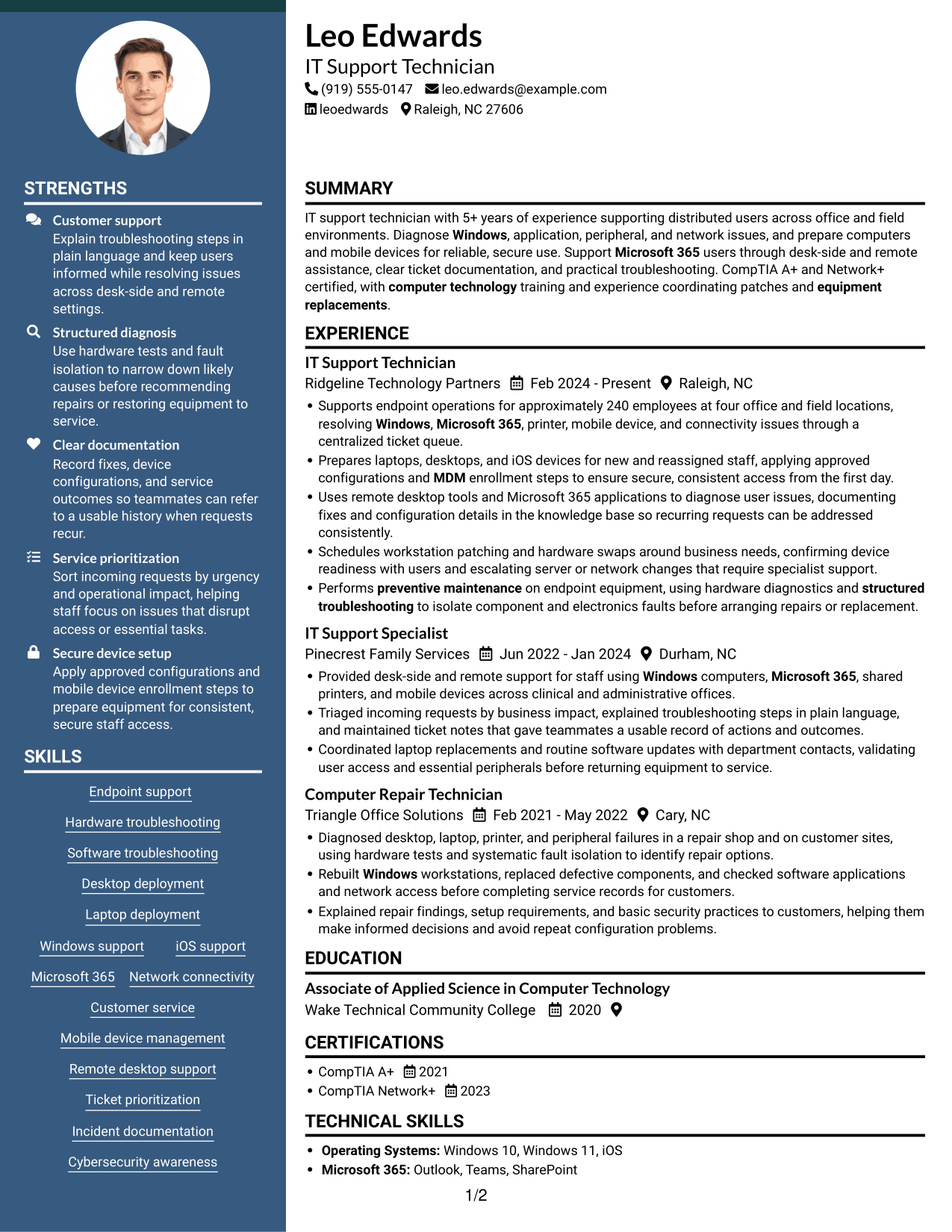
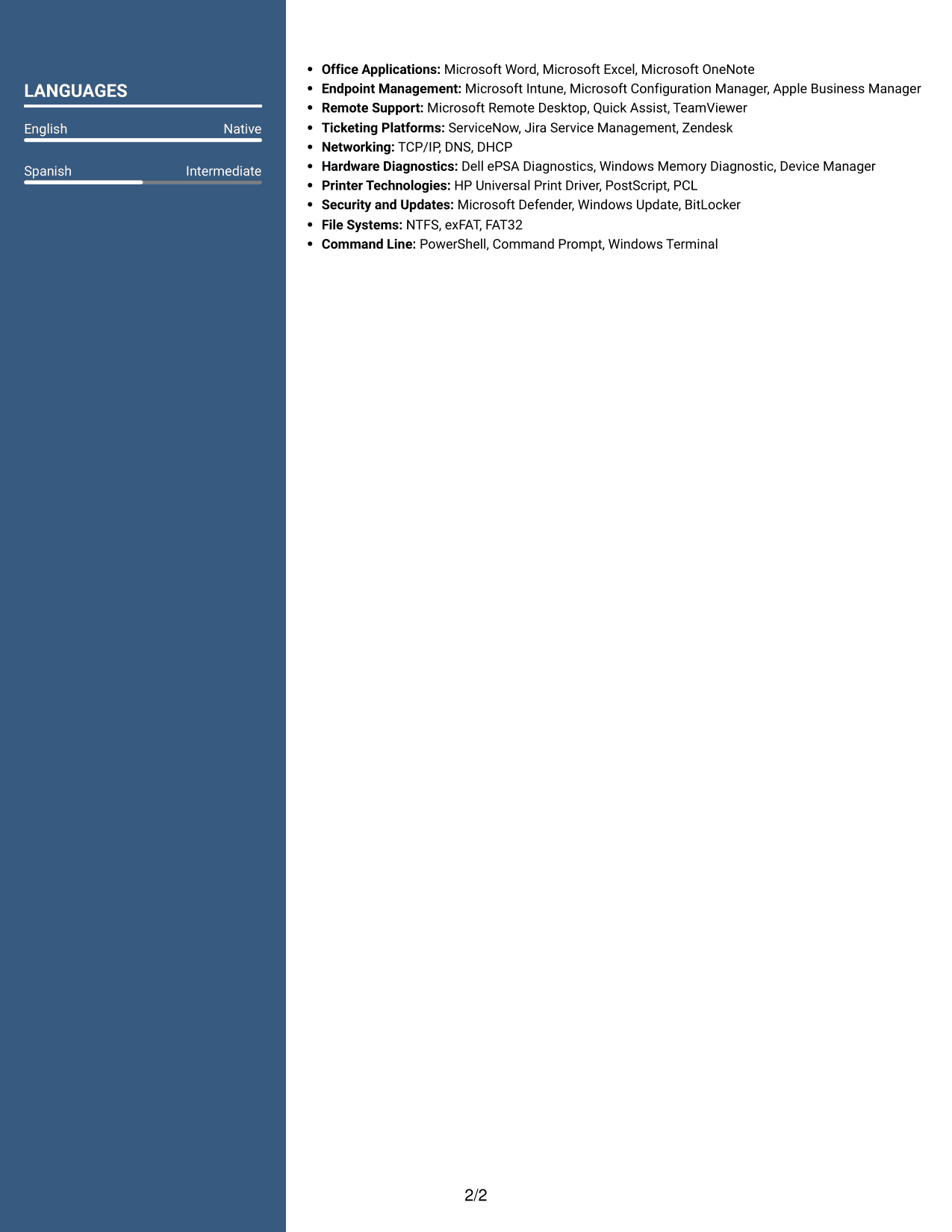
#6 Two Column Format Resume Example

Two Column Format divides resume content into two areas, offering a clear way to organize work history and supporting sections.
 
Resume example — page 1   Resume example — page 2

Why This Format Works

  • Two content areas give work history and supporting sections distinct places for review.
  • Reviewers can follow career progression while locating skills in the other content area.
  • Education and certifications can be found without interrupting the experience sequence.

Best For

  • Two-area resume organization
  • Career history with supporting sections
  • Separate skills and education details
  • Readers navigating several resume sections
  • Resume content with distinct categories
 

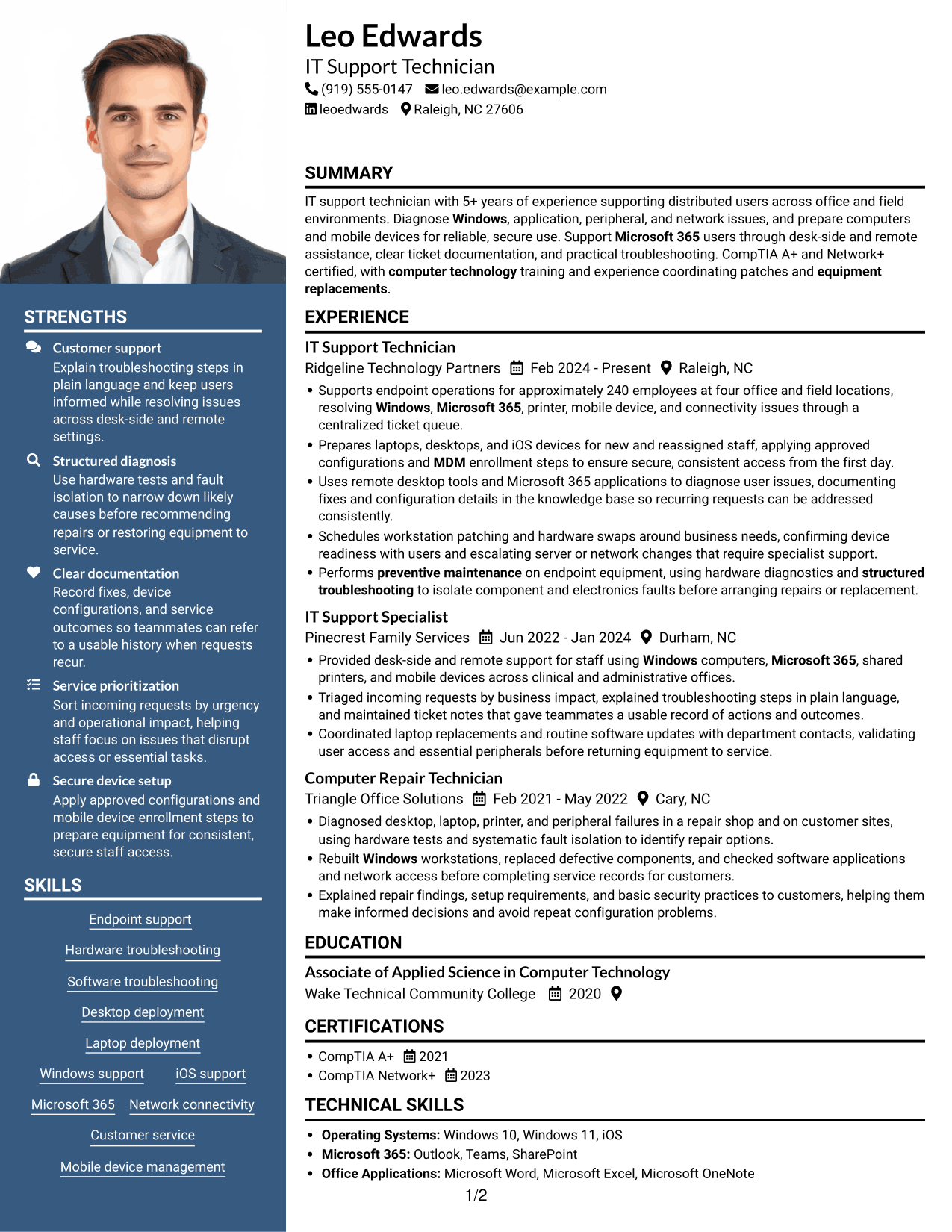
#7 Photo Header Two Column Format Resume Example

Photo Header Two Column Format pairs a photo-led header with two content columns, offering a clear visual identity and divided reading path.
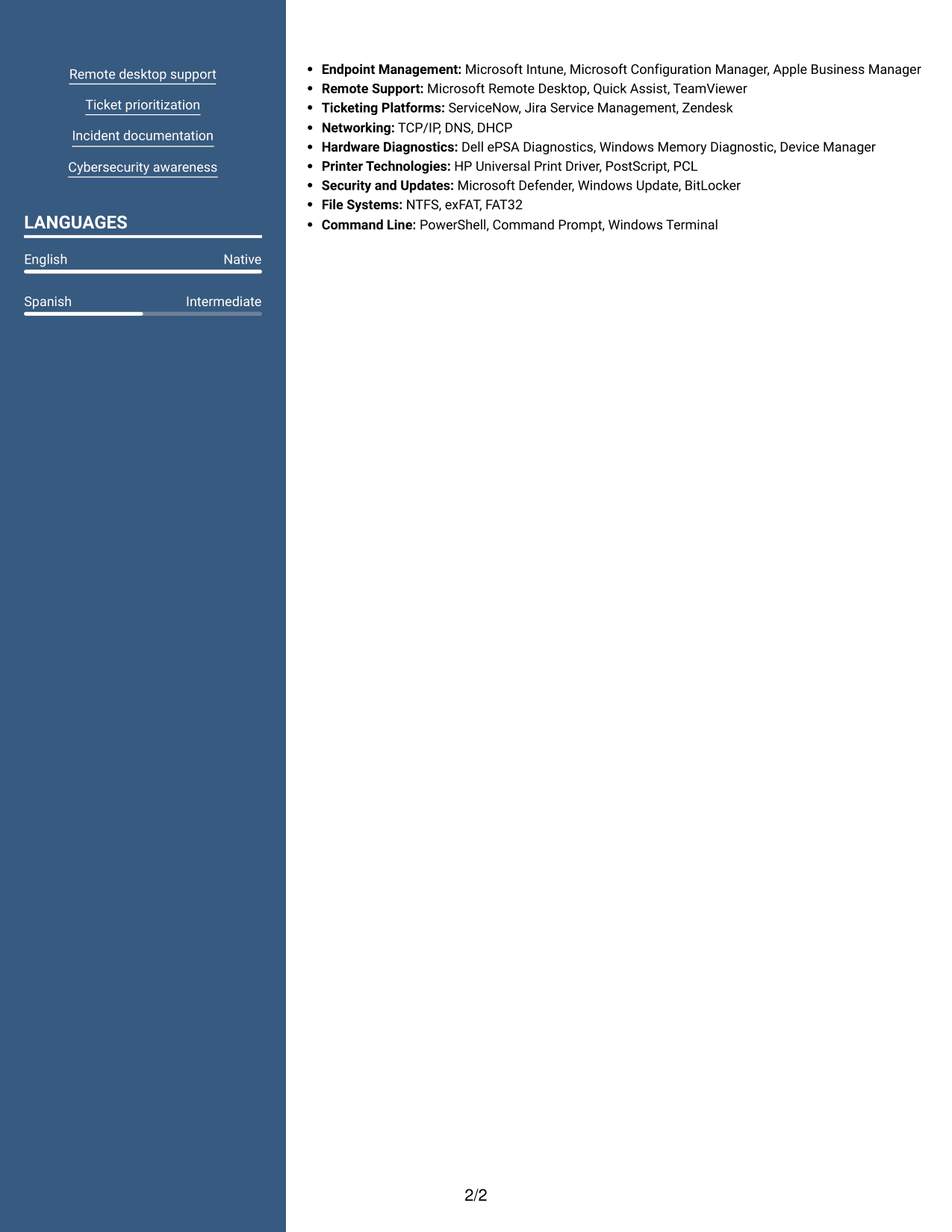
 
Resume example — page 1   Resume example — page 2

Why This Format Works

  • Two content columns give experience and supporting qualifications distinct areas for review.
  • Reviewers can follow work history while checking education and certifications nearby.
  • A photo in the header offers a visual choice before readers scan the resume.

Best For

  • Photo-led resume headers
  • Two-column content organization
  • Career history with supporting details
  • Resume reviews across distinct sections
  • Portrait and text in one document


Why Build Your Information Technology Technician - Endpoint and User Support Resume with ResumeInMinutes

ResumeInMinutes lets you review an example and open it in the editor to customize its sections. Keep the focus on your support results, technical skills, certifications, and the tools you have used.

  • ATS-friendly section structure
  • Clear experience and skills sections
  • Role-relevant keyword guidance
  • Space for certifications and education
  • PNG image previews
  • Resume customization in the editor

Use the example to check how the resume presents device deployment, user support, incident records, and equipment upkeep. Then make sure each bullet reflects work you can explain and support with evidence.


See Also


Frequently Asked Questions

Are these Information Technology Technician - Endpoint and User Support resume templates ATS-friendly?

The examples use clear headings and standard resume sections. Include accurate terms for your experience, such as Windows support, Microsoft 365, endpoint deployment, mobile device management, ticket documentation, and troubleshooting.

Are these 7 different resumes?

No. This page shows one Information Technology Technician - Endpoint and User Support resume example in different layouts. The content stays the same while the visual design changes.

What should an endpoint and user support resume include?

Include a focused summary, technical skills, work experience, education, and relevant certifications. Use concise bullets to describe device setup, troubleshooting, user support, documentation, updates, and service results.

Which resume style works well for this role?

A simple layout with clear headings and readable experience bullets helps reviewers find your technical skills and results. Choose a design that keeps the section order easy to follow.

How can I show the impact of my support work?

Include accurate details about the users or locations you supported, the types of issues you resolved, and the service steps you handled. For example, you might report ticket volume or devices prepared if you can verify those figures.

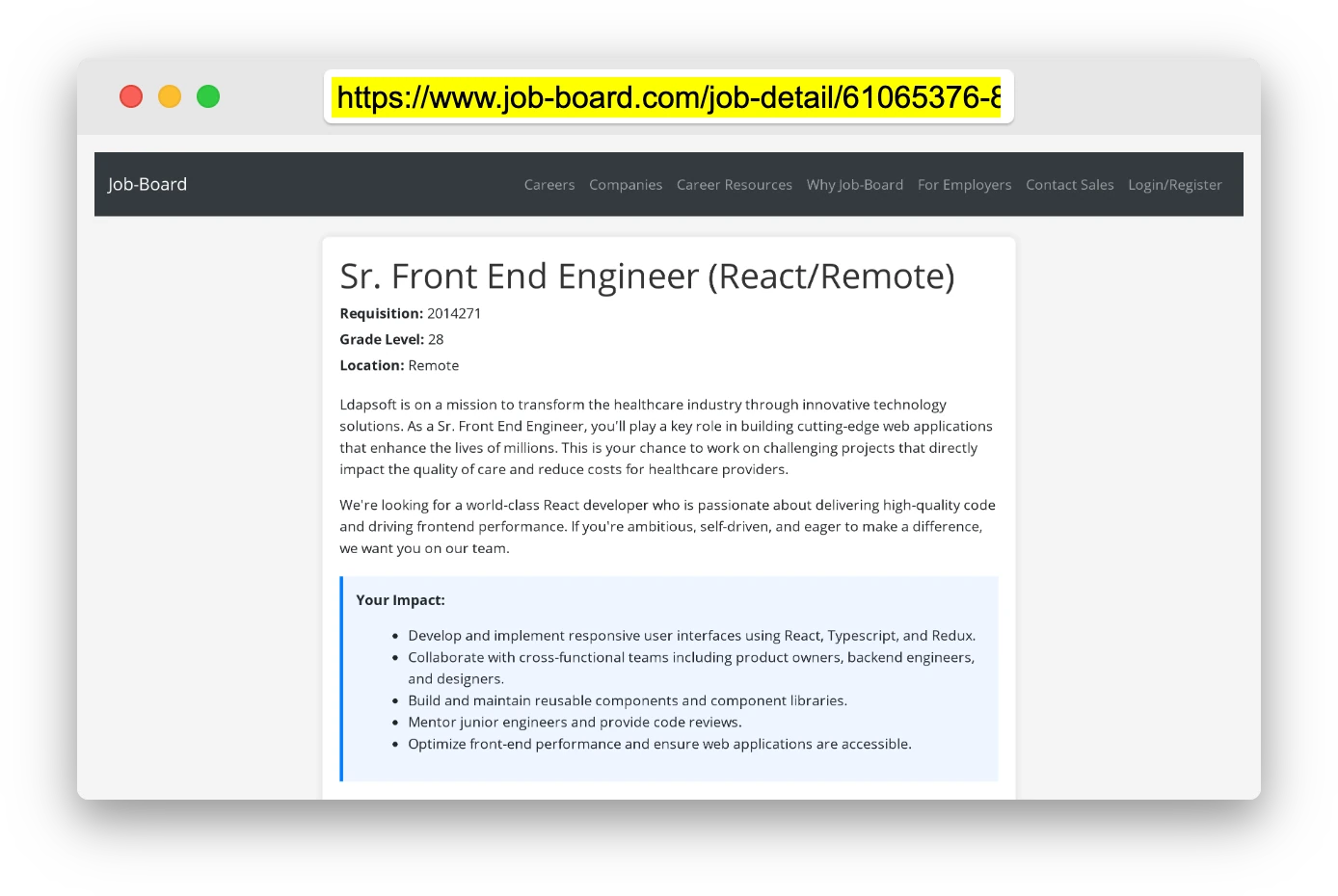
ATS Score 93%

How we calculate this score

  • Keywords: 60% of the total. AI extracts keywords from your job description. If you do not provide one, a standard job description for the title matching your resume is used. This is not a match to a specific vacancy.
  • Text-based resume: 20%. The text resume assessed here receives 100 for this part.
  • Resume quality: 20%. We start at 100 and subtract points for issues found by our resume checks, down to a minimum of zero.
  • Keyword coverage = 100 × (confirmed matches + 0.8 × possible matches) ÷ total keywords, rounded and capped at 100. Possible matches still need checking. Saved generation audits use their saved keyword percentage.
  • Final score = 60% of keyword coverage + 20% of the text score + 20% of the quality score, rounded to a whole number. Without keywords, no overall ATS score is available.

What this score means

Our scores are estimates, not employer ratings. They may contain errors and do not guarantee accurate parsing, a ranking, an interview, or a job. Check your document against the employer’s requirements. You are responsible for relying on this score.

Terms and Conditions

Score weights: Keywords 60% · Text based resume 20% · Resume quality 20%

Keywords: 14 matched + 9 possible of 24 (88%) · Resume quality: 100%

Resume quality 100% · Weight 20% · Issues (0)

Details
  • ✓Name present: Leo Edwards
  • ✓Email format: leo.edwards@example.com
  • ✓Phone format: (919) 555-0147
  • ✓Experience 1: Job title: IT Support Technician
  • ✓Experience 1: Company name: Ridgeline Technology Partners
  • ✓Experience 1: Work location: Raleigh, NC
  • ✓Experience 1: Employment dates: Feb 2024 - Present
  • ✓Experience 1: Description or achievements: Present
  • ✓Experience 2: Job title: IT Support Specialist
  • ✓Experience 2: Company name: Pinecrest Family Services
  • ✓Experience 2: Work location: Durham, NC
  • ✓Experience 2: Employment dates: Jun 2022 - Jan 2024
  • ✓Experience 2: Description or achievements: Present
  • ✓Experience 3: Job title: Computer Repair Technician
  • ✓Experience 3: Company name: Triangle Office Solutions
  • ✓Experience 3: Work location: Cary, NC
  • ✓Experience 3: Employment dates: Feb 2021 - May 2022
  • ✓Experience 3: Description or achievements: Present
  • ✓No placeholder fields
  • ✓No repeated achievement bullets
  • ✓No empty bullets

No issues found by the current checks.

Text Based Resume 100% · Weight 20%

Parsed text
Leo Edwards
(919) 555-0147
leo.edwards@example.com
leoedwards
Raleigh, NC 27606
SUMMARY
IT support technician with 5+ years of experience supporting distributed users across office and field environments. Diagnose Windows, application, peripheral, and network issues, and prepare computers and mobile devices for reliable, secure use. Support Microsoft 365 users through desk-side and remote assistance, clear ticket documentation, and practical troubleshooting. CompTIA A+ and Network+ certified, with computer technology training and experience coordinating patches and equipment replacements.
EXPERIENCE
IT Support Technician
Feb 2024 - Present
Ridgeline Technology Partners
Raleigh, NC
Supports endpoint operations for approximately 240 employees at four office and field locations, resolving Windows, Microsoft 365, printer, mobile device, and connectivity issues through a centralized ticket queue.
Prepares laptops, desktops, and iOS devices for new and reassigned staff, applying approved configurations and MDM enrollment steps to ensure secure, consistent access from the first day.
Uses remote desktop tools and Microsoft 365 applications to diagnose user issues, documenting fixes and configuration details in the knowledge base so recurring requests can be addressed consistently.
Schedules workstation patching and hardware swaps around business needs, confirming device readiness with users and escalating server or network changes that require specialist support.
Performs preventive maintenance on endpoint equipment, using hardware diagnostics and structured troubleshooting to isolate component and electronics faults before arranging repairs or replacement.
IT Support Specialist
Jun 2022 - Jan 2024
Pinecrest Family Services
Durham, NC
Provided desk-side and remote support for staff using Windows computers, Microsoft 365, shared printers, and mobile devices across clinical and administrative offices.
Triaged incoming requests by business impact, explained troubleshooting steps in plain language, and maintained ticket notes that gave teammates a usable record of actions and outcomes.
Coordinated laptop replacements and routine software updates with department contacts, validating user access and essential peripherals before returning equipment to service.
Computer Repair Technician
Feb 2021 - May 2022
Triangle Office Solutions
Cary, NC
Diagnosed desktop, laptop, printer, and peripheral failures in a repair shop and on customer sites, using hardware tests and systematic fault isolation to identify repair options.
Rebuilt Windows workstations, replaced defective components, and checked software applications and network access before completing service records for customers.
Explained repair findings, setup requirements, and basic security practices to customers, helping them make informed decisions and avoid repeat configuration problems.
EDUCATION
Associate of Applied Science in Computer Technology
2020
Wake Technical Community College
CERTIFICATIONS
CompTIA A+
2021
CompTIA Network+
2023
TECHNICAL SKILLS
Operating Systems: Windows 10, Windows 11, iOS
Microsoft 365: Outlook, Teams, SharePoint
Office Applications: Microsoft Word, Microsoft Excel, Microsoft OneNote
Endpoint Management: Microsoft Intune, Microsoft Configuration Manager, Apple Business Manager
Remote Support: Microsoft Remote Desktop, Quick Assist, TeamViewer
Ticketing Platforms: ServiceNow, Jira Service Management, Zendesk
Networking: TCP/IP, DNS, DHCP
Hardware Diagnostics: Dell ePSA Diagnostics, Windows Memory Diagnostic, Device Manager
Printer Technologies: HP Universal Print Driver, PostScript, PCL
Security and Updates: Microsoft Defender, Windows Update, BitLocker
File Systems: NTFS, exFAT, FAT32
Command Line: PowerShell, Command Prompt, Windows Terminal
SKILLS
Endpoint support
Hardware troubleshooting
Software troubleshooting
Desktop deployment
Laptop deployment
Windows support
iOS support
Microsoft 365
Network connectivity
Customer service
Mobile device management
Remote desktop support
Ticket prioritization
Incident documentation
Cybersecurity awareness
LANGUAGES
English (Native)
Spanish (Intermediate)

Matched keywords (14)

  • Endpoint support
  • WindowsOriginal keyword in JD: Windows OR iOS support
  • Microsoft 365
  • Customer service
  • MDMOriginal keyword in JD: Mobile device management (MDM)
  • Remote desktop support
  • Ticket prioritization
  • Incident documentation
  • equipment replacementsOriginal keyword in JD: Equipment replacement
  • preventive maintenance
  • Cybersecurity awareness
  • structured troubleshooting
  • CompTIA A+Original keyword in JD: CompTIA A+ OR ITF+ OR Network+ OR Security+ OR CCNA OR MCP OR MTA OR MCSE
  • computer technologyOriginal keyword in JD: Computer technology OR network communications OR computer repair OR programming coursework or training

Missing keywords (1)

  • Root-cause analysis

Possible matches (9)

  • Hardware and software troubleshooting80% credit: 3.33 percentage points of 4.17 possible.
  • Desktop and laptop deployment80% credit: 3.33 percentage points of 4.17 possible.
  • Computer hardware diagnostics and repair80% credit: 3.33 percentage points of 4.17 possible.
  • Network connectivity troubleshooting80% credit: 3.33 percentage points of 4.17 possible.
  • Knowledge base documentation80% credit: 3.33 percentage points of 4.17 possible.
  • Operating system updates and software patching80% credit: 3.33 percentage points of 4.17 possible.
  • Printer and peripheral support80% credit: 3.33 percentage points of 4.17 possible.
  • Computer hardware and electronics80% credit: 3.33 percentage points of 4.17 possible.
  • Vocational or technical degree OR high school diploma with relevant industry certifications80% credit: 3.33 percentage points of 4.17 possible.
Disclaimer: All names, images, contact information, employment histories, achievements, security clearances, military credentials, and other qualifications shown in this content are fictional and used for illustrative purposes only. Any resemblance to actual persons, living or deceased, is purely coincidental.

Resume and cover-letter examples and recommendations in this article reflect general best practices and professional experience and are provided for guidance only. Results may vary based on role, industry, region, and hiring organization.

Content Accuracy and Verification: To the fullest extent permitted by applicable law, we do not represent or warrant that resume or cover-letter guidance, examples, recommendations, or related information are accurate, complete, current, error-free, or suitable for any particular purpose. You are responsible for independently reviewing and verifying the information before relying on it.

ATS and Cover-Letter Scores: ATS scores are estimates calculated using our own formula, informed by publicly available guidance on resume formatting and keyword matching. They are not scores issued or endorsed by an ATS provider or employer. Cover-letter scores are also our own assessments. Parsing, weighting, screening criteria, and results vary between systems, employers, job descriptions, and document formats. No score guarantees successful parsing, a particular ranking, an interview, or employment. Use scores as general guidance and independently check your documents against the employer’s requirements. To the fullest extent permitted by applicable law, we accept no liability for errors in scores or parsing, or losses arising from reliance on these assessments. Nothing in this notice excludes liability or limits consumer rights that cannot lawfully be excluded or limited.

Terms and Conditions
 
> JP 1 1
PDF Footer and Margins Setup
The margins are applied to the document, and the footer shows up in the preview and the PDF

Footer Font Settings

Are you applying for a specific job
so we can tailor your resume to it?
Are you applying for a specific job
so we can tailor your cover letter to it?
Type your details as text to generate a personalized resume Type your details as text to generate a personalized cover letter
Website link found! Ready to create resume from:
Drag the into the box to verify you're human.
Drop here

My Resumes

Displaying {number_of_files} files (out of {total_of_all_files} total)
Name File Type Last Modified: Description:

Rename File

Filename already exists!

Delete Files

Warning: This action is irreversible. Once you click submit, the files will be permanently deleted.

Heading text
Upload From Computer Upload
Select From Existing
LinkedIn
Drag & Drop files anywhere in this tab, or

Uploaded Files

Delete Name Last Updated Use This File
Select this to use the file for generating your resume and cover letter. Only one source—uploaded file, selected file, or LinkedIn text—can be used.

My Files

Resumes or cover letters you create will appear here. No files available yet.
Delete Name Last Updated Use This File
Select this to use the file for generating your resume and cover letter. Only one source—uploaded file, selected file, or LinkedIn text—can be used.

Add LinkedIn Profile PDF

You can download your LinkedIn profile as a PDF by opening linkedin.com in a web browser, clicking your profile photo, selecting the “More” or “Resources” button, and choosing “Save to PDF.” You can then attach the PDF using the Upload From Computer tab.

Paste Your LinkedIn Profile Text

If you have copied the LinkedIn profile text, paste it below. See how to copy your profile from LinkedIn

Select this to use the LinkedIn profile text for generating your resume and cover letter. Only one source—uploaded file, selected file, or LinkedIn text—can be used.

Try these controls

<
>