US English


7 Student Aide - Instructional Technology Resume Templates with Example
By Ria · Last Updated On October 12, 2026
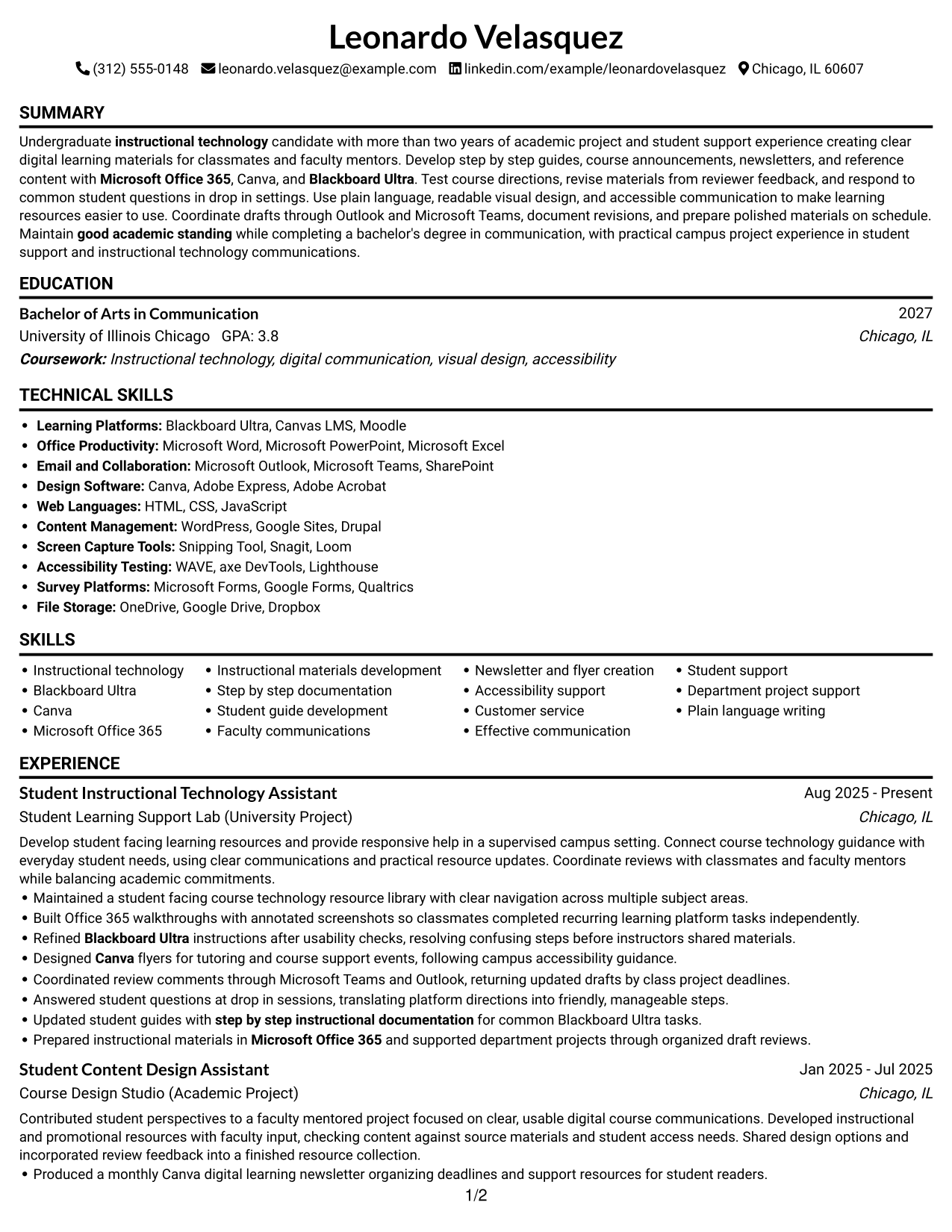
Resume Example Page 1

This guide shows you how to create a clear, focused Student Aide - Instructional Technology resume. You will learn how to present your experience and skills so readers can quickly see how you support learning technology.

A strong resume connects step-by-step guides, student support, and digital learning materials to concrete examples. Use clear section headings and concise bullets to show how you create, review, and update useful resources.

The example is presented in 7 layouts, with guidance to help you compare formats and build a resume around relevant experience. You will also see how to feature Blackboard Ultra, Canva, Microsoft Office 365, accessibility-aware content, and faculty communications when they match your background.

What Makes a Great Student Aide - Instructional Technology Resume in 2026

A strong resume uses clear sections and focused bullets to show how you develop learning resources, support students, and improve course instructions. Put the most relevant experience, education, and skills where readers can find them quickly.

Use accurate keywords such as Blackboard Ultra, Canva, Microsoft Office 365, step-by-step guides, student support, accessibility, and faculty communications. Back them with specific examples, such as reviewed instructions or annotated walkthroughs.

The examples shown below are intentionally detailed to demonstrate a range of experiences, skills, accomplishments and relevant keywords. We prefer detailed resumes as they provide more context to the hiring managers and also help the ATS systems identify relevant qualifications and score your resume better for a match. But the length of a resume is an individual choice. If you want a one page resume, just keep the most relevant experience and information for the job. Note: Resume examples are for educational purposes only. Use only information that accurately reflects your experience and qualifications. References to real organizations do not imply affiliation or endorsement.

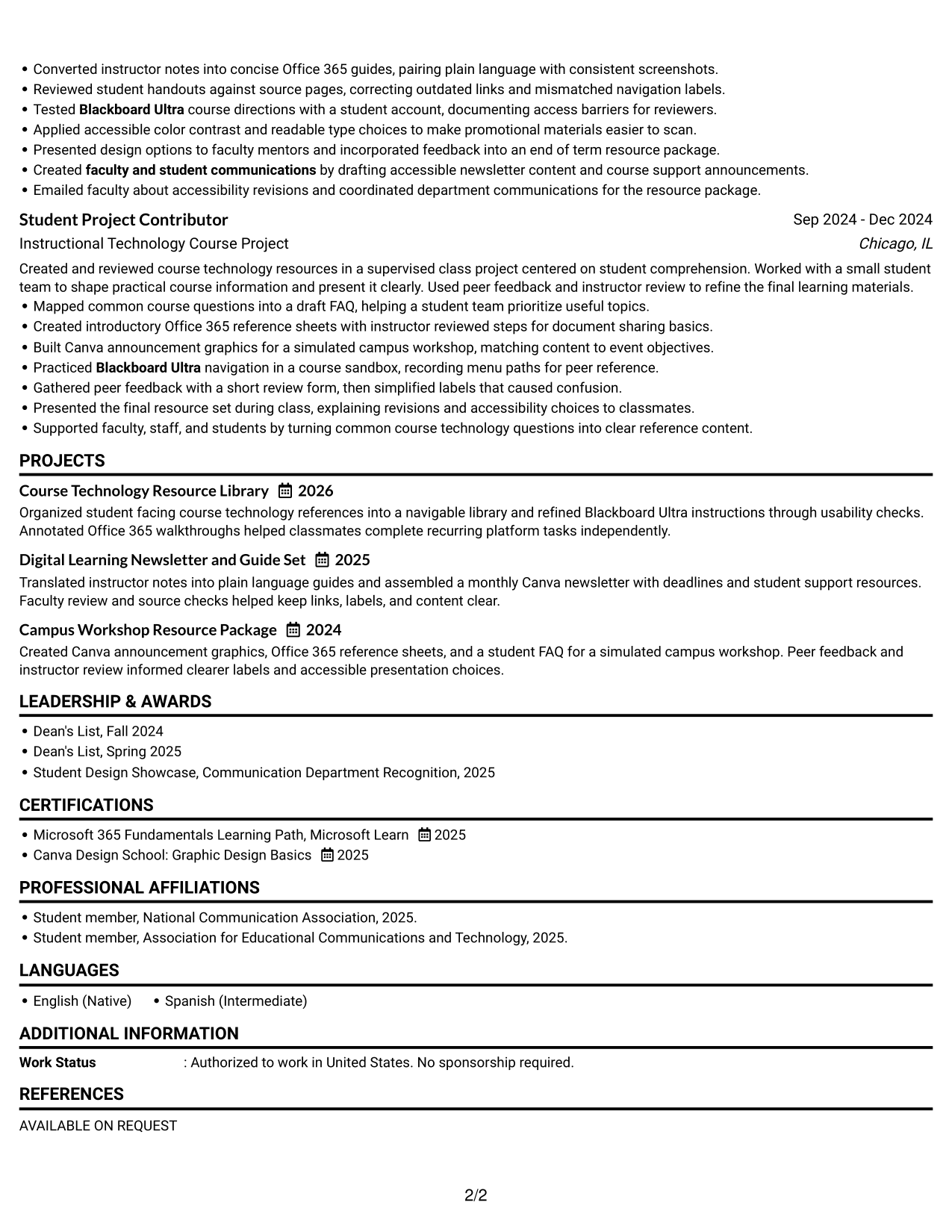
#1 Simple One Column Format Resume Example

The Simple One Column Format keeps experience, projects, skills, and education in one clear reading path, helping recruiters scan the resume in order.
 
Resume Example Page 1   Resume Example Page 2

Why This Format Works

  • A single reading path lets recruiters follow experience, projects, and education in sequence.
  • Consistent section order keeps skills and credentials easy to locate during review.
  • Full-width entries give project descriptions room to explain their purpose and outcomes.

Best For

  • Straightforward chronological resume review
  • Full-width experience and project details
  • Linear resume reading order
  • Multiple academic project entries
  • Education and credentials in sequence

Resume Keywords

  • instructional technology
  • Blackboard Ultra
  • Canva
  • Microsoft Office 365
  • Instructional materials development
  • step by step instructional documentation
  • faculty and student communications
  • Newsletter and flyer creation
  • Accessibility support
  • Customer service
  • Effective communication
  • Department project support
  • good academic standing
 

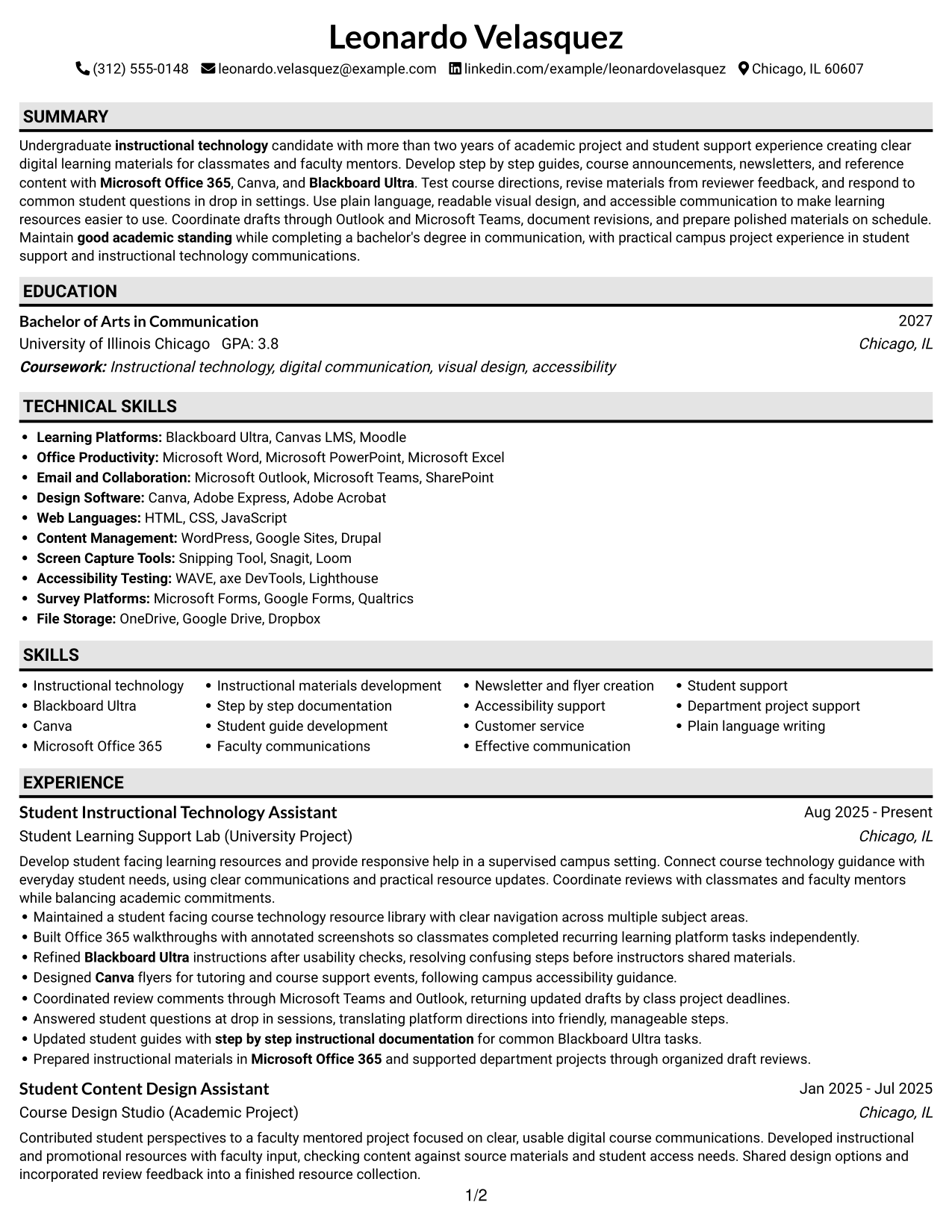
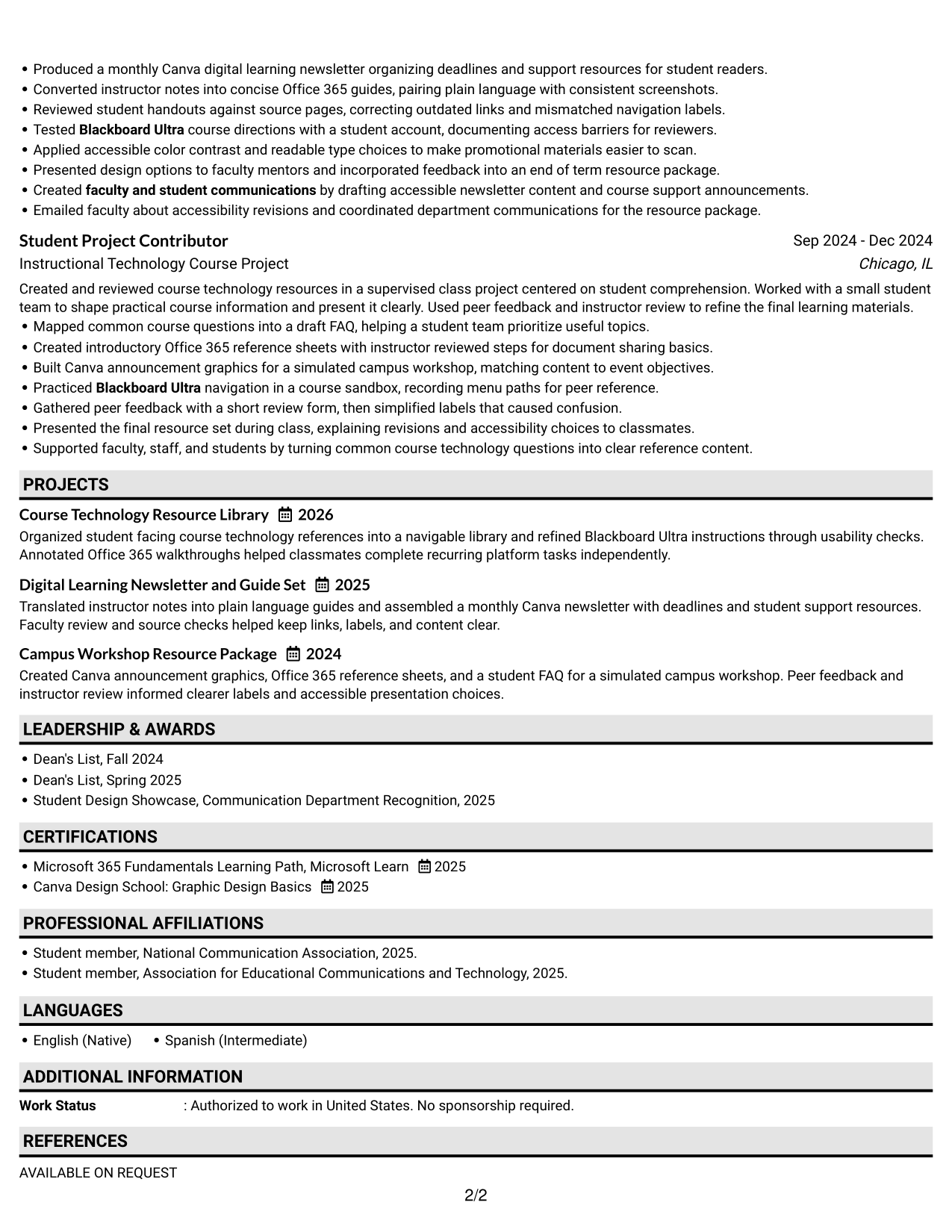
#2 Plain One Column with Shaded Labels Resume Example

Plain One Column with Shaded Labels uses visible section labels within a single reading path, helping recruiters find experience, education, and skills.
 
Resume Example Page 1   Resume Example Page 2

Why This Format Works

  • Shaded section labels help reviewers distinguish experience, education, and skills at a glance.
  • One-column reading order keeps project details connected to their supporting descriptions.
  • Clear label breaks make credentials easier to find without interrupting the resume flow.

Best For

  • Section-by-section resume scanning
  • Visible section labels
  • Continuous experience and project descriptions
  • Quick education and credential checks
  • Single-column document readability
 

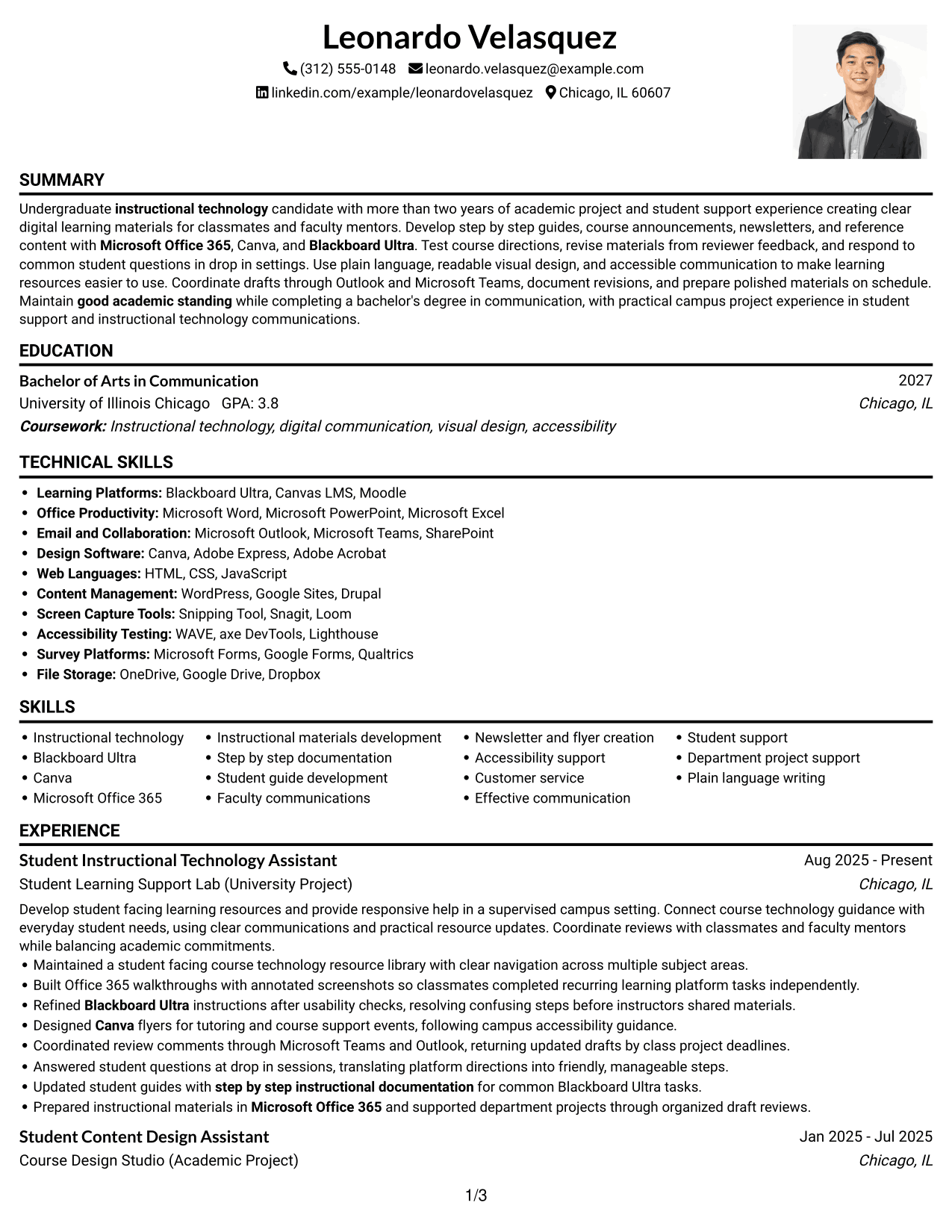
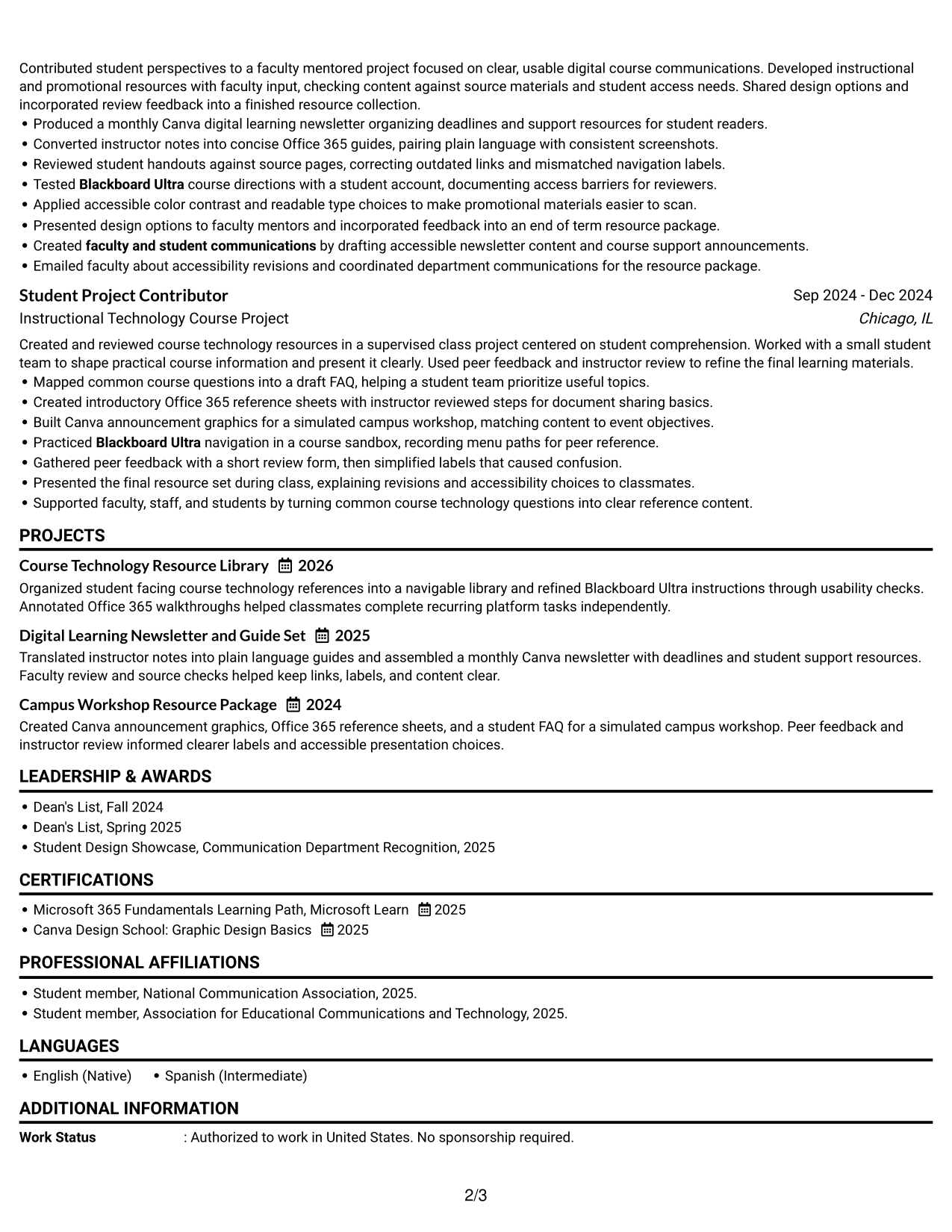
#3 One Column Format with Photo Right Resume Example

One Column Format with Photo Right keeps resume content in one reading path and places the photo on the right, so recruiters can scan work history and education without crossing columns.
 
Resume Example Page 1   Resume Example Page 2

Why This Format Works

  • One-column sections let recruiters trace experience and education without switching reading lanes.
  • Project entries remain in a single sequence, making their context easier to follow.
  • Skills and credentials can be checked within the same downward scan.

Best For

  • Photo-inclusive resume presentation
  • One-direction recruiter scanning
  • Continuous project and experience histories
  • Quick skills and credential checks
  • Resume content without column switching
 

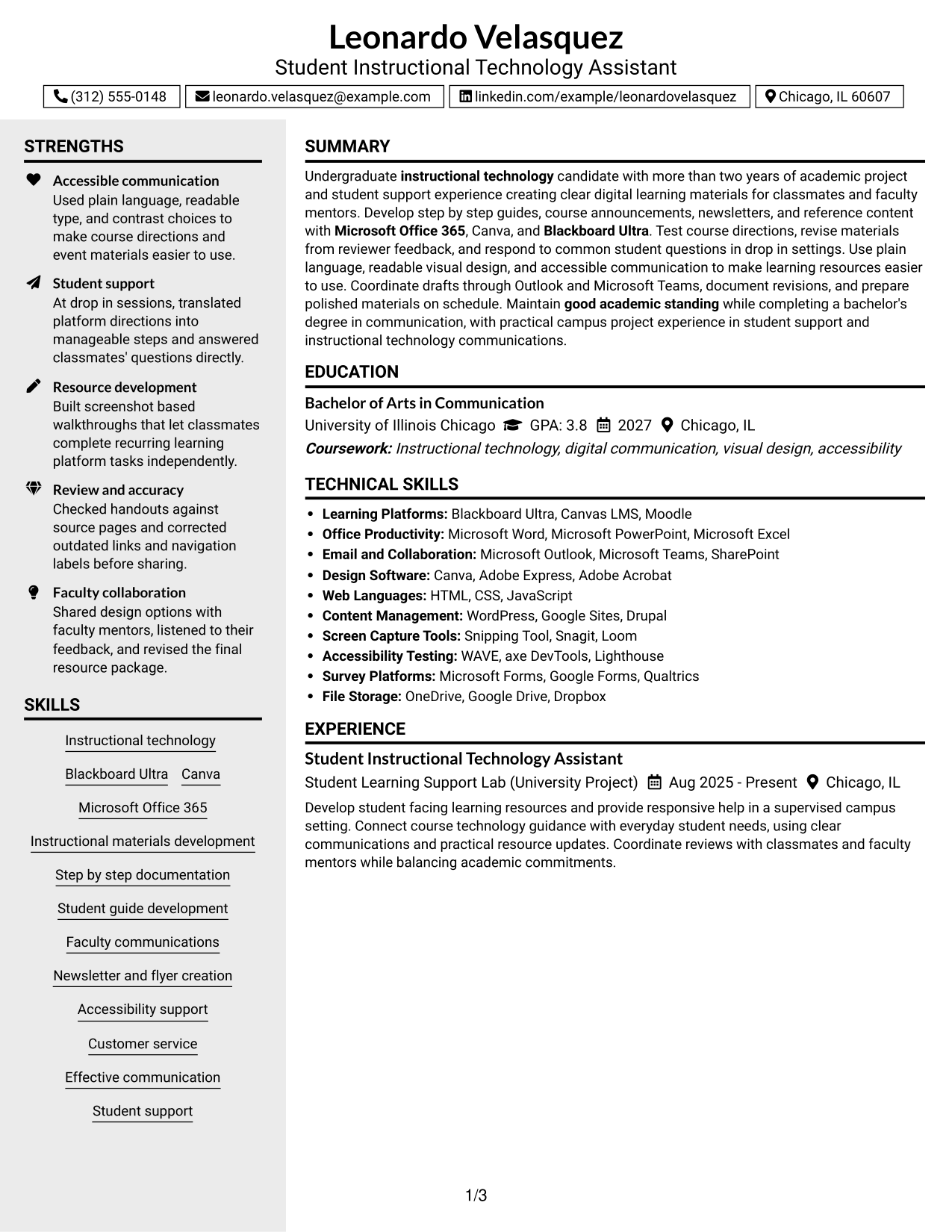
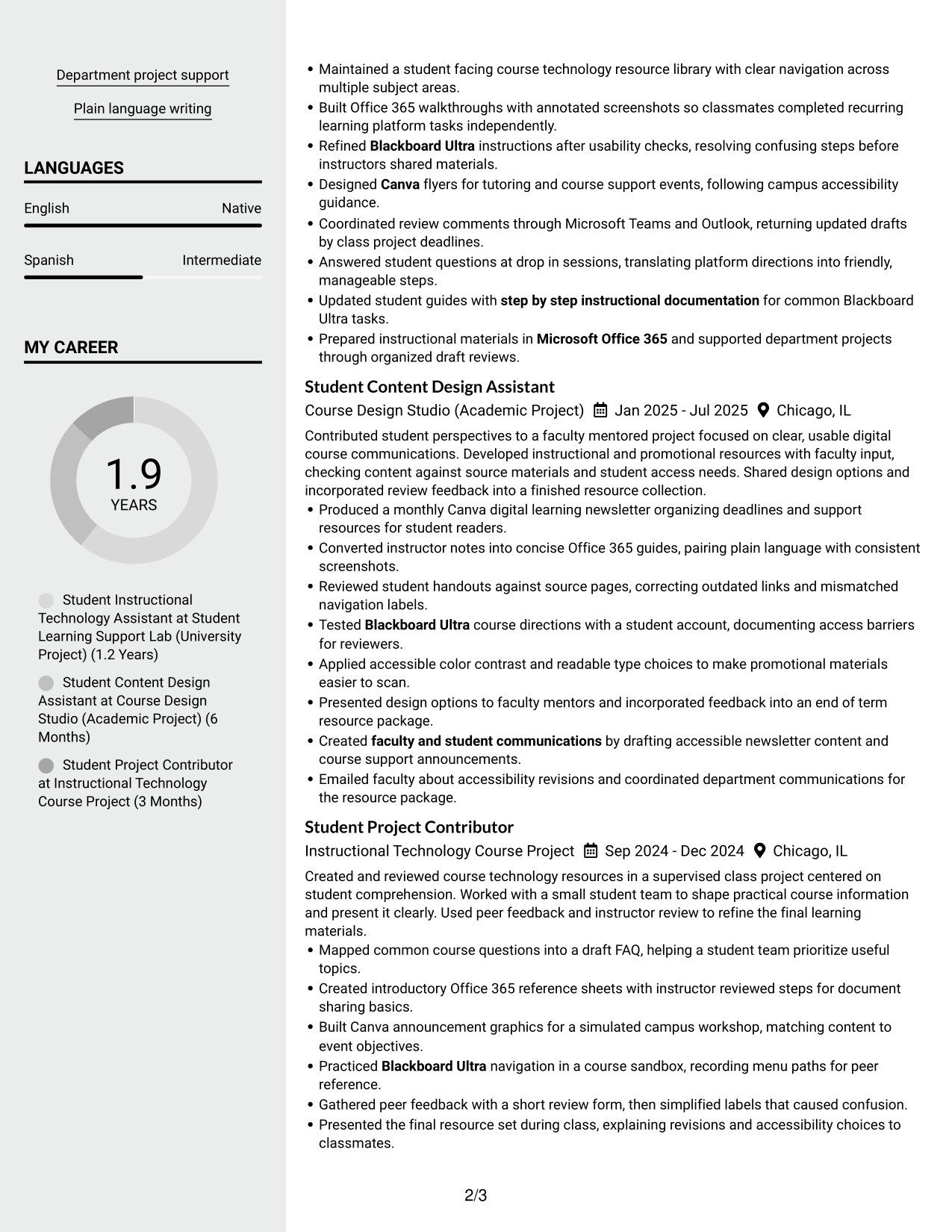
#4 Clean Two Column Sidebar Format Resume Example

Clean Two Column Sidebar Format arranges resume information in two clear areas, helping recruiters move between concise sections and detailed experience entries.
 
Resume Example Page 1   Resume Example Page 2

Why This Format Works

  • Separate column areas let recruiters scan skills and credentials apart from longer experience entries.
  • Parallel columns give compact sections and detailed project entries distinct reading areas.
  • Visual separation helps reviewers return to education and experience without losing section order.

Best For

  • Side-by-side section navigation
  • Compact skills and credential details
  • Detailed experience entries with concise sections
  • Quick returns to education information
  • Resume reviews across grouped sections


#5 Two Column Format Resume Example

Two Column Format places resume sections in two reading areas, helping recruiters scan concise information alongside fuller project and experience details.
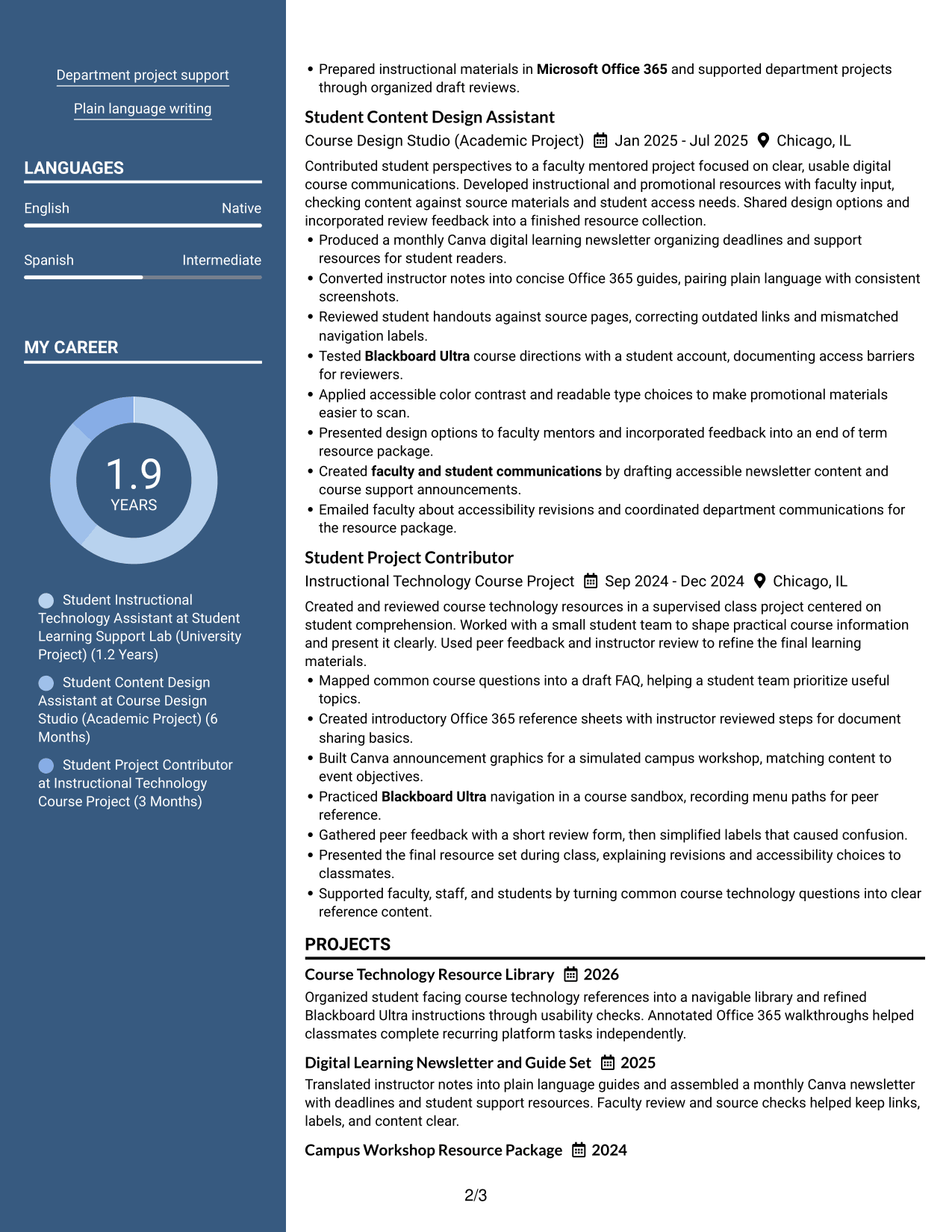
 
Resume Example Page 1   Resume Example Page 2

Why This Format Works

  • Two reading areas help recruiters scan skills and education apart from detailed project entries.
  • Distinct column paths make experience and academic project sections easier to revisit.
  • Compact sections remain visible alongside longer descriptions during resume review.

Best For

  • Side-by-side section navigation
  • Mixed levels of detail
  • Frequent section lookup
  • Compact skills and education details
  • Fuller project descriptions
 

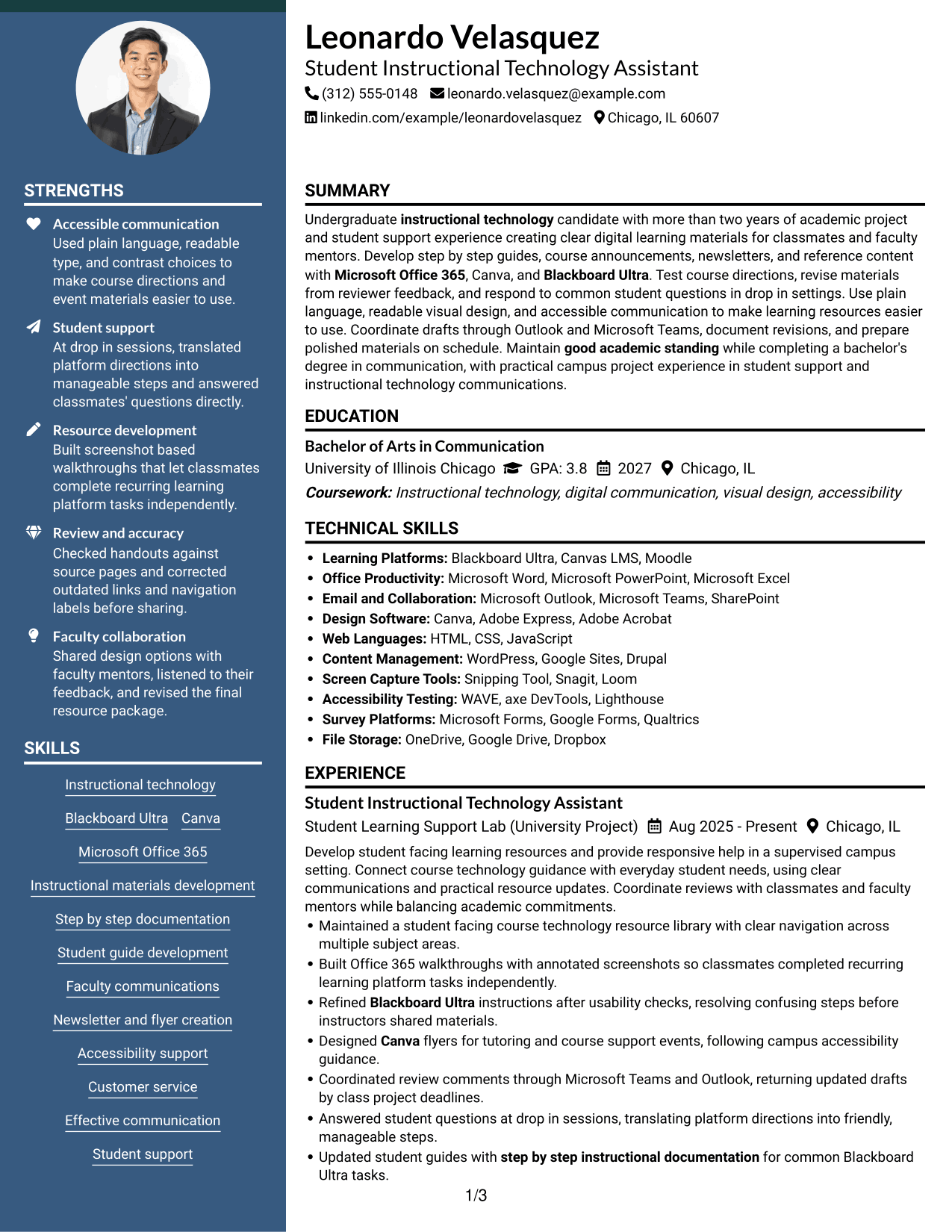
#6 Photo Header Two Column Format Resume Example

Photo Header Two Column Format places a photo in the header above two columns, giving recruiters a clear way to scan the resume sections.
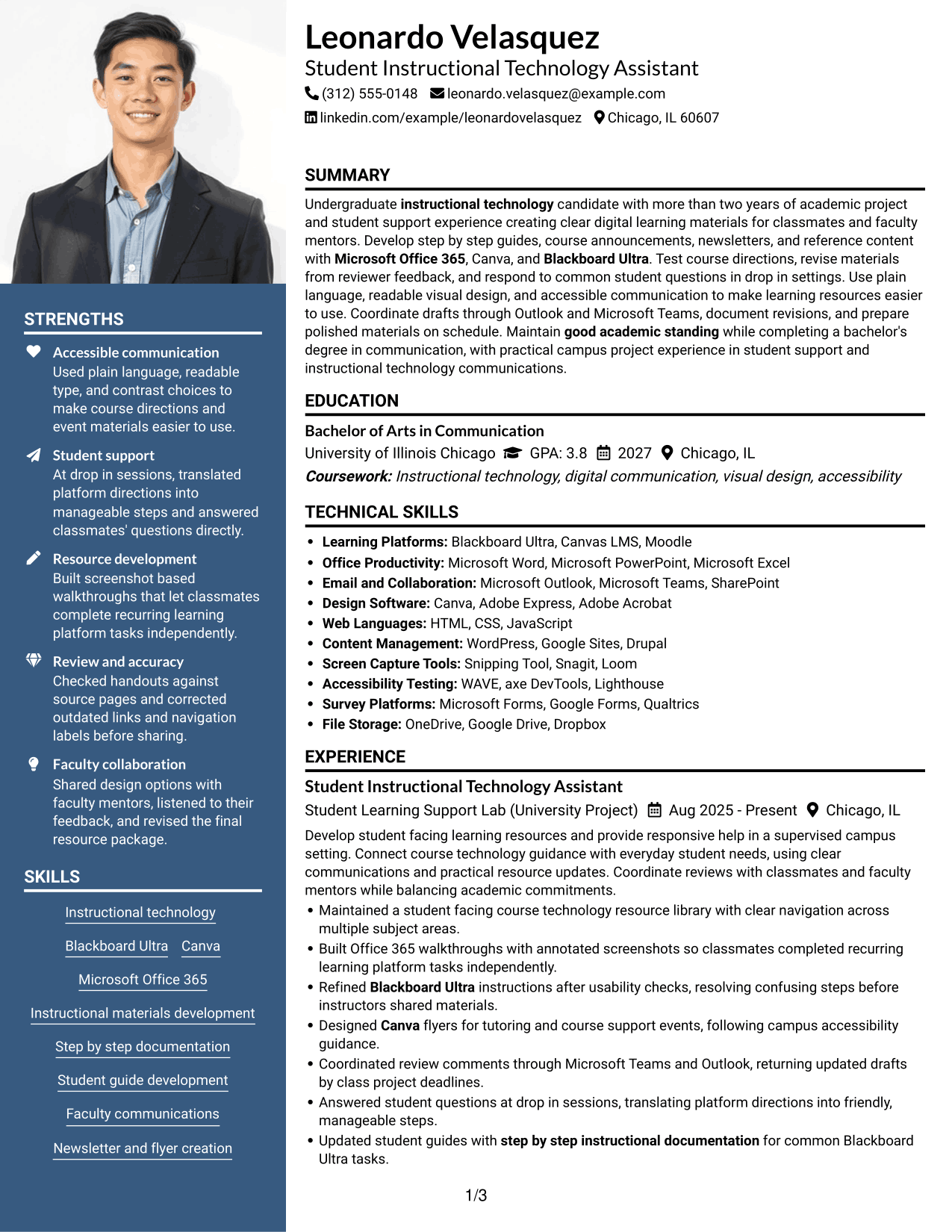
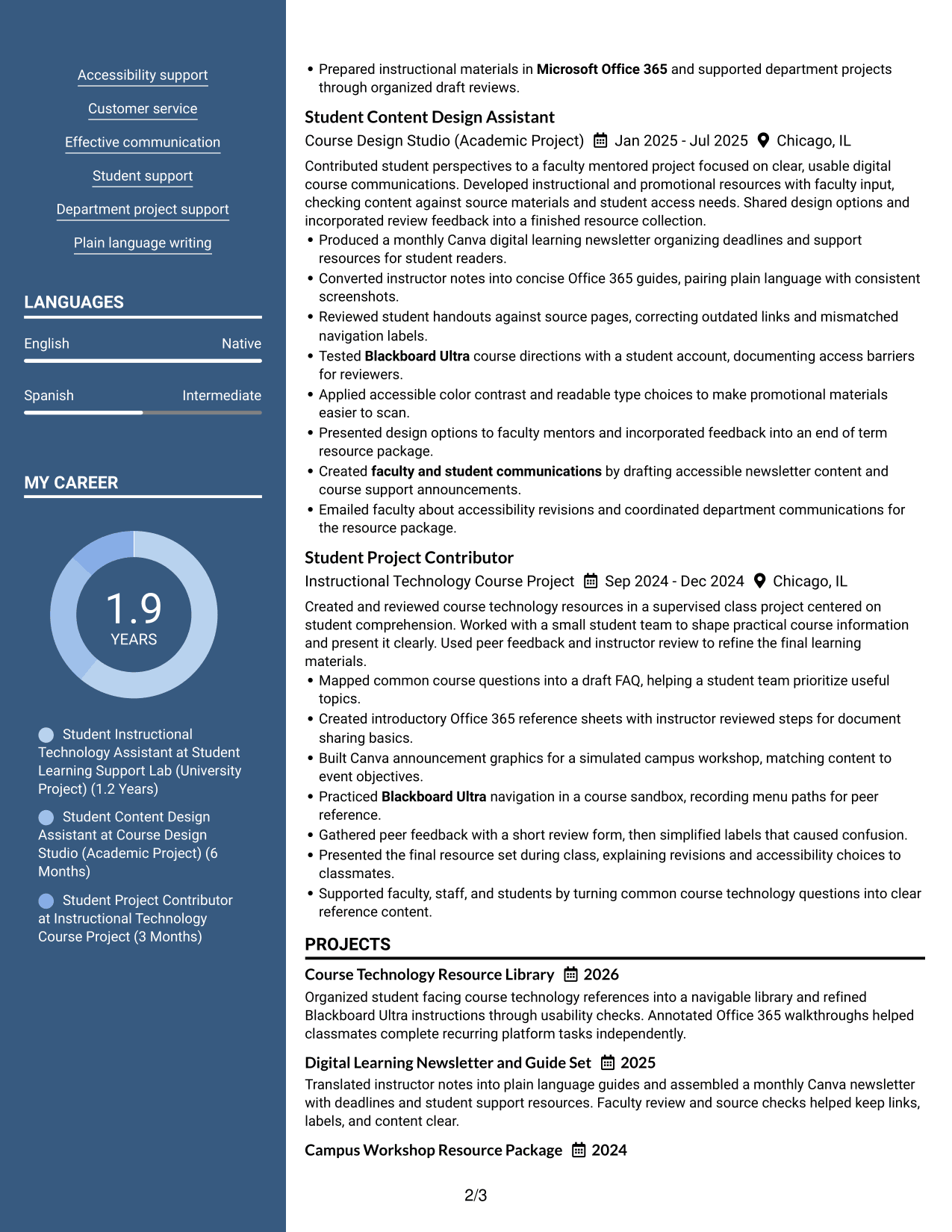
 
Resume Example Page 1   Resume Example Page 2

Why This Format Works

  • Two body columns let recruiters locate experience and education without scanning one long sequence.
  • The header photo stays separate from skills, credentials, and experience content.
  • Parallel sections help reviewers compare compact information with fuller project descriptions.

Best For

  • Photo-inclusive resume headers
  • Two-column section navigation
  • Compact details beside fuller descriptions
  • Separate access to experience and education
  • Resume reviews with varied content length
 

#7 Simple Two Column Format Resume Example

Simple Two Column Format uses two straightforward reading areas to help recruiters locate experience, skills, and education across the resume.
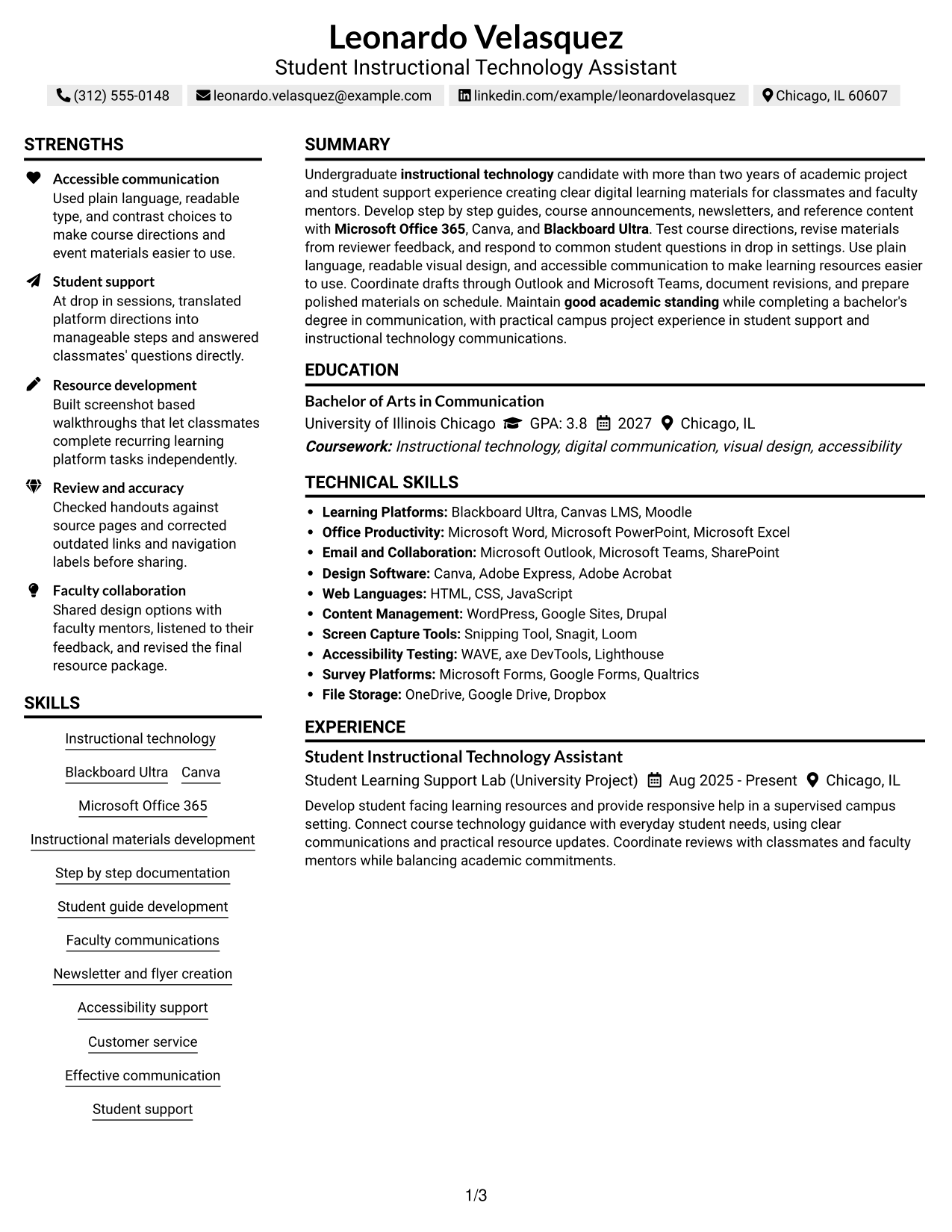
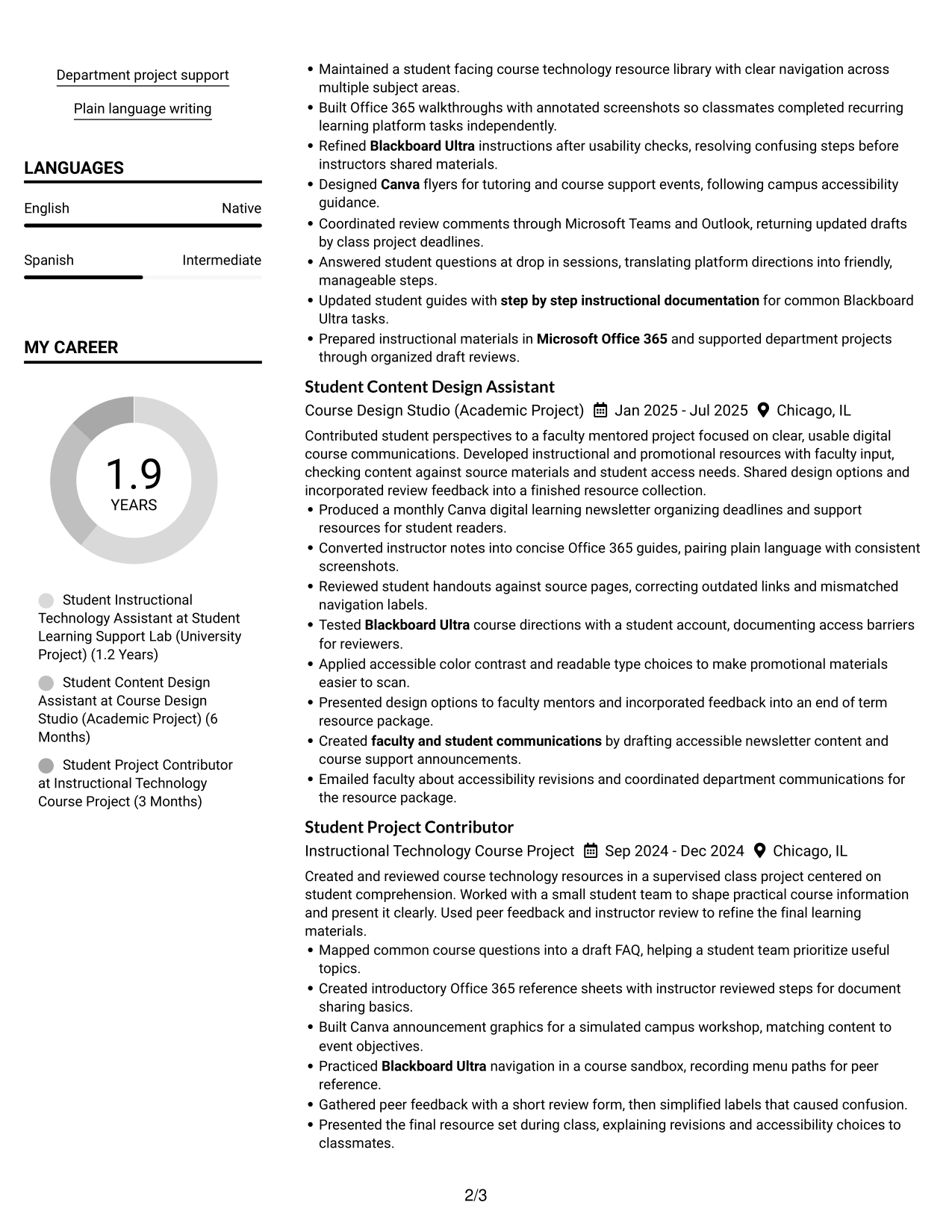
 
Resume Example Page 1   Resume Example Page 2

Why This Format Works

  • Separate reading areas help recruiters find experience, skills, and education directly.
  • Adjacent sections make compact details easier to revisit during a full resume review.
  • Project descriptions fit within a layout that keeps other resume sections visible.

Best For

  • Direct access to resume sections
  • Simple side-by-side organization
  • Quick review of compact details
  • Visible project and experience information
  • Grouped education and skills


Why Build Your Student Aide - Instructional Technology Resume with ResumeInMinutes

ResumeInMinutes helps you organize relevant coursework, projects, campus experience, and skills into a resume that is clear and easy to update. Highlight practical work with learning resources, student questions, and instructional technology tools.

  • ATS-friendly section structure
  • Clear resume organization
  • Relevant keyword guidance
  • Skills and project sections
  • Free PDF resume previews
  • Resume customization support

Use the resume editor to present your guide development, Blackboard Ultra work, Canva materials, and Office 365 skills with clear, specific evidence.


See Also


Frequently Asked Questions

Are these Student Aide - Instructional Technology resume templates ATS-friendly?

The templates use readable headings and standard resume sections. For better ATS matching, include relevant terms such as Blackboard Ultra, Canva, Microsoft Office 365, student guides, and instructional materials when they accurately describe your experience.

Do the resume examples show different layouts?

Yes. The page presents one Student Aide - Instructional Technology resume example in different layout options, so you can compare how the content appears in each format.

What should a Student Aide - Instructional Technology resume include?

Include a concise summary, relevant experience or projects, education, skills, and certifications. Use bullet points to show how you create or update guides, prepare course materials, and respond to student questions.

Can I download the resume templates as PDFs?

Yes. Free PDF previews are available so you can review the resume format before choosing a layout.

Which resume format works well for a Student Aide - Instructional Technology role?

Choose a format with clear headings and a simple reading order. Keep skills, experience, education, and projects easy to find, and avoid design elements that make the text hard to scan.

How can I show relevant experience on my resume?

Include course projects, campus work, and other relevant activities. Give specific examples, such as testing Blackboard Ultra directions, creating Canva materials, or building Office 365 walkthroughs, when these reflect your experience.

Should I include a photo on my resume?

Include a photo only if it is customary or expected in your country, region, or industry. For U.S. applications, a resume without a photo is generally the safer choice.

Can I customize these resume templates?

Yes. You can edit the resume content and adjust the layout and design to present your experience for a Student Aide - Instructional Technology role.

ATS score 89%

How we calculate this score

  • Keywords: 60% of the total. AI extracts keywords from your job description. If you do not provide one, a standard job description for the title matching your resume is used. This is not a match to a specific vacancy.
  • Text-based resume: 20%. The text resume assessed here receives 100 for this part.
  • Resume quality: 20%. We start at 100 and subtract points for issues found by our resume checks, down to a minimum of zero.
  • Keyword coverage = 100 × (confirmed matches + 0.8 × possible matches) ÷ total keywords, rounded and capped at 100. Possible matches still need checking. Saved generation audits use their saved keyword percentage.
  • Final score = 60% of keyword coverage + 20% of the text score + 20% of the quality score, rounded to a whole number. Without keywords, no overall ATS score is available.

What this score means

Our scores are estimates, not employer ratings. They may contain errors and do not guarantee accurate parsing, a ranking, an interview, or a job. Check your document against the employer’s requirements. You are responsible for relying on this score.

Terms and Conditions

Score weights: Keywords 60% · Text based resume 20% · Resume quality 20%

Keywords: 13 matched + 2 possible of 18 (81%) · Resume quality: 100%

Resume quality 100% · Weight 20% · Issues (0)

Details
  • ✓Name present: Leonardo Velasquez
  • ✓Email format: leonardo.velasquez@example.com
  • ✓Phone format: (312) 555-0148
  • ✓Experience 1: Job title: Student Instructional Technology Assistant
  • ✓Experience 1: Company name: Student Learning Support Lab (University Project)
  • ✓Experience 1: Work location: Chicago, IL
  • ✓Experience 1: Employment dates: Aug 2025 - Present
  • ✓Experience 1: Description or achievements: Present
  • ✓Experience 2: Job title: Student Content Design Assistant
  • ✓Experience 2: Company name: Course Design Studio (Academic Project)
  • ✓Experience 2: Work location: Chicago, IL
  • ✓Experience 2: Employment dates: Jan 2025 - Jul 2025
  • ✓Experience 2: Description or achievements: Present
  • ✓Experience 3: Job title: Student Project Contributor
  • ✓Experience 3: Company name: Instructional Technology Course Project
  • ✓Experience 3: Work location: Chicago, IL
  • ✓Experience 3: Employment dates: Sep 2024 - Dec 2024
  • ✓Experience 3: Description or achievements: Present
  • ✓No placeholder fields
  • ✓No repeated achievement bullets
  • ✓No empty bullets

No issues found by the current checks.

Text Based Resume 100% · Weight 20%

Parsed text
Leonardo Velasquez
(312) 555-0148
leonardo.velasquez@example.com
linkedin.com/example/leonardovelasquez
Chicago, IL 60607
SUMMARY
Undergraduate instructional technology candidate with more than two years of academic project and student support experience creating clear digital learning materials for classmates and faculty mentors. Develop step by step guides, course announcements, newsletters, and reference content with Microsoft Office 365, Canva, and Blackboard Ultra. Test course directions, revise materials from reviewer feedback, and respond to common student questions in drop in settings. Use plain language, readable visual design, and accessible communication to make learning resources easier to use. Coordinate drafts through Outlook and Microsoft Teams, document revisions, and prepare polished materials on schedule. Maintain good academic standing while completing a bachelor's degree in communication, with practical campus project experience in student support and instructional technology communications.
EDUCATION
Bachelor of Arts in Communication
University of Illinois Chicago
GPA: 3.8
2027
Chicago, IL
Coursework: Instructional technology, digital communication, visual design, accessibility
TECHNICAL SKILLS
Learning Platforms: Blackboard Ultra, Canvas LMS, Moodle
Office Productivity: Microsoft Word, Microsoft PowerPoint, Microsoft Excel
Email and Collaboration: Microsoft Outlook, Microsoft Teams, SharePoint
Design Software: Canva, Adobe Express, Adobe Acrobat
Web Languages: HTML, CSS, JavaScript
Content Management: WordPress, Google Sites, Drupal
Screen Capture Tools: Snipping Tool, Snagit, Loom
Accessibility Testing: WAVE, axe DevTools, Lighthouse
Survey Platforms: Microsoft Forms, Google Forms, Qualtrics
File Storage: OneDrive, Google Drive, Dropbox
SKILLS
Instructional technology
Blackboard Ultra
Canva
Microsoft Office 365
Instructional materials development
Step by step documentation
Student guide development
Faculty communications
Newsletter and flyer creation
Accessibility support
Customer service
Effective communication
Student support
Department project support
Plain language writing
EXPERIENCE
Student Instructional Technology Assistant
Student Learning Support Lab (University Project)
Aug 2025 - Present
Chicago, IL
Develop student facing learning resources and provide responsive help in a supervised campus setting. Connect course technology guidance with everyday student needs, using clear communications and practical resource updates. Coordinate reviews with classmates and faculty mentors while balancing academic commitments.
Maintained a student facing course technology resource library with clear navigation across multiple subject areas.
Built Office 365 walkthroughs with annotated screenshots so classmates completed recurring learning platform tasks independently.
Refined Blackboard Ultra instructions after usability checks, resolving confusing steps before instructors shared materials.
Designed Canva flyers for tutoring and course support events, following campus accessibility guidance.
Coordinated review comments through Microsoft Teams and Outlook, returning updated drafts by class project deadlines.
Answered student questions at drop in sessions, translating platform directions into friendly, manageable steps.
Updated student guides with step by step instructional documentation for common Blackboard Ultra tasks.
Prepared instructional materials in Microsoft Office 365 and supported department projects through organized draft reviews.
Student Content Design Assistant
Course Design Studio (Academic Project)
Jan 2025 - Jul 2025
Chicago, IL
Contributed student perspectives to a faculty mentored project focused on clear, usable digital course communications. Developed instructional and promotional resources with faculty input, checking content against source materials and student access needs. Shared design options and incorporated review feedback into a finished resource collection.
Produced a monthly Canva digital learning newsletter organizing deadlines and support resources for student readers.
Converted instructor notes into concise Office 365 guides, pairing plain language with consistent screenshots.
Reviewed student handouts against source pages, correcting outdated links and mismatched navigation labels.
Tested Blackboard Ultra course directions with a student account, documenting access barriers for reviewers.
Applied accessible color contrast and readable type choices to make promotional materials easier to scan.
Presented design options to faculty mentors and incorporated feedback into an end of term resource package.
Created faculty and student communications by drafting accessible newsletter content and course support announcements.
Emailed faculty about accessibility revisions and coordinated department communications for the resource package.
Student Project Contributor
Instructional Technology Course Project
Sep 2024 - Dec 2024
Chicago, IL
Created and reviewed course technology resources in a supervised class project centered on student comprehension. Worked with a small student team to shape practical course information and present it clearly. Used peer feedback and instructor review to refine the final learning materials.
Mapped common course questions into a draft FAQ, helping a student team prioritize useful topics.
Created introductory Office 365 reference sheets with instructor reviewed steps for document sharing basics.
Built Canva announcement graphics for a simulated campus workshop, matching content to event objectives.
Practiced Blackboard Ultra navigation in a course sandbox, recording menu paths for peer reference.
Gathered peer feedback with a short review form, then simplified labels that caused confusion.
Presented the final resource set during class, explaining revisions and accessibility choices to classmates.
Supported faculty, staff, and students by turning common course technology questions into clear reference content.
PROJECTS
Course Technology Resource Library
2026
Organized student facing course technology references into a navigable library and refined Blackboard Ultra instructions through usability checks. Annotated Office 365 walkthroughs helped classmates complete recurring platform tasks independently.
Digital Learning Newsletter and Guide Set
2025
Translated instructor notes into plain language guides and assembled a monthly Canva newsletter with deadlines and student support resources. Faculty review and source checks helped keep links, labels, and content clear.
Campus Workshop Resource Package
2024
Created Canva announcement graphics, Office 365 reference sheets, and a student FAQ for a simulated campus workshop. Peer feedback and instructor review informed clearer labels and accessible presentation choices.
LEADERSHIP & AWARDS
Dean's List, Fall 2024
Dean's List, Spring 2025
Student Design Showcase, Communication Department Recognition, 2025
CERTIFICATIONS
Microsoft 365 Fundamentals Learning Path, Microsoft Learn
2025
Canva Design School: Graphic Design Basics
2025
PROFESSIONAL AFFILIATIONS
Student member, National Communication Association, 2025.
Student member, Association for Educational Communications and Technology, 2025.
LANGUAGES
English (Native)
Spanish (Intermediate)
ADDITIONAL INFORMATION
Work Status
: Authorized to work in United States. No sponsorship required.
REFERENCES
AVAILABLE ON REQUEST

Matched keywords (13)

  • instructional technology
  • Blackboard Ultra
  • Canva
  • Microsoft Office 365
  • Instructional materials development
  • step by step instructional documentation
  • faculty and student communications
  • Newsletter and flyer creation
  • Accessibility support
  • Customer service
  • Effective communication
  • Department project support
  • good academic standing

Missing keywords (3)

  • Current student
  • Minimum 2.0 GPA
  • Equity

Possible matches (2)

  • Student guide development and updates80% credit: 4.44 percentage points of 5.56 possible.
  • Faculty, staff, and student support80% credit: 4.44 percentage points of 5.56 possible.
Disclaimer: All names, images, contact information, employment histories, achievements, security clearances, military credentials, and other qualifications shown in this content are fictional and used for illustrative purposes only. Any resemblance to actual persons, living or deceased, is purely coincidental.

Resume and cover-letter examples and recommendations in this article reflect general best practices and professional experience and are provided for guidance only. Results may vary based on role, industry, region, and hiring organization.

Content Accuracy and Verification: To the fullest extent permitted by applicable law, we do not represent or warrant that resume or cover-letter guidance, examples, recommendations, or related information are accurate, complete, current, error-free, or suitable for any particular purpose. You are responsible for independently reviewing and verifying the information before relying on it.

ATS and Cover-Letter Scores: ATS scores are estimates calculated using our own formula, informed by publicly available guidance on resume formatting and keyword matching. They are not scores issued or endorsed by an ATS provider or employer. Cover-letter scores are also our own assessments. Parsing, weighting, screening criteria, and results vary between systems, employers, job descriptions, and document formats. No score guarantees successful parsing, a particular ranking, an interview, or employment. Use scores as general guidance and independently check your documents against the employer’s requirements. To the fullest extent permitted by applicable law, we accept no liability for errors in scores or parsing, or losses arising from reliance on these assessments. Nothing in this notice excludes liability or limits consumer rights that cannot lawfully be excluded or limited.

Terms and Conditions
 
> JP 1 1
PDF Footer and Margins Setup
The margins are applied to the document, and the footer shows up in the preview and the PDF

Footer Font Settings

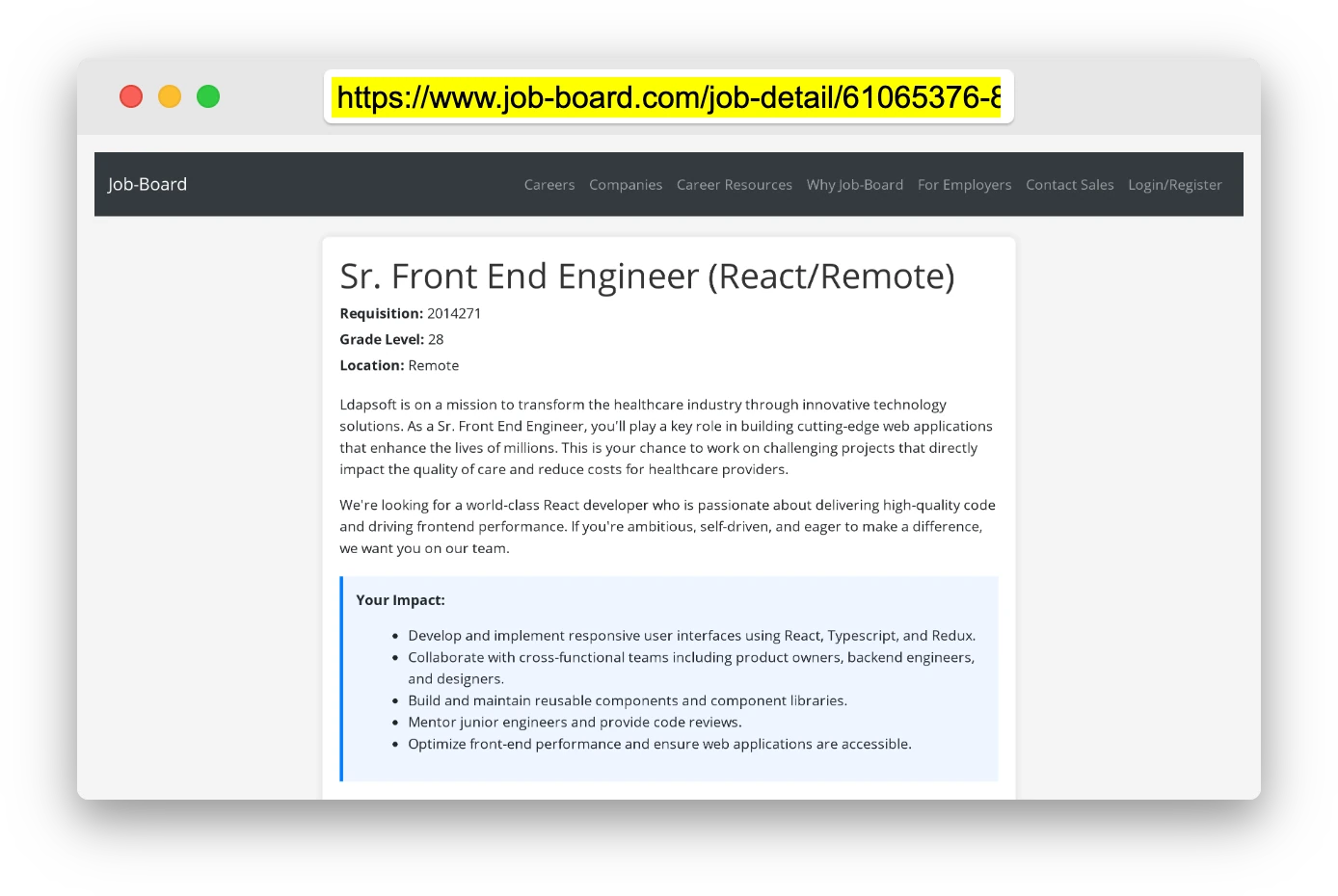
Are you applying for a specific job
so we can tailor your resume to it?
Are you applying for a specific job
so we can tailor your cover letter to it?
Type your details as text to generate a personalized resume Type your details as text to generate a personalized cover letter
Website link found! Ready to create resume from:
Drag the into the box to verify you're human.
Drop here

My Resumes

Displaying {number_of_files} files (out of {total_of_all_files} total)
Name File Type Last Modified: Description:

Rename File

Filename already exists!

Delete Files

Warning: This action is irreversible. Once you click submit, the files will be permanently deleted.

Heading text
Upload From Computer Upload
Select From Existing
LinkedIn
Drag & Drop files anywhere in this tab, or

Uploaded Files

Delete Name Last Updated Use This File
Select this to use the file for generating your resume and cover letter. Only one source—uploaded file, selected file, or LinkedIn text—can be used.

My Files

Resumes or cover letters you create will appear here. No files available yet.
Delete Name Last Updated Use This File
Select this to use the file for generating your resume and cover letter. Only one source—uploaded file, selected file, or LinkedIn text—can be used.

Add LinkedIn Profile PDF

You can download your LinkedIn profile as a PDF by opening linkedin.com in a web browser, clicking your profile photo, selecting the “More” or “Resources” button, and choosing “Save to PDF.” You can then attach the PDF using the Upload From Computer tab.

Paste Your LinkedIn Profile Text

If you have copied the LinkedIn profile text, paste it below. See how to copy your profile from LinkedIn

Select this to use the LinkedIn profile text for generating your resume and cover letter. Only one source—uploaded file, selected file, or LinkedIn text—can be used.

Try these controls

<
>